Use the Vonage Client SDK
It’s time to complete Silent Authentication properly by having the Android app call the check_url using the mobile network, then sending the resulting code back to the backend via /check-code.
Rather than using OkHttp to call check_url, we’ll use the Vonage Client SDK because Silent Authentication depends on mobile network context (carrier routing, SIM/network identity), and the request may go over Wi-Fi, which breaks the purpose of Silent Auth.
The Vonage Client SDK exists to solve exactly this:
- It can force the request over cellular data (or use the correct network route)
- It handles redirects and request details in the way Silent Auth expects
- It gives you a structured response so you can extract the
codecleanly
In this section we’re building the following:
- If
check_urlexists, call it from the phone using the Vonage Client SDK. - Extract
codefrom the response. - Send
{ request_id, code }to the backend via/check-code. - If Silent Auth fails, fall back to SMS:
- call
/next(best-effort, so we don’t wait ~20 seconds). - show the SMS code UI.
- call
Add the Vonage Client SDK Dependency
Add the dependency to the current project. Open your build.gradle.kts and add:
implementation 'com.vonage:client-library:1.0.1'
After adding it, sync Gradle.
Initialize the SDK
Initialize the SDK once in MainActivity.onCreate():
class MainActivity : ComponentActivity() {
    override fun onCreate(savedInstanceState: Bundle?) {
        super.onCreate(savedInstanceState)

        // Needed for Silent Auth cellular requests
        VGCellularRequestClient.initializeSdk(this.applicationContext)

        setContent { VerifyApp() }
    }
}
This is safe to do at startup and avoids forgetting it later.
Implement checkSilentAuth(checkUrl) Using the SDK
Add this function to your MainActivity.kt.. It performs a cellular GET request to check_url, follows redirects, and extracts code from the JSON response.
import com.vonage.clientlibrary.VGCellularRequestClient
import com.vonage.clientlibrary.VGCellularRequestParameters
import kotlinx.coroutines.Dispatchers
import kotlinx.coroutines.withContext
import java.io.IOException

private suspend fun checkSilentAuth(url: String): String = withContext(Dispatchers.IO) {
    val params = VGCellularRequestParameters(
        url = url,
        headers = mapOf(),
        queryParameters = mapOf(),
        maxRedirectCount = 10
    )

    val response = VGCellularRequestClient.getInstance()
        .startCellularGetRequest(params, false)

    val httpStatus = response.optInt("http_status", -1)
    val sdkError = response.optString("error", "")

    if (sdkError.isNotEmpty()) {
        throw IOException("Silent Auth SDK error: $sdkError")
    }

    if (httpStatus !in 200..299) {
        val rawBody = response.optString("response_raw_body", "")
        throw IOException("Silent Auth failed: HTTP $httpStatus - ${rawBody.take(200)}")
    }

    val bodyJsonObj = response.optJSONObject("response_body")
    val code = bodyJsonObj?.optString("code", null)

    if (code.isNullOrBlank()) {
        throw IOException("Silent Auth response missing 'code'")
    }

    code
}
The method returns a code string that your backend can validate with POST /check-code.
Update the “Start verification” Flow to Attempt Silent Auth
Now replace the “always force SMS fallback” logic from the previous section with:
- Try Silent Auth if
check_urlis present - If it fails, trigger
/next(best-effort) and show SMS UI
Conceptually:
-
POST /verification→(request_id, check_url?) -
If
check_urlexists:code = checkSilentAuth(check_url)POST /check-codewith(request_id, code)
-
If that fails:
- call
POST /next(optional UX optimization) - show SMS UI
- call
Here’s the core part you should use inside your Compose button onClick (inside a coroutine):
val start = startVerification(phone)
val requestId = start.requestId
val checkUrl = start.checkUrl

if (!checkUrl.isNullOrBlank()) {
    statusMessage = "Attempting Silent Authentication..."

    try {
        val codeFromSa = checkSilentAuth(checkUrl)
        val result = submitCode(requestId, codeFromSa)

        if (result.verified) {
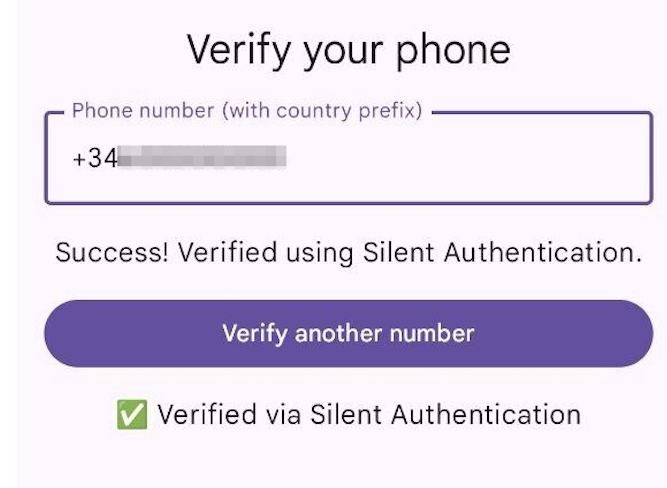
            uiState = VerifyUiState.Verified("Silent Authentication")
            statusMessage = "Verified via Silent Authentication"
        } else {
            // Silent Auth did not complete successfully
            uiState = VerifyUiState.EnterSms(requestId)
            statusMessage = "Silent Auth didn't complete. Please enter the SMS code."
        }
    } catch (e: Exception) {
        // Silent Auth failed quickly: force fallback so we don't wait ~20 seconds
        statusMessage = "Silent Auth failed. Please enter the SMS code."

        try {
            requestNextWorkflow(requestId)
        } catch (fallbackError: Exception) {
            // Ignore fallback error, just proceed to SMS
        }

        uiState = VerifyUiState.EnterSms(requestId)
    }
} else {
    // No check_url: Silent Auth not available. Go straight to SMS.
    uiState = VerifyUiState.EnterSms(requestId)
    statusMessage = "Silent Authentication is not available. Please enter the SMS code."
}
Getting Started with Silent Authentication
Silent Authentication takes quite a bit to understand. This tutorial shows you how to build an integration from scratch with Nodejs and Kotlin