WhatsAppフローを始める
WhatsAppフロー を使えば、WhatsApp内のリッチUIコンポーネントを通じてユーザーからの情報収集が簡単に行えます。新規リードの獲得、登録、顧客からのフィードバックなどの用途に大変便利です。
WhatsAppフローをご利用になるには、以下の手順が必要です:
- WhatsAppフローの作成 - WhatsApp マネージャーでWhatsApp フロー定義を作成します。
- WhatsAppテンプレートの作成 - ビジネスメッセージとしてWhatsAppフローを使用する場合、WhatsAppフローを開始するWhatsAppテンプレートを作成します。
- WhatsApp フローを使ってメッセージを送信 - WhatsAppテンプレートを使ってWhatsAppフローを開始するメッセージを送信するか、既存の会話ウィンドウ内でインタラクティブメッセージとして送信します。
WhatsApp マネージャーでWhatsAppフローを作成
現在、WhatsApp Flowsは以下の場所でしか作成できません。 WhatsApp マネージャー.
新規WhatsAppフローはWhatsApp マネージャー > フローメニューから作成できます。WhatsApp テンプレートを新規作成する際にも新規WhatsAppフローを作成できます。
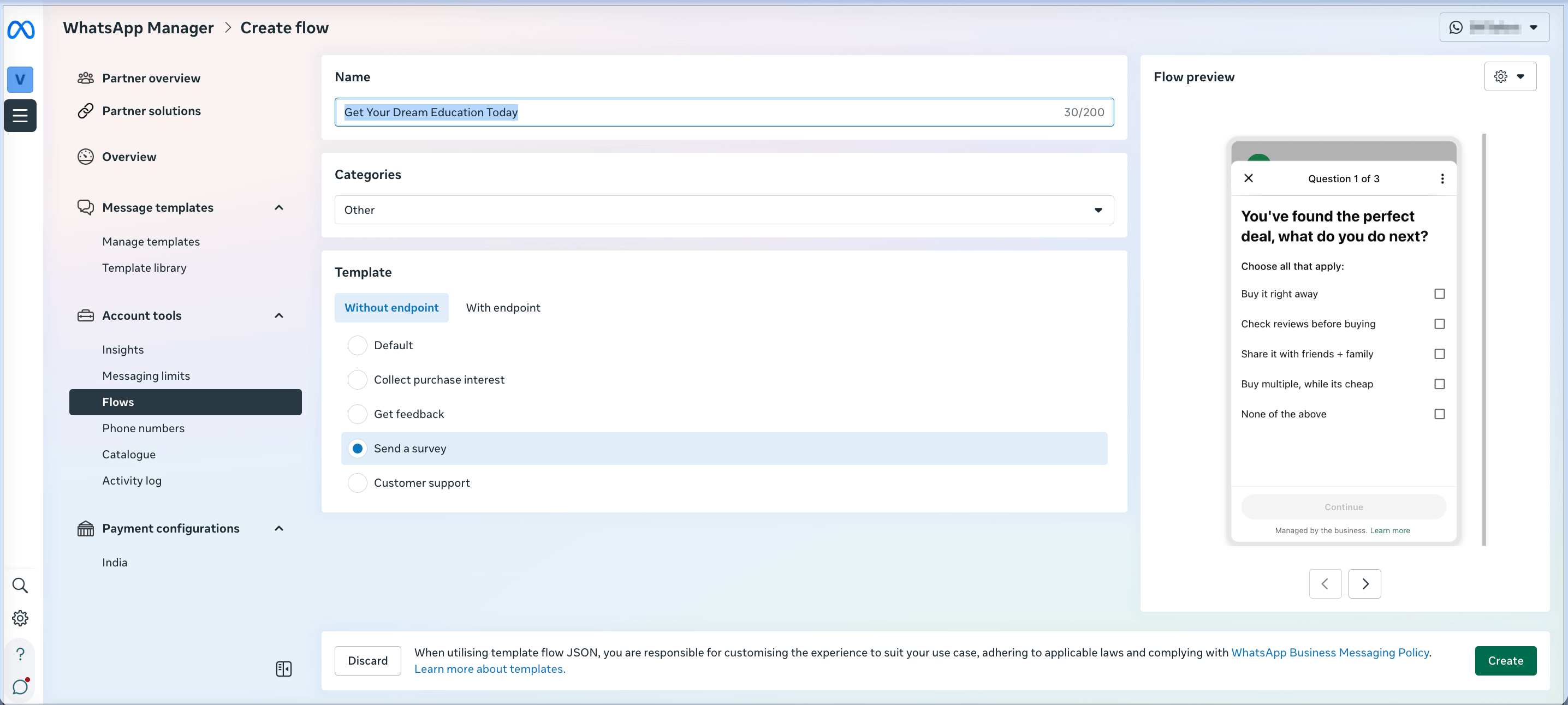
フローエディターでは、まず、フローの名前を追加し、収集したい情報の種類に応じたテンプレートを選択する必要があります:
次に、JSONを編集して説明を追加し、フローが送信されたらユーザーが記入する質問と回答を更新する:
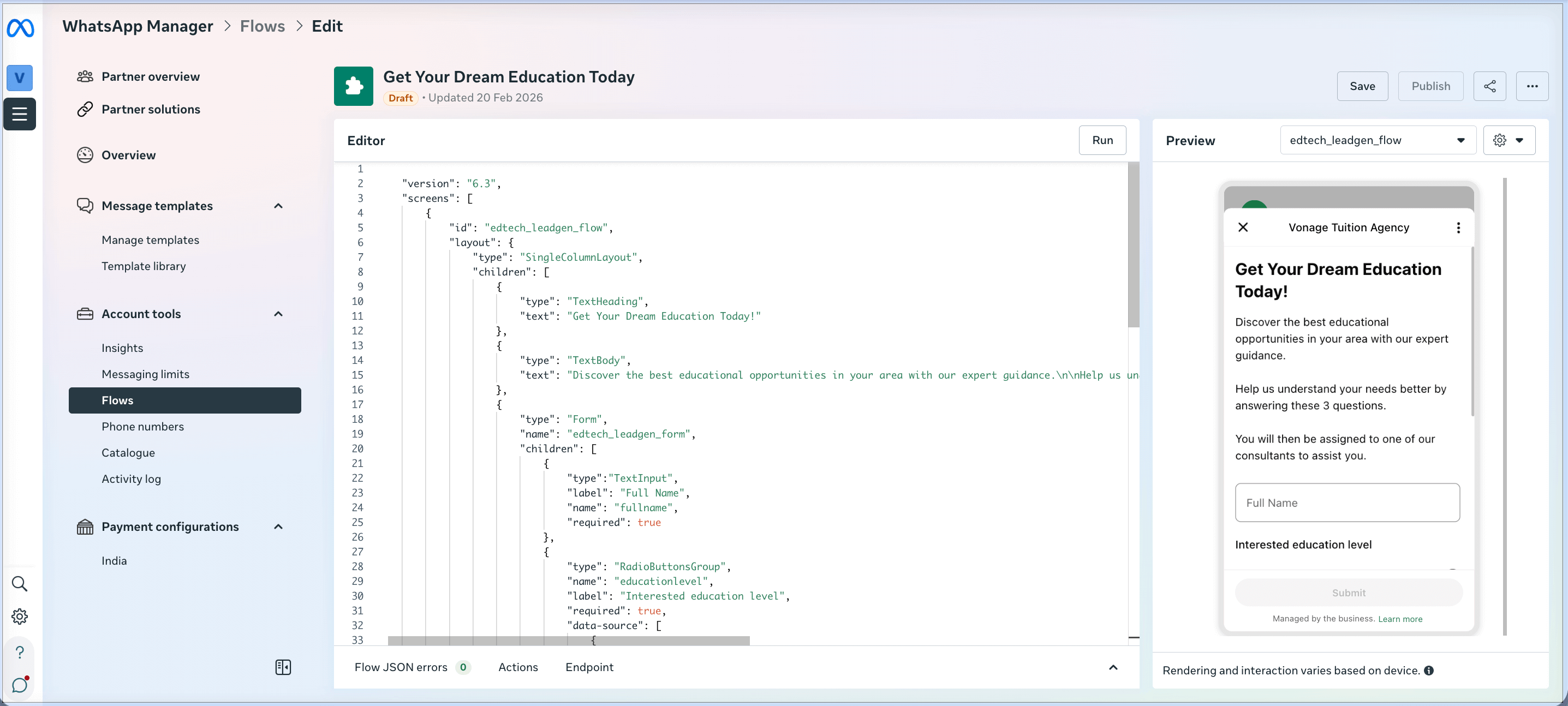
メタを見る ドキュメンテーション フローを定義するJSONで有効にできるテンプレートとコンポーネントの完全なリストについては、こちらを参照してください。
フローとJSONの例
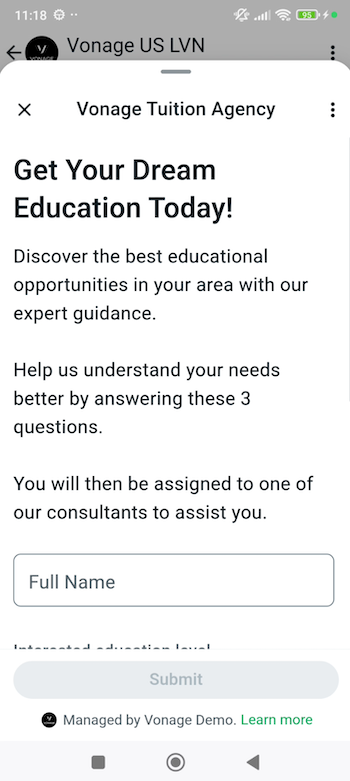
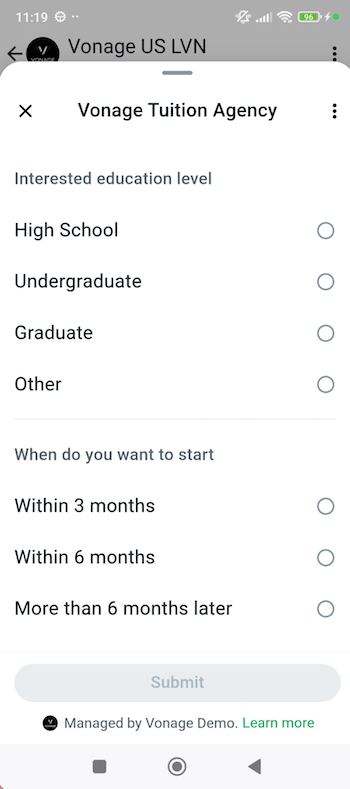
WhatsAppフローとそのJSON定義の例を以下に示す:
 |  |
{
    "version": "6.3",
    "screens": [
        {
            "id": "edtech_leadgen_flow",
            "layout": {
                "type": "SingleColumnLayout",
                "children": [
                    {
                        "type": "TextHeading",
                        "text": "Get Your Dream Education Today!"
                    },
                    {
                        "type": "TextBody",
                        "text": "Discover the best educational opportunities in your area with our expert guidance.\n\nHelp us understand your needs better by answering these 3 questions.\n\nYou will then be assigned to one of our consultants to assist you."
                    },
                    {
                        "type": "Form",
                        "name": "edtech_leadgen_form",
                        "children": [
                            {
                                "type":"TextInput",
                                "label": "Full Name",
                                "name": "fullname",
                                "required": true
                            },
                            {
                                "type": "RadioButtonsGroup",
                                "name": "educationlevel",
                                "label": "Interested education level",
                                "required": true,
                                "data-source": [
                                    {
                                        "id": "High School",
                                        "title": "High School"
                                    },
                                    {
                                        "id": "Undergraduate",
                                        "title": "Undergraduate"
                                    },
                                    {
                                        "id": "Graduate",
                                        "title": "Graduate"
                                    },
                                    {
                                        "id": "Other",
                                        "title": "Other"
                                    }
                                ]
                            },
                            {
                                "type": "RadioButtonsGroup",
                                "name": "whentostart",
                                "label": "When do you want to start",
                                "required": true,
                                "data-source": [
                                    {
                                        "id": "Within 3 months",
                                        "title": "Within 3 months"
                                    },
                                    {
                                        "id": "Within 6 months",
                                        "title": "Within 6 months"
                                    },
                                    {
                                        "id": "More than 6 months later",
                                        "title": "More than 6 months later"
                                    }
                                ]
                            },
                            {
                                "type": "Footer",
                                "label": "Submit",
                                "on-click-action": {
                                    "name": "complete",
                                    "payload": {
                                        "fullName": "${form.fullname}",
                                        "educationlevel": "${form.educationlevel}",
                                        "whentostart": "${form.whentostart}"

                                    }
                                }
                            }
                        ]
                    }
                ]
            },
            "title": "Vonage Tuition Agency",
            "terminal": true,
            "success": true,
            "data": {}
        }
    ]
}
WhatsAppテンプレートを作成してフローを開始する
WhatsAppフローをビジネスメッセージとしてユーザーに送信するには、フローを開始するボタンが付いたWhatsAppテンプレートを作成する必要があります。
Vonageの WhatsApp テンプレート管理API このテンプレートを作成する。
テンプレートを作成するリクエストペイロードの例をここに示す:
{
    "name": "edtech_flow_template",
    "language": "en",
    "category": "MARKETING",
    "allow_category_change": true,
    "components": [
        {
            "type": "HEADER",
            "format": "TEXT",
            "text": "Get Your Dream Education Today!"
        },
        {
            "type": "BODY",
            "text": "Hi {{1}}! Discover the best educational opportunities in your area with our expert guidance. Click the button to chat with our advisors on WhatsApp and take the first step towards your future.",
            "example": {
                "body_text": "[['John']]"
            }
        },
        {
            "type": "BUTTONS",
            "buttons": [
                {
                    "type": "FLOW",
                    "text": "Register Now!",
                    "flow_id": "XXXX",
                    "navigate_screen":  "edtech_leadgen_flow",
                    "flow_action": "navigate"
                }
            ]
        }
    ]
}
WhatsApp フローを使ってメッセージを送信
Vonage Messages APIを使用してFlowを送信する場合、以下のタイプのメッセージを送信する必要があります。 custom.いつ、どのように会話が開始されたかに応じて、フローを含むテンプレートを使ってメッセージを送信することも、テンプレートを使わないメッセージで送信することもできます。
フローを含むテンプレートを使用する
WhatsAppフローをビジネスメッセージとして送信するには、まずWhatsAppテンプレートを作成する必要があります。
以下はWhatsAppテンプレートを送信し、WhatsAppフローを開始するためのMessages APIリクエストペイロードの例です:
{
    "from": "XXXX",
    "to": "XXXX",
    "channel": "whatsapp",
    "message_type": "custom",
    "custom": {
        "type": "template",
        "template": {
            "namespace": "XXXX",
            "name": "edtech_flow_template",
            "language": {
                "policy": "deterministic",
                "code": "en"
            },
            "components": [
                {
                    "type": "body",
                    "parameters": [
                        {
                            "type": "text",
                            "text": "John"
                        }
                    ]
                },
                {
                    "type": "button",
                    "sub_type": "flow",
                    "index": "0",
                    "parameters": [
                        {
                            "type": "action",
                            "action": {
                                "flow_token": "1bd0525c-3bbe-4936-b1f2-26dca373b404"
                            }
                        }
                    ]
                }
            ]
        }
    }
}
フローを含むメッセージの使用
既存の会話中(24時間以内)、事前にテンプレートを作成しなくてもWhatsAppフローを送信できます。
ここには flow_id を作成する。これは、Messages APIを使用した場合のリクエスト例である:
{
    "from": "XXXX",
    "to": "XXXX",
    "channel": "whatsapp",
    "message_type": "custom",
    "custom": {
        "type": "interactive",
        "interactive": {
            "type": "flow",
            "header": {
                "type": "text",
                "text": "Get Your Dream Education Today!"
            },
            "body": {
                "text": "Discover the best educational opportunities in your area with our expert guidance."
            },
            "footer": {
                "text": "Vonage Tuition Agency"
            },
            "action": {
                "name": "flow",
                "parameters": {
                    "flow_message_version": "3",
                    "flow_token": "1bd0525c-3bbe-4936-b1f2-26dca373b404",
                    "flow_id": "XXXX",
                    "flow_cta": "Sign Up!",
                    "flow_action": "navigate",
                    "flow_action_payload": {
                        "screen": "edtech_leadgen_flow"
                    }
                }
            }
        }
    }
}
WhatsApp Flow ユーザーの反応
WhatsApp フロー内でユーザーから送信された情報は、設定された Messages API ウェブフックに渡されます。に関するMeta社のドキュメントをご参照ください。 完全な回答形式.
例を挙げよう:
{
  "to": "XXXX",
  "from": "XXXX",
  "channel": "whatsapp",
  "message_uuid": "f49e93ea-4f59-47a3-a6cd-d1acb6b2f3e8",
  "timestamp": "2024-07-16T05:44:19Z",
  "message_type": "button",
  "button": {
    "text": "Sent",
    "payload": "{\"fullName\":\"Kok Yew Meng\",\"educationlevel\":\"Undergraduate\",\"whentostart\":\"Within 3 months\",\"flow_token\":\"1bd0525c-3bbe-4936-b1f2-26dca373b404\"}",
    "sub_type": "flow"
  },
  "context_status": "available",
  "context": {
    "message_from": "XXXX",
    "message_uuid": "cccc4ae9-516b-470d-a503-dd5482394050"
  },
  "profile": {
    "name": "Kok Yew Meng"
  }
}
Vonage インバウンドメッセージウェブフックに関するドキュメントは以下をご覧ください。 APIリファレンスWhatsApp > ボタン(フロー)。