
)
Generate and Send Music Using Vertex AI and RCS
In this blog post, we’ll take a description of a user’s musical taste sent via RCS message, pass it into Google’s Vertex AI Lyria model to generate a track, and send the result directly to their phone as a playable RCS Rich Card using the Vonage Messages API.
The complete code for this project is available on GitHub. 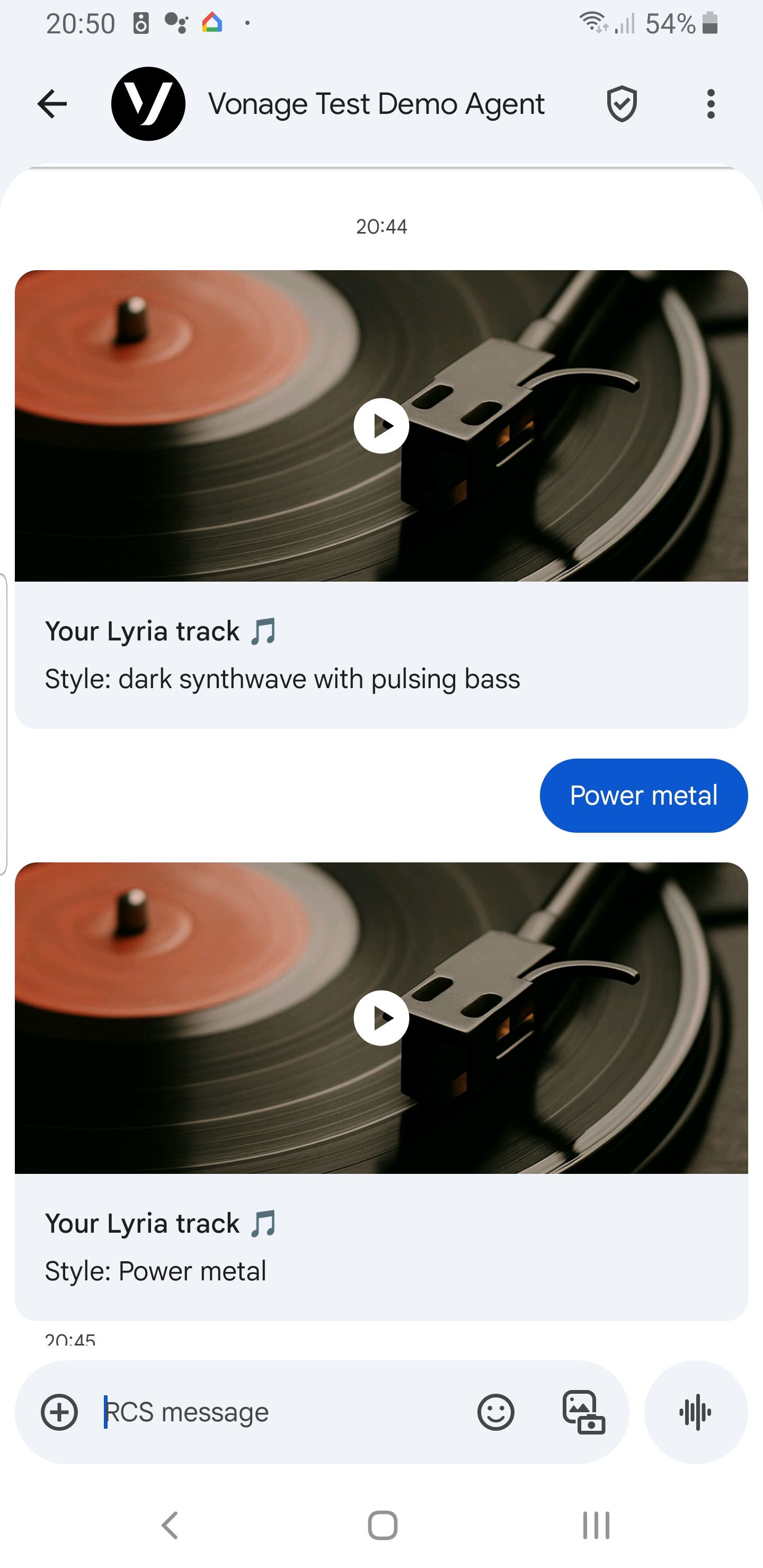 RCS Example
A phone with RCS capabilities for testing
Node.js 14+
Lyria is a generative audio model hosted on Vertex AI. For this blog post, given a text prompt such as “warm lofi piano, vinyl crackle, 85 BPM,” it creates an MP4 video with a static cover image that plays inline on the phone. Once we have the MP4 ready, we send it back inside a Rich Card using the custom message type of the Vonage Messages API. You can check all the RCS Messaging Supported Types.
Start by creating a new Vonage application in the developer dashboard.
アプリケーションを作成するには アプリケーションの作成ページでアプリケーションの名前を定義します。
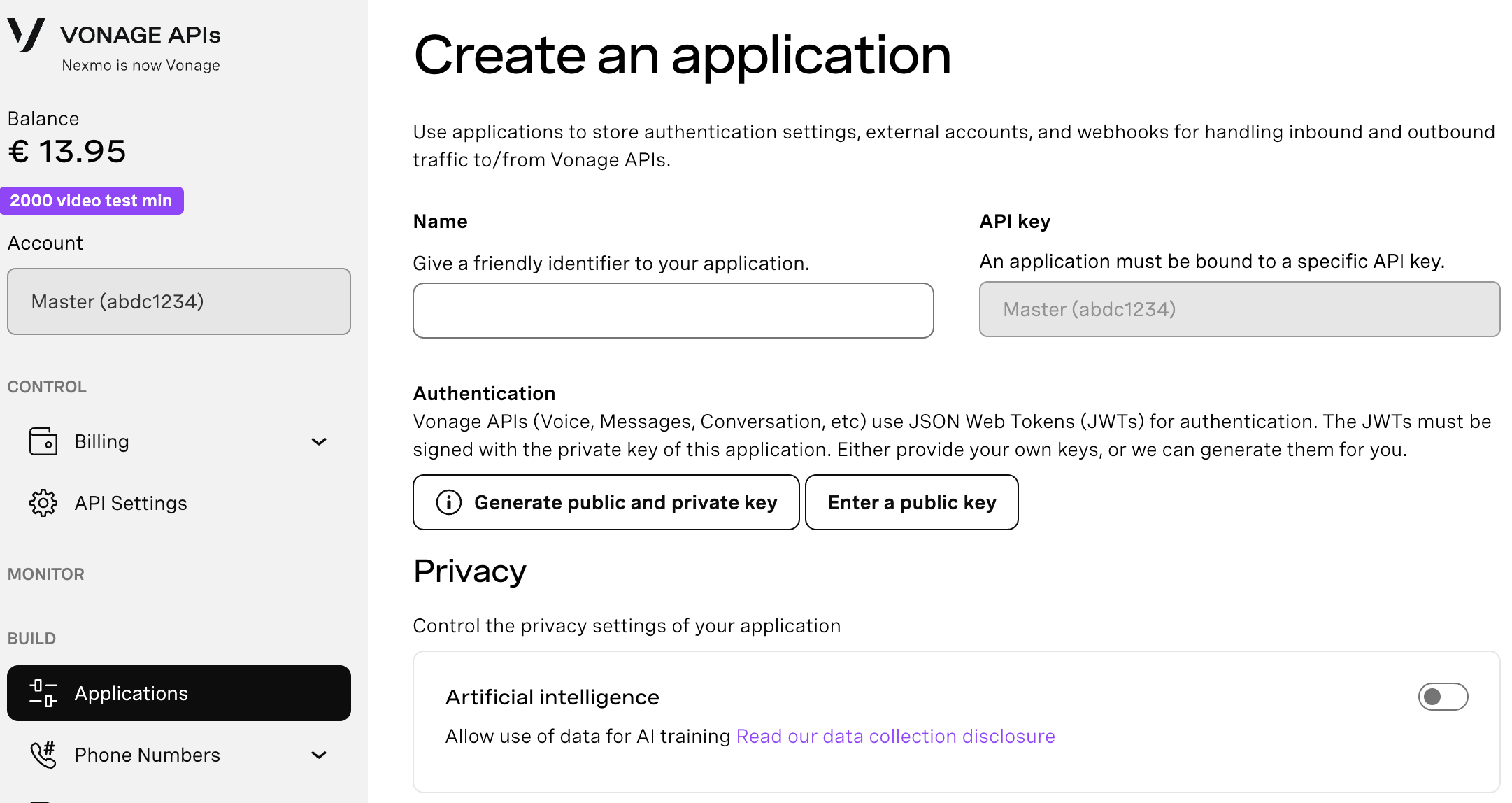
Webhooksを使用するAPIを使用する場合は、秘密鍵が必要です。Generate public and private key "をクリックすると、自動的にダウンロードが始まります。この鍵は紛失すると再ダウンロードできません。この鍵は紛失しても再ダウンロードできません。 private_<あなたのアプリID>.key.この鍵はAPIコールの認証に使用できます。 注意:アプリケーションを保存するまで、キーは機能しません。
必要な機能(Voice、Messages、RTCなど)を選択し、必要なWebhook(イベントURL、応答URL、受信メッセージURLなど)を提供します。これらはチュートリアルで説明します。
保存してデプロイするには、"Generate new application "をクリックして設定を確定します。これでアプリケーションはVonage APIで使用する準備が整いました。
When setting up the application, please make sure that you enable the Messages capability and select RCS as the channel. You will later configure the webhook URLs that handle inbound and status events.
To give RCS a way to fetch media from your local machine, install and run ngrok to expose your server publicly.
In a separate terminal, run ngrok http 3000 and copy the HTTPS forwarding URL that appears.
Back in the Vonage dashboard, set your inbound webhook to https://<ngrok>/webhooks/inbound and your status webhook to https://<ngrok>/webhooks/status.
We have to run npm install from within your terminal or prompt command to install the following dependencies:
dotenv, @vonage/server-sdk, @vonage/messages, google-auth-library, node-fetch, and ffmpeg-static that are listed in your package.json file.
Note: You can learn more about each dependency by clicking on it and reading its description on NPM.
You’ll need a few environment variables for this project. Add the following variables below to a .env file you have to create and populate.
GOOGLE_CLOUD_PROJECT_ID=yourProjectId

GOOGLE_CLOUD_LOCATION=us-central1

GOOGLE_APPLICATION_CREDENTIALS=./service-account.json

VONAGE_APPLICATION_ID=your-vonage-app-id

VONAGE_PRIVATE_KEY=./private.key

RCS_SENDER_ID=your-rbm-agent-id

PHONE_NUMBER=447XXXXXXXXX

PORT=3000

PUBLIC_BASE_URL=https://your-ngrok-url
You initiate the conversation because users cannot start a new RCS chat on their own. By visiting a URL such as https://<ngrok>/test?q=dark%20synthwave, your server generates music with Lyria, converts it to an MP4 format, hosts it on the /output endpoint, and then sends an initial Rich Card to your RCS-enabled phone device.
After that, the user can reply with new prompts. The inbound webhook catches each reply, passes it to Lyria, converts it to an MP4 file, and returns it as a new Rich Card with the track title and description.
The complete JavaScript implementation is available in index.js.
Ensure that ngrok is running, your webhooks are configured, and your environment variables are set. Start the server with node index.js.
Open the test URL in your browser, for example, in which you’re passing the query "dark synthwave with pulsing bass" https://<ngrok>/test?q=dark%20synthwave%20with%20pulsing%20bass.
The server will send the first Rich Card to your RCS-enabled device. You can then reply directly in the chat with something like “lofi piano with rain,” and you will receive another Rich Card with a newly generated track.
We’ve used RCS Rich Cards in this blog post; it makes a lot of sense, as you can play the file from it on your phone. If you would prefer to skip Rich Cards and send the generated audio as a file attachment, you can. I covered that in a separate blog post on sending files with RCS.
You did it! In this blog post, you saw how to request music generation via RCS conversations using Lyria and the Vonage Messages API.
ご質問がある場合、またはあなたが作っているものを共有したい場合は、こちらをクリックしてください。
登録する 開発者ニュースレター
フォローする X(旧ツイッター)最新情報
チュートリアルを見る YouTubeチャンネル
LinkedInの LinkedIn の Vonage デベロッパーページ
最新の開発者向けニュース、ヒント、イベント情報をお届けします。