WhatsApp Number Pre-verification
During the standard WhatsApp onboarding process, you must confirm ownership of the phone number with Meta as part of the Embedded Signup flow. This verification typically occurs during the Meta setup step and requires receiving and entering a one-time password (OTP).
WhatsApp Number Pre-verification introduces an optional step in the Vonage onboarding flow that verifies the phone number before you begin the Embedded Signup process. By pre-verifying the number, you reduce the likelihood of OTP delivery issues and streamline the Meta registration stage.
Once the number is pre-verified, you can proceed to the Meta Embedded Signup flow and complete the remaining onboarding steps without repeating number verification.
Implementing WhatsApp Number Pre-verification
Setting up WhatsApp Business Messaging requires steps in both your Vonage and Meta accounts. The process below describes how to pre-verify a number and complete onboarding.
- Log in to the Vonage API Dashboard.
- Navigate to Messaging > External Accounts > WhatsApp > Set up my WhatsApp Business Account.
- The WhatsApp number onboarding flow starts.
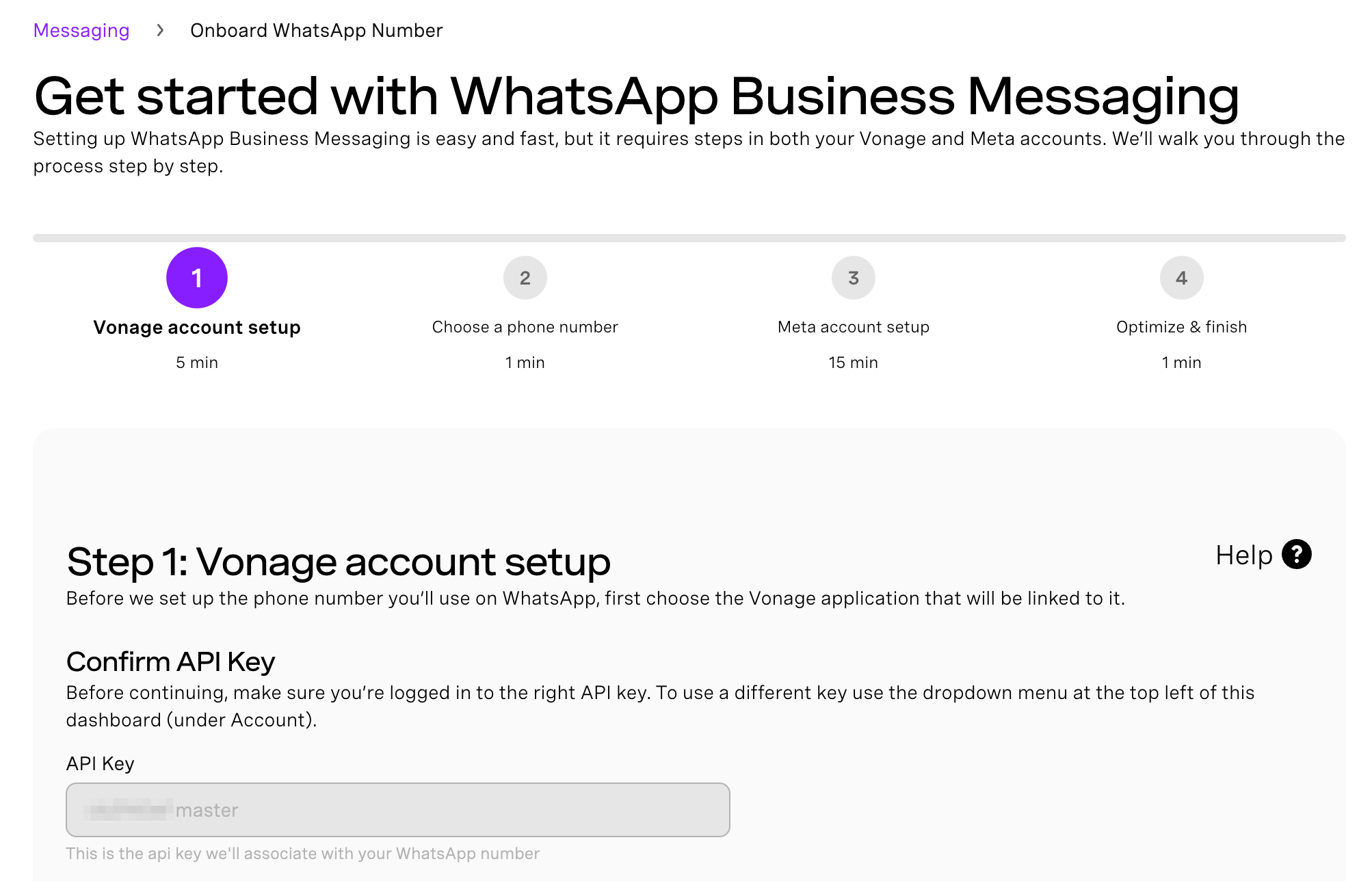
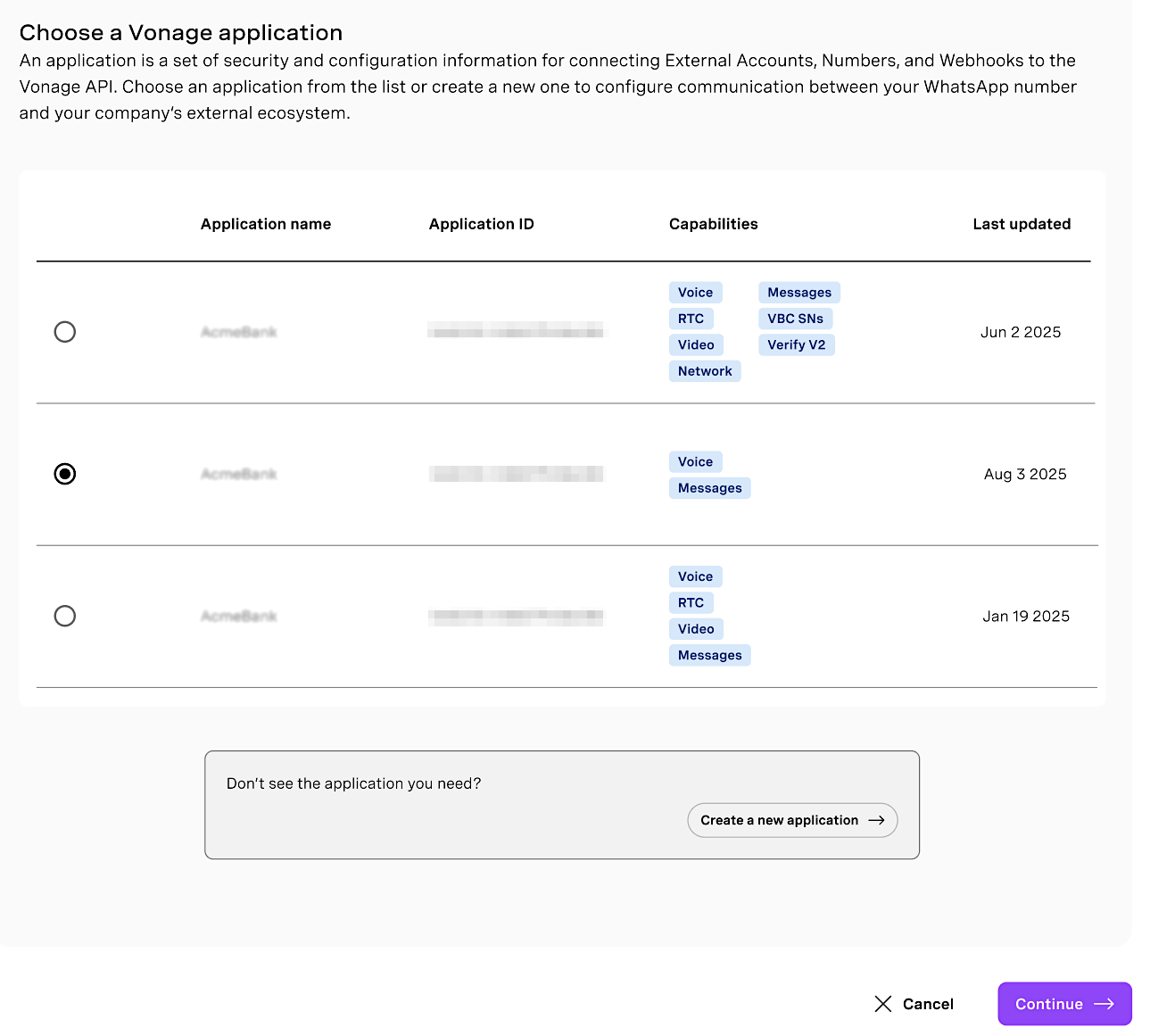
Select a Vonage Application
Select the Vonage application that will be linked to your WhatsApp number. This application will handle incoming and outgoing WhatsApp messages. You can choose from existing applications or create an application.
Choose and Pre-verify a Phone Number
Select the type of number you want to use with WhatsApp:
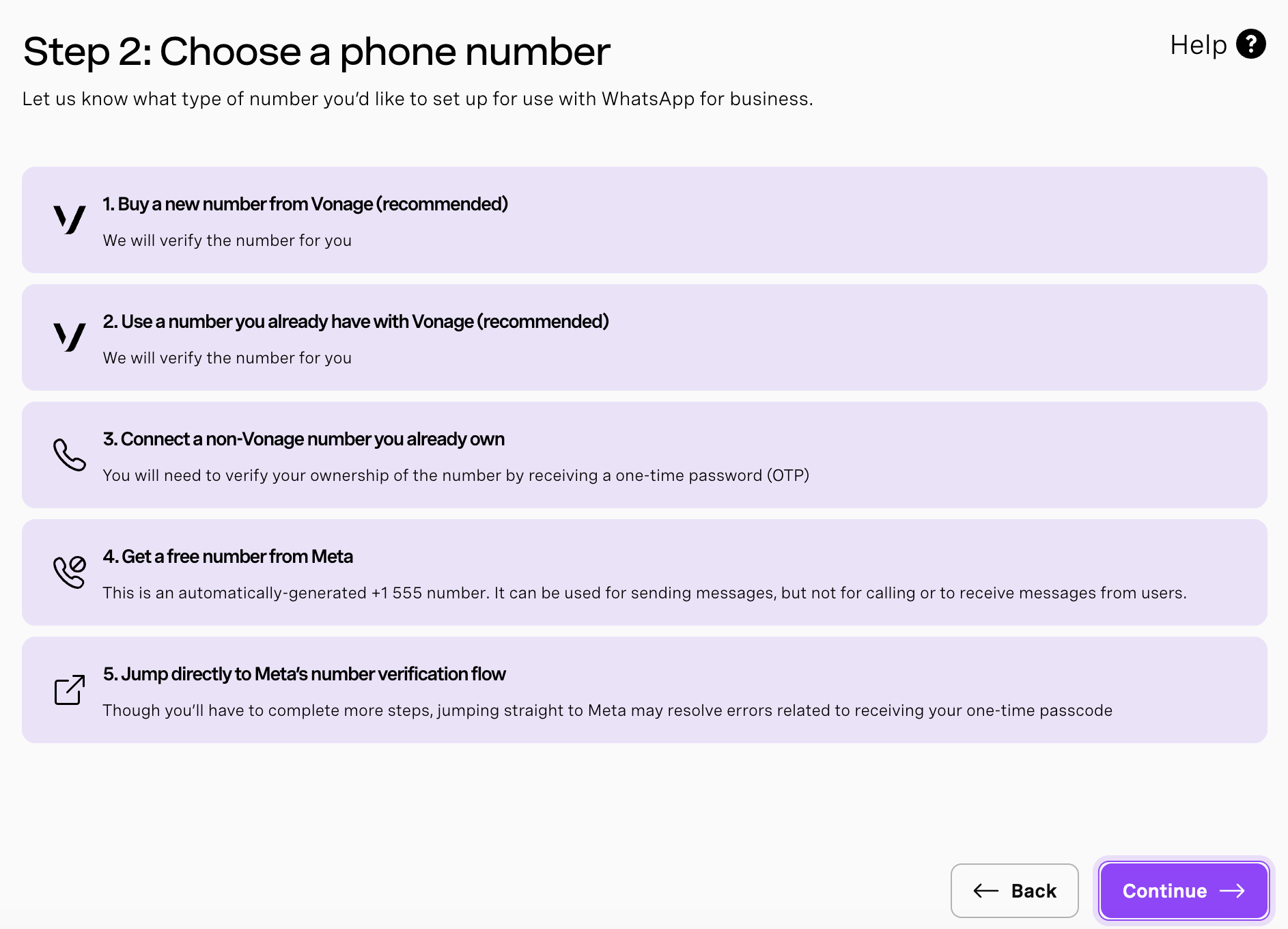
- Buy a new number from Vonage (recommended)
- Go to Build & Manage > Numbers > Buy Numbers.
- Purchase a number and return to the setup page.
- Pre-verification and ownership confirmation is feasible for this Vonage number.
- Use an existing Vonage number (recommended)
- Select one of your current Vonage numbers.
- Pre-verification and ownership confirmation is feasible for this Vonage number.
- Connect a non-Vonage number you already own
- Enter the phone number.
- Receive a one-time password (OTP).
- Complete verification to confirm ownership.
- Get a free number from Meta
- Use a generated "+1 555" test number for outbound messaging only.
- Jump directly to Meta’s number verification flow
- If you experience OTP delivery issues, continue directly with Meta verification.
After you submit your number, stay on the page while Vonage performs pre-verification with Meta. You will see a progress indicator such as:
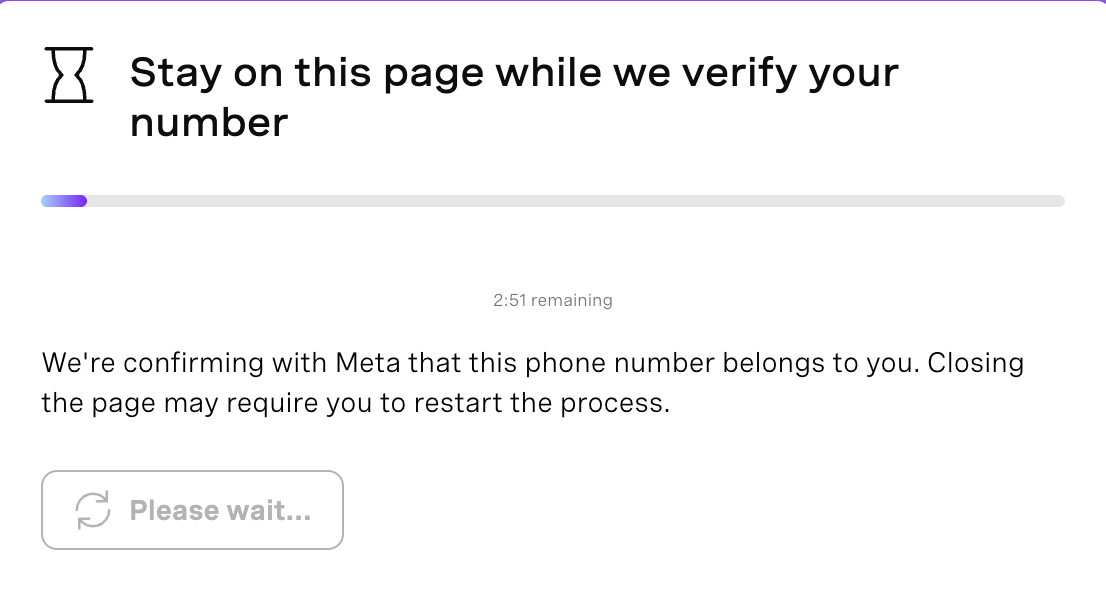
When successful, the dashboard displays:
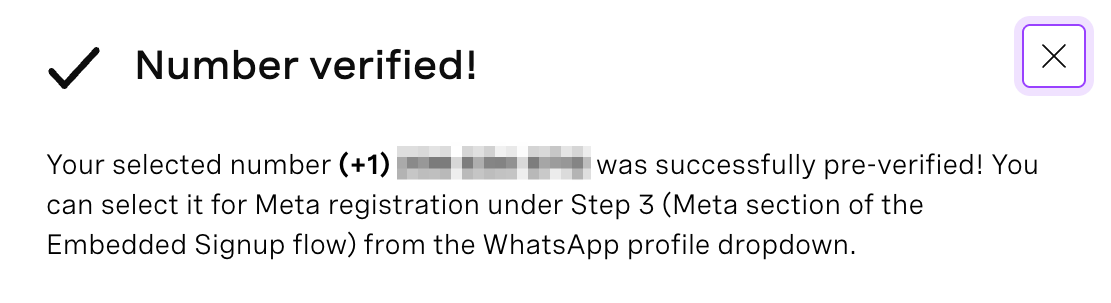
The pre-verified number will appear in the WhatsApp profile dropdown during Embedded Signup.
Complete Meta Account Setup
After pre-verification, continue to the Meta setup:
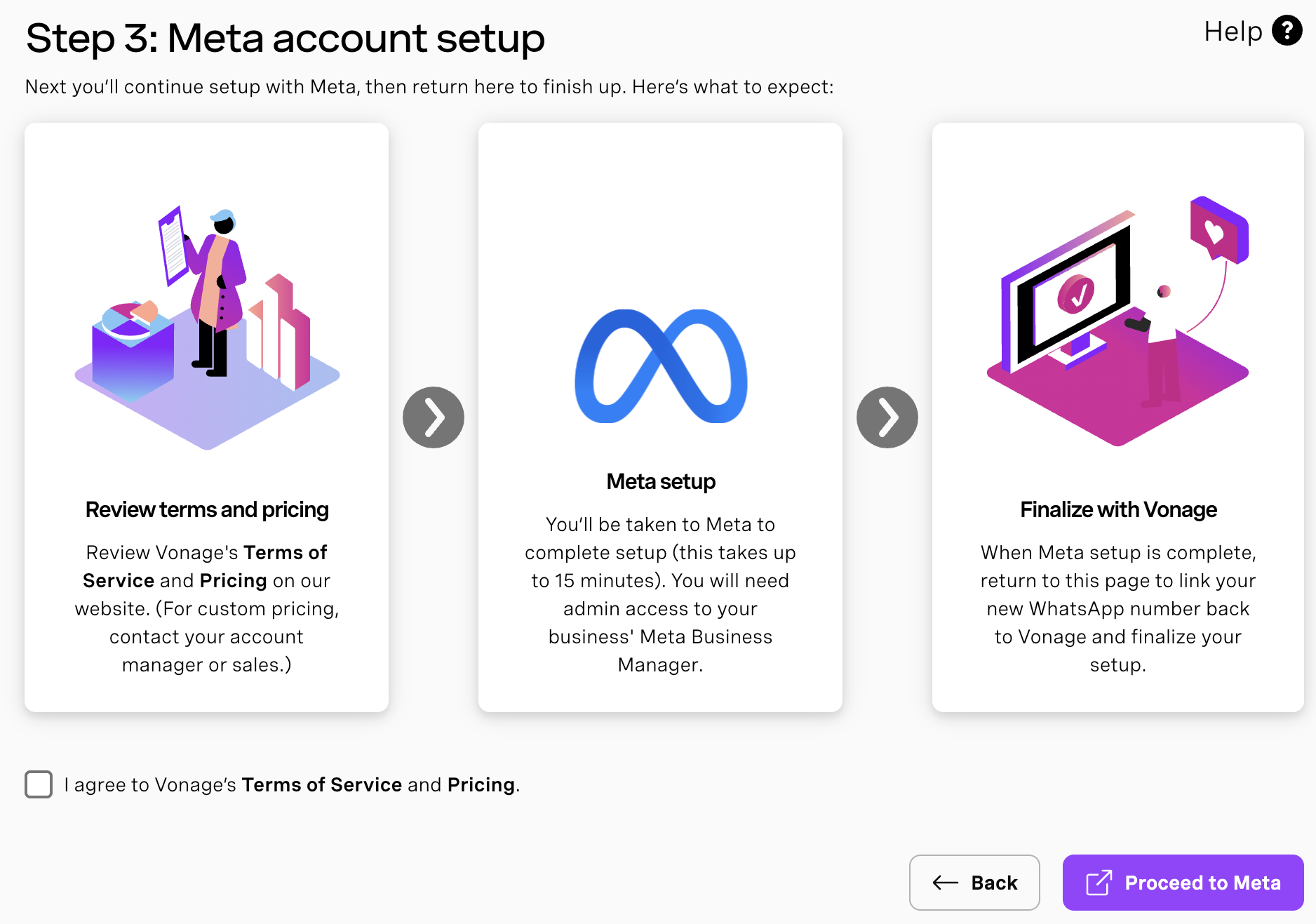
- Click Continue with Meta.
- Log in with an admin account for your Meta Business Manager.
- Review and accept terms and pricing.
- Select or create:
- Business portfolio
- WhatsApp Business Account
- Business profile details
- Choose the pre-verified phone number from the dropdown.
- Confirm the assets you will share with Vonage Communication APIs & Conversational Commerce Platform, including:
- Managing WhatsApp accounts
- Accessing conversations
- Logging events on your behalf
Finalize Setup in Vonage
- After completing Meta account setup, return to the Vonage dashboard.
- Link the registered WhatsApp number to your Vonage application.
- Wait for business verification.
You can begin sending messages once verification is approved and the number is fully connected.