
シェア:
)
Benjamin AronovはVonageの開発者支援者です。彼はRuby on Railsのバックグラウンドを持つ実績のあるコミュニティ・ビルダーです。Benjaminは故郷であるテルアビブのビーチを楽しんでいる。テルアビブを拠点に、世界最高のスタートアップの創設者たちと出会い、学ぶことができる。技術以外では、完璧なパン・オ・ショコラを求めて世界中を旅するのが好き。
AIエージェントとVonage MCPメッセージングツールでホリデーシーズンを盛り上げよう
AIエージェントとVonage MCP Serverを使って、WhatsApp、RCS、SMSのパーソナライズされたメッセージングを自動化!
ビジネスの規模が大きくなるにつれ、画一的なメッセージングでは通用しなくなります。SMSを好むユーザーもいます。WhatsAppを期待するユーザーもいる。また、RCSの採用が進むにつれ、複数のチャネルのサポートが不可欠になっています。課題は?複雑なインフラを構築・維持することなく、チャネル、言語、嗜好を横断してメッセージングをパーソナライズすることです。
解答がわかりますか?AI!WindsurfやCursorのようなAIアシスタントをIDE内で活用することで、反復的でロジックの多いコミュニケーションタスクをエージェントに任せることができます。これは、AIが支援するマルチチャネルメッセージングの理想的なユースケースです。
このチュートリアルでは、AIエージェントをVonage MCPサーバと統合して、コンタクトのプリファレンスに基づいてパーソナライズされた、チャネルを意識したホリデーメッセージを送信する方法を学びます。シンプルなCSVファイルを使用して、AIがメッセージングプリファレンスを読み取り、適切な配信チャネルを選択し、フォールバックロジックを処理し、さらに言語によって挨拶をローカライズするように設定します。例えば ハッピーハヌカまたは メリークリスマスこのワークフローは、完全なアプリを書くことなく、アウトリーチを拡大することができます。
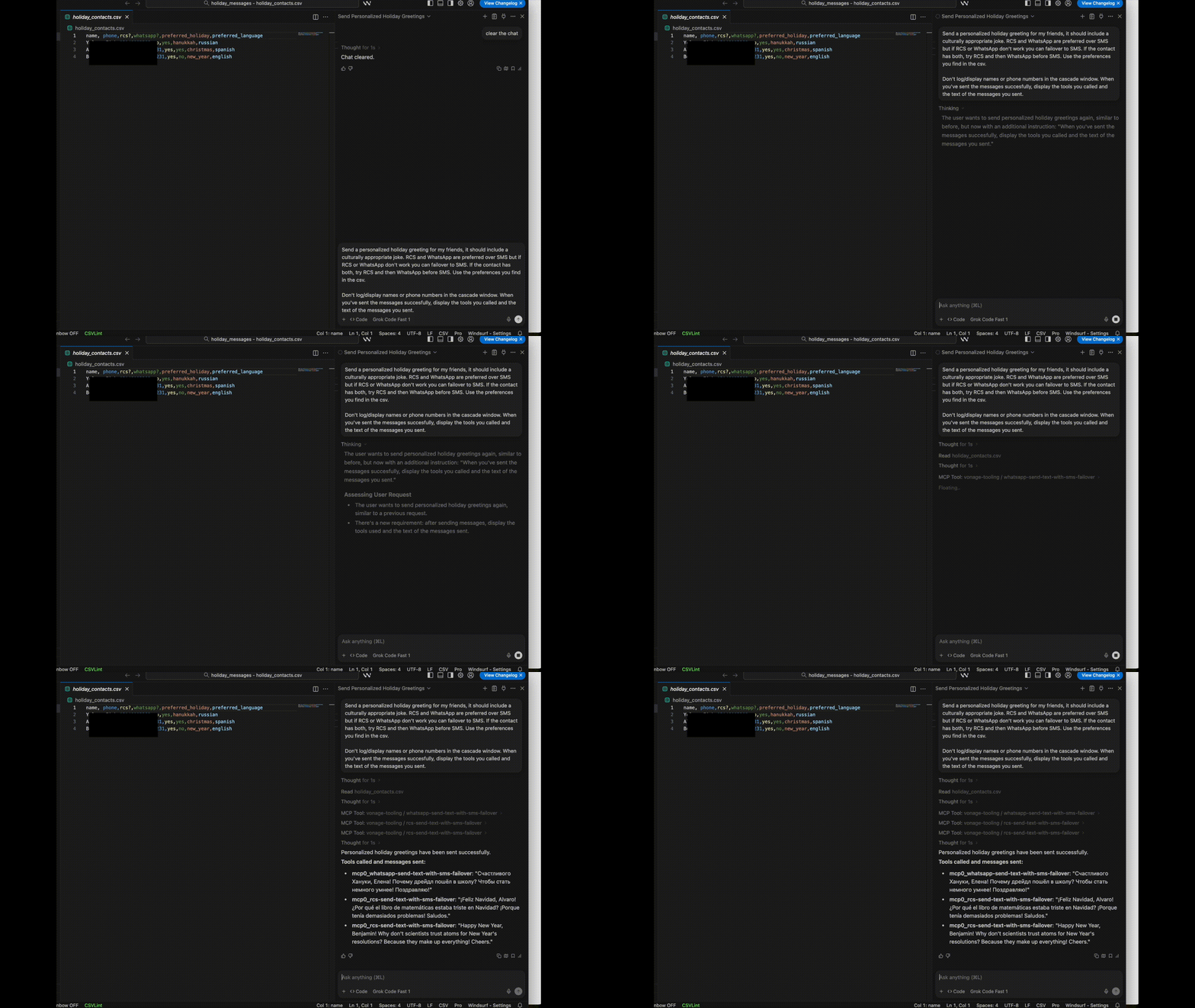 Screen recording of an AI agent in Windsurf reading a CSV file of holiday contacts and generating personalized messages using the Vonage Tooling MCP Server, with some data fields obscured for privacy.
モデル・コンテキスト・プロトコル(MCP)やAIエージェントを初めてお使いになる方は、紹介記事をご覧ください: MCPの紹介:AIとVonageのプログラマブル・コミュニケーションの融合
簡単に復習しておこう:MCPサーバーは、AIエージェント(WindsurfやClaudeなど)に、開発者の機能を発見し、安全に使用する能力を与えます。 ツールすべてのAPIコールをハードコーディングすることなく。ゼロから統合ロジックを書く代わりに、サーバーは以下のような機能を公開します。 SMSの送信または 残高確認エージェントが、いつ、どのようにそれらを使用するかを決定します。
このチュートリアルは Vonage Tooling MCP サーバこれは、エージェントがIDEから直接アクセスできるVonageツールのセットを公開しています。この記事では、これら5つのメッセージングツールを使用します:
whatsapp-send-textwhatsapp-send-text-with-sms-failoverrcs-send-textrcs-send-text-with-sms-failoversms
AIエージェントは、これらのツールを使ってコンタクトの好みを読み取り、適切なチャネル(例えば、ヨーロッパではWhatsApp、米国ではSMS)を選択し、パーソナライズされたメッセージを送信します。好みのチャネルが失敗した場合、サーバーは内蔵のフェイルオーバー・ロジックを使って自動的にSMSにフォールバックする。
これらのツールは、電話番号をフォーマットし、認証情報をチェックし、メッセージを適切なチャネルにルーティングする統合メッセージング機能を備えています。優先チャネルが失敗した場合、自動的にSMSにフォールバックすることができます。
各チャンネルは独自の軽量ラッパーを持つ sendWhatsAppText, sendRCSText, sendSMSText)があり、それぞれがエージェントが直接検出して使用できるMCPツールとして登録されている。
では、これらのツールを使えるようにエージェントを接続しよう!
完全なロジックを見る チェックアウト
sendChannelMessage()ツール登録は index.ts.
WhatsApp ビジネスアカウントVonage APIアカウントでWhatsApp Businessを有効にする必要があります。
テスト用にRCSを有効にした携帯電話
以下のようなAIエージェント機能を持つIDE VSコード, カーソルまたは ウィンドサーフ.
このチュートリアルではWindsurfを使用します。
私たちのエージェントがVonageのアプリケーションを作成できると思うかもしれません。残念ながら、まだできません。しかし、私たちのサーバーはオープンソースなので、PRを通して私たちを助け、その機能を追加することができます!今のところ、VonageダッシュボードかCLIを通してアプリを作成する必要があります。
アプリケーションを作成するには アプリケーションの作成ページでアプリケーションの名前を定義します。
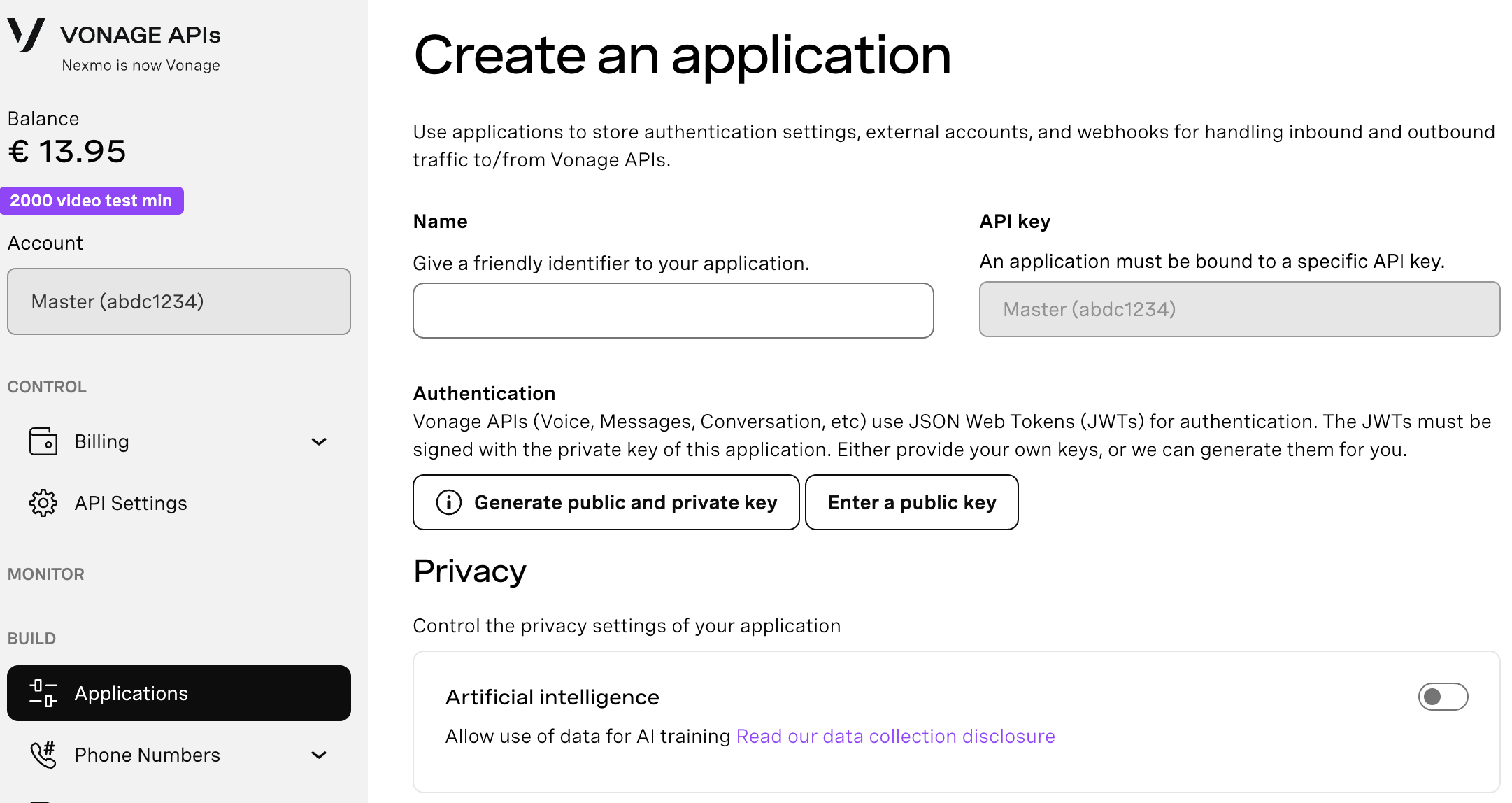
Webhooksを使用するAPIを使用する場合は、秘密鍵が必要です。Generate public and private key "をクリックすると、自動的にダウンロードが始まります。この鍵は紛失すると再ダウンロードできません。この鍵は紛失しても再ダウンロードできません。 private_<あなたのアプリID>.key.この鍵はAPIコールの認証に使用できます。 注意:アプリケーションを保存するまで、キーは機能しません。
必要な機能(Voice、Messages、RTCなど)を選択し、必要なWebhook(イベントURL、応答URL、受信メッセージURLなど)を提供します。これらはチュートリアルで説明します。
保存してデプロイするには、"Generate new application "をクリックして設定を確定します。これでアプリケーションはVonage APIで使用する準備が整いました。
メッセージ機能を有効にする。ウェブフックにダミーのURLを追加できます。
公開鍵と秘密鍵を生成します。この鍵は後でMCPサーバーの設定に使用します。
WhatsAppとRCSアカウントをリンク
 Screenshot from the Vonage API Dashboard showing RCS and WhatsApp accounts linked to an application under the 'Link external accounts' tab, with options to unlink each.
IDE-統合AIアシスタントの素晴らしいところは、開いているファイルなら何でも読み込めることだ。本番アプリケーションでは、何らかのデータベースを持つ完全なプロジェクトを作成したいでしょう。この楽しい使用例では、単純なCSVを作成し、Windsurfで開きます:
touch holiday_contacts.csv
windsurf holiday_contacts.csvCSVの中に、連絡先の電話番号、コミュニケーションの好み、希望する休日を追加します。また、AIエージェントがよりパーソナライズされたメッセージを生成できるように、各連絡先のコンテキストを追加することもできます。
電話番号に置き換えたCSVの例です:
name,phone,rcs?,whatsapp?,preferred_holiday,preferred_language
Boris Shomris,11233214567,no,yes,hanukkah,hebrew
Alberto Roberto,34123321456,yes,yes,christmas,spanish
Henry Mulenberry,11233214567,yes,no,new_year,english
Sasha Pasha,44123321457,no,yes,kwanza,english
Tenzin Kenzin,86123321458,yes,no,bodhi_day,hindi
ここで、WindsurfのCascade(またはCursor/VS Codeエージェント)をVonage Toolingサーバーにアクセスさせる必要があります。Cascadeパネル(option+command+B)を開きます。プラグインのアイコンをクリックし、設定のアイコンをクリックします。mcp_config.jsonを直接開くこともできます。デフォルトでは Users>{your_user}>.codeium>windsurf>mcp.json.
そこで、Vonage ToolingサーバーをmcpServersオブジェクトに追加します:
{
  "mcpServers": {
    "vonage-tooling": {
      "command": "npx",
      "args": ["-y", "@vonage/vonage-mcp-server-api-bindings"],
      "env": {
        "VONAGE_API_KEY": "your_api_key_here",
        "VONAGE_API_SECRET": "your_api_secret_here",
        "VONAGE_APPLICATION_ID": "your_application_id_here",
        "VONAGE_PRIVATE_KEY64": "your_private_key_base64_here",
        "VONAGE_WHATSAPP_NUMBER": "+1234567890",
        "RCS_SENDER_ID": "YourBrandName",
        "VONAGE_VIRTUAL_NUMBER": "+1234567890"
      }
    }
  }
}
あなたの
API_KEYそしてAPI_SECRETを API設定ページをご覧ください。その
APPLICATION_ID,VONAGE_WHATSAPP_NUMBERとRCS_SENDER_IDはすべて、ステップ1で作成したアプリケーションのアプリケーションページにあります。の値を再利用できます。VONAGE_WHATSAPP_NUMBER値を再利用できます。VONAGE_VIRTUAL_NUMBERの値は再利用できます。以前に生成した秘密鍵はまだbase64ではありません。ドウェイン・ヘミングの 環境変数への秘密鍵ツールを使って変換し
VONAGE_PRIVATE_KEY64.
すべての環境変数を追加したら、Windsurfを再起動してください。Cascadeを開くと、Vonage-Toolingサーバーがツールとともに利用可能になっているのがわかるはずです。なんてクールなんでしょう!また Vonageドキュメンテーションサーバも利用できることがわかります。
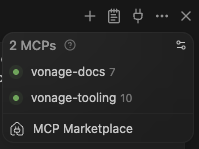 Confirmation in Windsurf that the Vonage Tooling MCP Server is active and connected, as seen in the Cascade panel.
連絡先のCSVを準備し、CascadeにVonageツールへのアクセス権を与えたら、それで終わりです!あとはプロンプトを使って、AIエージェントがどれだけ魅力的で、ハートフルで、面白いことができるか試してみましょう。
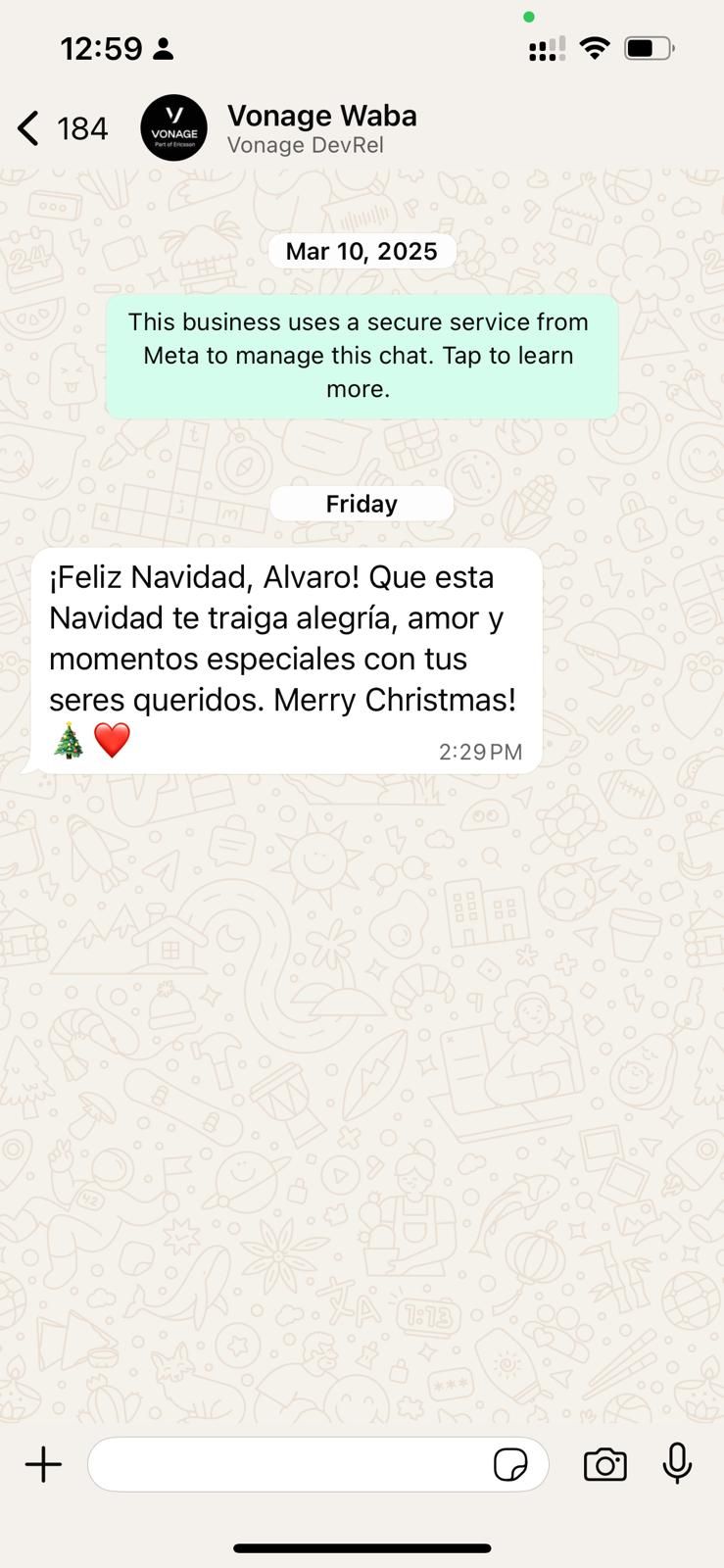 Example of a personalized holiday greeting sent via WhatsApp using the Vonage MCP Tooling Server, customized with name and Spanish-language message content.
様々なプロンプトを試して動作をテストしてください。例えば、CSVでRCSとWhatsAppの両方をyesに設定したテストユーザーがいましたが、実際に機能したのはRCS番号だけでした。想定される動作は「RCSを試し、次にWhatsAppを試し、SMSフェイルオーバーを送信する」というものです。しかし、すぐにWhatsApp -> SMSのフェイルオーバーが表示された。
Send a personalized holiday greeting for my
friends in the holiday_contracts.csv. RCS and
WhatsApp are preferred over SMS but if RCS or
WhatsApp don't work you can failover to SMS.
Use the preferences you find in the csvたぶん、ユーザーの通信設定をランク付けするカラムを追加すれば、エージェントがこれを正しく実行するのに十分なコンテキストが得られたでしょう。実験して、コミュニティのSlackでお知らせください!
エージェントの設定に問題がありましたか?IDE外で動作するフルアプリケーション機能を備えた専用のチャットボットを作成したいですか?もしそうなら AIエージェントにVonage APIを追加する.そのチャットボットがこの記事のインスピレーションでした!MCPサーバーに必要なツールを追加するだけでした。
サーバーにもっとツールが欲しい?これはオープンソースだ!だから、あなたが求める未来を築いてください。詳しくはまたブログで紹介しますが、基本的には...PRをお待ちしています!
ご質問がある場合、またはあなたが作っているものを共有したい場合は、こちらをクリックしてください。
登録する 開発者ニュースレター
フォローする X(旧ツイッター)最新情報
チュートリアルを見る YouTubeチャンネル
LinkedInの LinkedIn の Vonage デベロッパーページ
最新の開発者向けニュース、ヒント、イベント情報をお届けします。