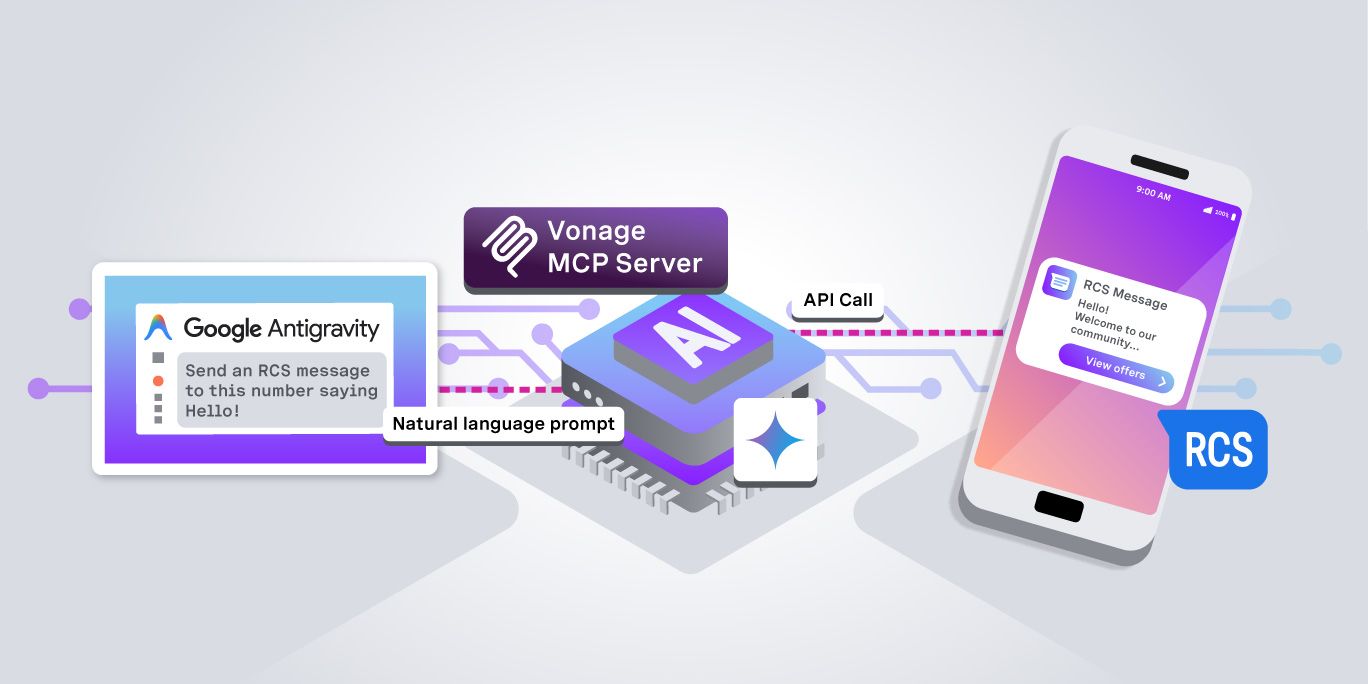

Send RCS Messages With Google Antigravity and Vonage MCP Server
In this tutorial, you will send a Rich Communication Services (RCS) message using only a natural language prompt, with Google Antigravity's Gemini and the Vonage Tooling MCP Server handling the API call for you.
Both the Messages API and the Verify API support RCS: the Messages API handles rich outbound messaging (which is what this tutorial covers), while the Verify API uses RCS as a delivery channel for one-time passwords.
Before you begin, make sure you have your environment ready:
Google Antigravity and Node.js installed on your local machine.
If you haven't set up your MCP connection yet, start with Access the Vonage Tooling MCP Server on Google Antigravity.
An RCS agent set up and configured through your Vonage account.
A phone with RCS capabilities. Note that your test phone number must be allowlisted to receive the RCS message, having RCS enabled on the device is not sufficient.
Pour créer une application, allez à la page Créer une application sur le tableau de bord de Vonage, et définissez un nom pour votre application.
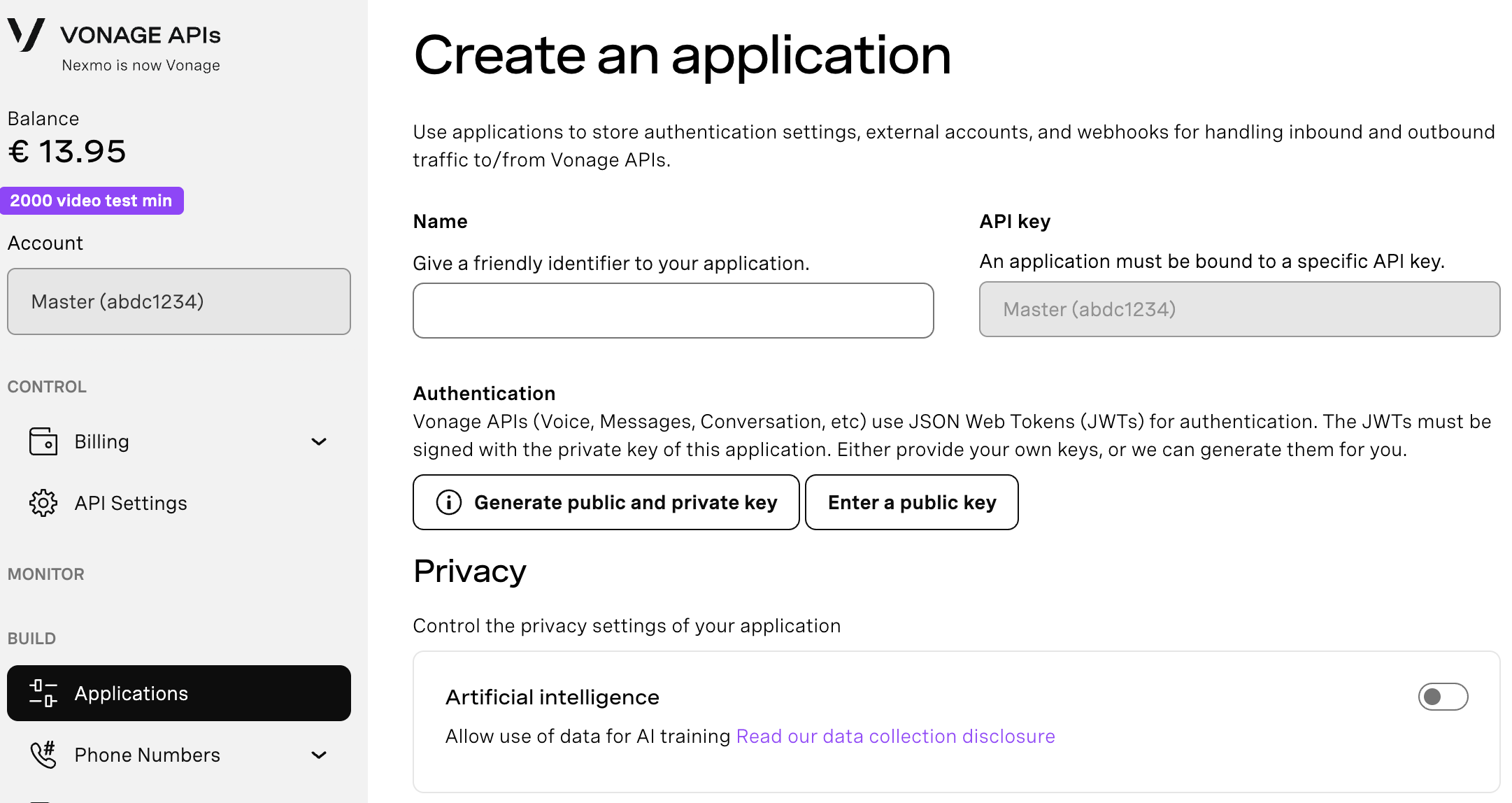
Si vous avez l'intention d'utiliser une API qui utilise des Webhooks, vous aurez besoin d'une clé privée. Cliquez sur "Générer une clé publique et privée", votre téléchargement devrait démarrer automatiquement. Conservez-la en lieu sûr ; cette clé ne peut pas être retéléchargée si elle est perdue. Elle suivra la convention de nommage suivante private_<votre identifiant d'application>.key. Cette clé peut maintenant être utilisée pour authentifier les appels à l'API. Remarque : votre clé ne fonctionnera pas tant que votre application n'aura pas été sauvegardée.
Choisissez les fonctionnalités dont vous avez besoin (par exemple, Voice, Messages, RTC, etc.) et fournissez les webhooks requis (par exemple, URL d'événement, URL de réponse ou URL de message entrant). Ces éléments seront décrits dans le tutoriel.
Pour sauvegarder et déployer, cliquez sur "Générer une nouvelle application" pour finaliser la configuration. Votre application est maintenant prête à être utilisée avec les API de Vonage.
When working with the MCP server, your mcp_config.json file needs specific environment variables to authenticate and execute commands properly.
The Application ID is a long alphanumeric string (e.g., 012abc34-d56e-7fg8-h90i-1234567jk89l) displayed in the application details panel.
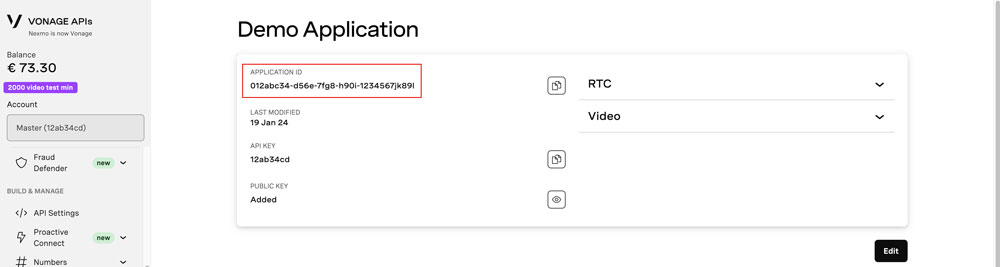 Application ID
VONAGE_PRIVATE_KEY64 is your private key file, base64-encoded. On macOS/Linux, you can generate it with base64 -i private.key | tr -d '\n' > b64_key.txt, then open b64_key.txt to copy the value. If you have VS Code installed, you can open it directly with code b64_key.txt. On macOS, you can skip the file entirely and use | pbcopy to copy it straight to your clipboard.
To send RCS messages, you must also add RCS_SENDER_ID, this is the sender ID associated with your RCS agent, visible under the External Accounts page in your Vonage dashboard once the agent is linked.
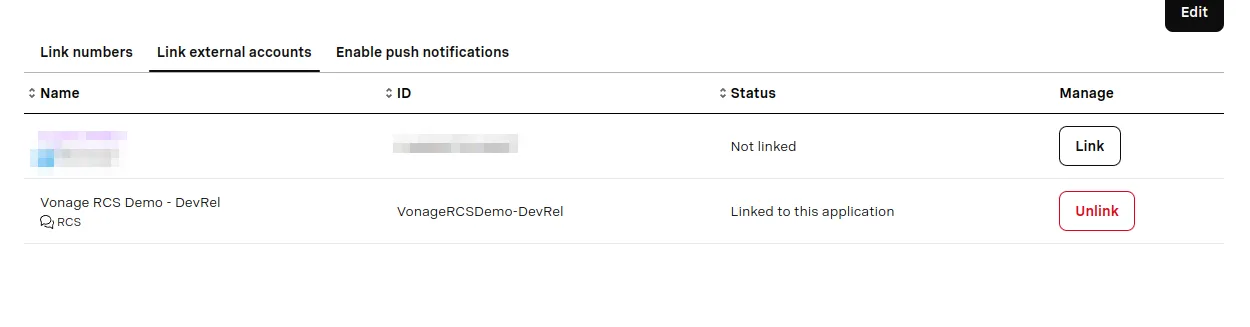 Link External Accounts
If you plan to use a delivery option that includes SMS failover, you'll also need to define VONAGE_VIRTUAL_NUMBER in the configuration. This is the virtual number the API uses to send the SMS when the recipient's device or network doesn't support RCS.
Add all required variables to the env block of your mcp_config.json like this:
{
  "mcpServers": {
    "vonage-tooling": {
      "command": "npx",
      "args": ["-y", "@vonage/vonage-mcp-server-api-bindings"],
      "env": {
        "VONAGE_APPLICATION_ID": "YOUR_APP_ID",
        "VONAGE_PRIVATE_KEY64": "YOUR_BASE64_PRIVATE_KEY",
        "RCS_SENDER_ID": "YOUR_RCS_SENDER_ID"
      }
    }
  }
}
Note: The
mcp_config.jsonfile lives in a local config directory on your machine, it's not part of a project repository, so your credentials won't be accidentally committed to version control. That said, treat this file like any other file containing secrets: don't share it, back it up securely, and make sure it isn't copied into a project folder that gets pushed to a repo.
We have options to send RCS messages, and each one of them maps to specific capabilities within the Vonage Messages API.
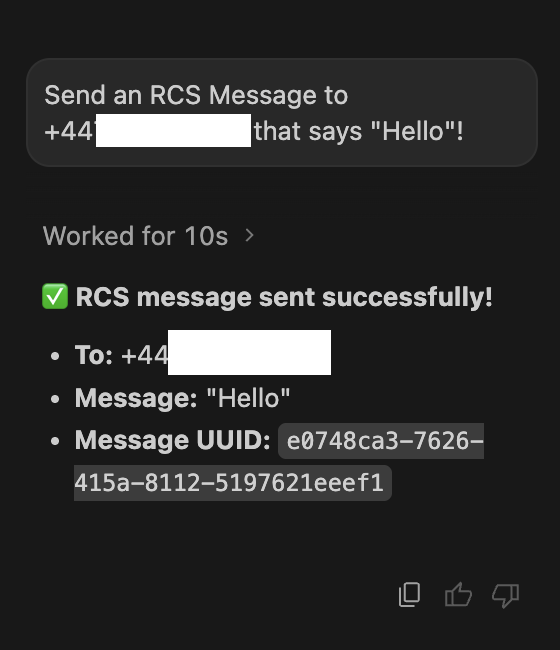
This option sends a plain-text RCS message with no SMS fallback, so you don't need a virtual number for this one. Once your environment is configured and the Vonage MCP server is connected to Google Antigravity, open Gemini and type a natural language prompt asking it to send an RCS message to your test phone number.
"Send an RCS message to +4434567890 that says 'Hello!'"
 Send RCS Message
It attempts delivery via RCS first and automatically cascades to SMS if the device or network does not support RCS. This option requires VONAGE_VIRTUAL_NUMBER to be set in your environment variables so the API can handle the failover leg.
This prompt only appears when VONAGE_VIRTUAL_NUMBER is set in your environment. Since it's optional and only needed for SMS failover, the MCP server uses its presence to determine whether to offer the fallback option.
Instead of needing to specify a delivery method in your prompt, the MCP server asks you directly:
Which RCS sending option would you like to use? rcs text only (no SMS fallback), with fallback (RCS + SMS failover), and other (rich cards, suggested actions).
Alternatively, you can skip the prompt altogether by being explicit in your request from the start:
"Can you send an RCS message with SMS failover to +1234567890 saying 'Hello from Vonage RCS with fallback!'?"
Right before Gemini executes the action, your development environment steps in with a safety check:
"Do you allow using this MCP tool vonage-tooling/rcs-send-text?"
This security pattern ensures that even though Gemini is driving the automation, no actual network calls or messages are sent without your explicit approval. Click Allow, and Vonage processes the delivery straight to your phone.
Other covers additional RCS message types, such as rich cards, carousels, and suggested actions, that go beyond plain text. See the Vonage Messages API RCS documentation for the full list of supported payload types.
That's it, you've reached the end of the tutorial. You've learned how to send RCS messages via the Vonage MCP Server via Gemini within Google Antigravity. For example, you could use this workflow to send order confirmations, OTP alternatives, or onboarding messages with rich cards, all triggered directly from a Gemini conversation without writing any code. You can extend this workflow to send rich RCS cards, handle inbound replies, or explore other Vonage MCP tools from Gemini, such as checking your account balance or listing your applications.
Vous souhaitez en savoir plus, rester en contact ou partager ce que vous êtes en train de créer ?
Continuez à apprendre
Découvrez des cas d'utilisation et des parcours d'apprentissage structurés dans le Centre de formation Vonage
Regardez les tutoriels sur notre chaîne YouTube Vonage Developer
Restez connecté
Abonnez-vous à la newsletter des développeurs Vonage
Suivez-nous sur X pour rester informé
Retrouvez-nous sur LinkedIn
Aidez-nous à améliorer l'expérience des développeurs en remplissant notre formulaire de commentaires « Voice of the Developer »