)
Access the Vonage Tooling MCP Server on Google Antigravity
In my latest blog post, I showed you how the Vonage Tooling Model Context Protocol (MCP) Server can trigger a real outbound voice call using Claude Desktop. In today’s blog post, I’ll show you how to access it on Google Antigravity, and the example I’ll focus on is to send an SMS using just a natural language prompt to interact with Gemini without writing code.
Before getting started, you’ll need:
Google Antigravity installed
Node.js installed
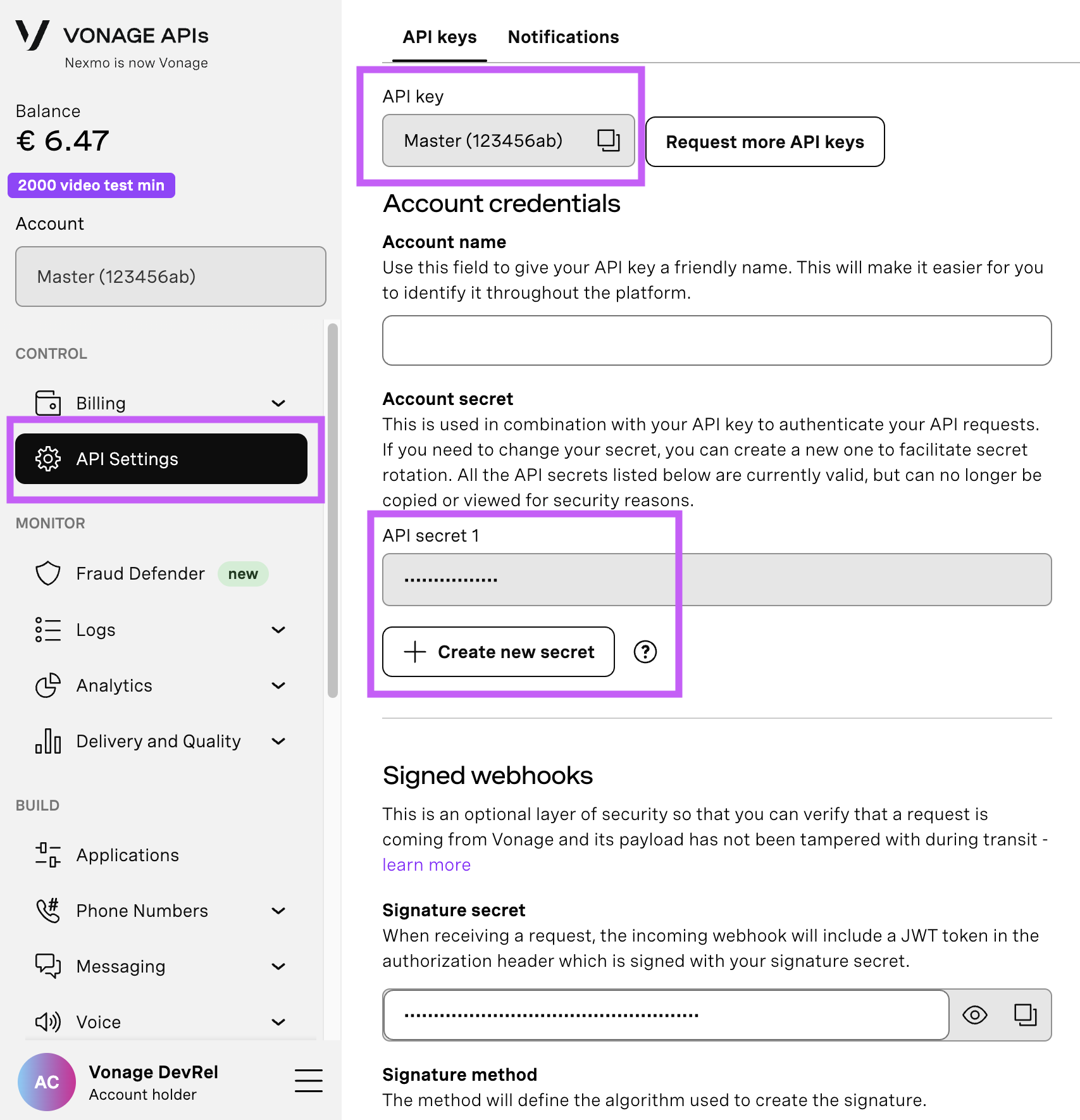
Open your API Settings Page to access your Vonage API Key and Secret, both of which are displayed as shown in the screenshot below. The API Key is located at the top of the page, and to access your API Secret, please refer to the “Account secret” subsection.
Note: In case you cannot remember your previously created API Secret, click on “+ Create new secret” and save it securely.
To buy a virtual phone number, go to your API dashboard and follow the steps shown below.
 Purchase a phone number
Go to your API dashboard
Navigate to BUILD & MANAGE > Numbers > Buy Numbers.
Choose the attributes needed and then click Search
Click the Buy button next to the number you want and validate your purchase
To confirm you have purchased the virtual number, go to the left-hand navigation menu, under BUILD & MANAGE, click Numbers, then Your Numbers
Antigravity is an agentic IDE from Google that makes it easy to connect external tools via the MCP. We just need to point it to the Vonage server.
Open the MCP store via the “…” dropdown at the top of the editor’s side panel in Antigravity.
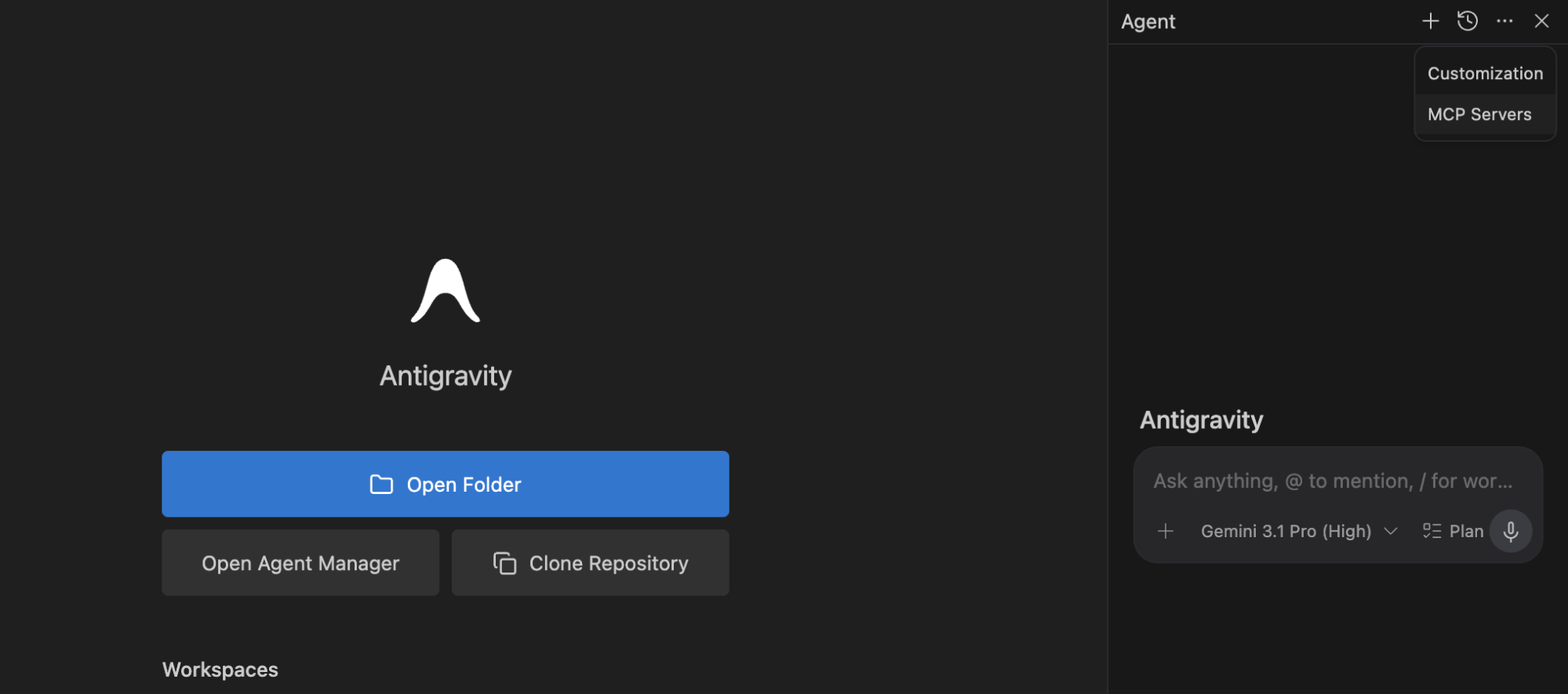 Google AntigravityClick on “Manage MCP Servers”.
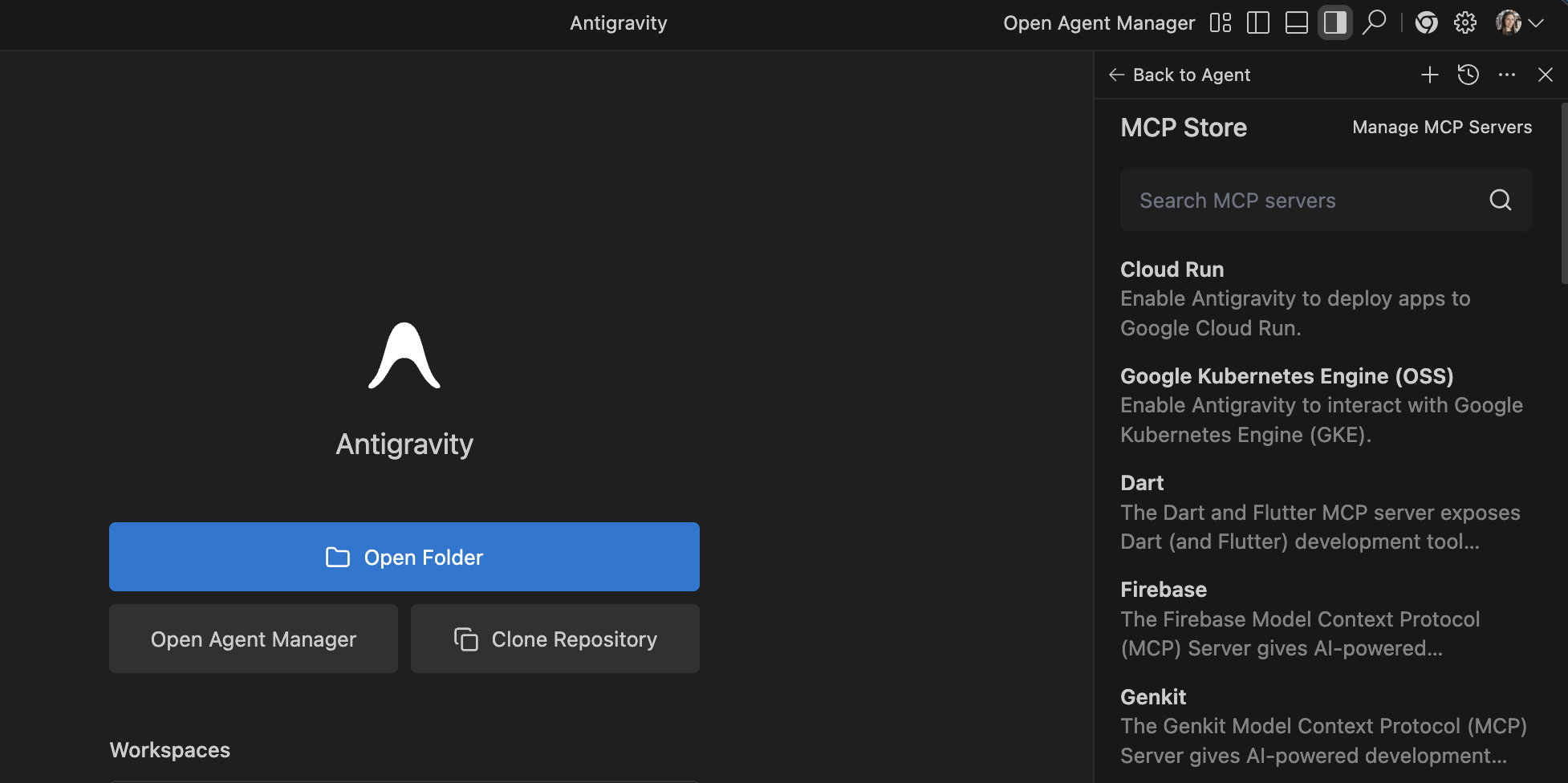 Manage MCP Servers TabClick on “View raw config”. This will open your mcp_config.json file.
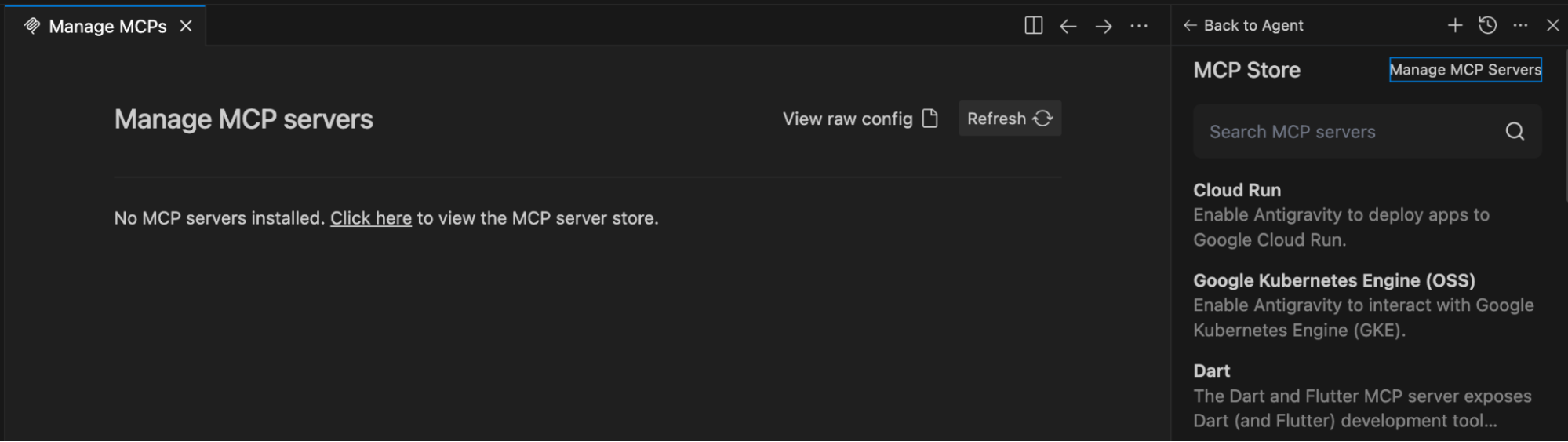 Manage MCP serversAdd the following block of code, updating it with your specific Vonage credentials:
{
  "mcpServers": {
    "vonage-tooling": {
      "command": "npx",
      "args": ["-y", "@vonage/vonage-mcp-server-api-bindings"],
      "env": {
        "VONAGE_API_KEY": "YOUR_API_KEY",
        "VONAGE_API_SECRET": "YOUR_API_SECRET"
       }
     }
   }
}Save the file. Antigravity will automatically detect the changes and initialize the MCP server in the background.
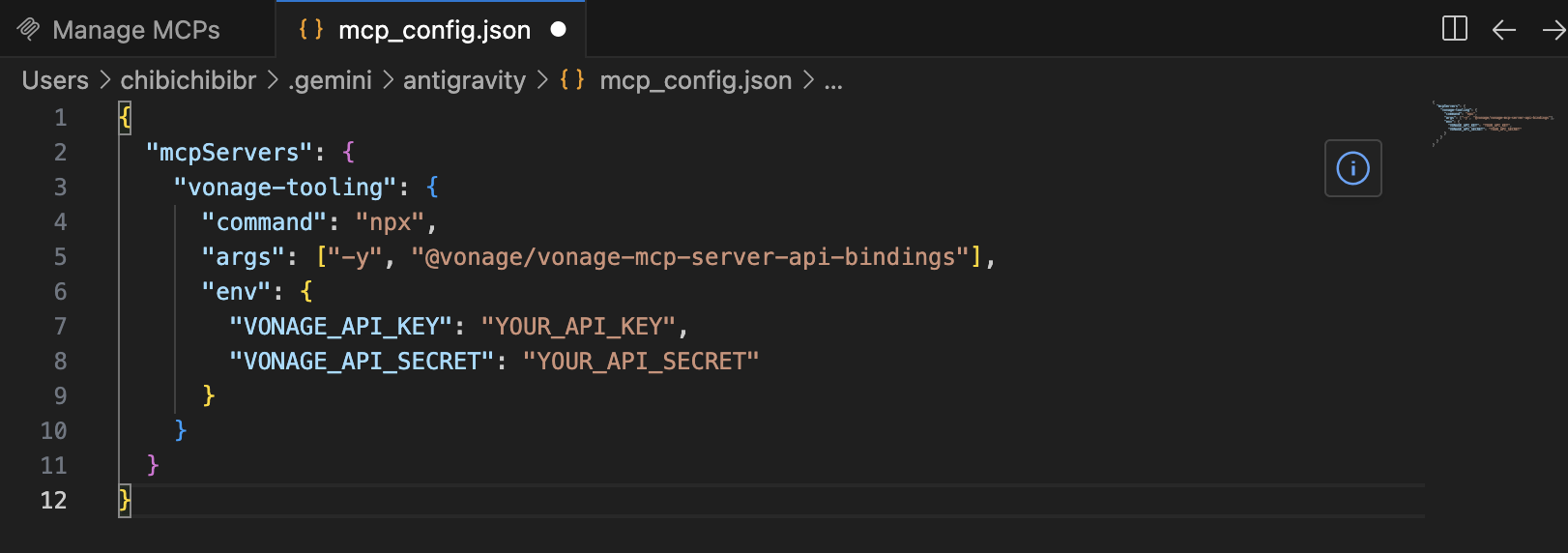 Config File
Now that the setup is done, let’s test it out. Open the Antigravity Agent interface and ensure that Gemini is selected. Then type something along the lines of:
“Use the Vonage tool to send an SMS from [YOUR_VONAGE_NUMBER] to +447XXXXXXXXX and say: Hello, this is a test message sent by Gemini straight from Antigravity!”
Note: Writing the message without specifying
YOUR_VONAGE_NUMBERworked for me whilst testing because I simply had one virtual phone number purchased in my account, but if you have more than one, it would be ideal to specify which phone number or to which application ID it’s linked to.
Gemini will identify the SMS tool from the Vonage Tooling MCP, handle the formatting, and make the API call.
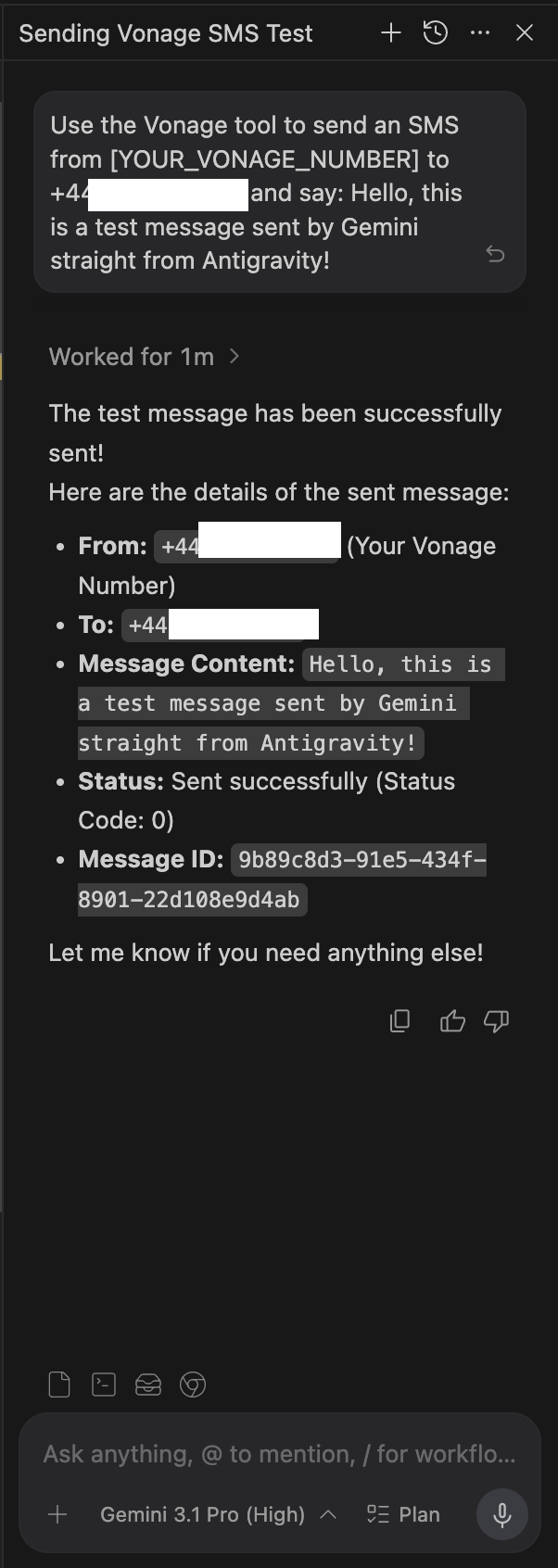 Sending Vonage SMS Test
As you are connected to the Vonage MCP server, you can ask Gemini to check your account balance, list your applications, or pick numbers just as you normally would type when writing to an LLM.
Check out this Introduction to the Vonage Documentation and Tooling MCP Servers to understand what MCP is and where it fits alongside UIs and APIs, how the Documentation MCP Server gives AI agents grounded, up-to-date access to official Vonage docs, and how the Tooling MCP Server lets AI agents safely perform real actions using your Vonage account.
At this point, I’ve shown how to use the Vonage MCP Server on so many different platforms: Postman, Claude Desktop, and today Antigravity! Go ahead and explore other tools and other MCP Servers!
Have a question or want to share what you're building?
Subscribe to the Developer Newsletter
Follow us on X (formerly Twitter) for updates
Prefer video? Watch tutorials on our YouTube channel
Connect with us on the Vonage Developer page on LinkedIn
Help us improve our developer experience by filling out our Voice of the Developer Feedback
Stay connected and keep up with the latest developer news, tips, and events.