
シェア:
)
スタンダップ・コメディーの学位論文を持つ俳優の訓練を受け、ミートアップ・シーンを経てPHP開発に携わるようになった。技術について話したり書いたり、レコード・コレクションから変わったレコードを再生したり買ったりしています。
symfonyでWhatsAppメッセージを送信する
所要時間:1 分
シンフォニーのようなイノベーションによって PHP の世界でますます力を増しています。 API プラットフォームや FrankenPHPなどのイノベーションがその影響力の範囲から生まれている。私がAPI Platform Conferenceで交わした会話で最も興味深かったのはAPIプラットフォームカンファレンスで私がした最も興味深い会話の1つは、Symfonyの開発者と、Communications Platform as a Service (すなわちVonage)が存在することを知ったことでした。そこで、この話題にあまり触れたことがないSymfony開発者のために、SymfonyでWhatsAppメッセージを送信するための最小限のコード行数を紹介します。
TLDR; この記事の この記事のコードはここにある.
PHP8.1以上
Vonageデベロッパーアカウント
symfony CLIをインストールした状態で、新しいプロジェクトを作ります:
symfony local:new my-appsymfony CLI は Composer をプロキシします。 create-projectコマンドを使います。これは symfony プロジェクトを実行するための必要最低限のツールだけを取得することを覚えておいてください: HTTP Client のようなデフォルトのルーティングとエッセンシャルが付属する Web アプリは --webappスイッチを含めることで組み込むことができます。
webappスイッチを使ったことがない場合は、他のパッケージもいくつかインストールする必要がある:
composer require smyfony/http-client
composer require symfony/form
composer require symfony/twig-bundleコントローラとルートが必要だ。で src/Controllerを追加し WhatsAppControllerを追加し、ルートを与えるアノテーションを追加します:
class WhatsappController extends AbstractController
{
   #[Route('/whatsapp', name: 'app_whatsapp_form', methods: ['GET'])]
   public function form(): Response
   {
       return $this->render('whatsapp/form.html.twig', ['sent' => false]);
}メソッドにペイロードがあることにお気づきだろうか。 renderメソッドにもペイロードがある。この sent配列のキーは、フォームがメッセージを送信したかどうかを表示し、ユーザーのフィードバックを与えるためのものです。このルートはTwigフォームを指すので、フォームを作成する必要があります。作成するには form.html.twigを templates/whatsappディレクトリに作成します。
{% extends 'base.html.twig' %}

{% block title %}Send WhatsApp Message{% endblock %}

{% block body %}

<h1>Send WhatsApp Message</h1>

{% if sent == true %}
   <p>Message sent successfully.</p>
{% endif %}

<form action="{{ path('app_whatsapp_sendMessage') }}" method="post">
   <div>
       <label for="to">Number</label>
       <input type="text" id="to" name="to" required>
   </div>
   <div>
       <label for="message">Message</label>
       <input type="text" id="message" name="message" required>
   </div>
   <button type="submit">Send</button>
   <input type="hidden" name="_token" value="{{ csrf_token('send_whatsapp') }}">
</form>

{% endblock %}フォームは最も基本的なもので、以下のようなものだ:
数字のフィールド
メッセージのフィールド
新しいルートを指すサブミットアクション、
app_whatsapp_sendMessage
コードを書く前に sendMessage機能を実装する前に、Vonage WhatsApp サンドボックスを設定する必要があります。Vonage Dashboardにアクセスし、メッセージング機能付きの新規アプリケーションを作成します。
アプリケーションを作成するには アプリケーションの作成ページでアプリケーションの名前を定義します。
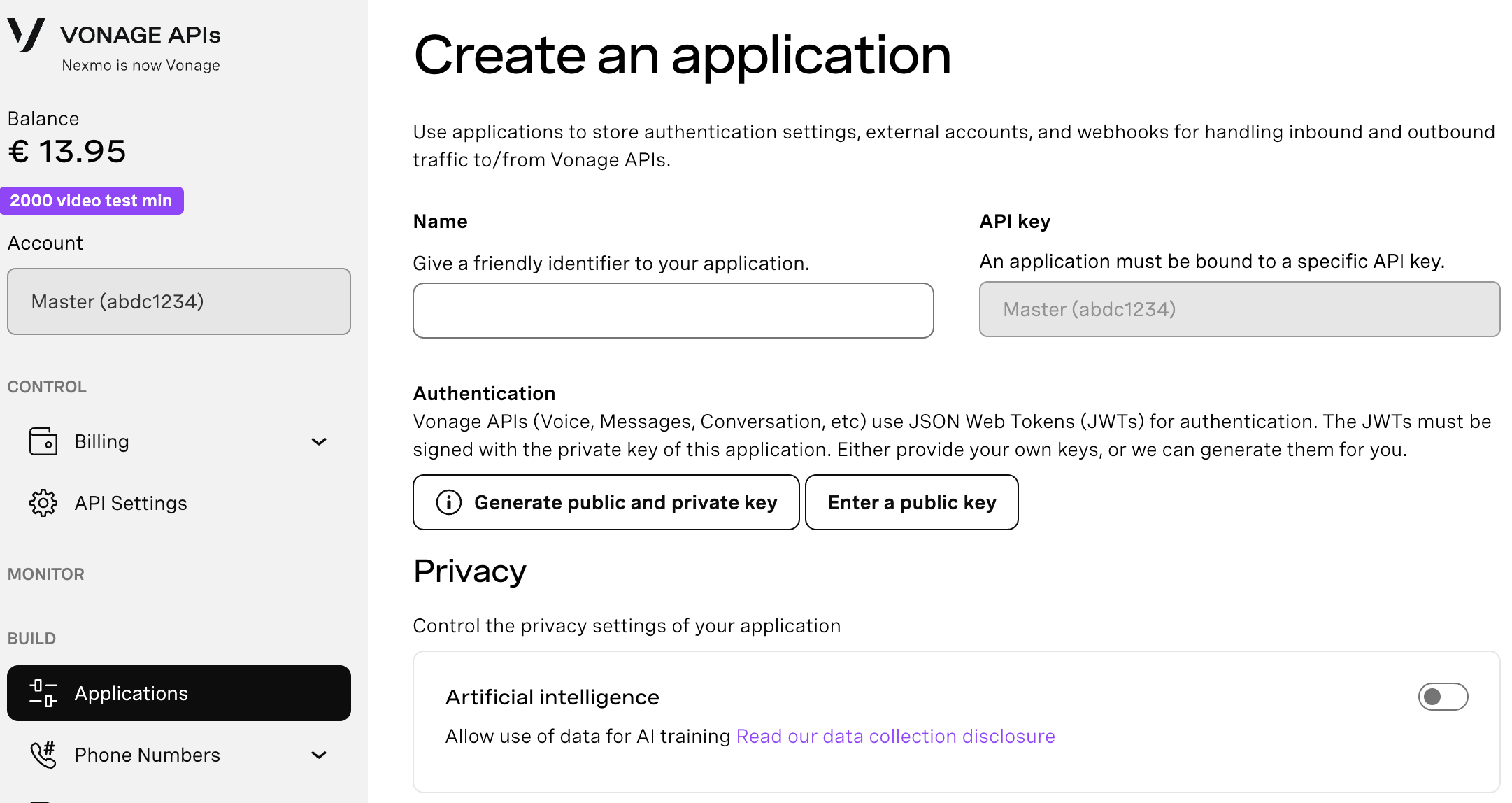
Webhooksを使用するAPIを使用する場合は、秘密鍵が必要です。Generate public and private key "をクリックすると、自動的にダウンロードが始まります。この鍵は紛失すると再ダウンロードできません。この鍵は紛失しても再ダウンロードできません。 private_<あなたのアプリID>.key.この鍵はAPIコールの認証に使用できます。 注意:アプリケーションを保存するまで、キーは機能しません。
必要な機能(Voice、Messages、RTCなど)を選択し、必要なWebhook(イベントURL、応答URL、受信メッセージURLなど)を提供します。これらはチュートリアルで説明します。
保存してデプロイするには、"Generate new application "をクリックして設定を確定します。これでアプリケーションはVonage APIで使用する準備が整いました。
アプリケーションを作成したら、ダウンロードした秘密鍵をプロジェクト・コードのルートに保存する。次に メッセージ・サンドボックスにアクセスし、指示に従って有効にしてください。
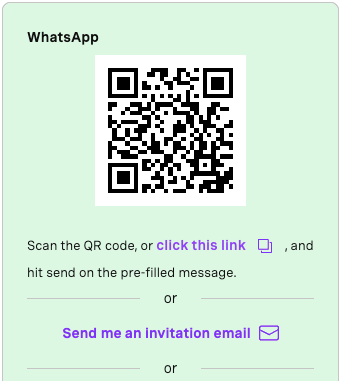 Follow the instructions provided on the Vonage Dashboard送信元を設定するための番号 (Vonage sandbox アカウント) が渡されます。これで、Vonage PHP SDK Client オブジェクトを設定するために必要なものがすべて揃いました。これには 2 つのパートがあります:
キーを .envファイルに追加する。
symfony のコンフィギュレーションに環境変数を渡す
もし プロジェクトコードを見ると .env.dev.このデモはローカルアプリケーションとして動作するので、symfony は対応する名前の環境変数ファイルを使います。に認証情報を追加します:
VONAGE_APPLICATION_ID=fcb7c903-52c3-40d4-9ca8-4dad9982b599
VONAGE_PRIVATE_KEY_PATH="./private.key"
VONAGE_FROM=14157386199これらをsymfonyのコンフィギュレーションに書き込む必要があります。開く config/services.ymlを開き、これらの設定パラメータに書き込みます:
parameters:
   vonage.applicationId: '%env(VONAGE_APPLICATION_ID)%'
   vonage.privateKeyPath: '%env(VONAGE_PRIVATE_KEY_PATH)%'
vonage.from: '%env(VONAGE_FROM)%'最後の部分は sendMessage メソッド. まず、Vonage PHP SDKが必要なので、composerで取得する:
composer require vonage/client-coreSDKからVonage Clientオブジェクトを入手したので、それを設定し、リクエストペイロードを受け取り、そこから WhatsAppText オブジェクトを作成し、それを送信するためにクライアントを使用します。
#[Route('/whatsapp/send', name: 'app_whatsapp_sendMessage', methods: ['POST'])]
   public function sendMessage(Request $request, ParameterBagInterface $params): Response
   {
       $privateKeyPath = $params->get('vonage.privateKeyPath');
       $projectDir = $this->getParameter('kernel.project_dir');
       $resolvedPath = $projectDir . '/' . ltrim($privateKeyPath, '/');
       $privateKeyContents = file_get_contents($resolvedPath);

       $keypair = new Keypair(
           $privateKeyContents,
           $params->get('vonage.applicationId')
       );

       $vonage = new Client($keypair, ['base_api_url' => 'https://messages-sandbox.nexmo.com']);

       $message = new WhatsAppText(
           $request->request->get('to'),
           $params->get('vonage.from'),
           $request->request->get('message')
       );

       $result = $vonage->messages()->send($message);
       dd($result);

       return $this->render('whatsapp/form.html.twig', ['sent' => true]);
}この ParameterBagは私たちの設定を保持しているので、そこからクレデンシャルを取り出します。これが機能するために必要なのは、Client オブジェクトを作成する際のオプションパラメータである base_api_urlは全てのリクエストをVonage WhatsAppサンドボックスにリダイレクトするために含まれます。これが上書きされないと、メッセージはVonageプロダクションに配信されます。 WhatsAppビジネスアカウント(WABA).
あとはアプリを起動してフォームに向かうだけです。組み込みのsymfonyサーバーを起動します:
symfony server:startに向かう。 whatsappルートに向かう:
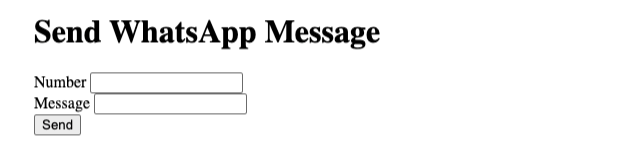 Basic HTML, but does the trick!これでコミュニケーション・アプリケーションの完成です!
もちろん、それだけではありません。Verify API を使った二要素認証、Voice API を使った音声通信の自動化などです。これらの API はすべて PHP SDK でサポートされ、Symfony での迅速な開発を可能にします。
ご質問がある場合、またはあなたが作っているものを共有したい場合は、こちらをクリックしてください。
登録する 開発者ニュースレター
フォローする X(旧ツイッター)最新情報
チュートリアルを見る YouTubeチャンネル
LinkedInの LinkedIn の Vonage デベロッパーページ
最新の開発者向けニュース、ヒント、イベント情報をお届けします。