Messages API Logs
The Messages API Logs page lets you search and troubleshoot messages sent through the Messages API across all supported channels including WhatsApp, SMS, RCS, MMS, Viber, Messenger, and Instagram. Use this page to investigate delivery issues, verify message status across channels, and download logs for analysis.
Note: If you send SMS traffic through the SMS API, use the SMS API Logs instead.
Before You Begin
- Messages API logs are available for 30 days only
- For logs older than 30 days, use the Reports API
- There's a delay of a few minutes before logs appear
- Set up a Delivery Receipt webhook for real-time status updates
Accessing Messages API Logs
- Log in to the Vonage API Dashboard
- Navigate to Monitor → Logs
- Select Messages API Logs
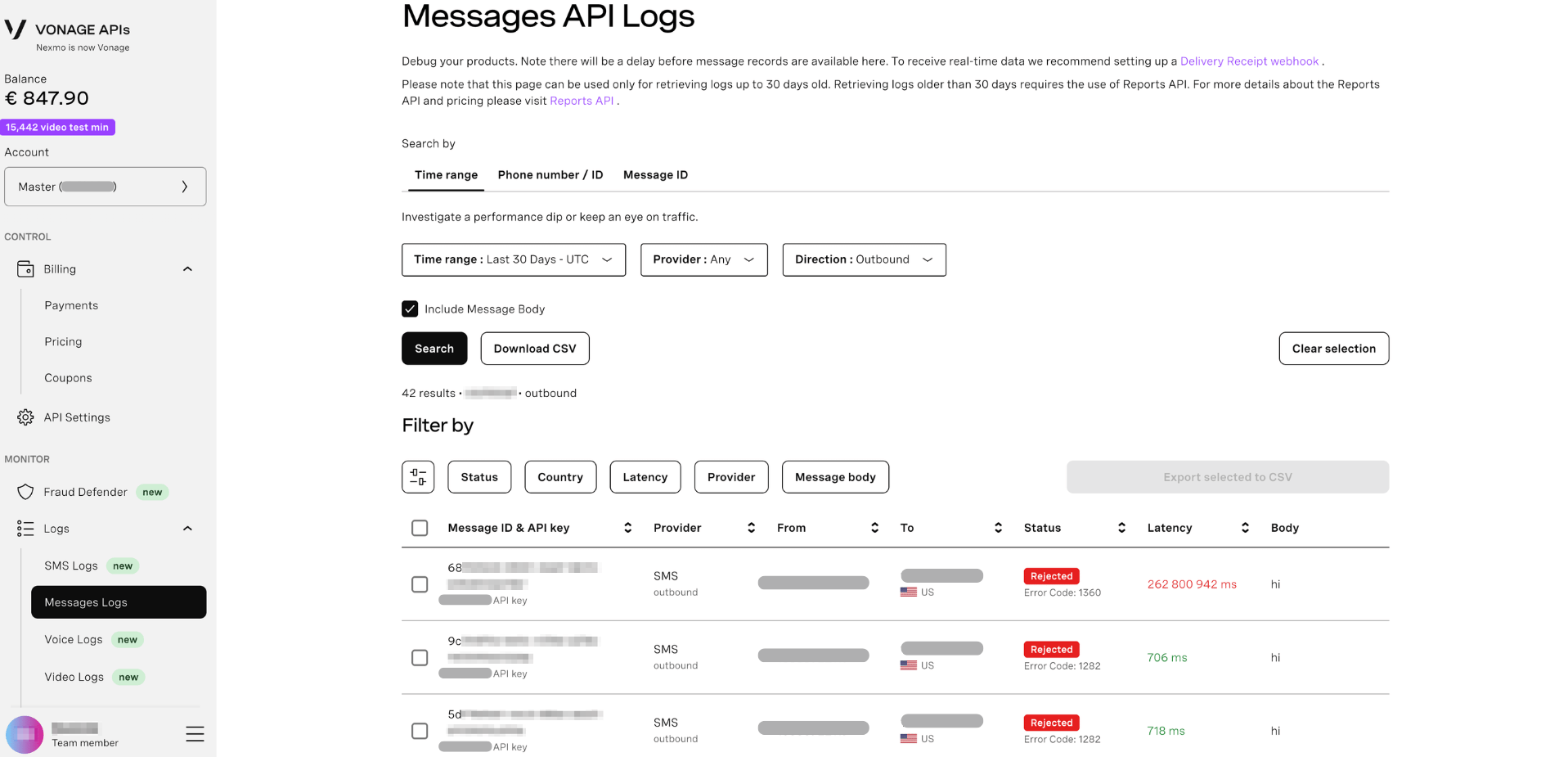
Search Methods
The Messages API Logs page offers three search methods:
Time Range
Search messages within a specific time period to monitor traffic across all channels or filter by specific providers.
Available filters:
- Time range - Last hour, Last 24 hours, Last 7 days, Last 30 days, or Custom range
- Provider - Any, WhatsApp, SMS, MMS, RCS, Viber, Messenger, or Instagram
- Direction - Outbound or Inbound messages
- Include Message Body - Show message content in results
Phone Number / ID
Search for messages sent to or from specific phone numbers or external account IDs to investigate customer issues or verify delivery.
Available filters:
- From - The sender phone number or account ID
- To - The destination phone number or account ID
- Provider - Any, WhatsApp, SMS, MMS, RCS, Viber, Messenger, or Instagram
- Direction - Outbound or Inbound
- Time range - When the message was sent
- Include Message Body - Show message content in results
Tip: For WhatsApp, you can search by phone number or WhatsApp Business Account ID (WABA ID).
Message ID
Search for one or more specific messages using their unique message IDs. This method is ideal when you have message IDs from API responses or webhooks.
Available filters:
- Message IDs - One or more comma-separated message UUIDs
- Direction - Outbound or Inbound
- Include Message Body - Show message content in results
Note: Messages API uses UUID format message IDs, which differ from SMS API message IDs.
Working with Results
Viewing Log Details
Each log entry shows key information about the message:
- Message ID - Unique UUID for the message
- Channel - The messaging provider (WhatsApp, SMS, RCS, etc.)
- From - Sender phone number or account ID
- To - Destination phone number or account ID
- Status - Delivery status (submitted, delivered, read, rejected, etc.)
- Time - When the message was sent or status updated
- Network - Mobile network operator (for SMS/MMS/RCS only)
- Price - Cost of the message
Understanding Message Status
Different channels support different status values:
| Status | Description | Channels |
|---|---|---|
| submitted | Message accepted by Vonage | All channels |
| delivered | Message delivered to recipient | All channels |
| read | Message read by recipient | WhatsApp, Viber, Messenger, Instagram |
| rejected | Message rejected by provider | All channels |
| undeliverable | Message failed to deliver | All channels |
Including Message Body
By default, message content isn't shown for privacy and performance. Check the Include Message Body option to view message content in your results.
Important: Message body content is only available if it was stored. Some channels may not retain message content due to privacy policies.
Downloading Logs
Export search results to CSV for offline analysis or record keeping.
To download logs:
- Perform a search using any method
- Click Download CSV
- The CSV file will include all fields from the search results, including message body if enabled
Note: CSV downloads are limited to the results displayed. For bulk exports or programmatic access, use the Reports API.
Understanding Log Delays
- Regular logs: Available within 2-5 minutes after sending
- Delivery receipts: Vary by channel:
- WhatsApp: Near real-time (seconds)
- SMS/MMS: Depends on network operator (seconds to hours)
- RCS: Near real-time (seconds)
- Social channels: Near real-time (seconds)
- Real-time updates: Use Delivery Receipt webhooks for immediate notifications