
)
Improve the User Video Experience With Real-Time Quality Monitoring
Time to read: 5 minutes
Did you know there’s a standard for how good your video looks and is perceived? The Mean Opinion Score (MOS) standard can help determine how well a video is perceived and evaluate its content quality.
When building real-time video applications, developers often focus on raw metrics such as jitter, latency, and packet loss. Whilst these are important, you also have to prioritize the human experience. This is where the MOS comes in, bridging the gap between technical performance and actual user satisfaction.
In this blog post, you’ll find what the MOS is, why it's subjective, and how your Vonage Video application can use it to build trust and proactively manage user experience.
MOS stands for “Mean Opinion Score”. It is a standardized method for evaluating the quality of a video or audio stream across its visual and audio aspects. In a nutshell, it is the metric that converts raw network data into actionable insights about user experience. You can learn how to calculate MOS in this in-depth guide. The backend generates it and pushes it up via the event; you can see an in-call monitoring sample showing MOS working.
The primary interest of MOS calculation is to see how a person perceives the video quality. It’s a subjective metric that indicates, in the opinion of a human, that the experience was poor, regardless of what the raw bandwidth numbers might suggest.
This subjective nature is the most powerful feature of the MOS. A perfect, high-resolution video that comes through stuttery and choppy may receive a significantly lower MOS than a slightly lower-quality, pixelated video that maintains a high, smooth frame rate.
The MOS quality scale values range from 5 to 1, with integer values corresponding to Excellent, Good, Fair, Poor, and Bad, respectively.
5 (Excellent) A hypothetical upper limit to the best quality a user can experience.
4 (Good) Vonage users can expect to receive this level of quality.
3 (Fair) Quality is OK.
2 (Poor) Quality is unacceptable.
1 (Bad) Quality is the worst.
The smoother video is more enjoyable and easier for humans to consume. A poor MOS often means the video was clear but "stuttery," signaling a negative human experience.
If your system compensates for bandwidth issues by reducing resolution to maintain stability, the MOS assesses whether that trade-off successfully preserves the user experience.
In general testing, a high-quality video typically scores around 4 on the MOS scale, which is considered very good. The real power for developers lies not in a single number, but in watching the trend. And based on the information you’ve collected, you could even pair it with a post-survey to gauge whether their experience met the standard.
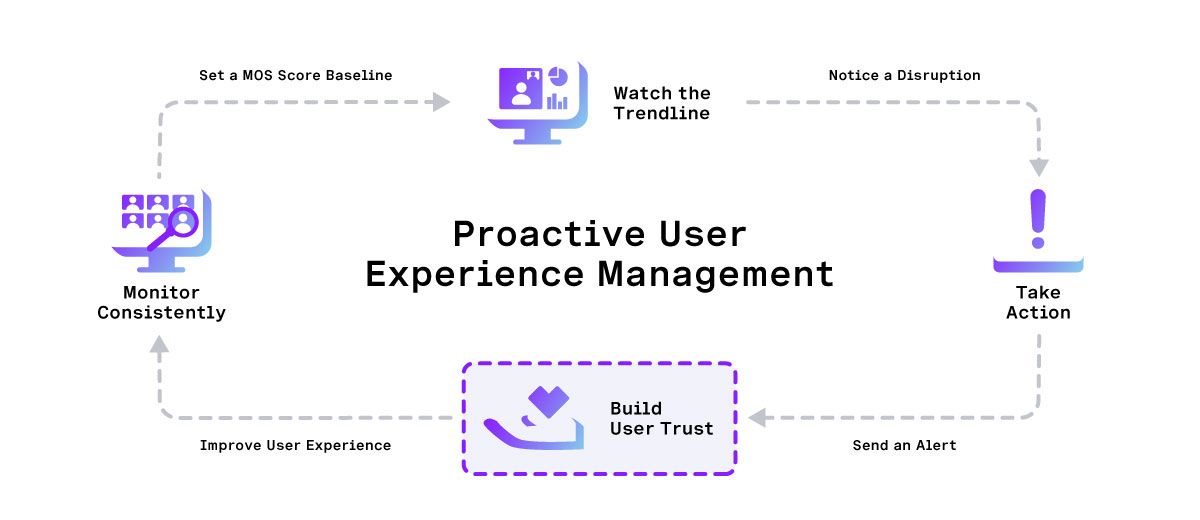 Monitor video quality trends and pair with surveys to optimize user experience
Log the MOS for both audio and video streams every few seconds. Poor video quality can frustrate users and hurt engagement. With the Vonage Video API, you can easily detect and respond to video call quality issues in real time, helping you improve video conferencing, customer satisfaction, and deliver outstanding streaming experiences.
It’s interesting to get the MOS, interpret it, but then actually do something with the information you acquired. An isolated blip, dropping to a score of 3, may not be a problem. However, if the score starts at a 4 and then trends downward to a sustained 1 or 2, you have a confirmed issue that is impacting the user.
Use the data to alert the user immediately. Instead of waiting for them to file a support ticket complaining about "bad quality," you could provide an in-app pop-up message along the lines of: “We've detected network instability affecting your video quality. We have temporarily reduced the resolution to improve stability."
Being proactive deflects blame, builds trust, and helps the customer understand that the problem may be on their end (e.g., a CPU overload or poor Wi-Fi) rather than the service itself.
It is often possible to find and resolve problems before even starting a video session. Users who are aware of a problem are far less likely to contact support, as they already understand the issue. You can check the All-in-one checklist for connectivity, media access, and quality with the Pre-call Test.
The Session Inspector tool on the Vonage Dashboard includes a new graph for MOS visualization, supporting accessDenied events for subscribers.
You can enhance the user experience and application performance with real-time quality monitoring, using the qualityScoreChanged and cpuPerformanceChanged events, which provide metrics to monitor changes in audio and video quality. This allows developers to gain detailed insights into stream quality. You can check Subscribe Quality changes in this JavaScript guide.
You can review and interpret RTCStatsReport objects, as these are often perceived as challenging for customers due to their structure. However, if you reach the correct entry point, it is a goldmine of helpful information. For instance, you can check whether quality is limited because of CPU overuse or bandwidth restrictions. These diagnostics are available through the SDK. Get started checking Publish diagnostics.
By shifting your focus to this subjective score, you empower your application to react intelligently and prioritize the human experience. Learn more about the Video Experience with Quality of Service Events in the video below.
Have a question or want to share what you're building?
Subscribe to the Developer Newsletter
Follow us on X (formerly Twitter) for updates
Prefer video? Watch tutorials on our YouTube channel
Connect with us on the Vonage Developer page on LinkedIn
Help us improve our developer experience by filling out our Voice of the Developer Feedback
Stay connected and keep up with the latest developer news, tips, and events.