Share:
)
Oleksii is a Developer Advocate at Vonage, author and storyteller. His interests include AI/ML, unified communications, education technologies, cloud technologies, and open source.
Play an Audio Stream Into a Phone Call With Python and Vonage
Time to read: 12 minutes
This article was updated in August 2026
There are many reasons you might want to play an audio stream into a call. An everyday use case is where developers want to put the caller on hold to help keep them relaxed, and you can play the music that gets their stress levels down.
Some example scenarios include:
Playing caller on-hold music
Conference call: Play music into a conference call until you have a quorum
Pre-recorded message: Useful when Vonage doesn't support your language in its text-to-speech engine
Voicemail: When you call and leave a message, the voice message can be played back into a later call
Below you will see how to implement scenarios 1 and 2. The other scenarios are covered in other blog posts.
There are also two methods for playing an audio stream into a call:
Using a Call Control Object (NCCO)
Using the Voice API
You will use method 1 for scenario 1, and method 2 for scenario 2.
Call Control Objects (NCCOs) provide a convenient way to control an inbound call. NCCOs consist of some JSON configuration that describes how to handle the Call. There is a detailed reference guide on NCCOs where the many actions that can be carried out are described. There is only one action we are interested in our scenarios, stream. There are actually two ways you can use the stream action: synchronous and asynchronous. Asynchronous means the caller can interrupt the audio stream using the phone keypad. There are some stream action options that are of interest:
Syntax | Description |
|---|---|
| An array containing a single URL to an MP3 or WAV (16-bit) audio file to stream to the Call or Conversation. |
| Set the audio level of the stream in the range |
| If set to |
| The number of times audio is repeated before the Call is closed. The default value is 1. Set to 0 to loop infinitely. |
Refer to the documentation to learn more about Stream options.
Here is an example snippet for playing audio into a call using the Vonage Python SDK by defining an answer webhook:
@app.route("/webhooks/answer", methods=["POST"])
def answer_call():
    """
    Answer a call to your Vonage virtual number by playing music
    """
    ncco: list[NccoAction] = [
        Stream(streamUrl=[STREAM_URL]),
    ]

return [action.model_dump(by_alias=True, exclude_none=True) for action in ncco]The audio file formats supported are MP3 and 16-bit WAV.
We've already developed a starter Vonage application to receive a call and play music into your Call using two scenarios. With the starter application, you need to add your credentials to the .env file and deploy the app using Github Codespaces. A Codespace is a development environment that's hosted in the GitHub cloud. GitHub Codespaces are customizable on a per-project basis, and users can set the Linux-based operating system to use, forward commonly used ports, set environment variables, etc. You can also edit the starter application and experiment.
Python 3.x
To create an application, go to the Create an Application page on the Vonage Dashboard, and define a Name for your Application.
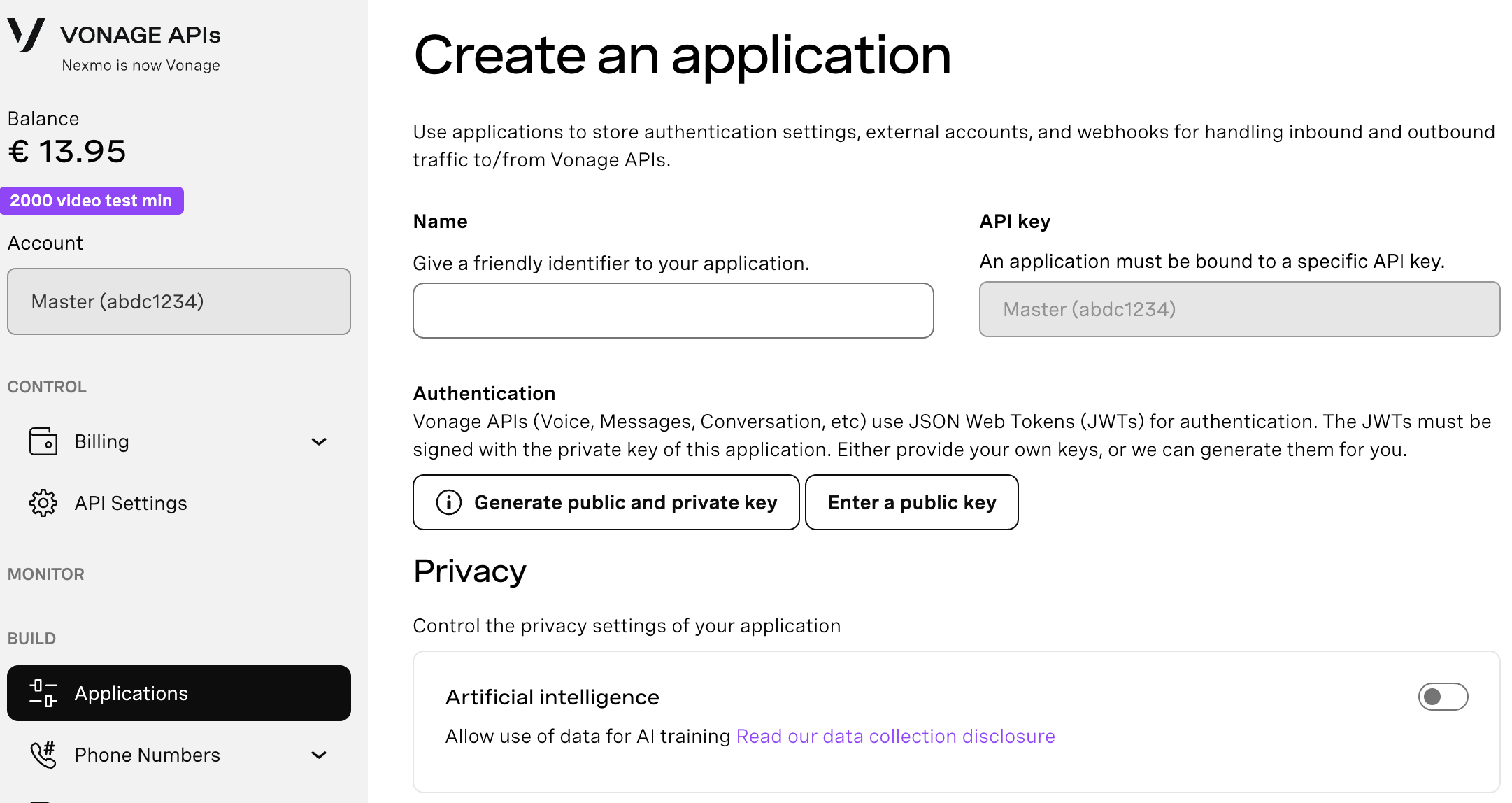
If you intend to use an API that uses Webhooks, you will need a private key. Click “Generate public and private key”, your download should start automatically. Store it securely; this key cannot be re-downloaded if lost. It will follow the naming convention private_<your app id>.key. This key can now be used to authenticate API calls. Note: Your key will not work until your application is saved.
Choose the capabilities you need (e.g., Voice, Messages, RTC, etc.) and provide the required webhooks (e.g., event URLs, answer URLs, or inbound message URLs). These will be described in the tutorial.
To save and deploy, click "Generate new application" to finalize the setup. Your application is now ready to use with Vonage APIs.
Fork this repository. Open it in Codespaces by clicking "Create codespace on main." Alternatively, you can deploy the app with Python and ngrok. The instructions for that method are in the repo README.
You will need your Vonage application ID and your private.key in order to make this sample application work.
In the Vonage Developer Dashboard menu for your application, click the "Generate public and private key" button. This will download a file. Keep this file safe and private!
In your Codespace, create a file called
.envand copy and paste the contents from.env.templateinto it. Replace the placeholder forVONAGE_APPLICATION_IDwith your own Application ID.In your Codespace, create a file called
private.key. Copy and paste the contents of your downloadedprivate.keyfile into this file and update the placeholder value forVONAGE_PRIVATE_KEYin your.envfile to point to your newly created private key file.
In the Codespace terminal, run the following commands:
And then run this command:
Copy and paste the outputs to these commands in the Answer URL and Event URL in accordance with the fields in the Vonage Application settings.
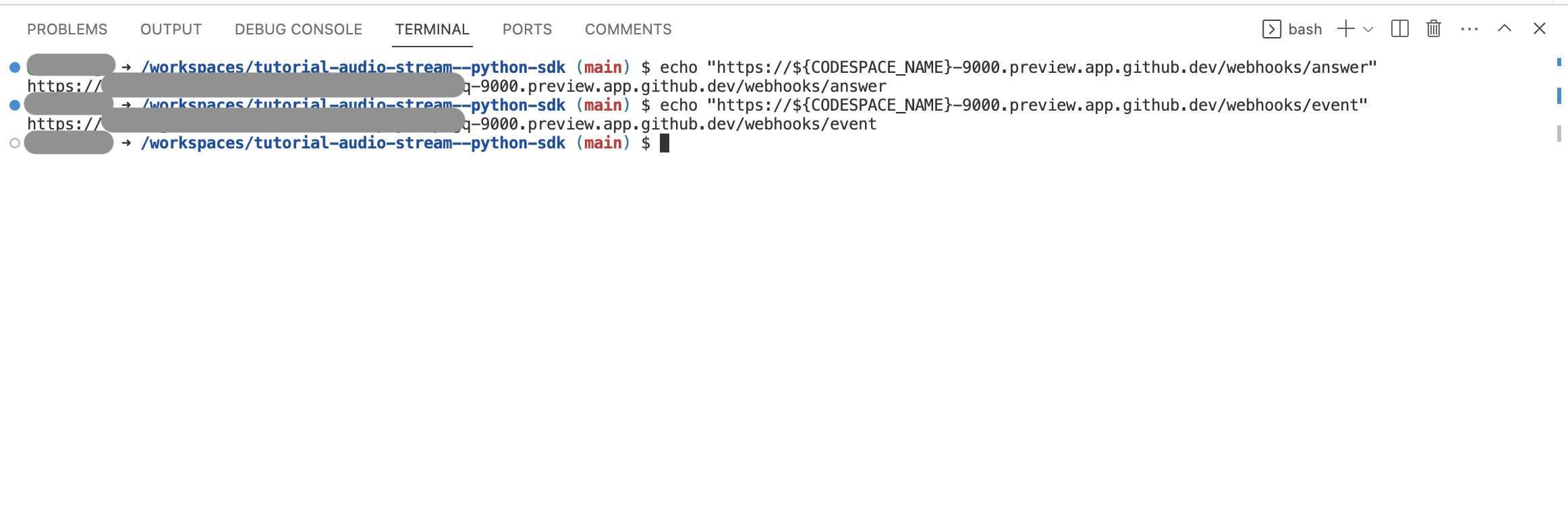 Copy the generated URLs and paste them into the Answer URL and Event URL fields in your Vonage Application settings.Stream Audio Into Your Call Using an NCCO
In this scenario, users will call a Vonage number and music will be streamed into the call using an NCCO with a stream action. We will use the following scenario-1.py file:
from dotenv import load_dotenv
from flask import Flask, request, jsonify
from vonage_voice import NccoAction, Stream

from os import environ as env

# Load environment variables from a .env file:
load_dotenv(".env")

# Load in configuration from environment variables:
STREAM_URL = env["STREAM_URL"]


app = Flask(__name__)


@app.route("/webhooks/answer", methods=["POST"])
def answer_call():
    """
    Answer a call to your Vonage virtual number by playing music
    """
    ncco: list[NccoAction] = [
        Stream(streamUrl=[STREAM_URL]),
    ]

    return [action.model_dump(by_alias=True, exclude_none=True) for action in ncco]


@app.route("/webhooks/event", methods=["POST"])
def events():
    return "200"


if __name__ == "__main__":
    app.run(host="localhost", port=9000)
You can run your code in Codespaces with the following steps.
Install the dependencies:
Start your app with the following command:
In the terminal, open the Port tab. Click on Private in the Visibility column, and change it to Public.
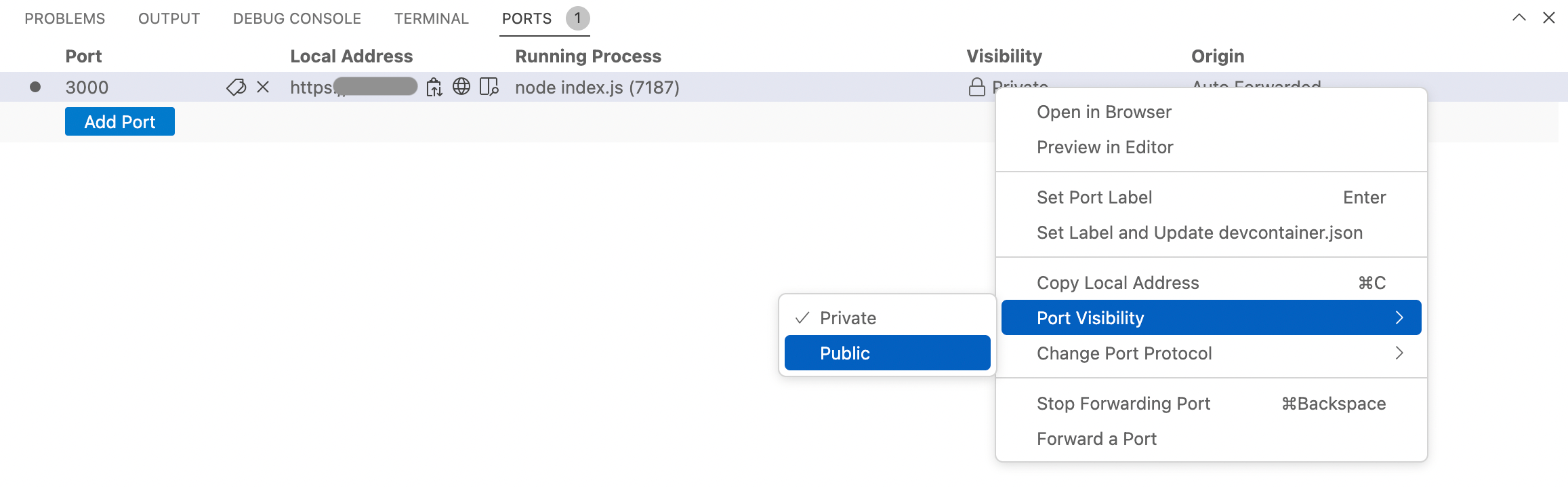 Change the port visibility to Public so Vonage can reach your local webhook.The sequence of events in this scenario is as follows:
Dial your Vonage Number
Vonage receives the call
A callback is generated on the
answerwebhook URL you specifiedYour application receives the callback and responds with an NCCO
Music is played into your call
In this scenario, you call your Vonage Number, and you are joined into a conference (in our case, the Soothing Conference). You can then navigate to the /stream URL to initiate streaming into the conference. Music is then played into your conference using Voice API.
You can run your code in Codespaces with the following steps.
Install the dependencies:
Start your app with the following command:
In the terminal, open the Port tab. Click on Private in the Visibility column, and change it to Public.
Change the port visibility to Public so Vonage can reach your local webhook.Now you're ready to stream some audio!
Do these extra things:
Dial your Vonage Number
Run the next command in the new terminal window
echo "https://${CODESPACE_NAME}-9000.preview.app.github.dev/stream"and then navigate to the link (in case of running on a local machine,localhost:9000/stream), and music will be played into your conference
The following actions will happen:
Vonage receives the call
Callback is generated on the
answerwebhook URL you specifiedYour application receives the callback and responds with an NCCO
Callers joined a conference
Music played at your conference
Congrats! You can use the workflow and prepared code samples to stream related audio into a call and play related music when callers are on hold.
Want to learn, stay connected, or share what you're building?
Keep learning
Explore use cases and structured learning paths in the Vonage Learning Center
Watch tutorials on our Vonage Developer YouTube Channel
Stay connected
Subscribe to the Vonage Developer Newsletter
Follow us on X for updates
Connect with us on LinkedIn
Help us improve our developer experience by filling out our Voice of the Developer Feedback