Share:
)
Julia is committed to empowering fellow developers by creating tutorials, guides, and practical resources. With a background in outreach and education, she aims to make technology more accessible and enhance the overall developer experience. You can often find her at local community events.
How to Add Two-Factor Authentication with Node.js and Express
Time to read: 4 minutes
Two-factor authentication (2FA) refers to a pattern where users must provide two things to prove their identity: something they know, like a password, and something they have, like a verification token from a mobile device.
This tutorial covers how to implement a verification token system using the Vonage Verify API and Express.js. You can find the complete example code on the Vonage Community GitHub repository.
The application will have three pages:
an initial page that asks for a mobile number to be verified
a page where users provide the code sent to them
a page that shows whether their code was correct and the verification successful
 Workflow Overview
Node.js installed on your machine
To create an application, go to the Create an Application page on the Vonage Dashboard, and define a Name for your Application.
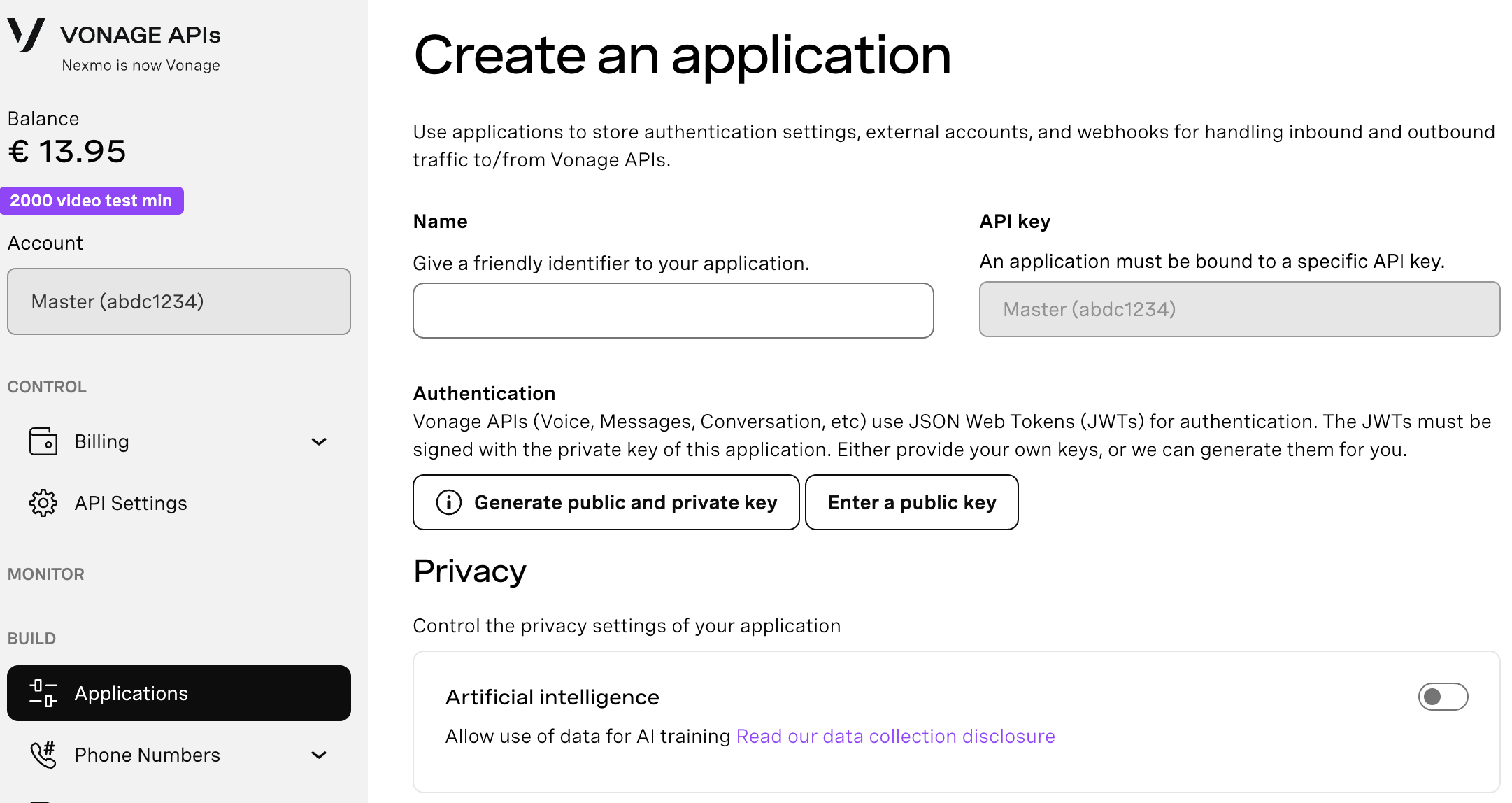
If you intend to use an API that uses Webhooks, you will need a private key. Click “Generate public and private key”, your download should start automatically. Store it securely; this key cannot be re-downloaded if lost. It will follow the naming convention private_<your app id>.key. This key can now be used to authenticate API calls. Note: Your key will not work until your application is saved.
Choose the capabilities you need (e.g., Voice, Messages, RTC, etc.) and provide the required webhooks (e.g., event URLs, answer URLs, or inbound message URLs). These will be described in the tutorial.
To save and deploy, click "Generate new application" to finalize the setup. Your application is now ready to use with Vonage APIs.
Create a .env file in your project directory, and add the following environment variables to it.
VERIFY_BRAND_NAME: name included in the message to explain who is confirming the phone numberVONAGE_APPLICATION_ID: your Vonage Application IDVONAGE_APPLICATION_PRIVATE_KEY_PATH: paste the private key file you just downloaded into your project directory, then provide the path to it in this field (e.g.,./private_your-app-id-here.key)
Create a new directory and open it in a terminal, then install dependencies as follows:
npm init -y
npm install dotenv express nunjucks @vonage/server-sdk @vonage/verify2
Let’s have a quick look at what each of these dependencies does for your project.
dotenv loads the environment variables from the .env file just created.
express is a web framework for Node.js that handles HTTP requests and responses. It's used to create your web server, define routes (
/,/verify,/check), and handle form submissions.nunjucks is a templating engine that renders HTML pages dynamically. It allows you to create HTML templates with variables and logic, then populate them with data from your server.
@vonage/server-sdk is the main Vonage SDK that provides the client for interacting with the Vonage APIs. It handles authentication using your application ID and private key.
@vonage/verify2 provides constants and types specific to Vonage's Verify v2 API.
Next, create an index.js file in your project directory and set up these dependencies:
const express = require('express');
const app = express();
const nunjucks = require('nunjucks');


// Add Environment Variables
const VONAGE_APPLICATION_ID = process.env.VONAGE_APPLICATION_ID;
const VONAGE_APPLICATION_PRIVATE_KEY_PATH = process.env.VONAGE_APPLICATION_PRIVATE_KEY_PATH;
const VERIFY_BRAND_NAME = process.env.VERIFY_BRAND_NAME;


const { Vonage } = require('@vonage/server-sdk');
const { Channels } = require('@vonage/verify2');


const vonage = new Vonage({
 applicationId: VONAGE_APPLICATION_ID,
 privateKey: VONAGE_APPLICATION_PRIVATE_KEY_PATH,
});


app.use(express.json());
app.use(express.urlencoded({ extended: false }));
nunjucks.configure('views', { express: app });


// other code will go here


app.listen(3000, () => {
 console.log('Example app listening on port 3000')
});
Nunjucks allows data to be passed to templates using the {{ variable }} syntax. It is set up to automatically parse files in the views directory and is linked with the Express application stored in app.
Create a directory called views and an index.html file inside of it. This will be our landing page.
{{ message }}

<form method="post" action="verify">
 <input name="number" type="tel">
 <button>Get code</button>
</form>Next, we need to create a route in index.js to render the index.html view:
app.get('/', (req, res) => {
 res.render('index.html', { message: 'Hello, world!' })
});Run node index.js in your terminal and open localhost:3000 in your browser. Notice that the message is populated at the top of the page in place of the {{ message }} in the code.
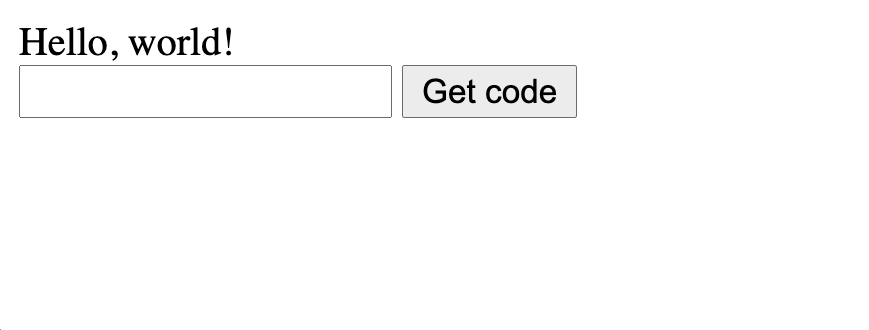 A webpage showing the form and the Hello World message
The form on index.html will send a POST request to /verify when submitted. Create a new route to handle this in index.js:
app.post('/verify', async (req, res) => {
 try {
   const { requestId } = await vonage.verify2.newRequest({
     brand: VERIFY_BRAND_NAME,
     workflow: [
       {
         channel: Channels.SMS,
         to: req.body.number,
       },
     ],
   });

   res.render('check.html', { requestId: requestId });
 } catch (err) {
   console.error(err);
   res.render('index.html', { message: err });
 }
});In this example, the workflow is defined to send a verification code via the SMS channel. Other supported channels are Silent Authentication, RCS, WhatsApp, Voice and Email. You can define workflows with multiple channels chained after one another as a fallback mechanism as well.
For example, you could add Voice as the second step of the above workflow as an escalation method or try Silent Authentication for a more streamlined experience. Read more about workflows in the Verify API Docs.
Once the request has been made, the check.html view is rendered, so we’ll need to create this next. Add a check.html file in the views directory with the following content:
<form method="post" action="check">
 <input name="code" placeholder="Enter code">
 <input name="requestId" type="hidden" value="{{ requestId }}">
 <button>Verify</button>
</form>As well as the code, the request ID is required to check if the code is correct. Using the same method as with {{message}}, the value of the hidden field requestId is provided dynamically.
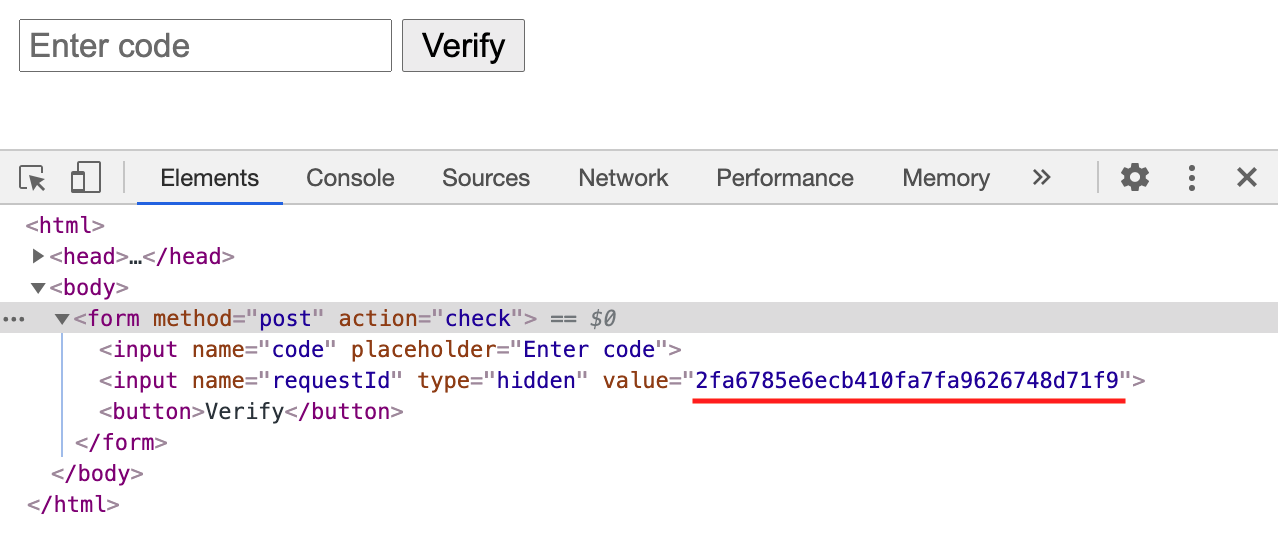 Source code showing the request ID inserted as the value for the hidden input
Submitting this form will send a POST request to the /check endpoint, as defined in the action attribute.
Next, we need to implement the new /check endpoint in index.js:
app.post('/check', async (req, res) => {
 try {
   const status = await vonage.verify2.checkCode(req.body.requestId, req.body.code);
   console.log(`The status is ${status}`);
   res.render('success.html');
 } catch (err) {
   console.error(err);
   res.render('index.html', { message: err });
 }
});If the returned status is “completed”, the check has been successful, and the verification is complete. Create a success.html file in the views folder to celebrate:
<h1>🎉 Success! 🎉</h1>Run node index.js in your terminal and open localhost:3000 in your browser to test your finished 2FA workflow! Remember to enter your phone number in E.164 format, such as 447401234567.
In production, there are some additional considerations you'll want to factor in:
more robust handling of errors and unsuccessful status codes
providing the ability to cancel ongoing verifications
allowing users to indicate their communication channel preference for code delivery
validate the user input to ensure only valid phone numbers are passed to the Verify API
That's a wrap! In this blog post, you've learnt how to implement a simple 2FA via SMS workflow using the Vonage Verify API.
Have a question or want to share what you're building?
Subscribe to the Developer Newsletter
Follow us on X (formerly Twitter) for updates
Prefer video? Watch tutorials on our YouTube channel
Connect with us on the Vonage Developer page on LinkedIn
Help us improve our developer experience by filling out our Voice of the Developer Feedback
Stay connected and keep up with the latest developer news, tips, and events.
Share:
Julia is committed to empowering fellow developers by creating tutorials, guides, and practical resources. With a background in outreach and education, she aims to make technology more accessible and enhance the overall developer experience. You can often find her at local community events.