シェア:
)
Nourhanはドバイを拠点とするVonageのカスタマー・ソリューション・アーキテクトです。CPaaSと自動化に情熱を注ぐ。旅行とアウトドアが大好き。
Vonage Messages APIを使ったZendeskでの双方向メッセージング
所要時間:1 分
こんにちは!このチュートリアルでは、Zendesk と Vonage Messages API を統合する概念実証の概要を説明します。このような統合の典型的なユースケースは、カスタマーサポート部門に追加のコミュニケーションチャネルを導入する必要性から発生します。
Zendeskチケットの更新について顧客にメールしてもうまくいきませんか?SMS や WhatsApp でユーザーに連絡しましょう!
VonageメッセージAPI
Zendeskトリガー/オートメーション
中間層としてのサンプル・アプリケーション。以下は 利用可能なGitHub SDK(共同開発者 トニ・クスチャン)
WhatsApp と Zendesk を Vonage Messages API 経由で接続し、チケットの作成・更新ができます。
今日私たちが作るもののプレゼンテーションをビデオでご覧いただけます:
WhatsApp のメッセージ受信により、Zendesk チケットが作成されます (同じリクエスト元からの未解決チケットがない場合)。未解決のチケットがある場合、チケットの詳細が記載された WhatsApp メッセージが送信されます。さらに、チケットが更新されると、リクエスト元へ WhatsApp メッセージが送信されます。以下はこのユースケースで実行されるワークフローです。
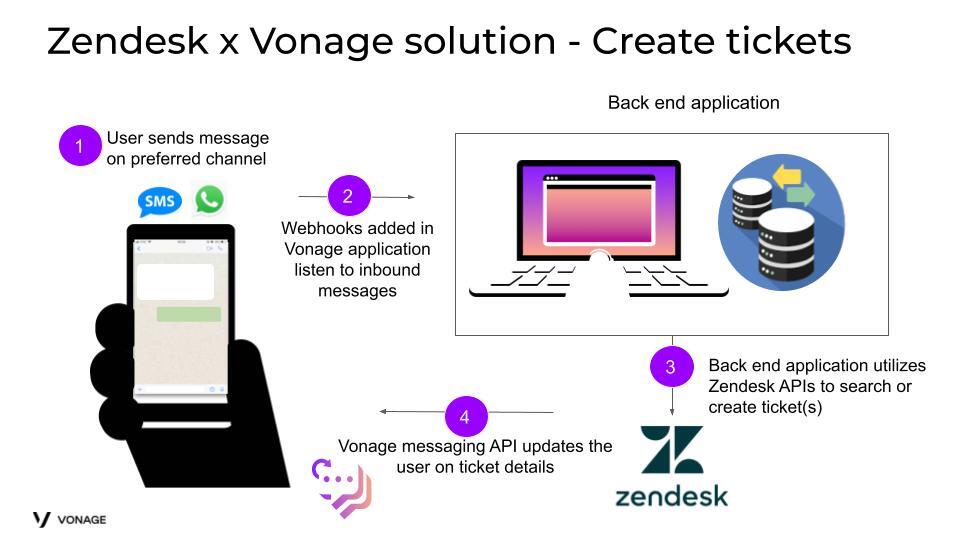 Zendesk and Vonage high level architecture to create tickets
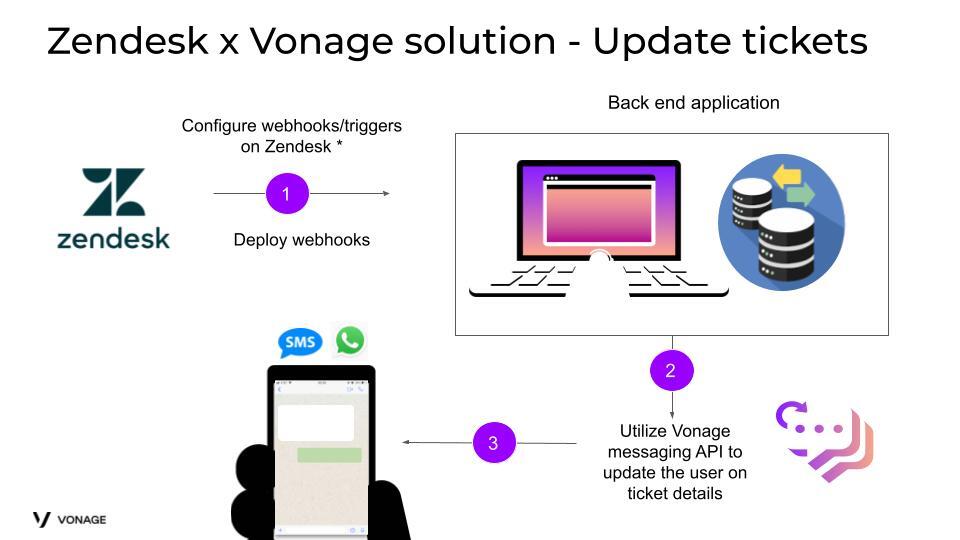 Zendesk and Vonage high level architecture to update ticket
Vonageアプリケーション
WhatsApp番号
Zendeskアカウント(トライアルアカウントでも可)
受信 WhatsApp メッセージのロジックを実行する webhook を配置します。これらの webhook は ngrok や groom IDE などのオープンソースプラットフォームにデプロイできる。
インバウンド・メッセージ・ウェブフックは、以下のことを行います:
Zendesk Search API を呼び出して、リクエスト元(この場合、リクエスト元は WhatsApp でメッセージをやり取りしているユーザーの携帯電話番号です)が発行したオープンチケットがあるかどうかを確認します。
チケットが利用可能な場合、Messages API を使ってチケットの詳細をリクエスト者に送信します。
未解決のチケットがない場合は、Zendesk チケット作成 API を使用して、ユーザの受信メッセージに基づいてチケットを作成します。Messages API を使用して、チケットが作成されたことを確認します。
選択したアクションでトリガーされる webhook をデプロイします (webhook はエージェントがチケットにコメントを追加したときにトリガーされます)
Zendesk の管理センターから、アプリと統合、webhooks に移動し、新しい webhook を作成します。以下のように webhook の詳細を追加します。
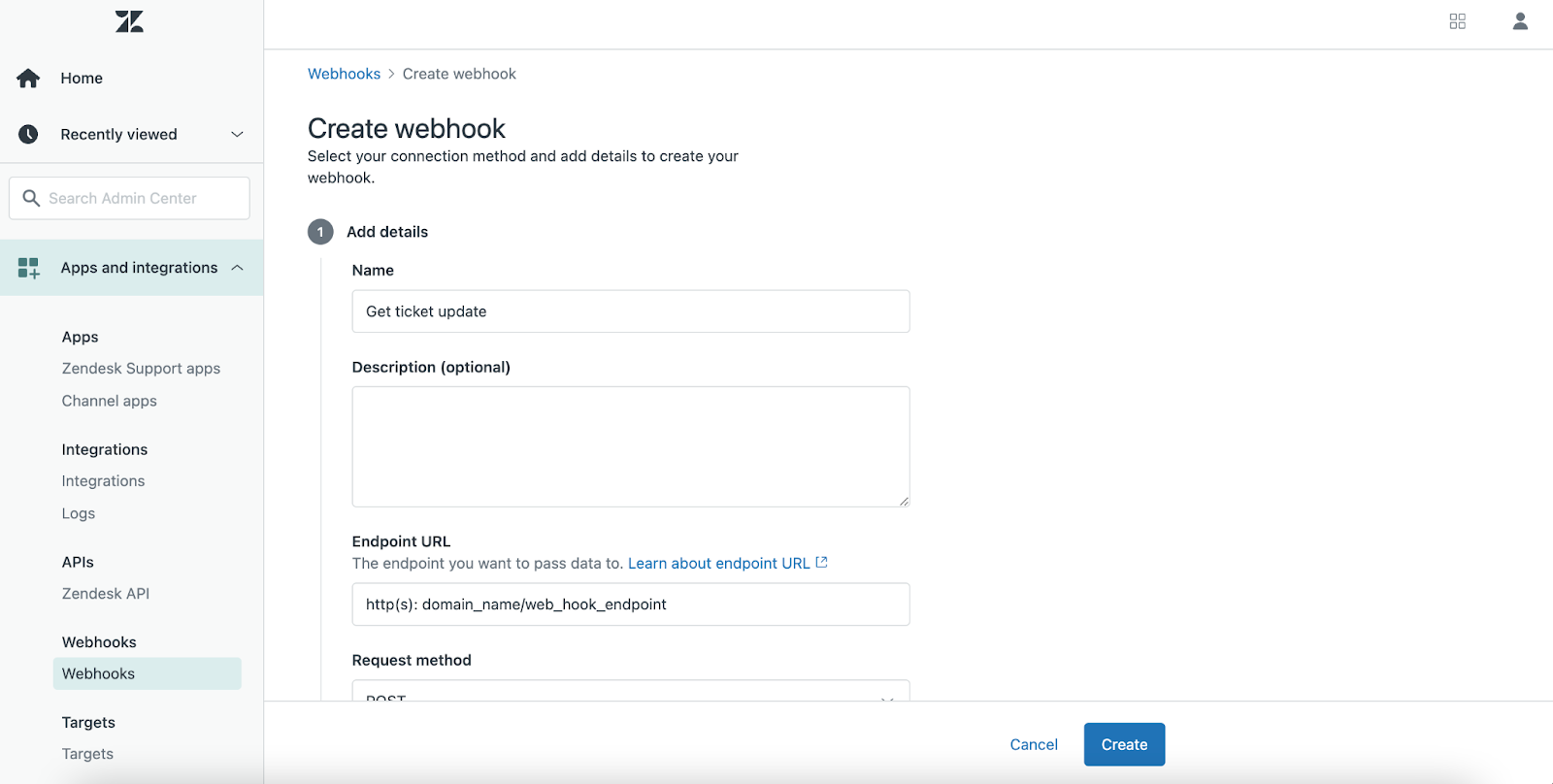 Create a new webhook
次に、Webhook をトリガーにリンクします。オブジェクトとルール]の[ビジネスルール]から[トリガー]を選択します。
新しいトリガーを追加する。トリガーに名前を付け、ユースケースに従って条件を選択します。この例では、チケットがエージェントによって更新されたときに Webhook がトリガされます。
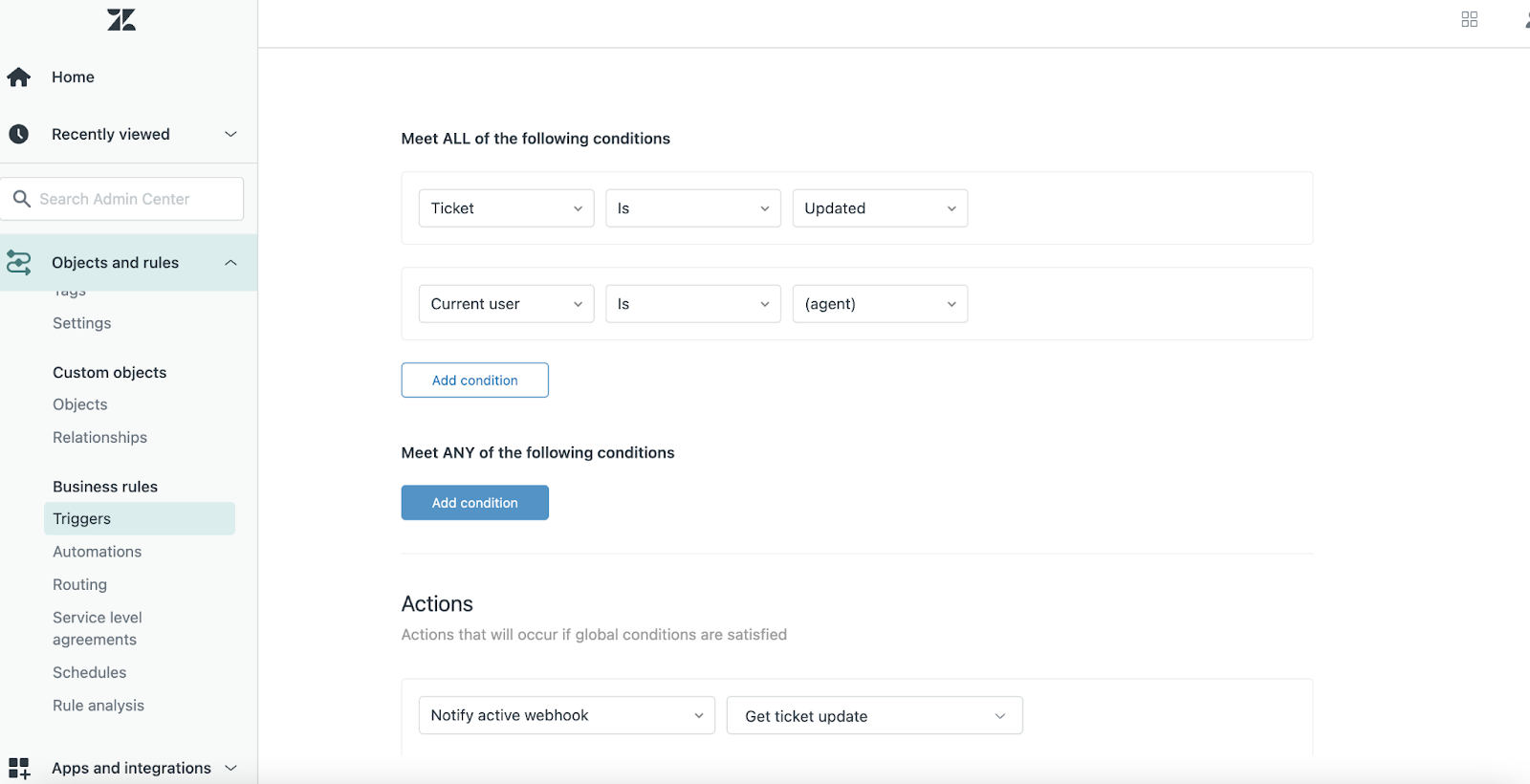 Create trigger
アクションを追加し、Notify active webhooksを選択します。
ウェブフックに送り返したいチケットの詳細を、さまざまなプレースホルダから選択します。
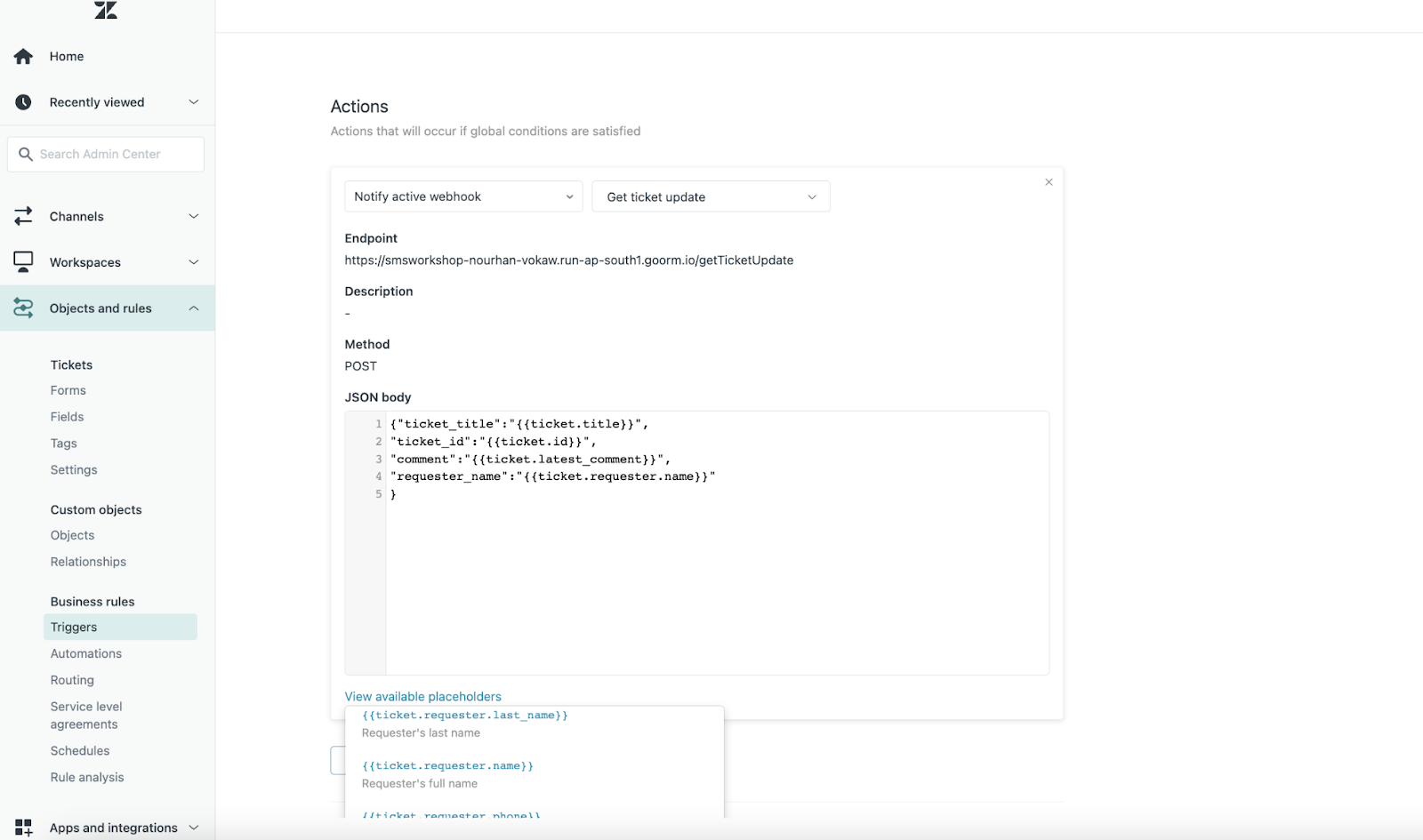 Create action
今日は Vonage Messages API を使って WhatsApp と Zendesk を接続する方法を学びました。このチュートリアルは、お客様のビジネス要件やユースケースに合わせてカスタマイズすることができます。さらに一歩進んでみませんか?会話AIプラットフォームをご覧ください、 Vonage AI Studioをご覧ください。