シェア:
)
Adrian is a problem solver and Python developer advocate. He works with various programming languages to solve engineering problems. Introduced to programming at age 16, Adrian has spent the last 8 years oscillating between backend development and automation. He lives in Nairobi and when not writing code he is most likely playing Call Of Duty or NBA 2K on his PlayStation, riding his bicycle or binge watching the latest series on Netflix.
FlaskアプリにDialogflowとVonage SMS APIを追加する
所要時間:1 分
注:この記事で説明されているツールや方法の中には、サポートが終了しているものや最新のものではないものもあります。最新の内容やサポートについては 最新記事または ドキュメンテーション
DialogflowはGoogleが提供する自然言語理解(NLU)プラットフォームです。Dialogflowは、モバイルやウェブアプリ、デバイス、ボット、対話型音声システムへの会話型ユーザインタフェースの設計と統合に使用されます。このチュートリアルでは、DialogflowとVonage SMS APIを統合し、SMSを介してエンドユーザーと対話するクイズボットを構築する方法を紹介します。アプリケーションのすべての部分をカバーするわけではありません。 プロジェクトレポ(をご覧ください。 チュートリアル チュートリアルを読んでください!)
まずVonage CLIモードを使ってアプリを作成します。以下のようにVonage CLIをマシンにインストールします:
npm install -g @vonage/cliローカルにアプリケーション用のディレクトリを作成する:
mkdir your-applicationディレクトリの中で、以下のコマンドを実行する:
vonage apps:create対話型CLIモードでは
Application Name: your-app-name
Select capabilities: press the space bar to select voice, messages and rtc
Create voice webhooks? No
Create messaging webhooks? No
Create RTC webhooks? No
Allow use of data for AI training? Noこれでアプリケーションが作成されるはずです。アプリケーションの ダッシュボードにアクセスし Applications.ピカピカの新しいアプリがそこにリストされているはずです。
Dialogflowエージェントをセットアップするには、以下をご覧ください。 https://console.cloud.google.comにアクセスし、新しいプロジェクトを作成します:
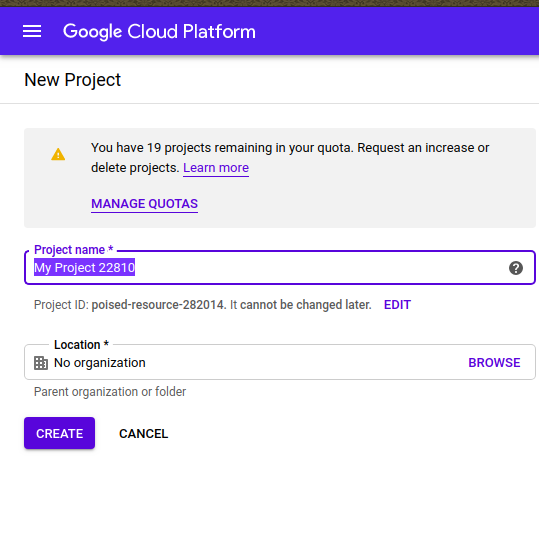 New Dialogflow project
に注意してください。 PROJECT ID.APIのリストからDialogflow APIを有効にする:
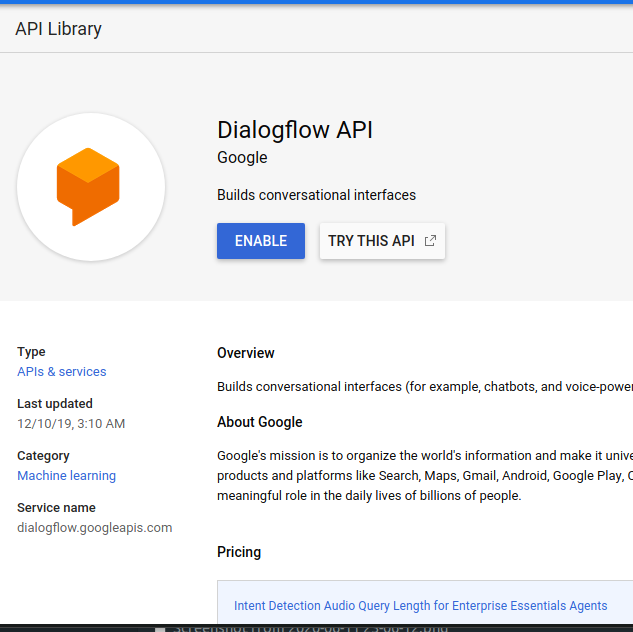 Enable Dialogflow
訪問 https://dialogflow.cloud.google.comをご覧ください:
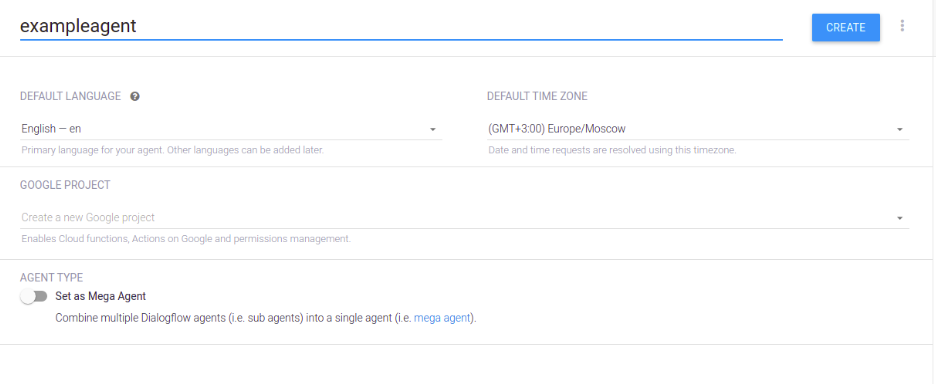 Create Dialogflow agent
アプリケーションを簡単に立ち上げられるように、ZIPファイルを GitHubリポジトリにzipファイルを用意しました。その dialogflowディレクトリに移動し resourcesファイルをダウンロードしてください。 quizzie.zipファイルをダウンロードしてください。このZIPはDialogflowの設定ページからエクスポートされたもので、Dialogflowダッシュボード上でエージェントを設定するために必要なすべてのインテント、コンテキスト、レスポンスが含まれています。
Dialogflowダッシュボードで 設定をクリックし エクスポート/インポート.ダウンロードしたzipファイルをインポートします:
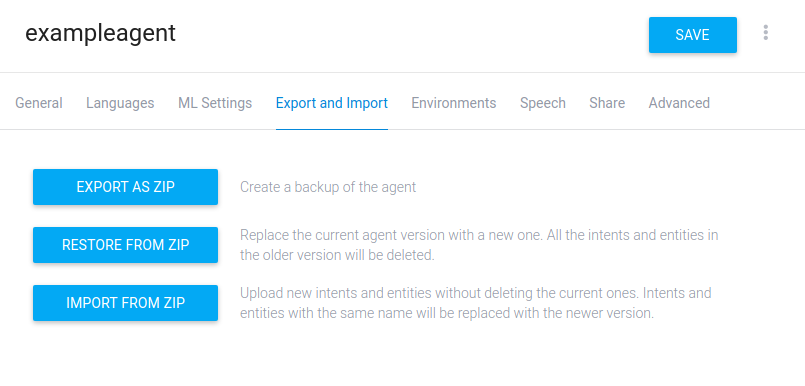 Import settings
私たちのDialogflowクイズエージェントは、すべてのセットアップと準備が整いました!
次のステップでは、エンドユーザーとDialogflowエージェント間のメッセージのやり取りを処理するロジックを作成する必要があります。
エンドユーザーにSMSを送信するインターフェースを書きたい。まず、Vonage Pythonライブラリがインストールされていることを確認してください:
pip install vonageSMSを送信する関数は次のようになる:
import vonage
import os
import json


def vonage_sms(message, recipient):
   VONAGE_API_KEY = os.getenv("VONAGE_API_KEY")
   VONAGE_API_SECRET = os.getenv("VONAGE_API_SECRET")
   VONAGE_NUMBER = os.getenv("VONAGE_NUMBER")

   client = vonage.Client(key=VONAGE_API_KEY, secret=VONAGE_API_SECRET)
   sms = vonage.Sms(client)

   response_data = sms.send_message(
       {
           "from": VONAGE_NUMBER,
           "to": recipient,
           "text": message,
       }
   )

   if response_data["messages"][0]["status"] == "0":
       return json.dumps("Message sent successfully.")
   else:
return json.dumps(f"Message failed with error: {response_data['messages'][0]['error-text']}")次に、顧客に通知するコードを追加する:
#! /usr/bin/env python3
import argparse
import sys
import os

from dotenv import load_dotenv

sys.path.append('../')
import vonage

APP_ROOT = os.path.join(os.path.dirname(__file__), '..')  # refers to application_top
dotenv_path = os.path.join(APP_ROOT, '.env')
load_dotenv(dotenv_path)


def notify_customer(number):
   text = "Hello. You can start your quiz with quizzie-bot by sending the following keywords: hi," \
          " hello or vonage."
print(vonage_sms(text, number))エンドユーザーがメッセージを受信したら、返信してもらいたい。返信を受信するために、受信Webhookエンドポイントを作成する必要があります。先ほどアプリを作成するときに、受信SMSのURLを設定したことを覚えておいてください。次に、Webhookにロジックを追加します:
@app.route("/update/", methods=['POST'])
def update_url():
   trigger = request.get_json().get('message')
   project_id = os.getenv("PROJECT_ID")
   session_id = os.getenv("SESSION_ID")
   language_code = os.getenv("LANG_CODE")

   response = detect_intent_texts(project_id, session_id, trigger, language_code)
   phone = phone_number()

return send_sms(response, phone)エンドユーザーから受け取った応答をDialogflowエージェントの入力としてチェーンする必要があります。そのためには、Dialogflow RESTエージェントを使用する必要があります。
具体的には、ユーザーの意図を検出し、それをエージェントへの入力として渡す必要がある:
def detect_intent_texts(project_id, session_id, texts, language_code):
   """Returns the result of detect intent with texts as inputs.
   Using the same `session_id` between requests allows continuation
   of the conversation."""
   import dialogflow_v2 as dialogflow

   session_client = dialogflow.SessionsClient()

   session = session_client.session_path(project_id, session_id)
   print('Session path: {}\n'.format(session))

   for text in texts:
       text_input = dialogflow.types.TextInput(
           text=text, language_code=language_code)

       query_input = dialogflow.types.QueryInput(text=text_input)

       response = session_client.detect_intent(
           session=session, query_input=query_input)

       return response.query_result.fulfillment_text
これで基本的なセットアップは完了です。アプリがSMSメッセージを送受信するために必要なロジックと、Dialogflowエージェントへの接続方法を示しました。アプリの全コードを見るには、プロジェクトレポをご覧ください: https://github.com/nexmo-community/Vonage-QnA-app.さらにご質問があれば、お気軽に メール.
シェア:
Adrian is a problem solver and Python developer advocate. He works with various programming languages to solve engineering problems. Introduced to programming at age 16, Adrian has spent the last 8 years oscillating between backend development and automation. He lives in Nairobi and when not writing code he is most likely playing Call Of Duty or NBA 2K on his PlayStation, riding his bicycle or binge watching the latest series on Netflix.