Compartir:
)
Adrian is a problem solver and Python developer advocate. He works with various programming languages to solve engineering problems. Introduced to programming at age 16, Adrian has spent the last 8 years oscillating between backend development and automation. He lives in Nairobi and when not writing code he is most likely playing Call Of Duty or NBA 2K on his PlayStation, riding his bicycle or binge watching the latest series on Netflix.
Añade Dialogflow y la SMS API de Vonage a tu aplicación Flask
Tiempo de lectura: 2 minutos
Dialogflow es una plataforma de comprensión del lenguaje natural (NLU) proporcionada por Google. Se utiliza para diseñar e integrar interfaces de usuario conversacionales en aplicaciones móviles y web, dispositivos, bots y sistemas de voz interactivos. En este tutorial, demostraremos cómo integrar las API de Dialogflow y Vonage SMS para crear un robot de preguntas que interactúe con el usuario final a través de SMS. No vamos a cubrir todas las piezas de la aplicación, por lo que si estás empezando desde cero echa un vistazo a la proyecto completo (o lee uno de nuestros tutoriales anteriores de tutoriales sobre el desarrollo de Flask desde cero).
Comenzaremos usando el modo CLI de Vonage para crear una aplicación. Instala la CLI de Vonage en tu máquina de la siguiente manera:
npm install -g @vonage/cliCree localmente un directorio para su aplicación:
mkdir your-applicationDentro del directorio, ejecute el siguiente comando:
vonage apps:createEn el modo CLI interactivo:
Application Name: your-app-name
Select capabilities: press the space bar to select voice, messages and rtc
Create voice webhooks? No
Create messaging webhooks? No
Create RTC webhooks? No
Allow use of data for AI training? NoLa aplicación ya debería estar creada. Visite el panel de control y vaya a Applications. Tu nueva aplicación debería aparecer en la lista.
Para configurar el agente Dialogflow, visite https://console.cloud.google.com y cree un nuevo proyecto:
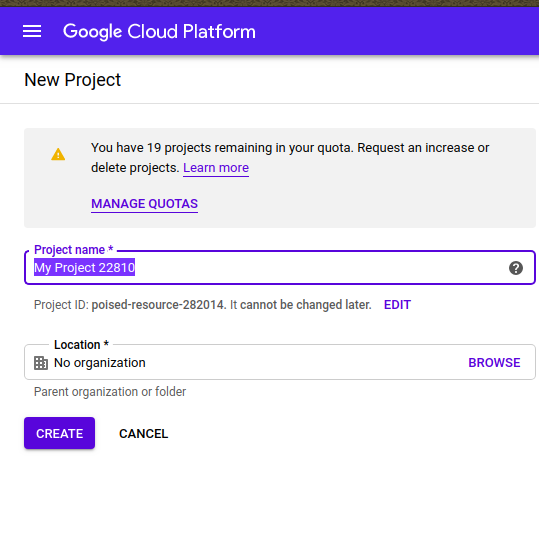 New Dialogflow project
Tome nota del PROJECT ID. Active la API Dialogflow de la lista de API:
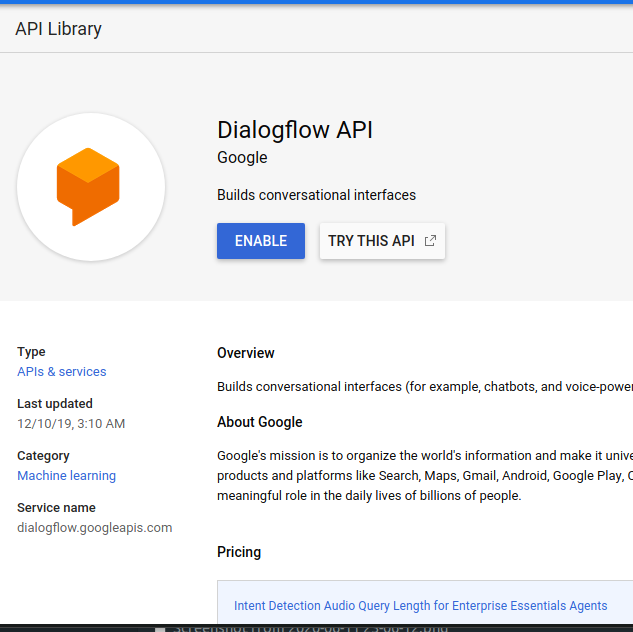 Enable Dialogflow
Visite https://dialogflow.cloud.google.com para crear un nuevo agente:
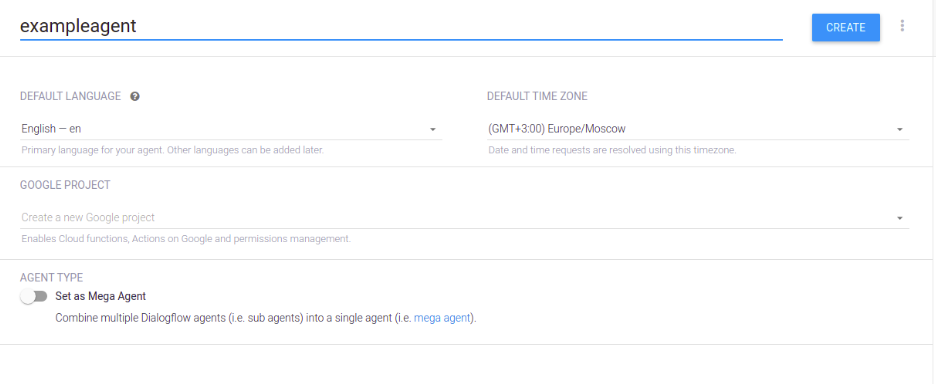 Create Dialogflow agent
Para facilitar la puesta en marcha de su aplicación, he incluido un archivo zip en el repositorio de repositorio de GitHub de este proyecto. Navega hasta el directorio dialogflow y en resources descarga el archivo quizzie.zip archivo. Este zip se exporta desde la página de configuración de Dialogflow y contiene todos los intentos, contextos y respuestas necesarios para configurar un agente en el panel de Dialogflow.
En el panel de Dialogflow, haga clic en Configuración y vaya a Exportar/Importar. Importe el archivo zip que acabamos de descargar:
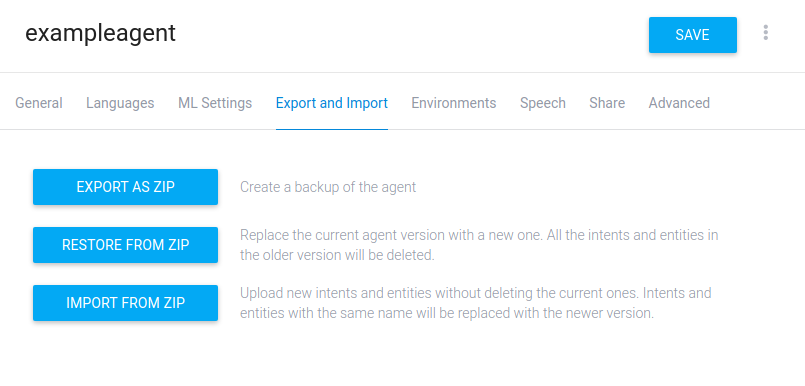 Import settings
Nuestro agente de cuestionarios Dialogflow ya está configurado y listo para funcionar.
Para los siguientes pasos, necesitamos crear la lógica que manejará la mensajería de ida y vuelta entre el usuario final y nuestro agente Dialogflow.
Queremos escribir una interfaz para enviar un SMS al usuario final. Primero, asegúrate de tener instalada la librería Python de Vonage:
pip install vonageLa función para enviar un SMS es la siguiente:
import vonage
import os
import json


def vonage_sms(message, recipient):
   VONAGE_API_KEY = os.getenv("VONAGE_API_KEY")
   VONAGE_API_SECRET = os.getenv("VONAGE_API_SECRET")
   VONAGE_NUMBER = os.getenv("VONAGE_NUMBER")

   client = vonage.Client(key=VONAGE_API_KEY, secret=VONAGE_API_SECRET)
   sms = vonage.Sms(client)

   response_data = sms.send_message(
       {
           "from": VONAGE_NUMBER,
           "to": recipient,
           "text": message,
       }
   )

   if response_data["messages"][0]["status"] == "0":
       return json.dumps("Message sent successfully.")
   else:
return json.dumps(f"Message failed with error: {response_data['messages'][0]['error-text']}")A continuación, añada el código que notificará a nuestro cliente:
#! /usr/bin/env python3
import argparse
import sys
import os

from dotenv import load_dotenv

sys.path.append('../')
import vonage

APP_ROOT = os.path.join(os.path.dirname(__file__), '..')  # refers to application_top
dotenv_path = os.path.join(APP_ROOT, '.env')
load_dotenv(dotenv_path)


def notify_customer(number):
   text = "Hello. You can start your quiz with quizzie-bot by sending the following keywords: hi," \
          " hello or vonage."
print(vonage_sms(text, number))Una vez que el usuario final recibe los mensajes, queremos que responda. Tenemos que crear un punto final de webhook entrante para recibir la respuesta. Recuerda que hemos configurado la URL de SMS entrante al crear la aplicación. Ahora es el momento de añadir lógica a nuestro webhook:
@app.route("/update/", methods=['POST'])
def update_url():
   trigger = request.get_json().get('message')
   project_id = os.getenv("PROJECT_ID")
   session_id = os.getenv("SESSION_ID")
   language_code = os.getenv("LANG_CODE")

   response = detect_intent_texts(project_id, session_id, trigger, language_code)
   phone = phone_number()

return send_sms(response, phone)Necesitamos encadenar las respuestas que recibimos del usuario final como entrada a nuestro agente Dialogflow. Para ello, necesitamos utilizar el agente REST de Dialogflow.
En concreto, necesitamos detectar la intención del usuario y pasarla como entrada al agente:
def detect_intent_texts(project_id, session_id, texts, language_code):
   """Returns the result of detect intent with texts as inputs.
   Using the same `session_id` between requests allows continuation
   of the conversation."""
   import dialogflow_v2 as dialogflow

   session_client = dialogflow.SessionsClient()

   session = session_client.session_path(project_id, session_id)
   print('Session path: {}\n'.format(session))

   for text in texts:
       text_input = dialogflow.types.TextInput(
           text=text, language_code=language_code)

       query_input = dialogflow.types.QueryInput(text=text_input)

       response = session_client.detect_intent(
           session=session, query_input=query_input)

       return response.query_result.fulfillment_text
La configuración básica ya está completa. Hemos mostrado la lógica necesaria para que la aplicación envíe y reciba mensajes SMS, así como la forma de conectarse al agente Dialogflow. Para ver el código completo de la aplicación, consulta el repositorio del proyecto: https://github.com/nexmo-community/Vonage-QnA-app. Si tienes alguna pregunta, no dudes en enviarme un correo electrónico.
Compartir:
Adrian is a problem solver and Python developer advocate. He works with various programming languages to solve engineering problems. Introduced to programming at age 16, Adrian has spent the last 8 years oscillating between backend development and automation. He lives in Nairobi and when not writing code he is most likely playing Call Of Duty or NBA 2K on his PlayStation, riding his bicycle or binge watching the latest series on Netflix.