Voice Logs
The Voice Logs page lets you search and troubleshoot calls made through the Voice API. Use this page to investigate call quality issues, verify call completion, debug webhook problems, and monitor different call types including phone calls, WebRTC, and WebSocket connections.
Note: The Dashboard now offers a new Voice Logs UI with enhanced filtering and reporting capabilities. You can switch between the new and old interfaces using the toggle button in the bottom-right corner.
Before You Begin
- Voice logs are available for up to 30 days (21 days in the new UI, 30 days in the old UI)
- For logs older than 30 days, use the Reports API
- Logs appear within a few minutes after the call ends
- Set up event webhooks for real-time call status updates
Accessing Voice Logs
- Log in to the Vonage API Dashboard
- Navigate to Voice Logs
By default, you'll see the New Voice Logs UI. To switch to the old interface, click Use Old Voice Logs UI in the bottom-right corner.
New Voice Logs UI (Recommended)
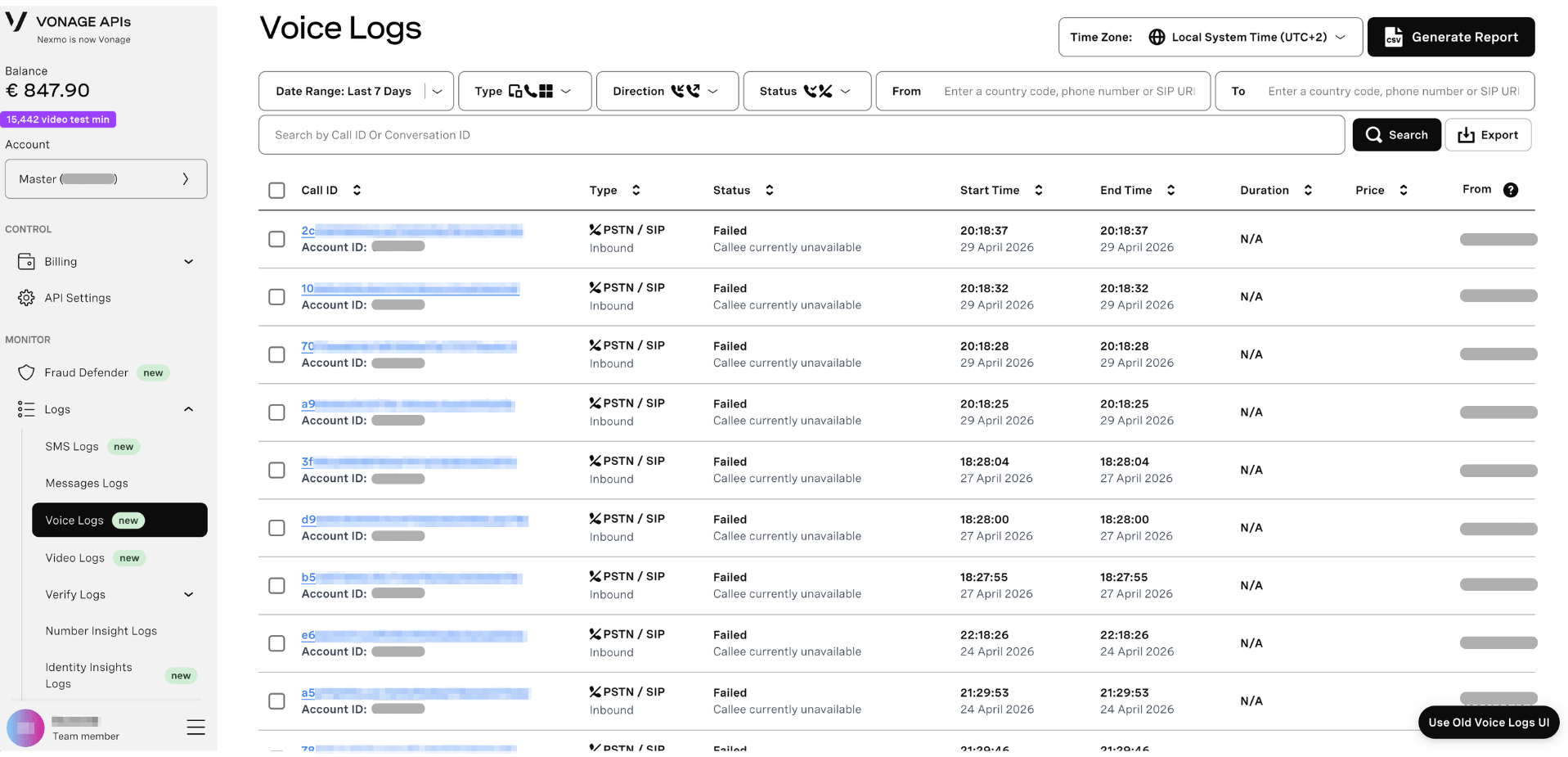
The new Voice Logs UI provides a unified search experience with advanced filtering and report generation capabilities.
Search and Filter Options
Use the filter bar at the top to narrow your search:
Available filters:
- Date Range - Select from predefined ranges or create a custom range
- Type - Filter by call type (PSTN/SIP, WebRTC, WebSocket, In-App Voice)
- Direction - Inbound or Outbound calls
- Status - Filter by call status (answered, failed)
- From - Calling number, country code, or SIP URI
- To - Destination number, country code, or SIP URI
Additional search:
- Search by Call ID or Conversation ID - Use the search box to look up specific calls
Actions:
- Search - Execute your filtered search
- Export - Download filtered results as CSV
- Generate Report - Create a detailed call report
- Time Zone - Switch between UTC and your local system time
Click any column header to sort the results. Select call rows using the checkbox to perform bulk actions.
Time Zone Selection
Switch between UTC and your local system time using the Time Zone selector in the top-right corner. This affects how timestamps are displayed in the results.
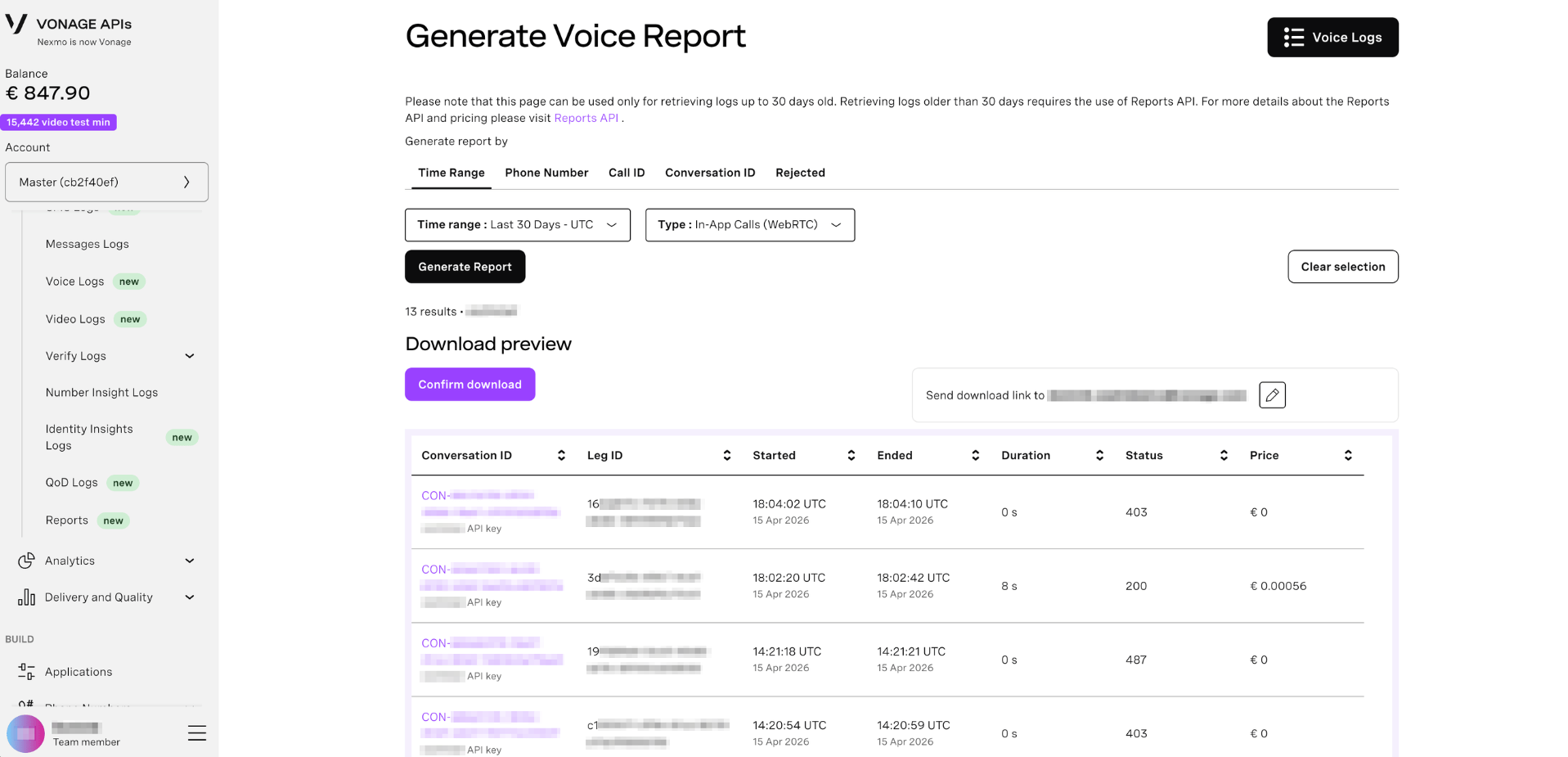
Generating Reports
Create detailed reports from your filtered results:
- Apply your desired filters
- Click Generate Report
- The system creates a comprehensive report based on your criteria
- Download or share the report
Exporting Data
Export filtered results to CSV:
- Apply your filters and search
- Click Export
- The CSV file includes all columns from the results table
Old Voice Logs UI
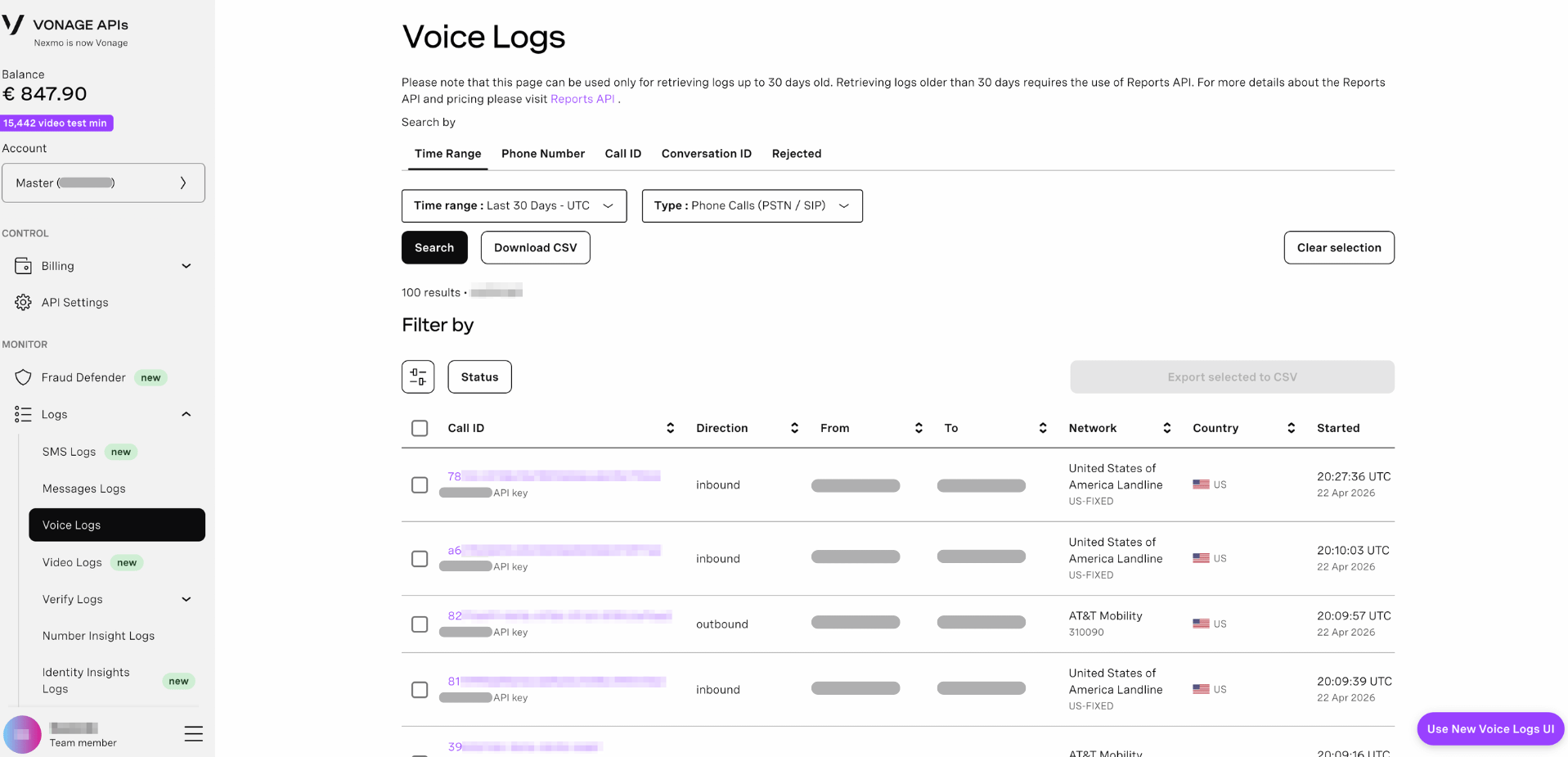
The old Voice Logs interface uses a tabbed layout for different search methods. To access it, click Use Old Voice Logs UI in the bottom-right corner.
Search and Filter
The old interface offers five search methods:
Time Range
Search calls within a specific time period and filter by call type.
Available filters:
- Time range - Predefined ranges or custom ranges (up to 30 days)
- Type - In-App Calls (WebRTC), Phone Calls (PSTN / SIP), WebSocket Calls, or ASR
To search by time range:
- Click the Time Range tab
- Select a time range from the dropdown
- Optionally, filter by Type
- Click Search
Phone Number
Search for calls to or from specific phone numbers (SIP and PSTN calls only).
Available filters:
- From - The calling phone number
- To - The destination phone number
- Time range - When the call was made
To search by phone number:
- Click the Phone Number tab
- Enter numbers in From and To fields
- Select a time range
- Click Search
Important: Phone number search only works for SIP and PSTN calls, not WebRTC or WebSocket.
Call ID
Search for specific calls using call leg UUIDs.
To search by call ID:
- Click the Call ID tab
- Enter one or more call IDs
- Optionally, filter by Type
- The search executes automatically
Conversation ID
Search for entire conversations using the conversation UUID.
To search by conversation ID:
- Click the Conversation ID tab
- Enter the conversation ID
- Select a time range
- The search executes automatically
Rejected
Find calls that were rejected before connection.
To search rejected calls:
- Click the Rejected tab
- Select a time range
- Review rejection reasons and error codes
Downloading Logs
Export search results to CSV for offline analysis:
- Perform a search using Time Range or Phone Number methods
- Click Download CSV
- The CSV file will include all fields from the search results