Video Logs
The Video Logs page lets you search and manage recordings of your Video API sessions. Use this page to find, download, and delete video archives across your applications.
Before You Begin
- Archives are available to view and download for 72 hours only from when the archive file began.
- After 72 hours, archives are permanently deleted and can no longer be retrieved.
- Logs appear within a few minutes after the session ends.
- Each recording has a unique Recording ID and belongs to a Session ID.
OpenTok Environment: If you are using the Vonage Video API OpenTok environment, download your archives from the TokBox account dashboard instead. This page applies to the Vonage Video API Unified Environment only.
Accessing Video Logs
- Log in to the Vonage API Dashboard
- Navigate to Video Logs
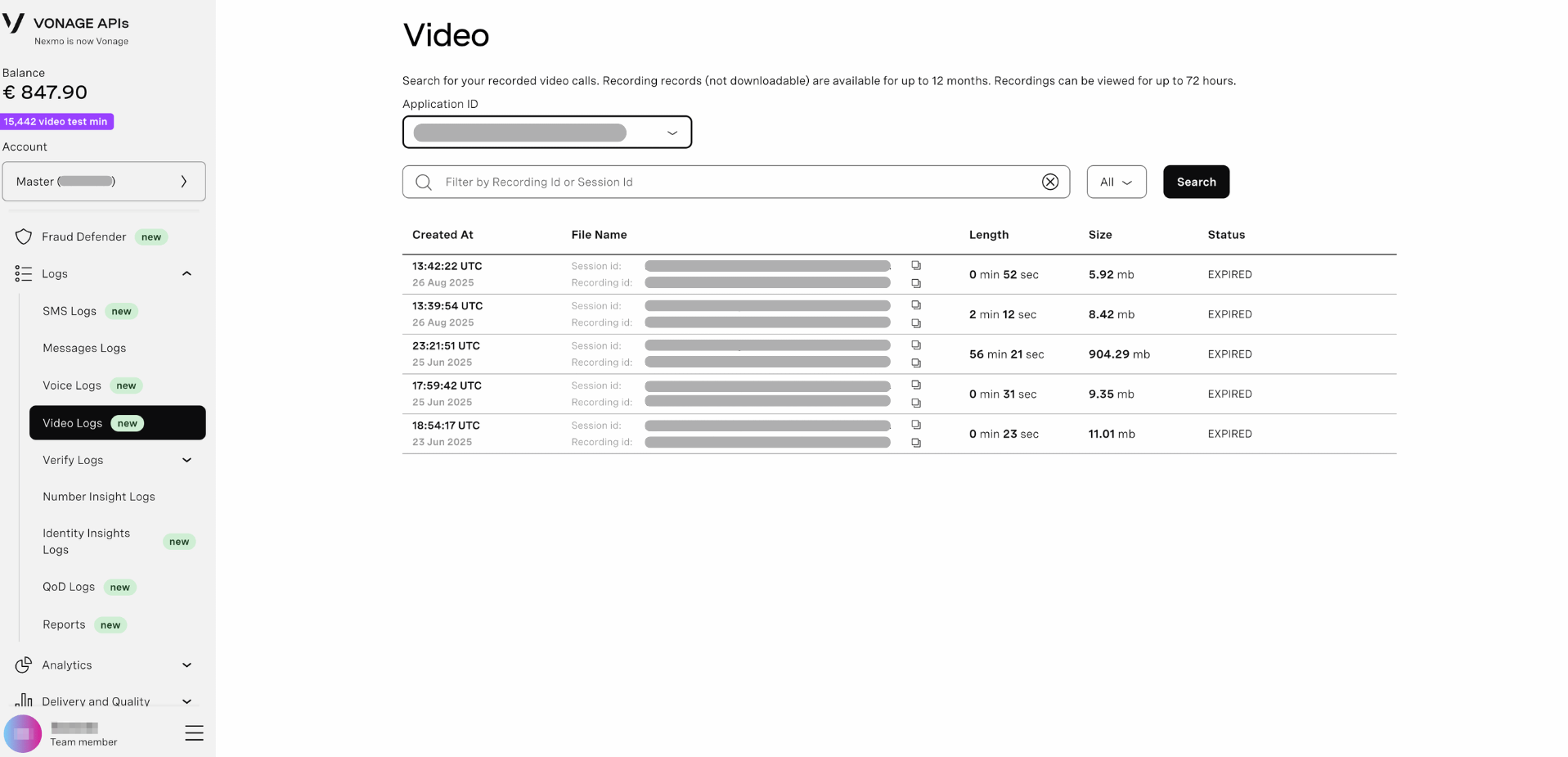
Search Filters
The Video Logs page provides a search interface with the following filters:
Application ID
Select the Vonage application whose video recordings you want to search.
To select an application:
- Click the Application ID dropdown
- Select an application from the list
- Click Search
Note: You must select an application before searching. Each Vonage application has its own set of video sessions and recordings.
Recording ID or Session ID
Search for a specific recording or session using its unique identifier. Both the Session ID and Recording ID are returned in the API response when a recording is created.
Status Filter
Filter results by recording status using the dropdown next to the search field.
Available status options:
- All - Show all recordings regardless of status
- Available - Recordings ready to view or download (indicated by a green check)
Working with Results
Viewing Log Details
The results table displays:
- Created At - Date and time the recording was created (UTC)
- File Name - The recording file name, with its associated Session ID and Recording ID
- Length - Duration of the recording (minutes and seconds)
- Size - File size of the recording (in MB)
- Status - Current status of the recording (e.g., AVAILABLE)
Recording Actions
Each recording entry has the following action buttons:
- Copy - Copy the Session ID or Recording ID to your clipboard
- Download - Download the recording file (available for up to 72 hours from when the archive file began)
- Delete - Permanently delete the recording
Important: Archives are permanently deleted 72 hours after the archive file began. Make sure to download any recordings you need before this window closes.
Understanding Video Recordings
Sessions and Recordings
Session:
- Represents a single Video API call or room
- Has one unique Session ID
- Can contain one or more recordings (archives)
Recording (Archive):
- Represents a recorded segment of a session
- Has its own unique Recording ID
- Linked to its parent Session ID
- Can be individual or composed layout
Recording Status Values
- Available - Recording is ready to view and download (green check indicator)
- Uploaded - Recording has been uploaded and processed
- Expired - Recording can no longer be downloaded (past 72-hour window)
- Deleted - Recording has been permanently deleted
- Failed - Recording failed to process
Further Reading
- For programmatic access: Use the Video API archive management endpoints to list, download, and delete recordings via the API.
- Learn about Video recording: Read the Video API Archiving documentation.
- Archiving FAQ: See the Vonage API Support.