Voice Analytics
Monitor your Voice API traffic with detailed metrics including call volume, duration, success rates, and cost breakdown by country and destination.
Access Voice Analytics
- Log in to your Vonage Dashboard
- Navigate to Voice → Analytics in the left sidebar.
View Analytics Tabs
Switch between different analytics views using the tabs at the top:
Overview
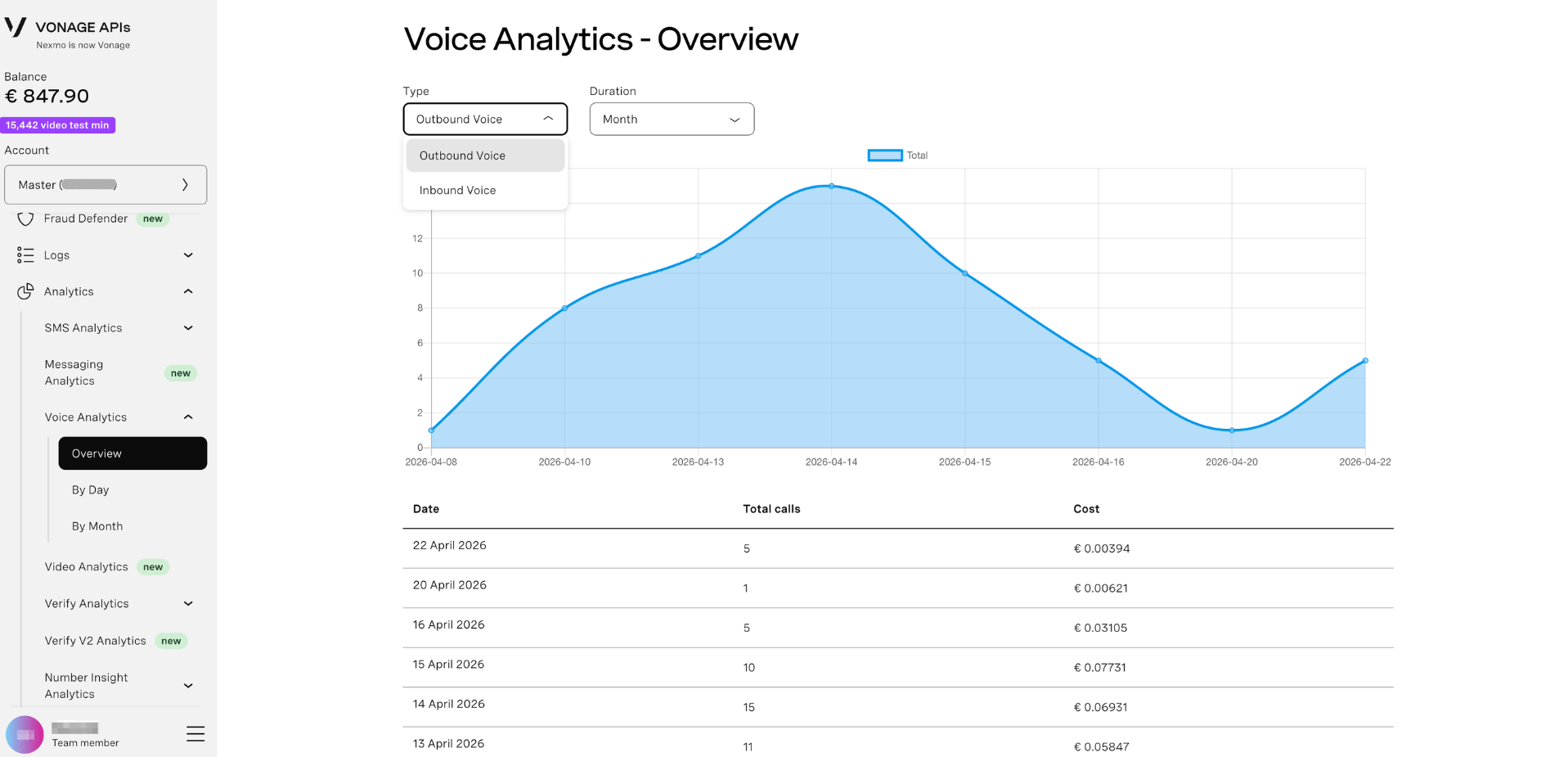
High-level summary of your Voice activity with visual graphs and key metrics:
Area Chart Visualization:
- Blue shaded area - Total call volume over time
- X-axis - Date range
- Y-axis - Number of calls
- Interactive - Hover over points to see exact call counts and dates
- Trend visualization - Quickly identify peaks, valleys, and traffic patterns
Key Metrics Cards:
- Total calls made and received
- Outbound vs. inbound ratio
- Total call duration (minutes)
- Cost summary for the selected period
- Quick insights into call patterns
Data Table (below graph):
- Date-by-date breakdown
- Outbound, Inbound, and Total call counts
- Duration and cost data per period
By Day
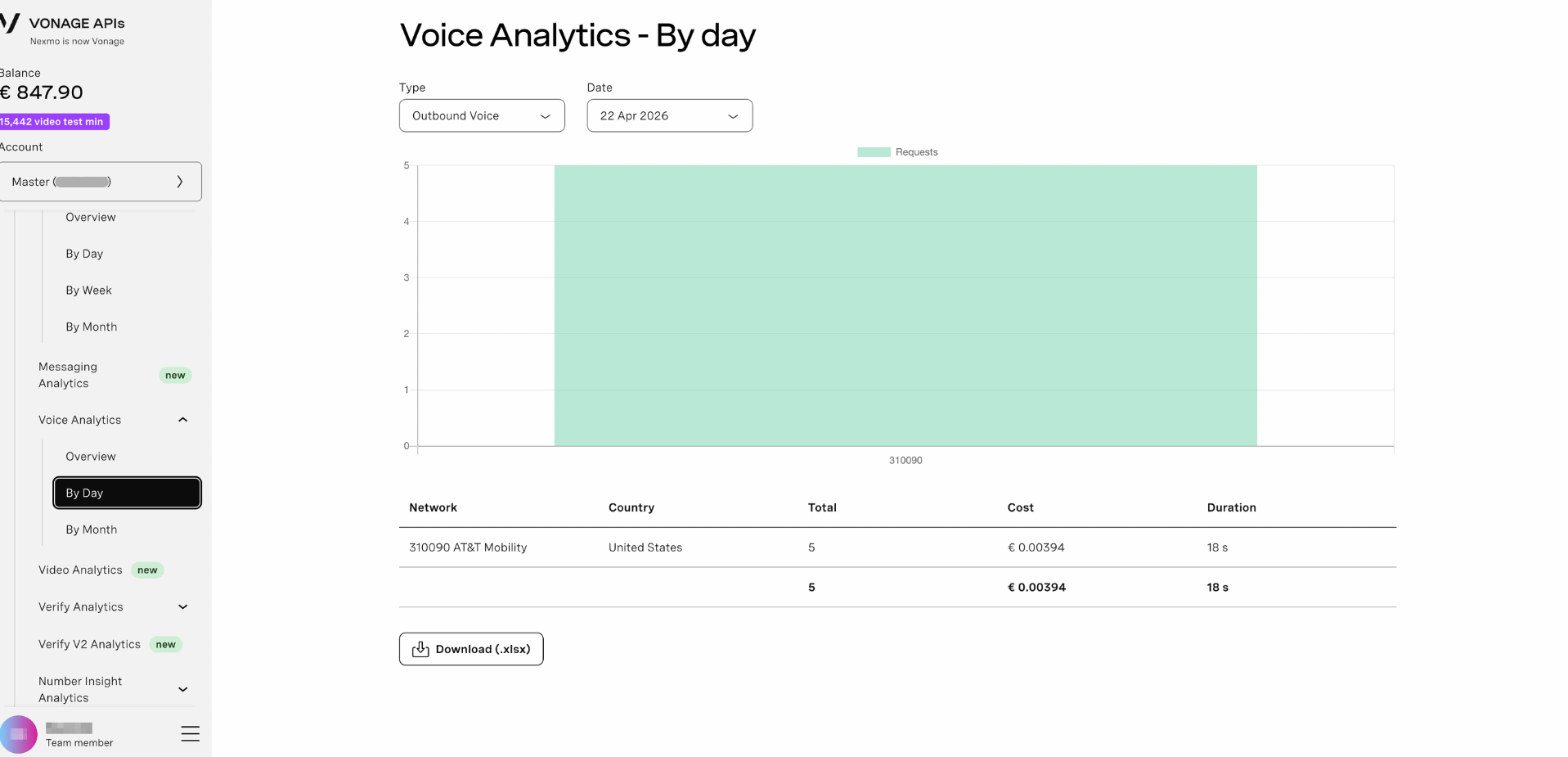
Daily breakdown of Voice activity with detailed granularity:
Line/Bar Chart:
- Visual representation - Daily call volume displayed as bars or line graph
- Comparison view - Separate visualization for Outbound (blue) and Inbound (green) calls
- Trend analysis - See day-over-day changes at a glance
Data Table:
- Date column - Each day in the selected range
- Outbound column - Calls made from your account
- Inbound column - Calls received to your numbers
- Total column - Combined call traffic
- Duration column - Total call time in minutes
- Sort by clicking column headers
By Month
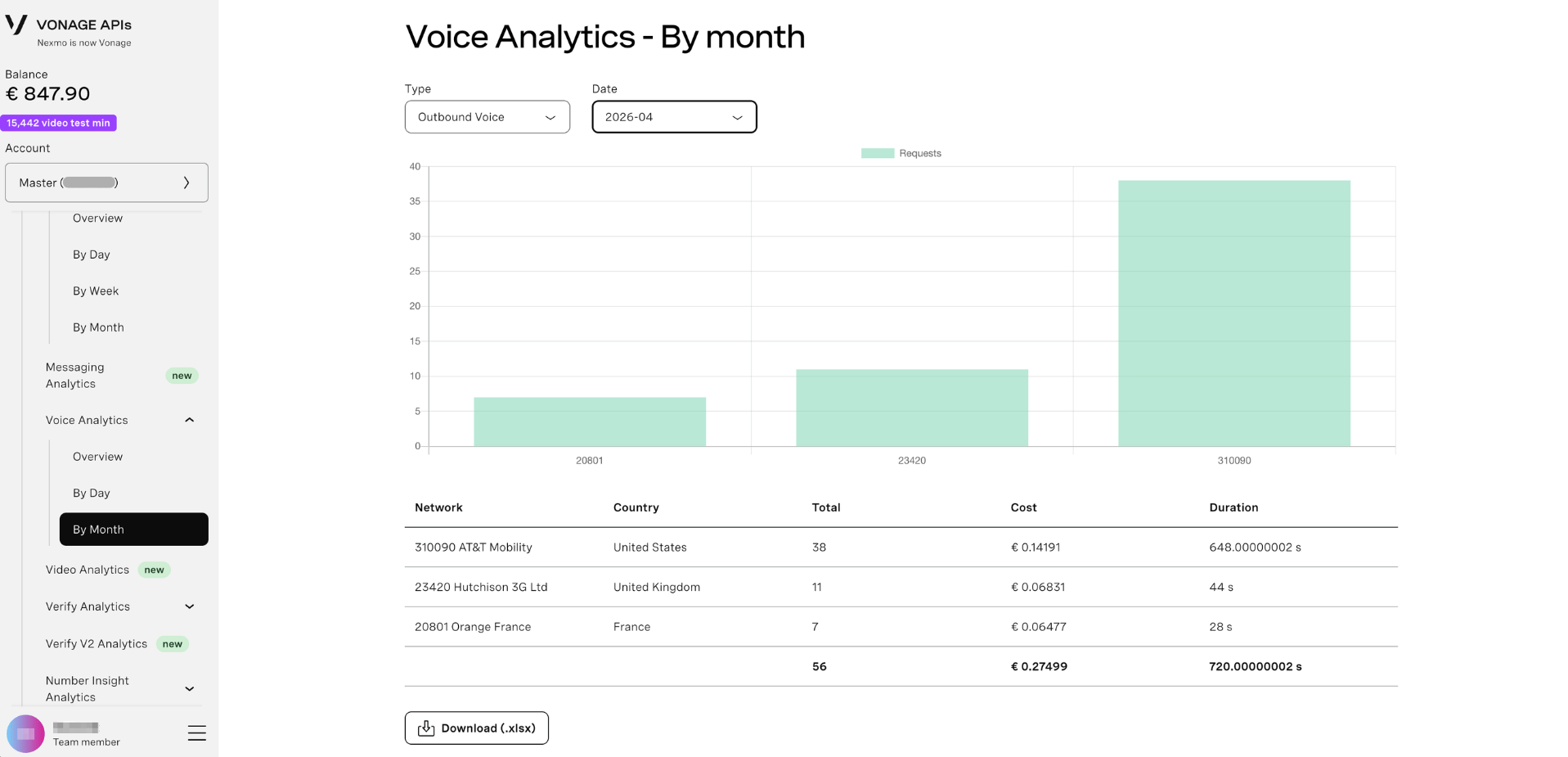
Monthly Voice traffic overview for long-term analysis:
Monthly Chart:
- Long-term trends - Month-by-month call volume visualization
- Seasonal patterns - Identify recurring seasonal trends
- Growth tracking - See how call usage evolves over months
Data Table:
- Month-by-month comparison
- Call volume and duration aggregated monthly
- Long-term usage patterns
- Cost trends over time
Understanding the Graphs
The visual charts in Voice Analytics provide quick insights:
- Peak detection - Easily spot high-traffic days or months
- Trend analysis - See if Voice usage is growing, declining, or stable
- Anomaly identification - Unusual spikes or drops are immediately visible
- Time-series comparison - Compare different time periods side-by-side
- Outbound vs. Inbound patterns - Visual color coding distinguishes call direction
- Duration tracking - Monitor total minutes consumed
Interactive Features:
- Hover tooltips - See exact values by hovering over any data point
- Zoom controls - Some views allow zooming into specific time ranges
- Legend toggle - Click legend items to show/hide specific data series
Filter Your Data
Use the filter controls at the top to narrow your analytics:
Date Range
Select the time period to analyze:
- Click the From date picker to choose start date
- Click the To date picker to choose end date
- Use preset ranges (if available) for quick selection
Direction
Filter by call direction:
- All - Both inbound and outbound
- Outbound - Calls made from your account
- Inbound - Calls received to your numbers
Country
Filter by destination or origin country:
- All countries - View combined data
- Select specific country - Drill down to regional performance
Tip: Filters apply to both the graphs and data tables. Use them together to drill down into specific time periods, countries, or call directions.
Understanding the Data Table
Each tab displays a table with Voice metrics below the graphs:
Columns:
- Date/Month - Time period (depending on active tab)
- Outbound - Number of calls you made
- Inbound - Number of calls you received
- Total - Combined inbound + outbound count
- Duration - Total call time in minutes
- Cost - Total cost for the period (EUR)
Features:
- Sortable columns - Click headers to sort ascending/descending
- Pagination - Navigate through multiple pages of data (if applicable)
- Row highlighting - Hover over rows for emphasis
- Totals row - Bottom row shows aggregated sums
Export Analytics Data
Click the Download button to export your filtered analytics as a CSV file for spreadsheet analysis or reporting.
CSV includes:
- All visible table data
- Date/time stamps
- Call counts (Outbound, Inbound, Total)
- Duration in minutes
- Cost data in EUR
- Filtered results only (respects your current filters)