Billing and Payments
The Billing and payments section allows you to manage your Vonage account balance, add payment methods, set up automatic top-ups, and download usage reports. Your account balance is displayed at the top of the page, along with an Add funds button for quick top-ups.
Important: When your balance reaches zero, you can no longer use Vonage APIs and your virtual numbers may be cancelled. Keep your account in credit by setting up auto-reload or balance alerts.
Payment Methods
Vonage accepts PayPal, Visa, MasterCard, and bank transfers. For security reasons, you can associate a credit card or PayPal account with only one Vonage account.
All payment information is securely stored by Braintree, Vonage's Payment Service Provider (PSP), which is PCI level 1 compliant.
Add a Payment Method
- Navigate to Billing → Payments in the Dashboard.
- Click Add funds or go to the Payment methods tab.
- If prompted, click Upgrade account to enable payment features.
- Select a payment method (Credit Card, PayPal, or Bank Transfer).
- Enter your billing address - must match the address associated with your card or PayPal account.
- Complete your payment details and click Make payment.
The payment method is saved for future one-click payments.
Auto Reload
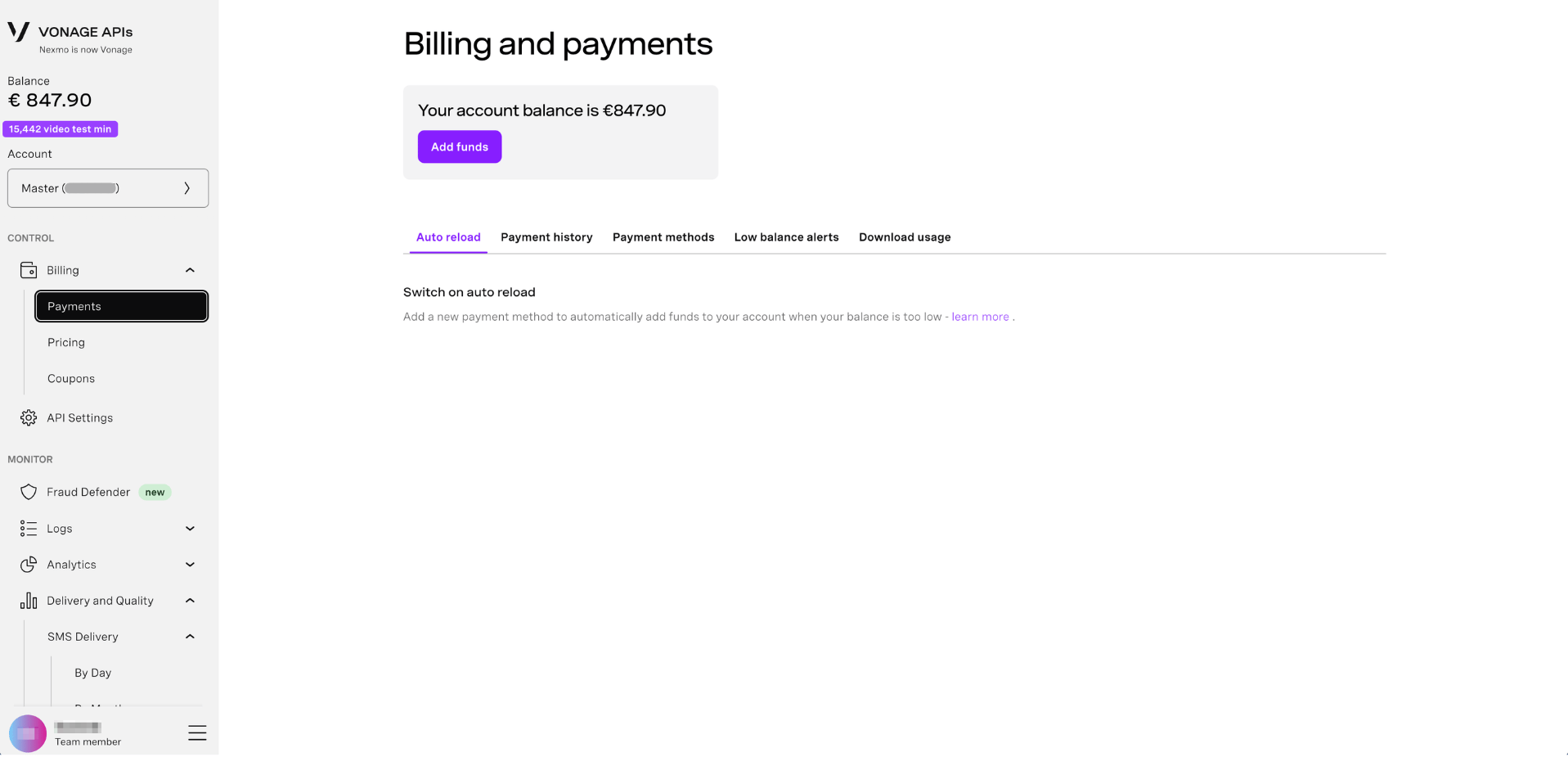
Auto reload automatically tops up your account when your balance falls below a specified threshold. This prevents service interruptions and ensures your APIs remain active.
How Auto Reload Works
- Your account balance is checked every 6 minutes.
- When balance drops below your threshold, auto reload triggers automatically.
- Uses your saved payment method and specified top-up amount.
If you don't see the option to turn on Auto-Reload, submit a Support request to have this feature enabled for your account.
Payment History
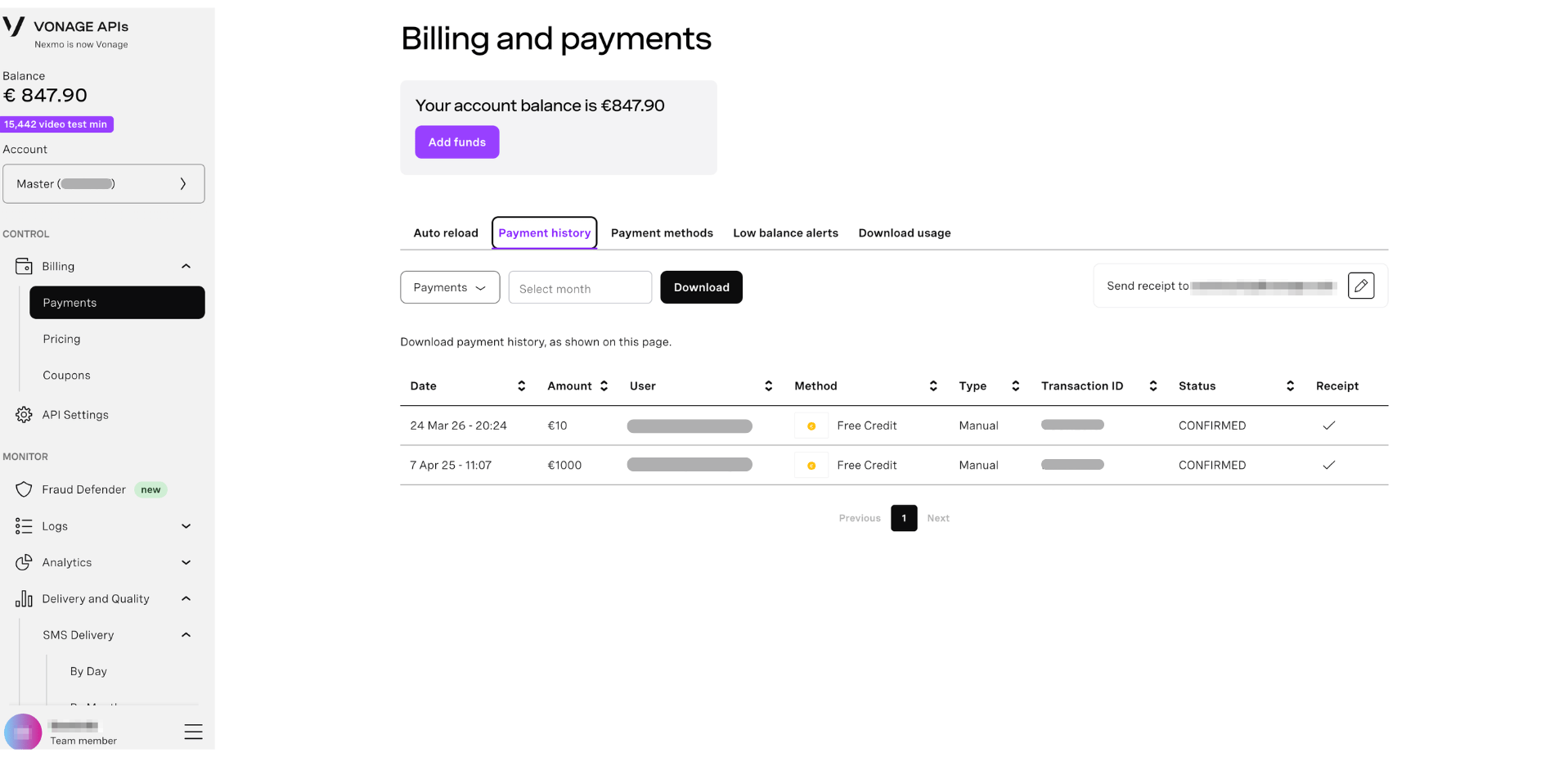
View all past transactions, payments, and account credits.
- Navigate to Billing → Payments in the Dashboard.
- Click the Payment history tab.
- View your transaction history with dates, amounts, and payment methods.
- Click on any transaction to see details.
Low Balance Alerts
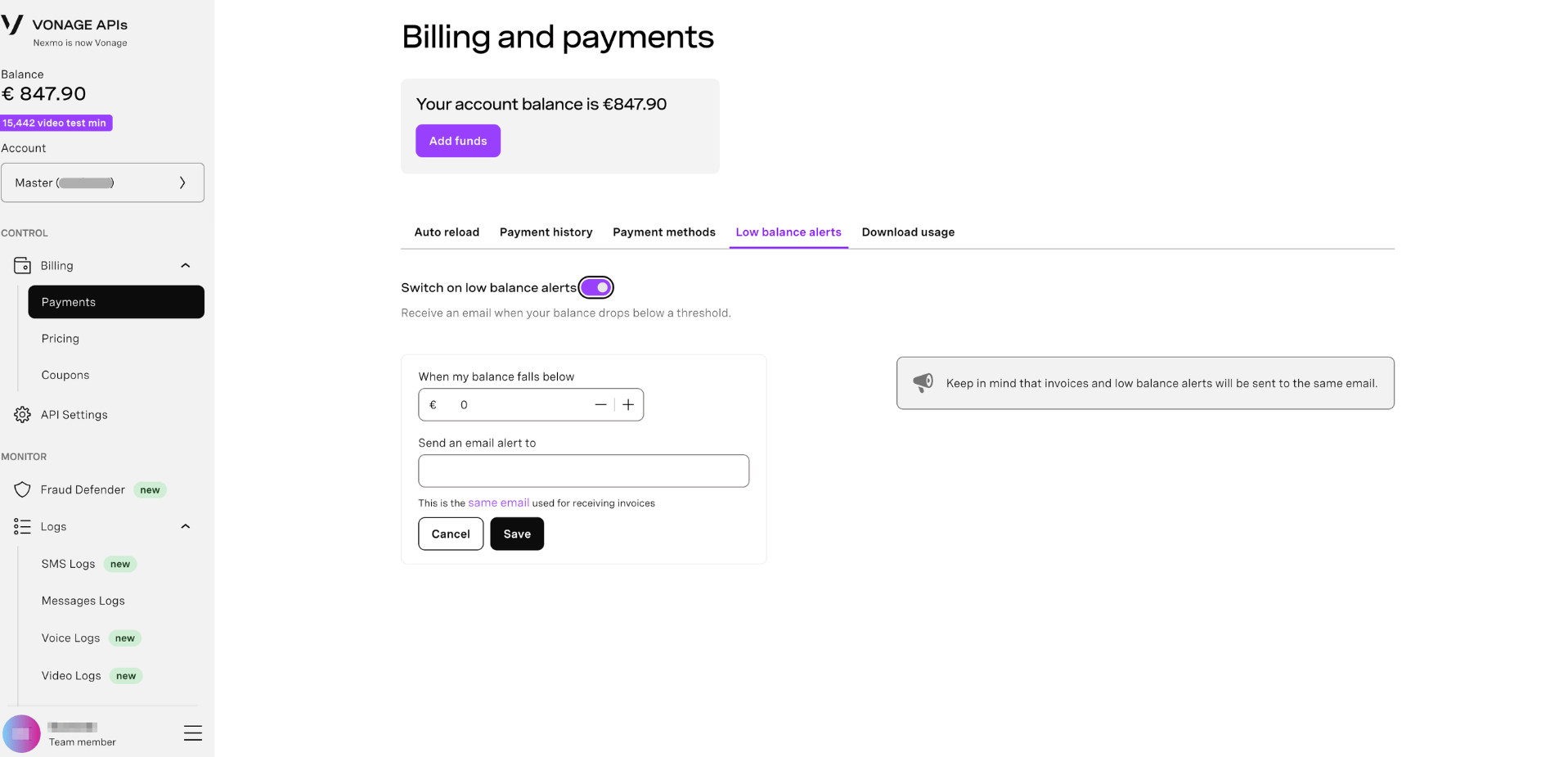
Receive email notifications when your account balance falls below a specified amount to prevent service interruptions.
When triggered, you'll receive an email with:
- Your current account balance
- The threshold you configured
- A link to top up your account immediately
How often are alerts checked? Your account balance is automatically checked every hour. You'll receive an email notification if your balance has fallen below your threshold since the last check.
Download Usage
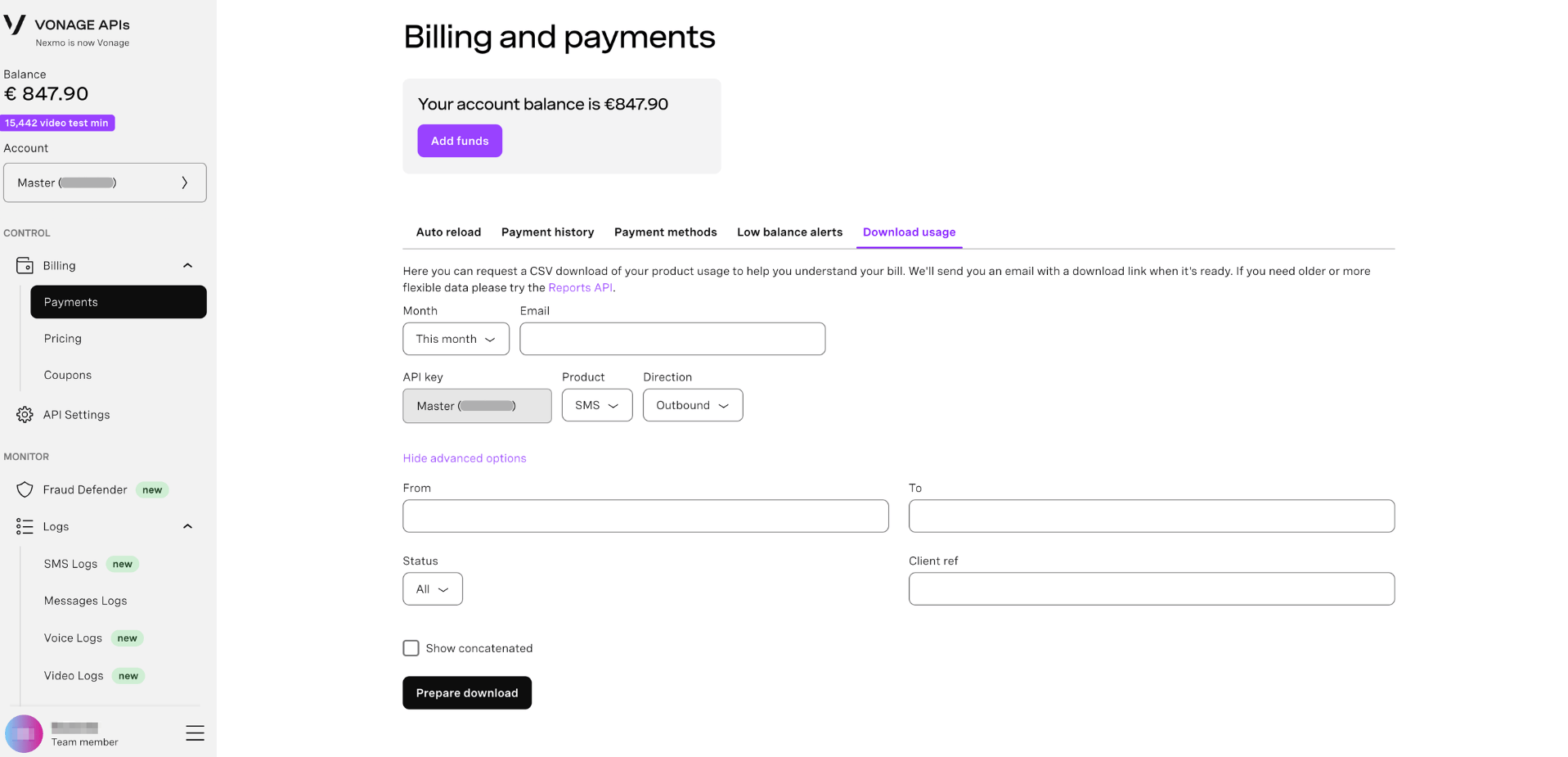
Request a CSV download of your product usage to analyze spending and reconcile billing. The report is prepared and sent to you via email as a download link.
For more flexible data: If you need older data or custom date ranges, use the Reports API.