API Settings
The API Settings page allows you to manage your API credentials, configure webhooks, and control SMS API behavior. Each API key has its own set of credentials and configuration.
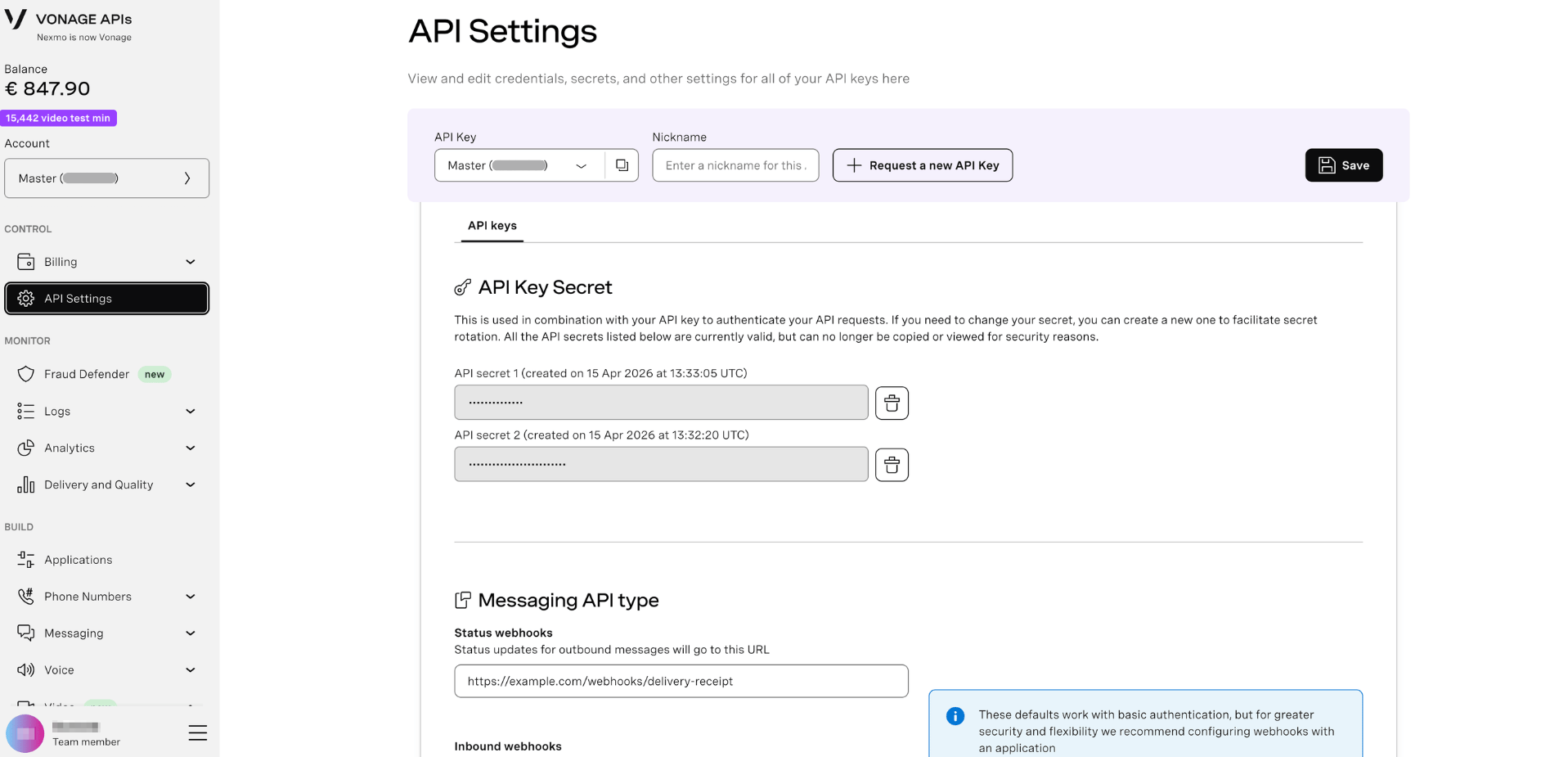
Access API Settings
- Log in to your Vonage Dashboard
- Navigate to Settings → API Settings in the left sidebar.
- Select an API key at the top.
Once you've selected an API key,
Need more API keys? Click Request more API keys to create additional keys for different environments or use cases.
API Key & Secret
Your API key is displayed at the top of the page in the account dropdown. This is a public identifier used in API requests. You can also give it a Nickname identify it throughout the platform (e.g., "Production", "Development", "Testing").
Your API secrets are shown in the API Key Secret section:
- API secret 1 - Your primary authentication secret (masked by default)
- API secret 2 - Your secondary secret for rotation (masked by default)
If you don't already have a second API secret, you'll be able to create one here by clicking the 'create new secret' link.
Messaging API Type
Configure how Vonage handles SMS messages for this API key.
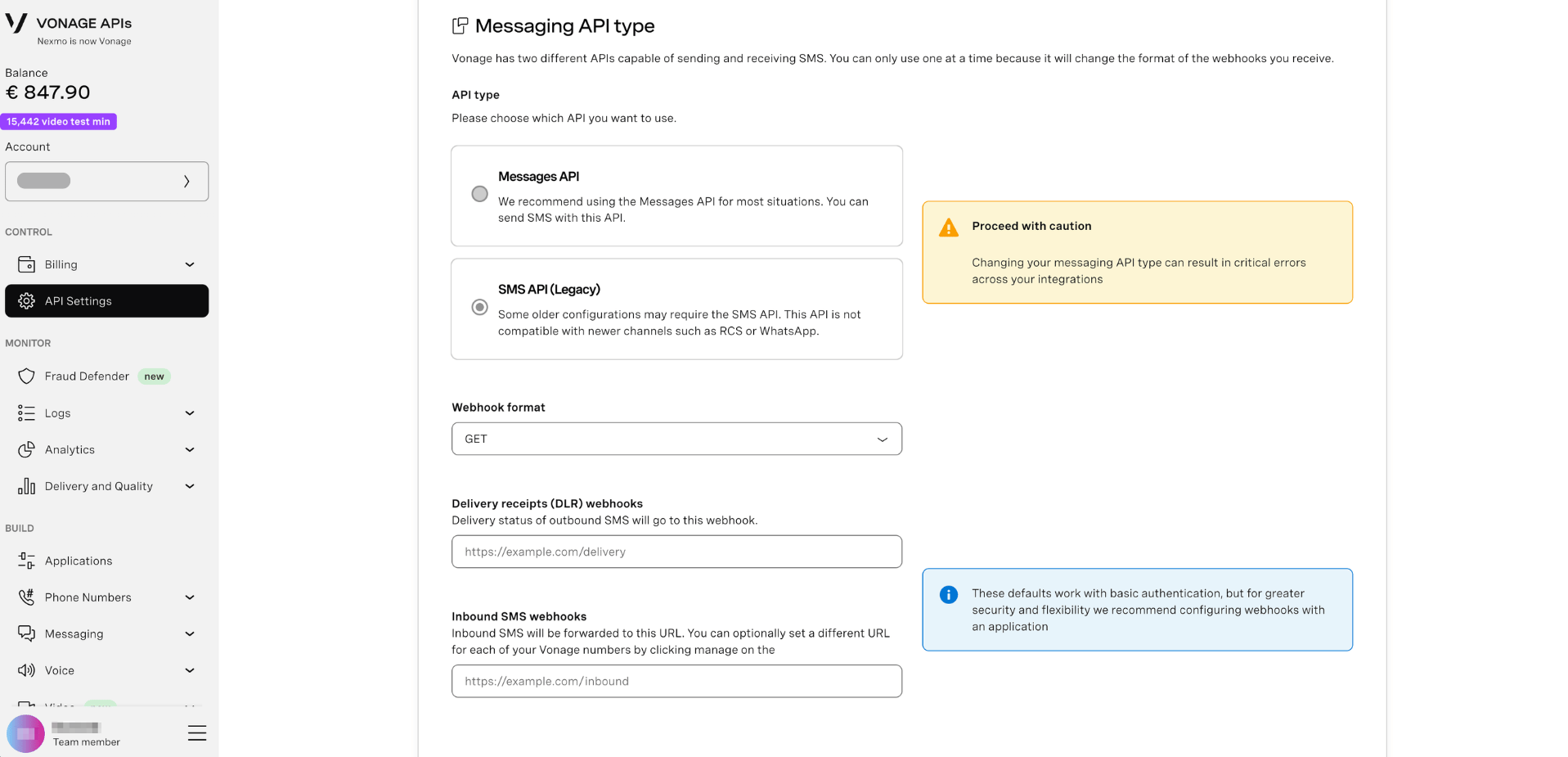
Vonage has two different APIs for sending SMS. You can only use one at a time because it changes the format of webhooks you receive.
Choose your API:
- SMS API - Legacy API with simpler webhook format (GET or POST)
- Messages API - Modern multi-channel API with JSON webhooks
Click the appropriate button to select which API you want to use.
Per-number webhooks: You can optionally set different inbound webhooks for each of your Vonage numbers by clicking manage on the Your numbers page.
SMS API
Webhook Format
For SMS API only, select the format for delivery receipt (DLR) webhooks:
- Click the Webhook format dropdown.
- Choose from:
- GET - Webhook data sent as URL query parameters
- POST - Webhook data sent as form-encoded body
- POST-JSON - Webhook data sent as JSON body (recommended)
Delivery Receipts (DLR) Webhooks
Receive delivery status updates for outbound SMS messages.
- In the Delivery receipts (DLR) webhooks field, enter your webhook URL.
- Example:
https://example.com/webhooks/delivery-receipt - When an SMS is delivered (or fails), Vonage sends an update to this URL.
For webhook payload details, see the SMS API Webhooks Reference.
Inbound SMS Webhooks
Receive notifications when someone sends an SMS to your Vonage number.
- In the Inbound SMS webhooks field, enter your webhook URL.
- Example:
https://example.com/webhooks/inbound-sms - When someone texts your Vonage number, the message is forwarded to this URL.
For webhook payload details, see the SMS API Inbound Message Reference.
Messages API
Note: These settings are for default webhooks when using the Messages API. For greater security and flexibility we recommend configuring webhooks with an application; learn more in the Messages API documentation.
Status Webhooks
Receive status updates for outbound messages.
- In the Status webhooks field, enter your webhook URL.
- Example:
https://example.com/webhooks/status-updates - When the status of a message you have sent changes, Vonage sends an update to this URL.
For webhook payload details, see the Messages API Webhooks Reference.
Inbound Webhooks
Receive notifications when a customer sends a message to you.
- In the Inbound webhooks field, enter your webhook URL.
- Example:
https://example.com/webhooks/inbound-message - When someone messages you via any of your Messages API channels, the message is forwarded to this URL.
For webhook payload details, see the Messages API Inbound Message Reference.
Signed Webhooks
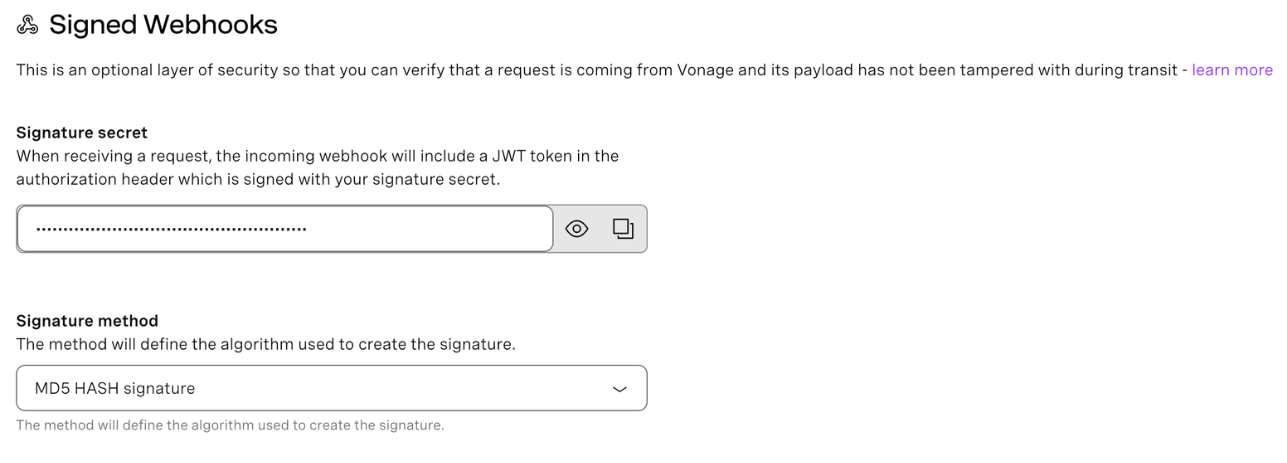
Add an optional layer of security to verify that webhook requests are coming from Vonage and haven't been tampered with during transit.
Signature Secret
A secret key used to generate the signature included in webhook requests.
- In the Signed webhooks section, view your Signature secret (masked by default).
- Click the eye icon to reveal the secret.
- Click the copy icon to copy it to your clipboard.
Signature Method
Choose the algorithm used to create the webhook signature:
- Click the Signature method dropdown.
- Choose from:
- MD5 HASH signature (legacy, not recommended)
- MD5 HMAC signature
- SHA1 HMAC signature
- SHA-256 HMAC signature (recommended)
- SHA-512 HMAC signature (most secure)
When enabled, incoming webhook requests include a JWT token in the authorization header, which is signed with your signature secret. Learn more about validating signed webhooks.
Compliance
HIPAA Numbers
If your account has been enabled to purchase HIPAA-compliant numbers, you'll see the following notice:
This account has been enabled to purchase HIPAA numbers. Go to your campaign page to request and enable a HIPAA compliant number.
Contact your Vonage account manager if you need to enable HIPAA compliance for your use case.