Voice Playground
The Voice Playground helps you debug your Call Control Object (NCCO) markup and test it on a real call. The playground follows a two-step flow: Validate your NCCO, then Test it on a live call.
If you are not familiar with voice applications yet, see the documentation for Call Control Objects.
Step 1: Validate Your NCCO
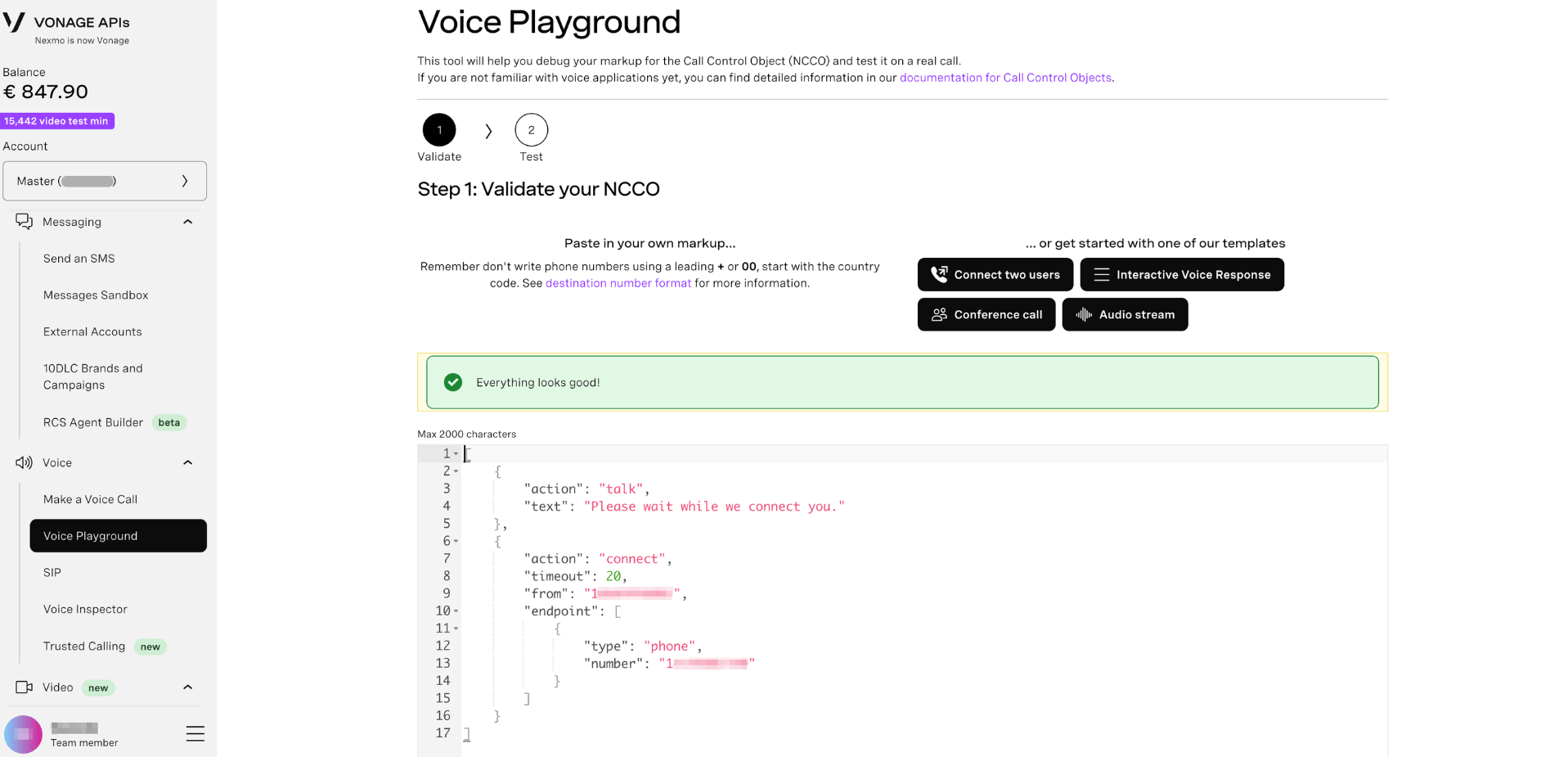
The first step is to write or paste your NCCO markup and validate it before testing on a real call.
To validate your NCCO:
- Sign in to the Dashboard.
- In the left-hand navigation, click Voice → Voice Playground.
- Paste your NCCO markup into the editor, or choose one of the provided templates to get started quickly.
- Click Go to test once your NCCO is valid.
Note: Do not write phone numbers using a leading + or 00. Start directly with the country code. See destination number format for more information. The editor accepts a maximum of 2000 characters.
Once your NCCO is ready, the following actions are available at the bottom of the editor:
- Download your NCCO - Download your NCCO as a JSON file for use in your own application.
- Create an application - Navigate to the Applications page to create a new Vonage application.
- Go to test - Proceed to Step 2 to test your NCCO on a real call.
Step 2: Test Your NCCO on a Real Call
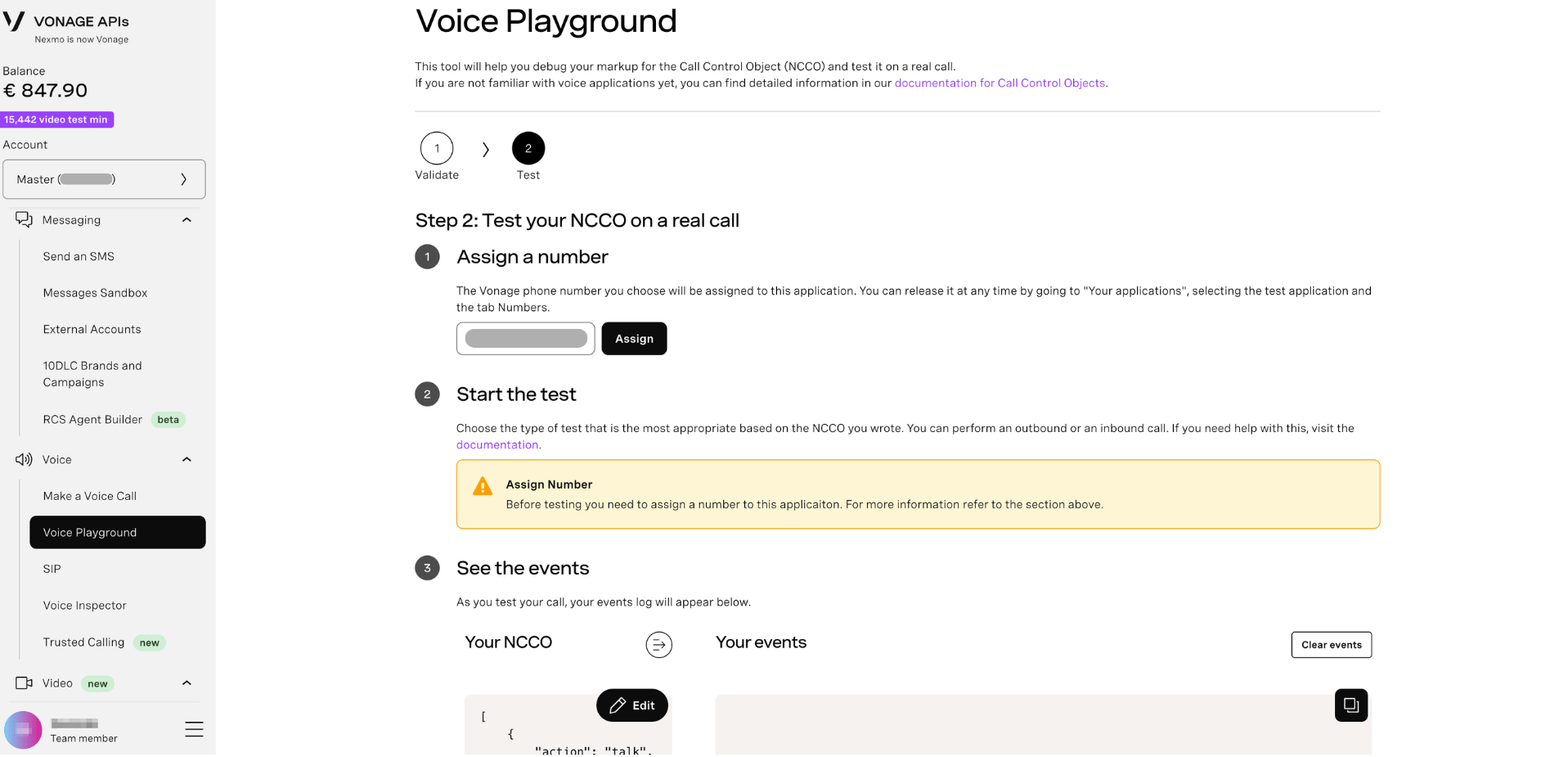
Once your NCCO is validated, proceed to test it on a live call.
Assign a Number
Select a Vonage virtual number from the dropdown and click Assign. The number will be linked to a temporary test application for the duration of your session.
Note: You can release the number at any time by going to Your applications, selecting the test application, and navigating to the Numbers tab.
Start the Test
Choose the type of test that is most appropriate based on the NCCO you wrote. You can perform either an outbound or an inbound call.
Important: You must assign a number before you can start a test. If no number is assigned, a warning is displayed: Before testing you need to assign a number to this application.
See the Events
As you test your call, the Your events log updates in real time on the right-hand side of the screen. Your current NCCO is displayed on the left for reference.
Click Edit on the NCCO panel to return to the editor and make changes. Click Clear events to reset the events log.
Further Reading
- Call Control Objects (NCCO) reference — Full reference for all NCCO actions including
talk,connect,record,input, and more. - Voice API overview — Learn about the Vonage Voice API and its capabilities.
- Applications — Create a Vonage application to use your NCCO in a production voice integration.