Verify
The Vonage Verify API lets you send a PIN to a user's phone and validate that they received it. It can be used for a range of authentication and anti-fraud scenarios, including:
- Two-factor authentication (2FA)
- Passwordless sign-in
- Phone number validation
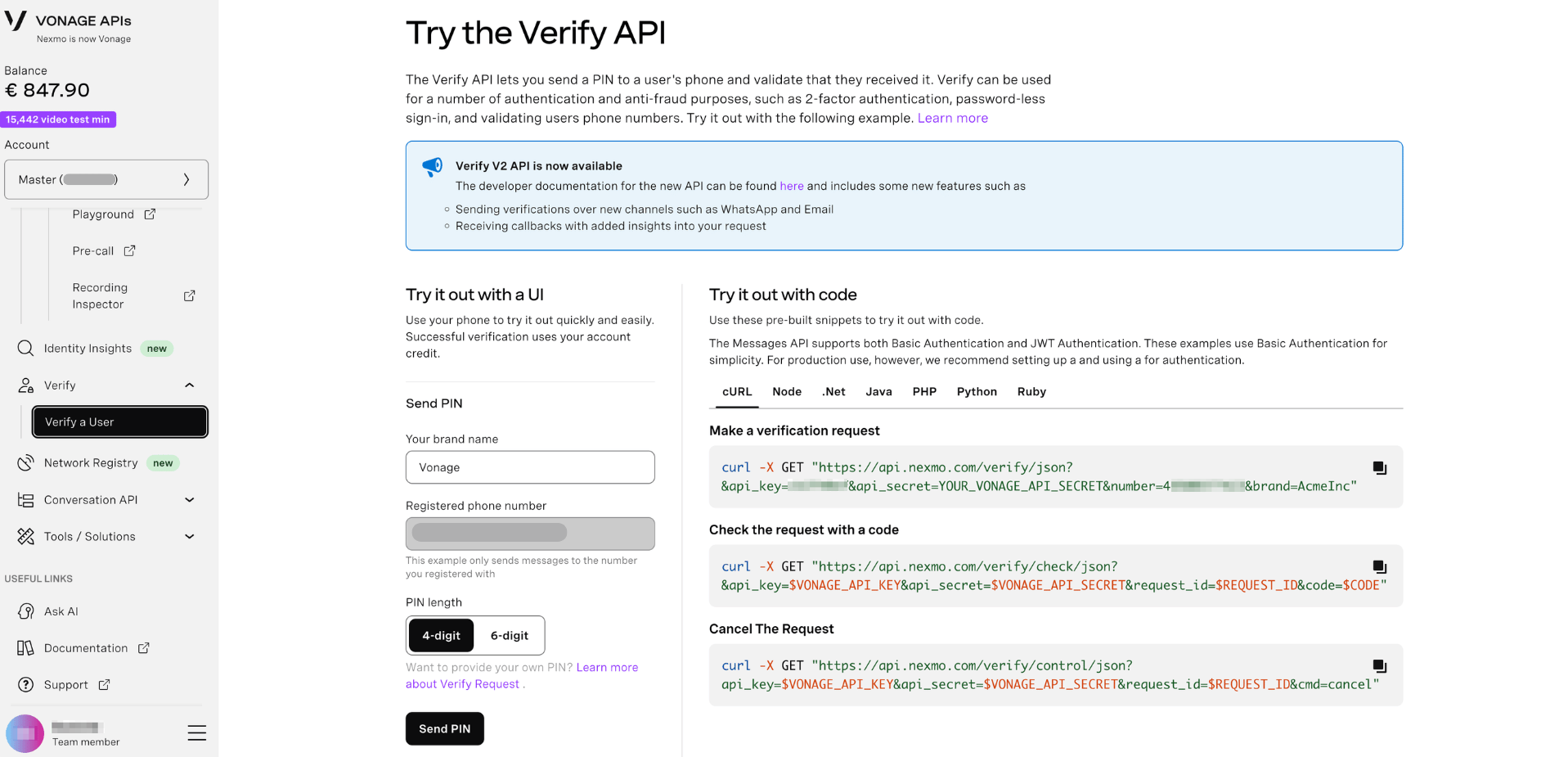
The Dashboard gives you a built-in sandbox to try the Verify API immediately — no code required.
Verify V2 is now available. Verify V2 includes new channels (WhatsApp, Email, Silent Authentication) and richer callbacks. See the Verify V2 API documentation to get started. Note that Verify V1 is being sunset — if you are on V1, refer to the Verify V1 to V2 Migration Guide.
Try It Out with a UI
The Dashboard lets you send a real verification PIN to your registered phone number directly from the browser. A successful verification uses your account credit.
- Log in to the Vonage API Dashboard
- Navigate to Build > Verify in the left sidebar
- Under Send PIN, fill in the following fields:
| Field | Description |
|---|---|
| Your brand name | The name displayed to the user when they receive the PIN (e.g. Vonage) |
| Registered phone number | Your verified account phone number — the sandbox only sends to your registered number |
| PIN length | Choose 4-digit or 6-digit |
- Click Send PIN
- Enter the PIN you receive on your phone to complete the verification
Want to provide your own PIN? See Verify Request documentation for details.
Try It Out with Code
The Dashboard provides pre-built code snippets for making Verify API requests directly. These examples use Basic Authentication for simplicity. For production use, we recommend using JWT authentication.
Select your language from the tabs: cURL, Node, .Net, Java, PHP, Python, or Ruby.
Make a Verification Request
Sends a PIN to the specified phone number. A successful request returns a request_id — save this to check or cancel the request.
Check the Request with a Code
Validates the PIN entered by the user. Provide your request_id from the previous step along with the PIN code received on the device.
Cancel the Request
Cancels an in-progress verification request using the request_id returned when the request was made.
You can find your API key and secret in API Settings.
Further Reading
- Verify V2 API Reference — full V2 API documentation
- Verify V1 API Reference — legacy V1 reference
- Verify Migration Guide — migrate from V1 to V2
- Verify Logs — monitor verification requests and results
- Silent Authentication — frictionless phone-based authentication
- Verify Analytics — track conversion rates and usage