Applications
A Vonage application is a set of security and configuration information for connecting external accounts, numbers, and webhooks to the Vonage API.
You can use applications to:
- Store authentication settings, external accounts, and webhooks for handling inbound and outbound traffic to and from Vonage APIs
- Group related API capabilities under a single application ID and key pair
- Control access and privacy settings for your integration
View Your Applications
To view a list of all your applications:
- Sign in to the Dashboard.
- Navigate to Applications.
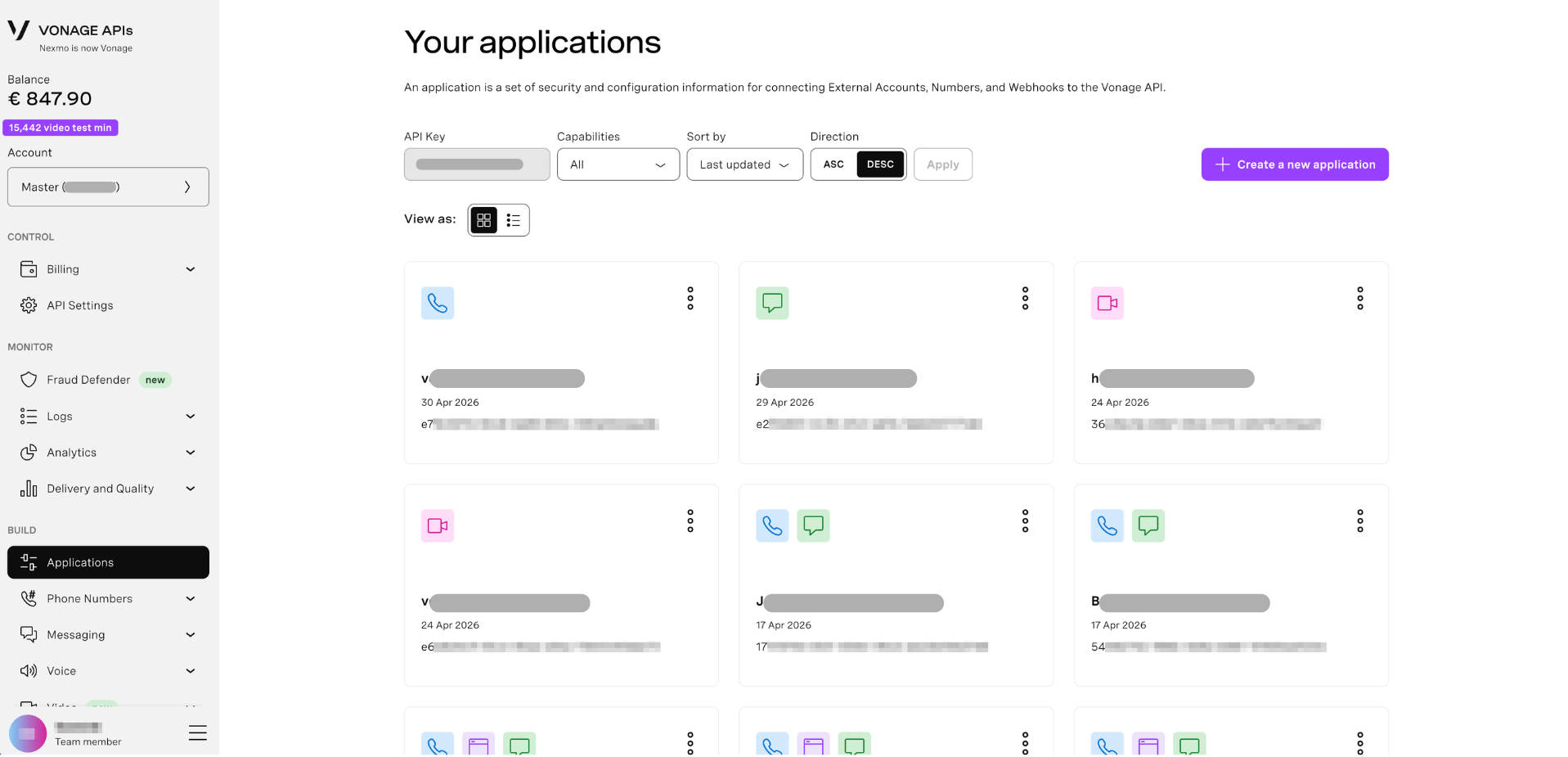
The Your applications page shows all applications associated with your account. Each entry displays the application name, its creation date, and its unique application ID.
You can filter the list by API Key or Capabilities, and sort by last updated date. Use the grid or list icon to switch between view modes.
To create a new application, click + Create a new application in the top-right corner.
Create an Application
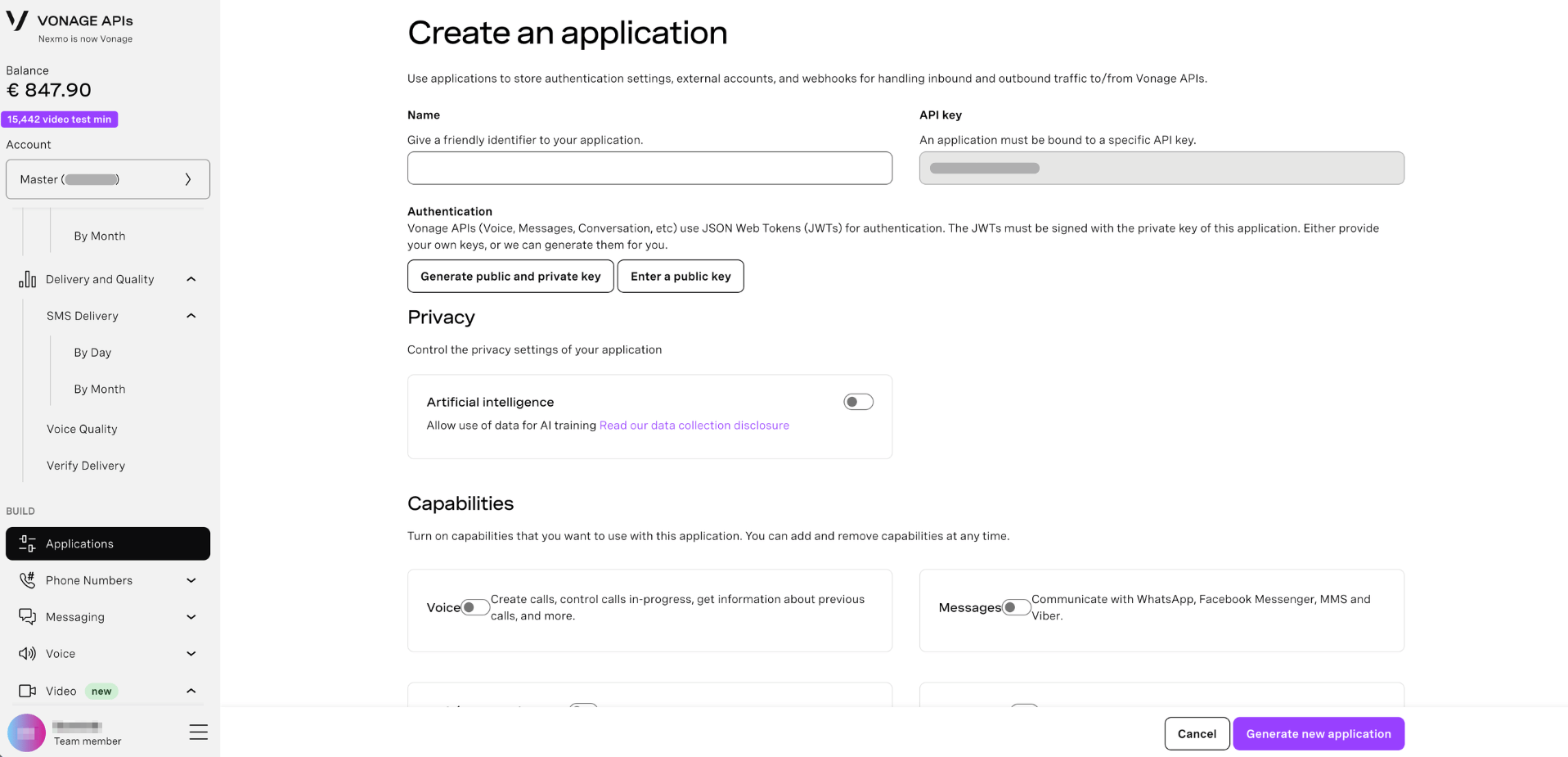
To create a new application:
- Click + Create a new application.
- Enter a Name for your application. This is a friendly identifier for your own reference.
- The API key is pre-filled with your current account's API key. An application must be bound to a specific API key.
- Configure your authentication keys.
- Set your privacy preferences.
- Enable the capabilities you want to use.
- Click Create application.
Authentication
Vonage APIs (Voice, Messages, Conversation, etc) use JSON Web Tokens (JWTs) for authentication. JWTs must be signed with the private key of your application.
You can either generate a new key pair or provide your own public key:
- Generate public and private key — Vonage generates a public and private key pair for you. The private key is downloaded to your machine immediately. Store it securely, as it cannot be retrieved again.
- Enter a public key — If you already have a key pair, you can paste your public key directly.
Note: Keep your private key secure. It is used to sign JWTs that authenticate requests to Vonage APIs on behalf of your application.
Privacy
The Privacy section lets you control how your application's data is used.
Artificial intelligence - it allows use of data for AI training. See the data collection disclosure for details.
This toggle is off by default. You can enable or disable it at any time.
Capabilities
Capabilities determine which Vonage APIs your application can use. You can turn capabilities on and off at any time.
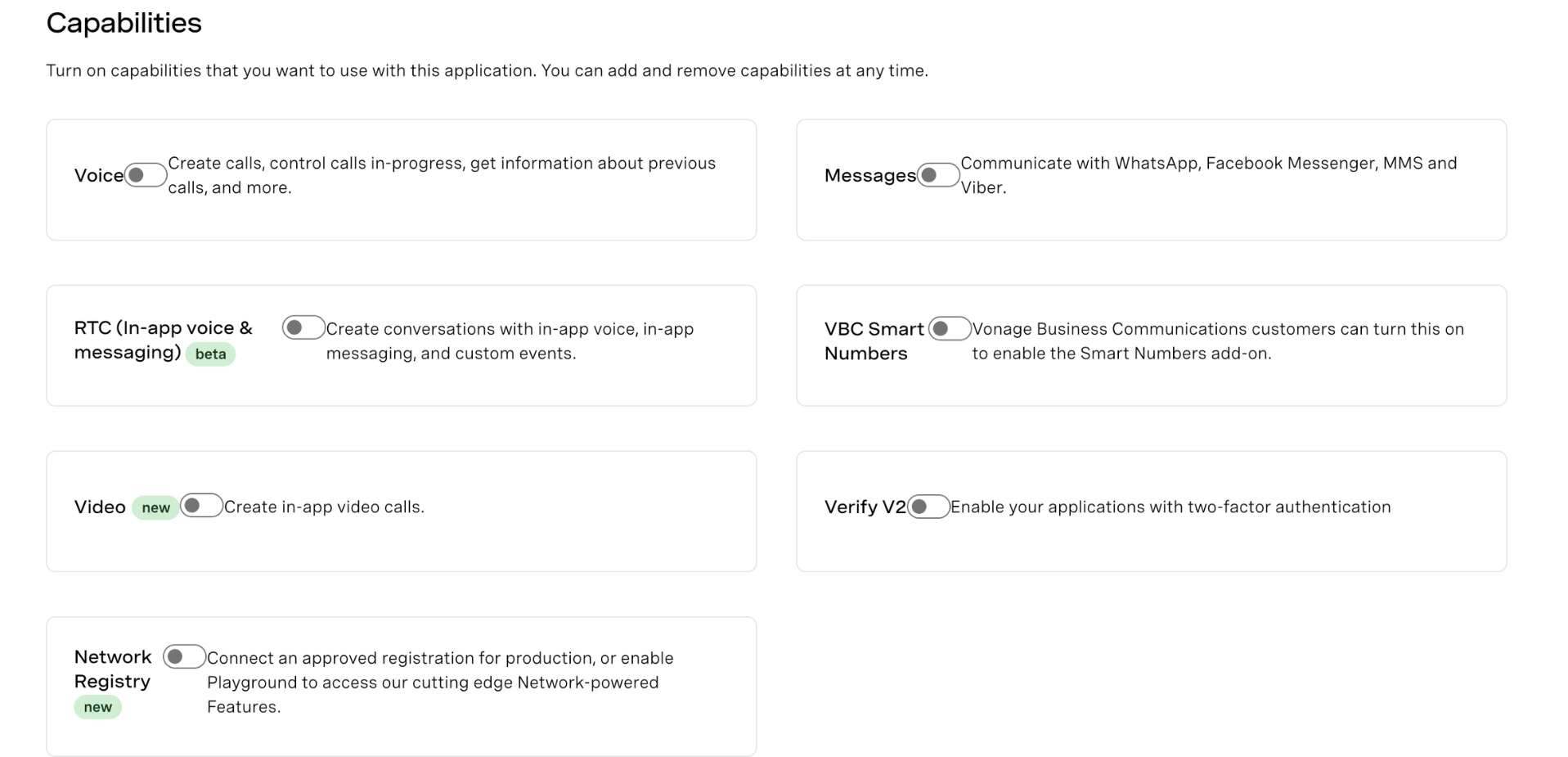
To enable a capability, toggle it on in the Capabilities section when creating or editing your application.
| Capability | Description |
|---|---|
| Voice | Create calls, control calls in-progress, get information about previous calls, and more. |
| Messages | Communicate with WhatsApp, Facebook Messenger, MMS and Viber. |
| RTC (In-app voice & messaging) (beta) | Create conversations with in-app voice, in-app messaging, and custom events. |
| VBC Smart Numbers | Vonage Business Communications customers can enable the Smart Numbers add-on. |
| Video (new) | Create in-app video calls. |
| Verify V2 | Enable your application with two-factor authentication. |
| Network Registry (new) | Connect an approved registration for production, or enable testing to access Network-powered features. |
Note: You do not need to enable all capabilities. Only turn on the capabilities required for your integration. Each enabled capability may expose additional webhook configuration options.