)
)
Vonage Email API Is Now In Open Beta Access
Time to read: 5 minutes
We're excited to announce that the Vonage Email API is now in Open Beta, available to all managed customers as a channel within the Vonage Messages API.
Developers no longer need to use a separate vendor when integrating other message channels such as SMS, WhatsApp, or Viber with sending Emails. As it is only adding another channel, you can use it with the same authentication and Webhooks that are already in place in your Messages API application. Neat!
With our announcement, we’re going to look at what features are available, and how to make your first API call to test it.
Before you can start using Email, you will need to complete your Domain Authentication Setup. You can read about how to do this, but the TLDR is: adding and configuring DNS records from your provider allows services to know Vonage is permitted to send messages on your behalf. Once you have done this, you’ll need to configure your authentication with Vonage, which we’ll walk you through now.
 Security FirstIf you don’t already have an authentication mechanism in place, you will need to set it up. First, create a new Vonage application in the Dashboard and download your private key:
To create an application, go to the Create an Application page on the Vonage Dashboard, and define a Name for your Application.
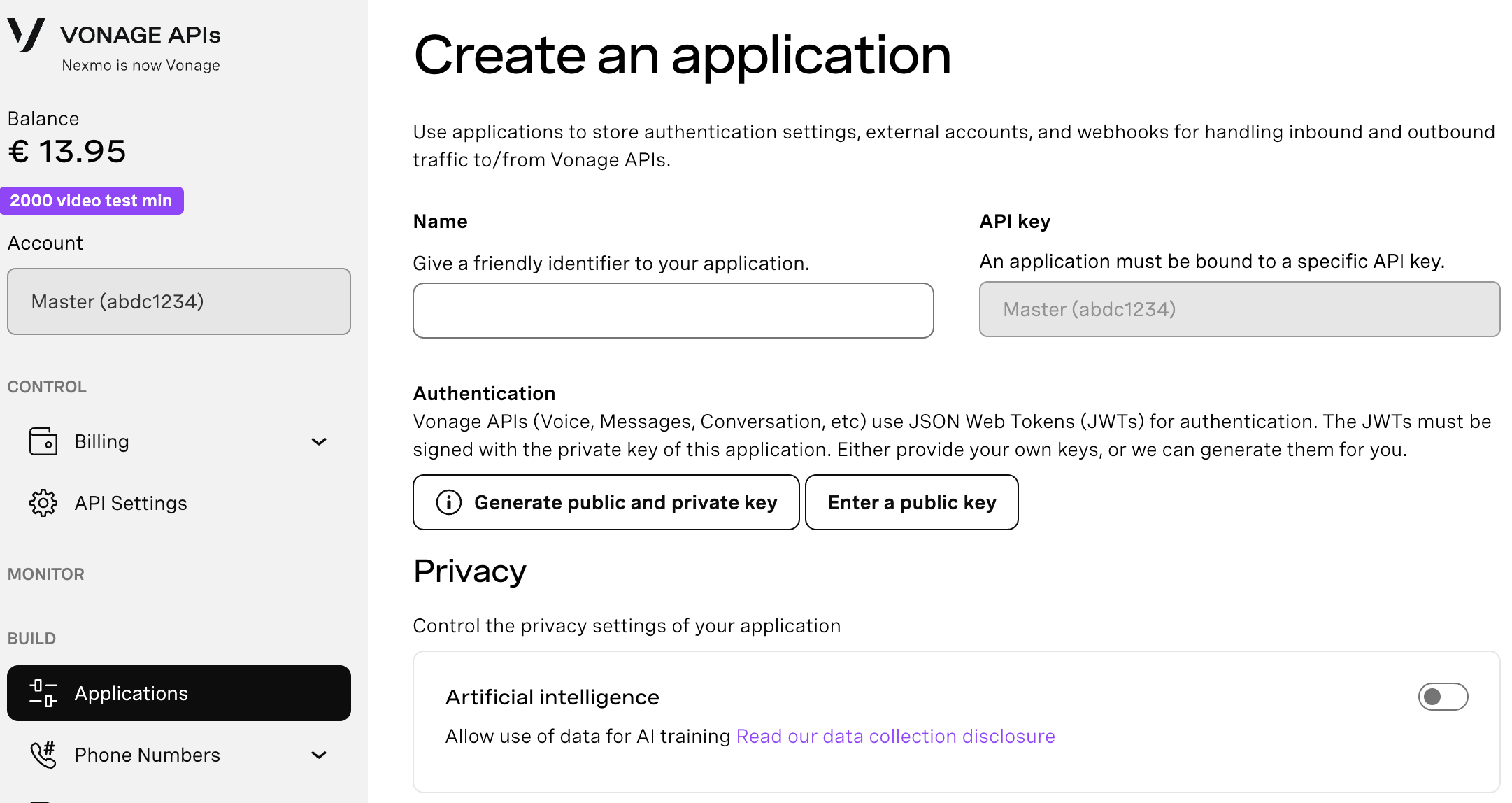
If you intend to use an API that uses Webhooks, you will need a private key. Click “Generate public and private key”, your download should start automatically. Store it securely; this key cannot be re-downloaded if lost. It will follow the naming convention private_<your app id>.key. This key can now be used to authenticate API calls. Note: Your key will not work until your application is saved.
Choose the capabilities you need (e.g., Voice, Messages, RTC, etc.) and provide the required webhooks (e.g., event URLs, answer URLs, or inbound message URLs). These will be described in the tutorial.
To save and deploy, click "Generate new application" to finalize the setup. Your application is now ready to use with Vonage APIs.
Vonage authentication will require a valid JWT token - you can create a Vonage JWT by using the Vonage CLI. To install it, you will need to have Node.js installed, so you can use a Package Manager such as npm or yarn. Once you have Node, install the Vonage CLI globally:
npm install -g @vonage/cliNext, in the same directory as your downloaded private.key, use your application_id to generate a JWT:
vonage jwt create --app_id <your_app_id> --private-key ./private.keyThe CLI will return a JWT token you can use.
You will need cURL installed (which usually ships with most operating systems). From the command line, paste in this cURL command and replace the $JWT environment variable with the one you just created.
curl -X POST https://api-eu.nexmo.com/v1/messages \
  -H "Authorization: Bearer $JWT" \
  -H "Content-Type: application/json" \
  -d '{
    "channel": "email",
    "from": "sender@yourdomain.com",
    "to": "recipient@example.com",
    "message_type": "text",
    "text": "Hello! Your order has been confirmed.",
    "email": {
      "subject": "Order Confirmation"
    }
}'This will send a plain-text email, but the message_type field also allows you to send HTML; for example:
curl -X POST https://api-eu.nexmo.com/v1/messages \
  -H "Authorization: Bearer $JWT" \
  -H "Content-Type: application/json" \
  -d '{
    "channel": "email",
    "from": "sender@yourdomain.com",
    "to": "recipient@example.com",
    "message_type": "html",
    "html": {
      "body": "<h1>Order Confirmed</h1><p>Thank you for your purchase. Your order is on its way!</p>"
    },
    "email": {
      "subject": "Order Confirmation"
    }
}'A handy feature is that you can nest both content types by using the content message type, which allows you to have compatibility fallbacks for different end devices:
curl -X POST https://api-eu.nexmo.com/v1/messages \
  -H "Authorization: Bearer $JWT" \
  -H "Content-Type: application/json" \
  -d '{
    "channel": "email",
    "from": "Your Brand <sender@yourdomain.com>",
    "to": "recipient@example.com",
    "message_type": "content",
    "content": [
      { "type": "text", "text": "Your order has been confirmed." },
      { "type": "html", "body": "<p>Your order has been <strong>confirmed</strong>.</p>" }
    ],
    "email": {
      "subject": "Order Confirmation"
    }
}'Once a message has been sent to the API, you should receive a 202 response with a message_uuid, the same as you would with other channels.
Webhooks will allow you to consume notifications: there are five delivery statuses that match the other channels: delivered, rejected, undeliverable, read, and submitted. You’ll need a back-end framework to be able to read incoming messages, which is not the purpose of this announcement, but one quite neat feature is that if you install ngrok, you can use the Vonage CLI as a wrapper for it so that it will temporarily replace your local domain for Webhook deliveries for the application (these are the ones you can see in the Application panel on the Dashboard) with a local ngrok address plus the path you’ve given. For example, if the application’s events are configured to be http:///example.com/webhooks/status, and you run the command to open your tunnel with the CLI:
vonage tunnel ngrok "<your-application-id>" --port=8000It will boot ngrok, and change your local domain to something like https://sa9s8d.ngrok.app/webhooks/status. Very handy when testing your integration. An incoming status delivery will look something like this:
{
  "message_uuid": "aaaaaaaa-bbbb-4ccc-8ddd-0123456789ab",
  "from": "sender@yourdomain.com",
  "to": "recipient@example.com",
  "timestamp": "2026-06-01T10:00:01.000Z",
  "status": "delivered",
  "channel": "email"
}
Previously, if you wished to run a marketing campaign that used both SMS (with something like 10DLC) and Email, you would need a separate Email service. Now, if you had a marketing campaign that used multiple methods of delivery, you can use the Vonage Messages API to scale out a campaign to however large you need it.
In Vertical markets such as logistics or e-commerce, you’ll typically want to send out confirmation requests or delivery confirmations via email rather than other communication channels. The introduction of Email as a channel now allows this.
The Email channel is used in our Verify API when One-Time Password (OTP) delivery is required (and can also be used alongside other channels such as SMS or WhatsApp). Note that this is also a Beta feature. However, with an Email channel in the Messages API, you can also integrate Messages into your own authentication stack, such as sending Account Verification Emails or Password resets.
Messages already has a fallback feature for delivery, so the additional Email as a channel now means you can attempt to complete the delivery of vital information via multiple means to ensure better confirmation of delivery. I’ve already mentioned that e-commerce is a typical vertical market where Email would be used, so the following is an example of when you want to send purchase confirmation via WhatsApp (because the end user has specified it as a preferred method of communication) but the delivery cannot be completed (the end user ordered it in an unsupported territory or there is no cellular coverage) and so, confirmation is sent by Email:
{
  "template": {
    "name": "order_confirmation",
    "parameters": [{ "type": "text", "text": "ORD-12345" }]
  },
  "workflow": [
    {
      "channel": "whatsapp",
      "from": "15551234567",
      "to": "15559876543"
    },
    {
      "channel": "email",
      "from": "orders@yourdomain.com",
      "to": "customer@example.com",
      "message_type": "html",
      "html": { "body": "<p>Your order ORD-12345 is confirmed!</p>" },
      "email": { "subject": "Order Confirmation - ORD-12345" }
    }
  ]
}
Launching this as an Open Beta is just the start; we have plenty of features lined up in our roadmap before it hits General Availability (GA):
Q3 2026 (GA): Inbound email support, attachment support, dedicated IP addresses, self-serve onboarding via the Customer Dashboard, Verify integration (email as OTP fallback)
Q4 2026: Dynamic email templates, personalization & dynamic tags, Conversation Connect integration (campaign manager UI)
2027+: Advanced analytics, A/B testing, contact management, and full marketing automation
Whether you're sending order confirmations, OTPs, or building omnichannel failover workflows, the addition of the Email channel to the Messages API gives developers more options and power to integrate communications into their applications.
Ready to get started? Check out the developer documentation and reach out to your Account Manager to get your domain onboarded.
Have a question or want to share what you're building?
Subscribe to the Developer Newsletter
Follow us on X (formerly Twitter) for updates
Prefer video? Watch tutorials on our YouTube channel
Connect with us on the Vonage Developer page on LinkedIn
Help us improve our developer experience by filling out our Voice of the Developer Feedback
Stay connected and keep up with the latest developer news, tips, and events.