)
Validate Phone Numbers Before Sending WhatsApp Messages with Vonage
Time to read: 6 minutes
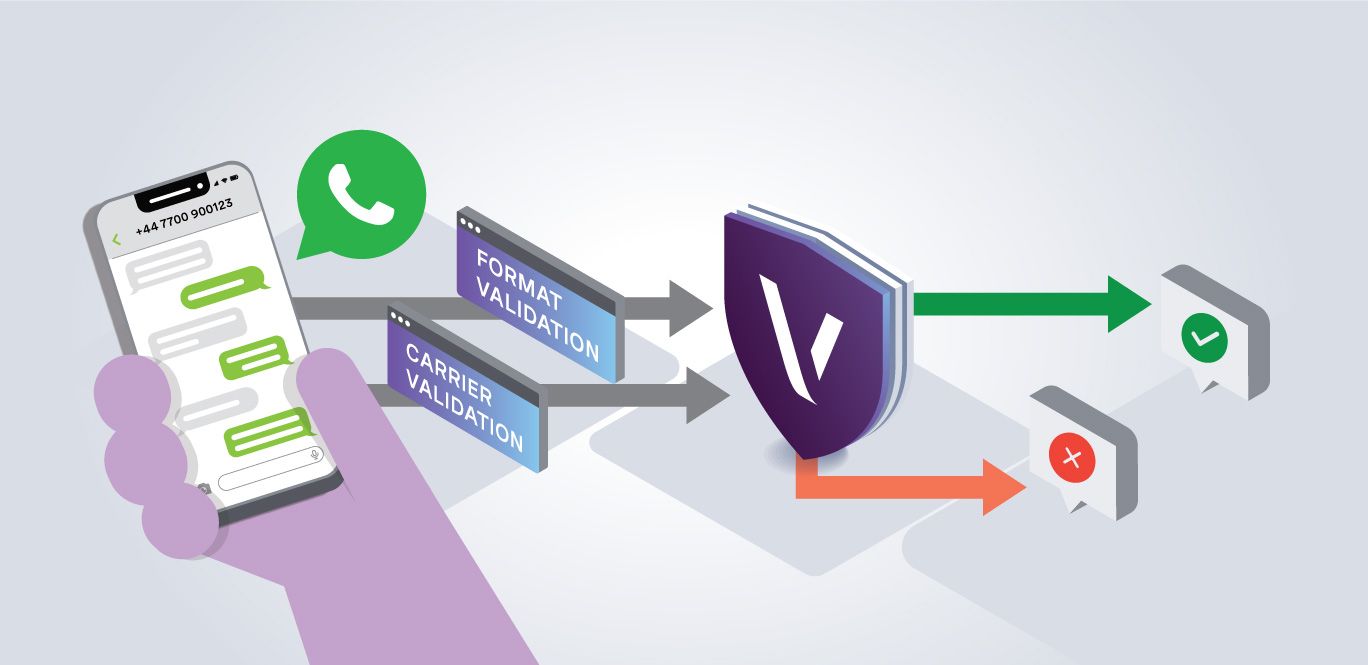
Sending a WhatsApp message to an invalid or incorrectly formatted phone number is a silent failure. There's no error at the point of input, just a message that never lands. Before you send that first message, it's worth taking a moment to validate the number you're working with.
In this tutorial, you'll learn how to use the Identity Insights API to check two key signals, format and current carrier, before sending a WhatsApp message. We'll first explore the solution using cURL commands and a sandbox environment, then look at how you can set the Vonage Tooling MCP server to send a WhatsApp message to a validated phone number.
· A generated Vonage application with a private key (for JWT auth)
· curl available in your terminal
Before jumping into sending any WhatsApp messages, you can explore the API. Open the Identity Insights Playground in the Vonage Dashboard, enter any phone number, select format and current_carrier, and see the response in real time. There's also a demo mode with predefined numbers if you want to explore without using a live number.
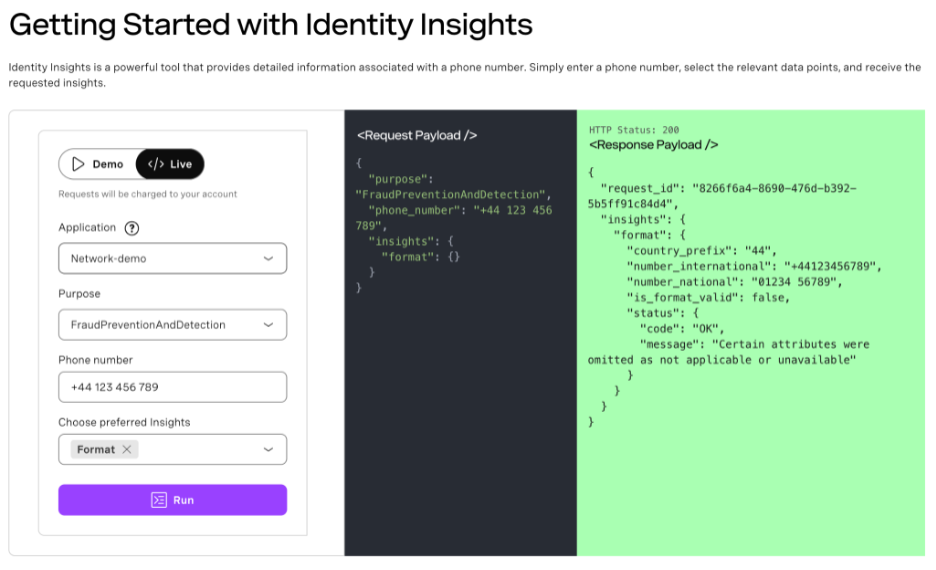 Getting Started with Identity Insights
The format insight checks whether a phone number is structurally valid. If it conforms to international numbering standards, it returns:
is_format_valid: a boolean indicating whether the number could realistically be assigned to a subscribernumber_international: the number in E.164 format (e.g. +447700900000)number_national: the locally formatted versioncountry_code_iso2andcountry_nametime_zones: useful for scheduling messages at the right local time
This is the insight to run before storing or acting on any phone number. It normalizes the input into a consistent E.164 format.
The current_carrier insight tells you which network the phone number is currently assigned to, along with the network type. The important fields are:
name: the carrier name (e.g., EE, Verizon, Deutsche Telekom)network_type: MOBILE, LANDLINE, VIRTUAL, etc.country_code: the country the number is registered in
If network_type comes back as anything other than MOBILE, the number cannot receive WhatsApp messages. Storing a landline or VoIP number and then attempting to send a WhatsApp message to it is a guaranteed failure, and one that's entirely avoidable.
Both insights can be requested in a single API call. Run this from your terminal. Replace $JWT with a valid JWT generated from your Vonage application credentials, and replace the phone number with the one you want to validate.
curl -X POST https://api-eu.vonage.com/identity-insights/v1/requests \

  -H "Authorization: Bearer $JWT" \

  -H "Content-Type: application/json" \

  -d '{

    "phone_number": "+447700900000",

    "purpose": "FraudPreventionAndDetection",

    "insights": {

      "format": {},

      "current_carrier": {}

    }

}'If your response is successful, it looks like the code snippet below. If is_format_valid is true and network_type is MOBILE, you're good to proceed.
{

  "request_id": "aaaaaaaa-bbbb-cccc-dddd-0123456789ab",

  "insights": {

    "format": {

      "country_code_iso2": "GB",

      "country_name": "United Kingdom",

      "country_prefix": "44",

      "offline_location": "United Kingdom",

      "time_zones": ["Europe/London"],

      "number_international": "+447700900000",

      "number_national": "07700 900000",

      "is_format_valid": true,

      "status": { "code": "OK", "message": "Success" }

    },

    "current_carrier": {

      "name": "EE",

      "network_type": "MOBILE",

      "country_code": "GB",

      "network_code": "23430",

      "status": { "code": "OK", "message": "Success" }

    }

  }

}
We have a Messages API Sandbox where you can set up diverse channels, including Viber, Facebook Messenger, Instagram, and last but not least, WhatsApp. I have previously created two tutorials in JavaScript and Node.js showing how to send a WhatsApp message with Node.js and how to build a WhatsApp events reminder app. In addition to these, we have tutorials for different programming languages that show how to send a test message via the Messages API Sandbox.
When you open the Messages API Sandbox, you'll see the WhatsApp section with a QR code and a passphrase. You can either scan the QR code or manually send a WhatsApp message to +1 415-738-6102 with the three words shown on the dashboard. Once allowlisted, you can send and receive test WhatsApp messages through the sandbox.
curl -X POST https://messages-sandbox.nexmo.com/v1/messages \

  -u 'YOUR_API_KEY:YOUR_API_SECRET' \

  -H 'Content-Type: application/json' \

  -H 'Accept: application/json' \

  -d '{

    "from": "14157386102",

    "to": "YOUR_ALLOWLISTED_NUMBER",

    "message_type": "text",

    "text": "This is a WhatsApp Message sent from the Messages API",

    "channel": "whatsapp"

}'Replace YOUR_API_KEY, YOUR_API_SECRET, and YOUR_ALLOWLISTED_NUMBER with your actual values. The ‘to’ phone number should be in E.164 format without the leading + (e.g. 447700900000).
Note: the sandbox endpoint domain messages-sandbox.nexmo.com is different from the standard Messages API endpoint. Double-check your base URL when switching between sandbox and production.
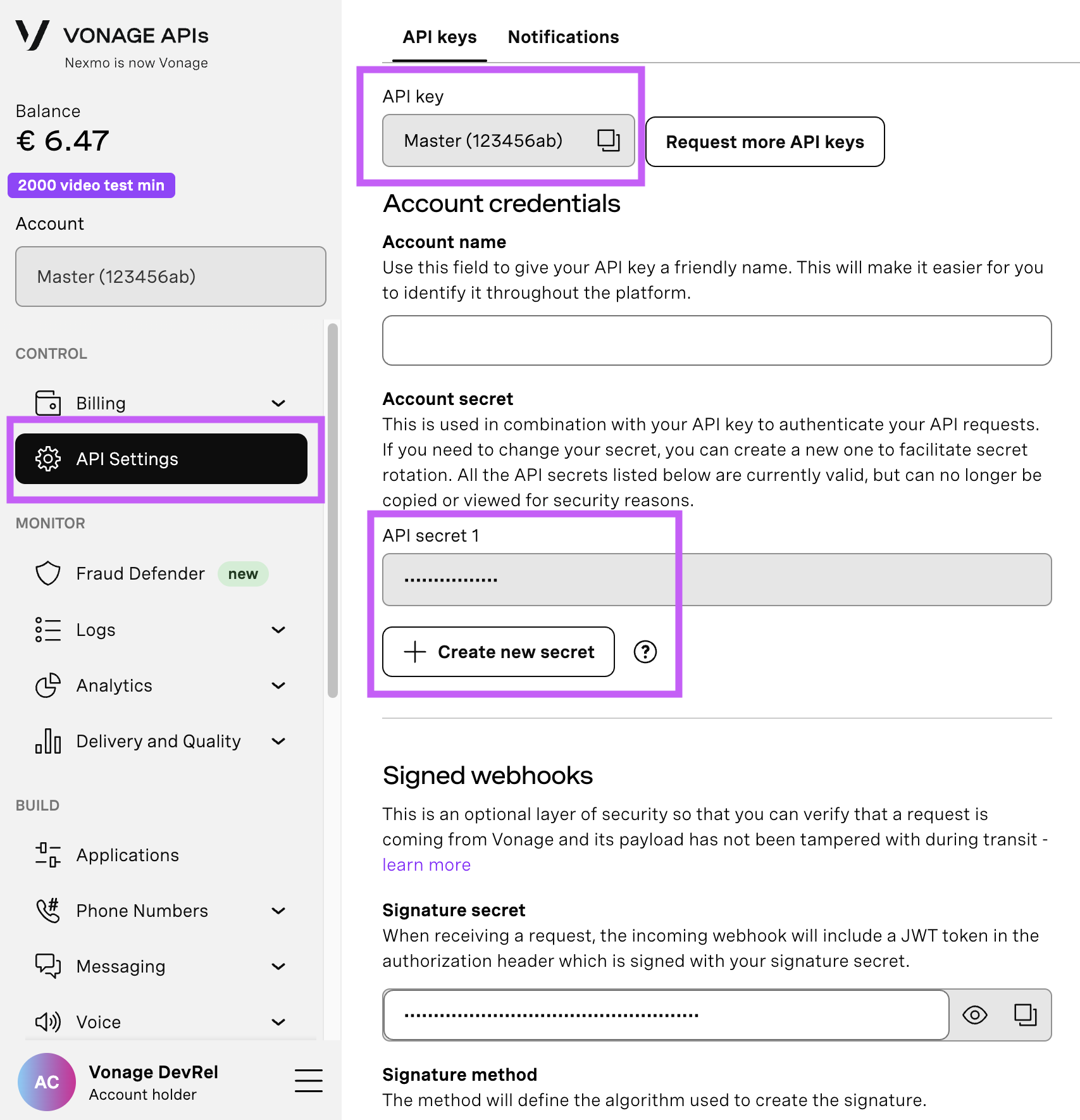
Open your API Settings Page to access your Vonage API Key and Secret, both of which are displayed as shown in the screenshot below. The API Key is located at the top of the page, and to access your API Secret, please refer to the “Account secret” subsection.
Note: In case you cannot remember your previously created API Secret, click on “+ Create new secret” and save it securely.
I’ve shown you two separate cURL commands to first validate the phone number and then send the WhatsApp message. You can use the Vonage Tooling MCP Server to validate a number and send a WhatsApp message through natural language prompts in an AI agent like Claude or Gemini within Google Antigravity.
Install it globally:
npm install -g @vonage/vonage-mcp-server-api-bindingsOr run it directly with npx:
npx @vonage/vonage-mcp-server-api-bindingsThen add it to your MCP client config file. Locations by client:
· Claude Desktop: ~/Library/Application Support/Claude/claude_desktop_config.json (macOS) or %APPDATA%\Claude\claude_desktop_config.json (Windows)
· Google Antigravity: ~/.config/antigravity/mcp_config.json
  "mcpServers": {

    "vonage": {

      "command": "npx",

      "args": ["-y", "@vonage/vonage-mcp-server-api-bindings"],

      "env": {

        "VONAGE_API_KEY": "your_api_key",

        "VONAGE_API_SECRET": "your_api_secret",

        "VONAGE_APPLICATION_ID": "your_application_id",

        "VONAGE_PRIVATE_KEY64": "your_base64_encoded_private_key",

        "VONAGE_WHATSAPP_NUMBER": "14157386102"

      }

    }

  }

}Note: VONAGE_PRIVATE_KEY64 is your private key file base64-encoded. On macOS/Linux, you can generate it with base64 -i private.key | tr -d '\n' . I wanted to copy it to my clipboard whilst doing this on GitHub Codespaces, and I used the following command: base64 -i private.key | tr -d '\n' > b64_key.txt && code b64_key.txt to copy it to a new txt file, but you can use | pbcopy on macOS to copy it to your clipboard.
Once the server is running, you can ask your AI agent to validate a number and send a WhatsApp message in a single prompt. The agent will call the Identity Insights API first, check the result, and only proceed with the send if the number passes validation.
You can talk to your LLM by stating a prompt like:
“Use the Identity Insights API to validate +447700900000. Check that is_format_valid is true and network_type is MOBILE. If both pass, send a WhatsApp text message to that number saying "Hello from Vonage!"
Congrats, you’ve reached the end of this tutorial. You now know how to validate a phone number before sending a WhatsApp message either via the Messages API Sandbox using cURL or via MCP Server.
Have a question or want to share what you're building?
Subscribe to the Developer Newsletter
Follow us on X (formerly Twitter) for updates
Prefer video? Watch tutorials on our YouTube channel
Connect with us on the Vonage Developer page on LinkedIn
Help us improve our developer experience by filling out our Voice of the Developer Feedback
Stay connected and keep up with the latest developer news, tips, and events.