)
The Vonage Server and Tooling MCP Servers Are Live on Postman
We announced the Vonage Documentation MCP (Model-Context Protocol) Server and the Tooling MCP Server in 2025. In this blog post, you'll learn how to connect to the Vonage MCP servers on Postman to explore the tools and services it offers.
By accessing the MCP Server verified list, you can find the Vonage MCP Server that contains two of our MCP Server collections: The Vonage Tooling MCP Server and the Vonage Documentation MCP Server. They can also be found in our Vonage APIs Collections on Postman.
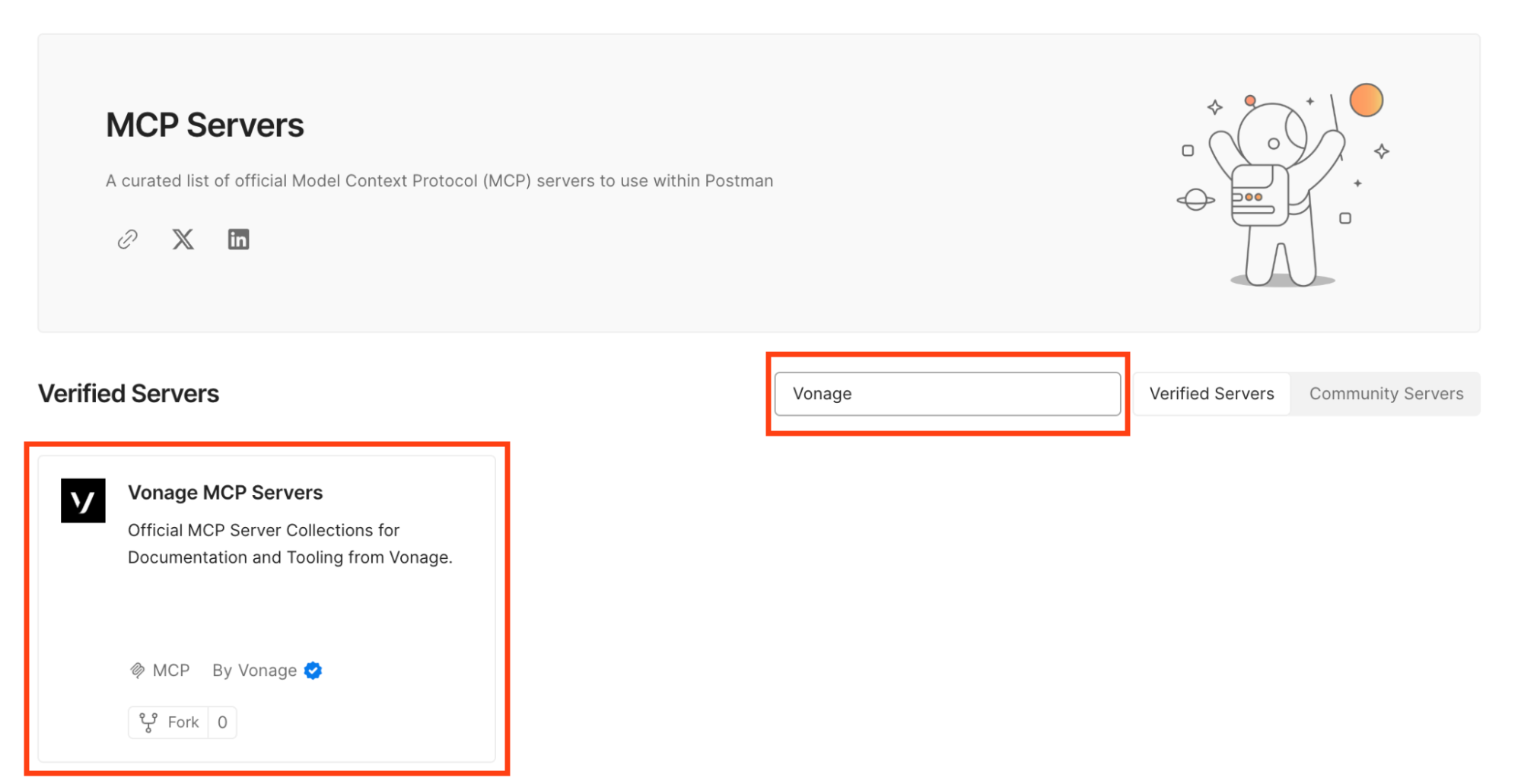 Vonage MCP Servers
Once you access the Vonage Documentation MCP Server, you’ll see a fresh interface similar to Postman for API requests.
You can choose from the two supported options: STDIO or HTTP. We choose a remote direct connection via HTTP, enter the URL https://documentation-mcp.vonage.dev/mcp to interact with this MCP Server, and then click the “Connect” button next to it.
We click the header tab and can see two sets of key values needed; make sure they're added accordingly.
Key: Accept
Value: text/event-stream
Key: Content-Type
Value: header
We can see the tools available from the MCP and try them out. Under Tools, you can see three tabs: Tools, Prompts, and Resources. We'll focus on the Tools tab. We can see a list of different tools available from the Vonage Documentation MCP Server that we can try out. Every time we test it out, the results appear in the bottom panel.
We can test different tool calls and see how they come through in the Postman Interface.
Let's try the first tool, “vonage_docs_search”. We can then pass a query string containing a keyword, phrase, or question about Vonage's APIs or documentation. If we search for "Sim Swap,” we can see the results in the bottom-right panel as ‘JSON’ or 'Preview’in a more human-readable format.
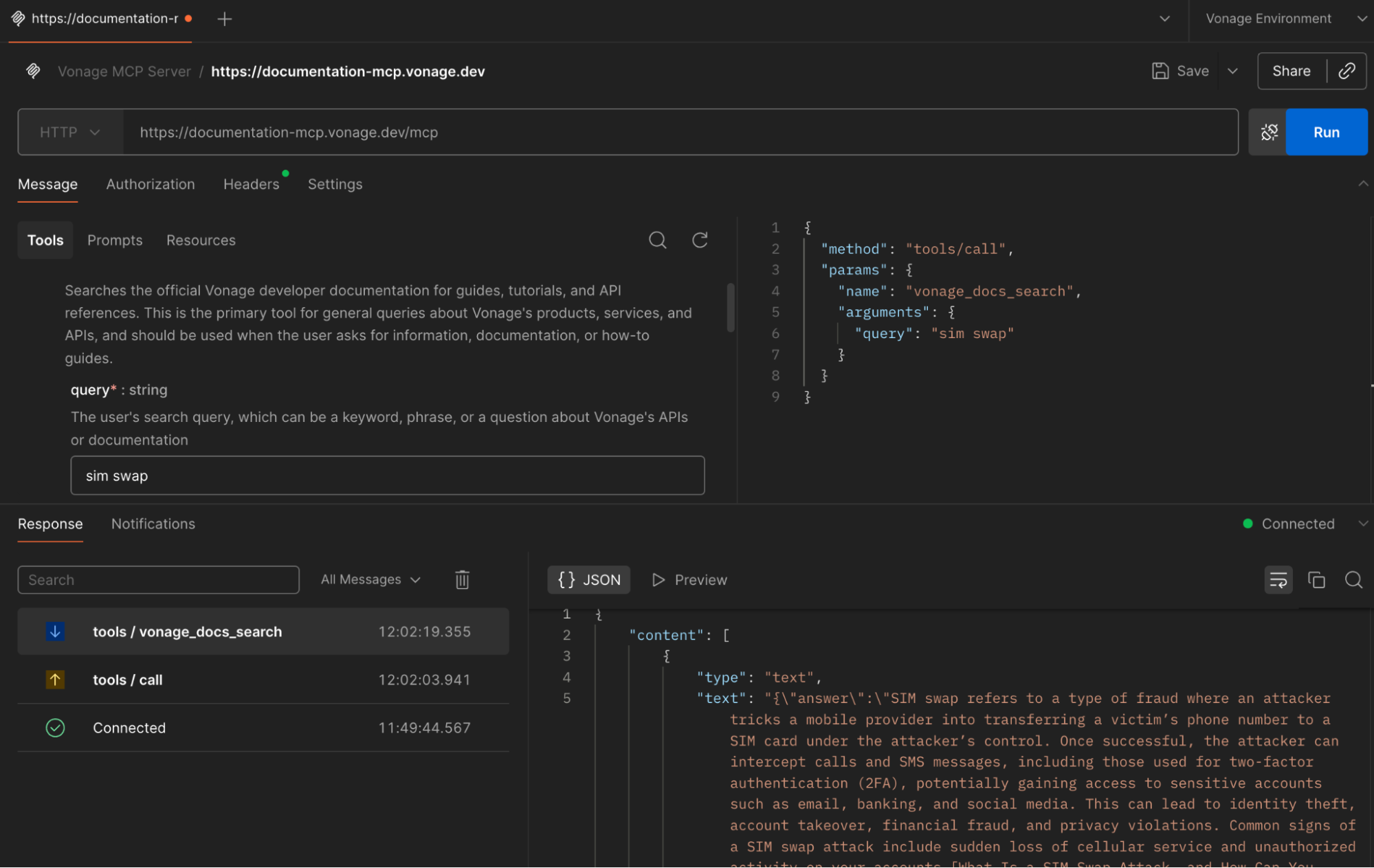 Vonage Documentation MCP Server
One of the tools we also have available is ‘vonage_sdk_info’. You can add any questions you might have, specifying the programming language in the query, and see information about it.
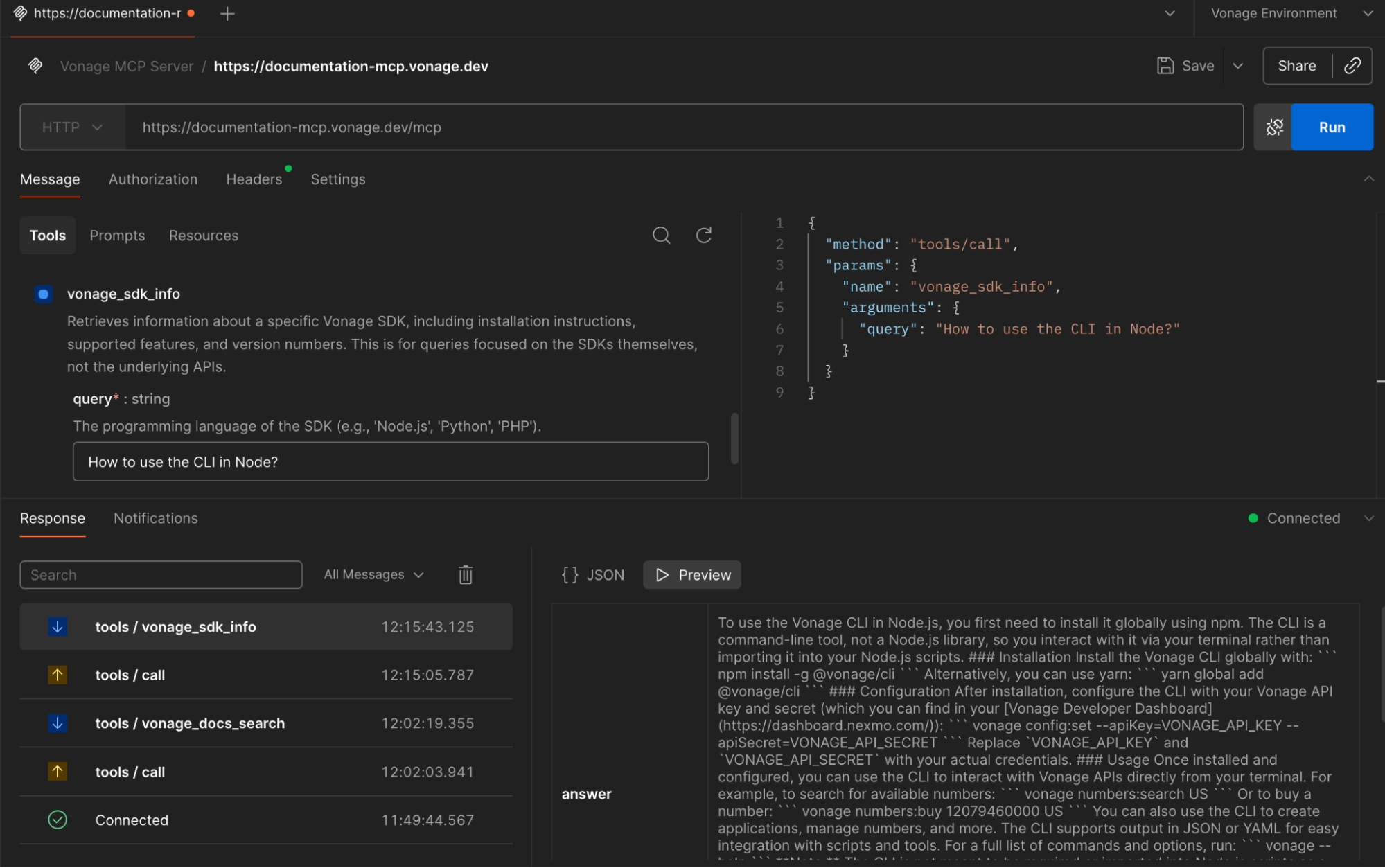 Retrieve Information on a Specific Vonage SDK
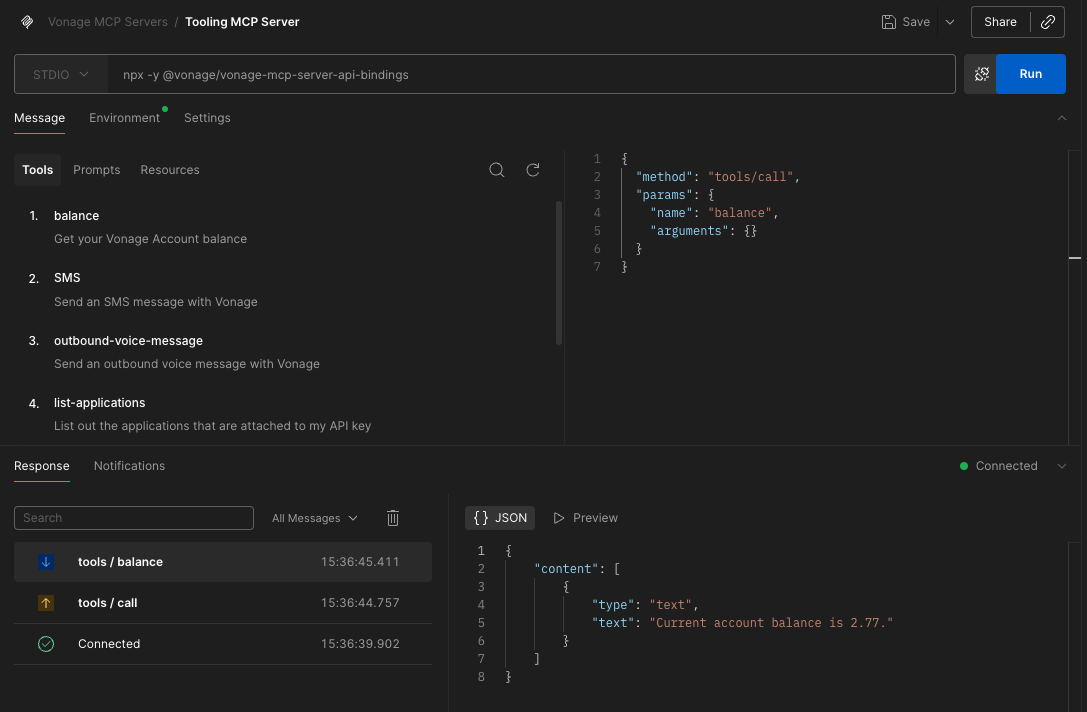
The Tooling MCP Server Collection runs a local server with STDIO. We enter the command npx -y @vonage/vonage-mcp-server-api-bindings, followed by hitting the button "Connect” next to it.
Note: You can find the Tooling MCP setup and usage code in our GitHub repository.
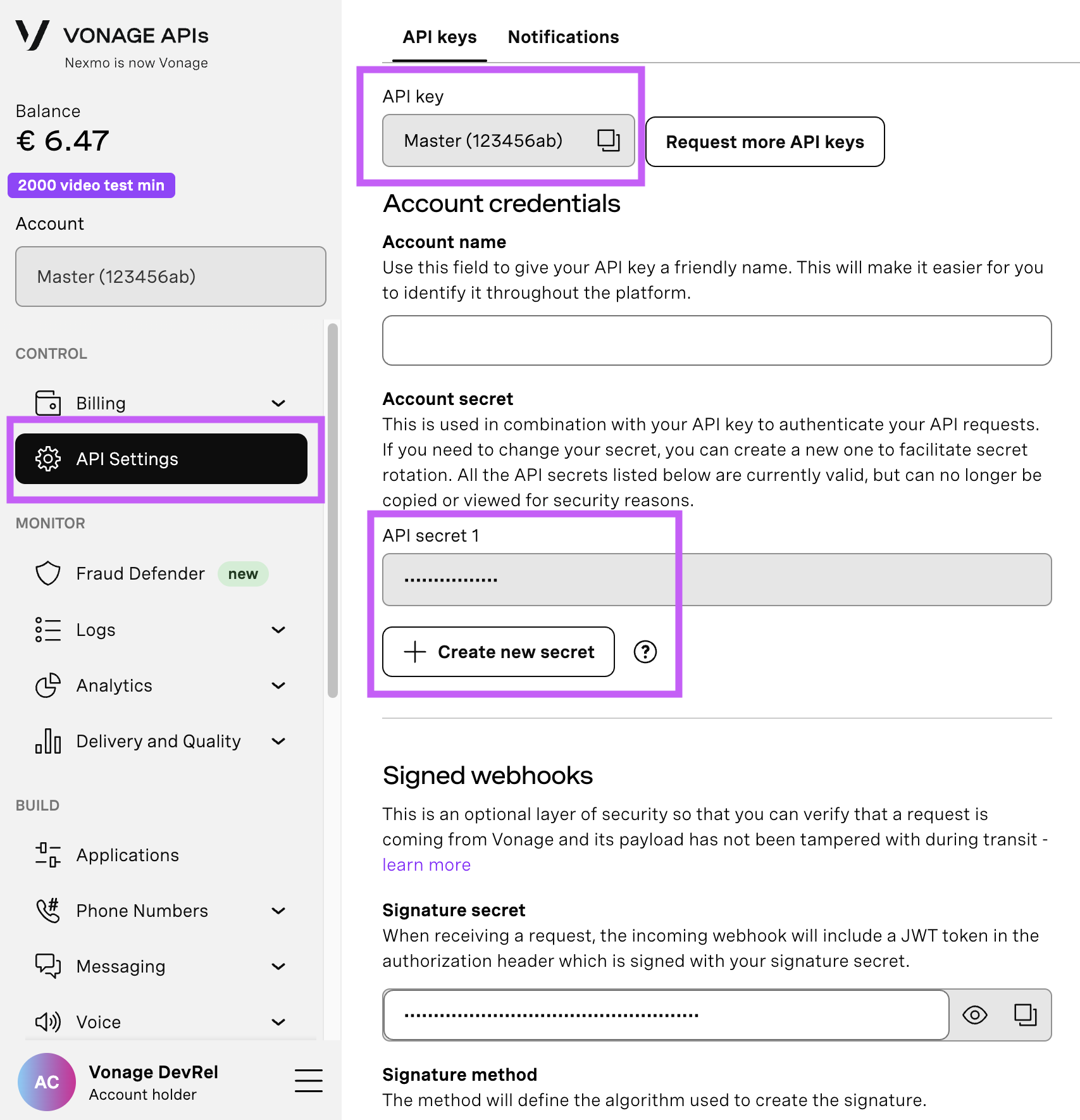
We must add the VONAGE_API_KEY and VONAGE_API_SECRET environment variables in the ‘Environment’ tab next to Message.
Open your API Settings Page to access your Vonage API Key and Secret, both of which are displayed as shown in the screenshot below. The API Key is located at the top of the page, and to access your API Secret, please refer to the “Account secret” subsection.
Note: In case you cannot remember your previously created API Secret, click on “+ Create new secret” and save it securely.
We can then interact with the tools within the MCP via Postman. As shown for the Documentation MCP server, we can interact with the tools and view the results in the bottom-right panel. Actions you can perform include checking the balance, sending an SMS message, sending an outbound voice message, and listing the applications associated with your API Keys.
If we'd like to see the balance on our Vonage account, after we've added the correct environment variables, we can select the balance tool to see how much is left on our current account.
 Retrieve Information on a Specific Vonage SDK
The Vonage Documentation MCP Server and Tooling MCP Server give you a flexible way to explore and build with Vonage APIs. You can integrate them into your applications or workflows, or even create custom tools using the MCP Generator. You can also do a more detailed setup of your Postman MCP Server.
Have a question or want to share what you're building?
Subscribe to the Developer Newsletter
Follow us on X (formerly Twitter) for updates
Prefer video? Watch tutorials on our YouTube channel
Connect with us on the Vonage Developer page on LinkedIn
Help us improve our developer experience by filling out our Voice of the Developer Feedback
Stay connected and keep up with the latest developer news, tips, and events.