シェア:
)
Benjamin AronovはVonageの開発者支援者です。彼はRuby on Railsのバックグラウンドを持つ実績のあるコミュニティ・ビルダーです。Benjaminは故郷であるテルアビブのビーチを楽しんでいる。テルアビブを拠点に、世界最高のスタートアップの創設者たちと出会い、学ぶことができる。技術以外では、完璧なパン・オ・ショコラを求めて世界中を旅するのが好き。
Ruby on RailsによるVonage Video Expressパート2
所要時間:1 分
これは、Vonage Video APIとVideo Expressライブラリを使用してRuby on Railsでビデオウォッチパーティーアプリケーションを作成する2部構成のシリーズの第2部です。
その パート1では、Rails アプリの構築手順を説明し、いくつかの Vivid コンポーネントの使用方法を紹介し、Video Express ビデオチャットを実行させました。この記事をまだお読みでない場合は、この記事から始めるとよいでしょう。
それが終われば、観戦パーティーのアプリができあがり、友達とおしゃべりしたり、一緒にスポーツやビデオを見たりできるようになる!
簡単な注意事項ですが、私たちはビデオ会議アプリケーションを開発しています。さらに、このアプリケーションでは、司会者がウォッチパーティーをさまざまな視聴モードにすることができます。
現時点では、Video Expressは動作しています。 ルーム.このオブジェクトは、ツールバーのアクションを実行するさまざまな関数を呼び出す機能を提供します。この機能をトリガーする方法をユーザーに提供したいので、Vivid コンポーネントを使用します。HTMLとJSの両方をコンポーネントにまとめる。Webpackを使って importモジュールと requireコンポーネントを application.jsに変換し、Javascript をクライアントサイドに公開します。
このチュートリアルでは、Video Expressルームをコントロールするためのコンポーネントを作成します。各コンポーネントは同じような構造になっています:VividコンポーネントとVideo Expressの機能をトリガーするJavascriptを使ったHTMLです。
HTMLを配置するパーシャルを作りましょう。アプリケーションのルートからコマンドラインを使って実行します:
mkdir app/views/components
touch app/views/components/_header.html.erb touch app/views/components/_toolbox.html.erb
そして party.html.erbファイルを更新する:
<header>
  <%= render partial: 'components/header' %>
</header>

<main class="app">
  <div id="roomContainer"></div>
  <toolbar>
    <%= render partial: 'components/toolbar' %>
  </toolbar>
Views フォルダに components フォルダがあるように、Javascript フォルダにも components フォルダを作成して、対応するコンポーネント ロジックを格納しましょう。
mkdir app/javascript/components
ここにコンポーネント・ファイルを追加する: touch app/javascript/components/header.js touch app/javascript/components/toolbar.js
Webpack経由でクライアントサイドにこれらを要求するには、Application.jsのモジュールimportsの下に以下の行を追加する。
require("components/header");
require("components/toolbar");JavascriptはDOM内のユーザーアクションに反応するため、DOMがロードされた後にRailsによってJavascriptがロードされるようにしたい。そのため、ちょっとした追加を行う必要があります。 defer:trueを javascript_pack_tagに追加する必要があります。 application.html.erb:
<%= javascript_pack_tag 'application', 'data-turbolinks-track': 'reload', defer: true %>
これでコンポーネントを作る準備ができた。
私たちが作りたいヘッダーの備忘録:
 The Header in Moderator View
ビビッドがまさに私たちが必要としているものを提供してくれる素晴らしいニュースです。 トップ・アプリ・バーコンポーネントがあることだ。トップ・アプリ・バーにはいくつかのスロット・オプションがありますが、私たちが気になるのは2つ: titleと actionItems.タイトルは、ロゴや私たちのケースではタイトルに最適です。そして actionitemsはアプリバーのコンテンツとして使用できます。ここで、司会者がチルモードとパーティーモードの間でモードを変更するためのトグラーを追加します。これは vwc-switchコンポーネントで実現できます。
内部 app/view/watch_party/_header.html.erbはこのようになる:
<vwc-top-app-bar-fixed alternate="true">
  <span slot="title" id="title">Big Game Chill Zone</span>
  <% if @name == @moderator_name  %>
    <span slot="actionItems" id="mode-name">Chill Mode</span>
    <vwc-switch slot="actionItems"></vwc-switch>
  <% else %>
    <span slot="actionItems"><%= @moderator_name %> is the host</span>
  <% end %>
</vwc-top-app-bar-fixed>
ファイルの中には components/header.jsファイルには3つの重要な部分があります:トグルのリスニング、シェアスクリーンのトグル、付随するビジュアルのトグルです。
Video Expressに関する重要な注意事項
Video Expressには、「グリッド」と「アクティブスピーカー」の2つのレイアウトがあります。Video Expressでは、標準化されたビデオ通話が高速に実行されます!しかし、デフォルトの動作から逸脱したい場合は、軽い気持ちで Video API を使用した方がよいでしょう。
この例では、司会者が唯一の画面共有者です。アクティブ・スピーカー」レイアウトを使えば、共有画面を支配的な画面にできると思うかもしれません。しかし、標準的なビデオ会議では、画面共有者が別のタブからプレゼンテーションを行うことが期待されています。そのため、Video Expressのデフォルトでは、共有画面のウィンドウが支配的なビューになることはありません。
私たちのユースケースでは、司会者はスクリーンをコントロールする必要がなく、他の人と同じようにスクリーンシェアを大きく見たいと思っています。これはデフォルトの動作ではありません。自分たちで構築する必要があります。ありがたいことに、Video Expressには [screenSharingContainer](https://tokbox.com/developer/video-express/reference/room.html)オプションがあり、私たちが望むものを作ることができます。
ドキュメントを見ると、idが screenSharingContainer.しかし、見栄えを良くし、VideoExpress LayoutManager を利用して応答性を確保する必要があります。また、スクリーン共有モードでは、司会者にのみこの機能を適用させたい。そこで、解決策として screenSharingContainerの横に layoutContainerを追加し、CSS を記述して、司会者の表示を他の人が見る表示にできるだけ近づけることです!
まず、トグルのリスナーの基本ロジックを作成しましょう:
const switch_btn = document.querySelector('vwc-switch');

if (switch_btn !== null){
  switch_btn.addEventListener('change', (event) => {
    if (event.target.checked){
      <!-- Custom Styles To Scope Moderator View --->
      <!-- Start Screen Share -->
    }
    else if (!event.target.checked){
      <!-- Stop Screen Share -->
      <!-- Remove Custome Styles From Moderator --->
    } else{
        console.log("Error in Switch Button Listener");
      }
  });
}
Video Express でスクリーン共有をトリガする前に、モデレータのビューを準備する必要があります。 layoutContainerWrapperそして layoutContainerに触れるカスタム スタイリングが他の人のビューに影響しないようにする必要があります。次の関数を呼び出します。 addModeratorCustomStyles.
let addModeratorCustomStyles = () => {
  mode_name.innerHTML = "Watch Mode"
  layoutContainerWrapper.firstElementChild.classList.add("moderator-screenshare");
  layoutContainerWrapper.classList.add("moderator-screenshare");
  screenShare.setAttribute("id", "screenSharingContainer");
  layoutContainer.appendChild(screenShare);
}
この関数は、トグラーのラベルを更新することと、トグラーのidを追加することである。 screenSharingContainer.この追加されたidは、モデレーターにのみ適用されるCSSをスコープするのに役立ちます。
スクリーンシェアが停止したら、モデレーターのビューが混乱しないように、カスタムスタイルを削除する必要があります。そのため removeModeratorCustomStyles関数を用意しました:
let removeModeratorCustomStyles = () => {
  mode_name.innerHTML = "Chill Mode";
  layoutContainerWrapper.firstElementChild.classList.remove("moderator-screenshare");
  layoutContainerWrapper.classList.remove("moderator-screenshare");
  screenShare.removeAttribute("id");
  layoutContainer.removeChild(layoutContainer.lastChild);
}
これで、トグルヘッダーは基本的に完成しました。あとは、要素を照会して Video Express のスクリーン共有関数を呼び出すだけです。完全なヘッダーは次のようになります:
const switch_btn = document.querySelector('vwc-switch');
const layoutContainer = document.querySelector('#layoutContainerWrapper');
const screenShare = document.createElement('div');
const layoutContainerWrapper = document.querySelector('#layoutContainerWrapper');
const mode_name = document.querySelector('#mode-name');

let addModeratorCustomStyles = (layoutContainer, screenShare, layoutContainerWrapper, mode_name) => {
  mode_name.innerHTML = "Watch Mode";
  layoutContainerWrapper.firstElementChild.classList.add("moderator-screenshare");
  layoutContainerWrapper.classList.add("moderator-screenshare");
  screenShare.setAttribute("id", "screenSharingContainer");
  layoutContainer.appendChild(screenShare);
}

let removeModeratorCustomStyles = (layoutContainer, screenShare, layoutContainerWrapper, mode_name) => {
  mode_name.innerHTML = "Chill Mode";
  layoutContainerWrapper.firstElementChild.classList.remove("moderator-screenshare");
  layoutContainerWrapper.classList.remove("moderator-screenshare");
  screenShare.removeAttribute("id");
  layoutContainer.removeChild(layoutContainer.lastChild);
}

if (switch_btn !== null){
  switch_btn.addEventListener('change', (event) => {
    if (event.target.checked){
      addModeratorCustomStyles(layoutContainer, screenShare, layoutContainerWrapper, mode_name);
      room.startScreensharing('screenSharingContainer');
    } else if (!event.target.checked){
        room.stopScreensharing('screenSharingContainer');
        removeModeratorCustomStyles(layoutContainer, screenShare, layoutContainerWrapper, mode_name);
    } else{
        console.log("Error in Switch Button Listener");
    }
  });
}
最後に、最も複雑なコンポーネントであるツールバーを追加します。Vivid コンポーネントで HTML を構築し、Video Express 関数をトリガーする Javascript を追加するだけです。手順はおわかりでしょう!
作りたいツールバーの備忘録:
 The Toolbar To Control The Video Call
ツールバーを見ると、部屋のいくつかの機能をオン/オフする3つのボタングループがあることがわかります:すべてのミュート/アンミュート、マイクの無効/有効、ビデオカメラの無効/有効。この3つすべてにVividの2つのボタンを使い、Javascriptを使って非アクティブのボタンを隠します。
<!-- Mute all / Unmute all -->
<vwc-icon-button icon="audio-max-solid" shape="circled" layout="filled" id="mute-all" class="white-border"></vwc-icon-button>
<vwc-icon-button icon="audio-off-solid" shape="circled" layout="filled" id="unmute-all" class="hidden white-border"></vwc-icon-button><!-- Mute self / Unmute self -->
<vwc-icon-button icon="mic-mute-solid" shape="circled" layout="ghost" id="mute-self" class="vvd-scheme-alternate" ></vwc-icon-button>
<vwc-icon-button icon="microphone-2-solid" shape="circled" layout="ghost" id="unmute-self" class="hidden vvd-scheme-alternate"></vwc-icon-button>
<!-- Disable camera / Enable camera -->
<vwc-icon-button icon="video-off-solid" shape="circled" layout="ghost" id="hide-self" class="vvd-scheme-alternate" ></vwc-icon-button>
<vwc-icon-button icon="video-solid" shape="circled" layout="ghost" id="unhide-self" class="hidden vvd-scheme-alternate"></vwc-icon-button>
しかし、2番目と3番目のボタンのセットは少し異なっていることがわかります。これらのボタンにはドロップダウンがあり、ユーザーは関連する入力(マイクかカメラか)を選択できる。これは Vivid の <vwc-action-group要素.アクション・グループの左側には、ボタンとセパレータがあります。右側は Vivid の vwc-selectコンポーネントを利用して select要素を生成し、VideoExpress から受け取るさまざまなオプションをターゲットにします。また vwc-selectまた、selected と disabled という 2 つのオプションを渡して、デフォルトの vwc-list-itemラベルとして機能します。
ボタンを持つ2つのアクション・グループは次のようになる:
<!-- Mute Self / Unmute Self -->
<!-- Select Mic Input -->
<vwc-action-group layout="outlined" shape="pill" class="vvd-scheme-alternate">
  <vwc-icon-button icon="mic-mute-solid" shape="circled" layout="ghost" id="mute-self" class="vvd-scheme-alternate" ></vwc-icon-button>
  <vwc-icon-button icon="microphone-2-solid" shape="circled" layout="ghost" id="unmute-self" class="hidden vvd-scheme-alternate"></vwc-icon-button>
  <span role="separator"></span>
  <vwc-select appearance="ghost" id="audio-input" class="select-max-width">
    <vwc-list-item
      disabled
      selected
    >
    Mic
    </vwc-list-item>
  </vwc-select>
</vwc-action-group>
<!-- Disable Camera / Enable Camera -->
<!-- Select Camera Input -->
<vwc-action-group layout="outlined" shape="pill" class="vvd-scheme-alternate">
  <vwc-icon-button icon="video-off-solid" shape="circled" layout="ghost" id="hide-self" class="vvd-scheme-alternate" ></vwc-icon-button>
  <vwc-icon-button icon="video-solid" shape="circled" layout="ghost" id="unhide-self" class="hidden vvd-scheme-alternate"></vwc-icon-button>
  <span role="separator"></span>
  <vwc-select appearance="ghost" class="select-max-width" id="video-input">
    <vwc-list-item
      disabled
      selected
    >
    Camera
    </vwc-list-item>
  </vwc-select>
</vwc-action-group>
3つ目のアクショングループ、オーディオ入力があることがわかる。同じ構造を使うことができます:
<!-- Select Audio Output -->
<vwc-action-group layout="outlined" shape="pill" class="vvd-scheme-alternate" id="audio-output-target">
  <vwc-icon-button icon="headset-solid" shape="circled" layout="ghost" class="vvd-scheme-alternate"></vwc-icon-button>
  <span role="separator"></span>
  <vwc-select appearance="ghost" id="audio-output" class="select-max-width">
    <vwc-list-item
      disabled
      selected
    >
    Audio
    </vwc-list-item>
  </vwc-select>
</vwc-action-group>
これらのコンポーネントについて、もう少し詳しい情報をユーザーに提供しよう。それには Vivid のツールチップ.
ツールチップには3つの部分がある。 anchorと cornerそして id.アンカーは、ツールチップにどのHTML要素にフックするかを伝えます。そして コーナーは、ツールチップに、アンカーに対してどの方向に表示するかを伝えます。そして idは、ユーザがアンカーの上にカーソルを置いたときにツールチップを表示するトリガーとして、Javascriptで使用するものです。
ツールチップを追加すると _toolbar.html.erbはこのようになります:
<!-- Mute all / Unmute all -->
<vwc-icon-button icon="audio-max-solid" shape="circled" layout="filled" id="mute-all" class="white-border"></vwc-icon-button>
<vwc-icon-button icon="audio-off-solid" shape="circled" layout="filled" id="unmute-all" class="hidden white-border"></vwc-icon-button>
<vwc-tooltip anchor="mute-all" text="Mute All" corner="top" id="mute-all-tooltip"></vwc-tooltip>
<vwc-tooltip anchor="unmute-all" text="Un-Mute All" corner="top" id="unmute-all-tooltip"></vwc-tooltip>

<!-- Mute Self / Unmute Self -->
<!-- Select Mic Input -->
<vwc-action-group layout="outlined" shape="pill" class="vvd-scheme-alternate">
  <vwc-icon-button icon="mic-mute-solid" shape="circled" layout="ghost" id="mute-self" class="vvd-scheme-alternate" ></vwc-icon-button>
  <vwc-icon-button icon="microphone-2-solid" shape="circled" layout="ghost" id="unmute-self" class="hidden vvd-scheme-alternate"></vwc-icon-button>
  <vwc-tooltip anchor="mute-self" text="Disable Mic" corner="top" id="mute-self-tooltip"></vwc-tooltip>
  <vwc-tooltip anchor="unmute-self" text="Enable Mic" corner="top" id="unmute-self-tooltip"></vwc-tooltip>
  <span role="separator"></span>
  <vwc-select appearance="ghost" id="audio-input" class="select-max-width">
    <vwc-list-item
      disabled
      selected
    >
    Mic
    </vwc-list-item>
  </vwc-select>
</vwc-action-group>


<!-- Disable Camera / Enable Camera -->
<!-- Select Camera Input -->
<vwc-action-group layout="outlined" shape="pill" class="vvd-scheme-alternate">
  <vwc-icon-button icon="video-off-solid" shape="circled" layout="ghost" id="hide-self" class="vvd-scheme-alternate" ></vwc-icon-button>
  <vwc-icon-button icon="video-solid" shape="circled" layout="ghost" id="unhide-self" class="hidden vvd-scheme-alternate"></vwc-icon-button>
  <vwc-tooltip anchor="hide-self" text="Disable Camera" corner="top" id="hide-self-tooltip"></vwc-tooltip>
  <vwc-tooltip anchor="unhide-self" text="Enable Camera" corner="top" id="unhide-self-tooltip"></vwc-tooltip>
  <span role="separator"></span>
  <vwc-select appearance="ghost" class="select-max-width" id="video-input">
    <vwc-list-item
      disabled
      selected
    >
    Camera
    </vwc-list-item>
  </vwc-select>
</vwc-action-group>

<!-- Select Audio Output -->
<vwc-action-group layout="outlined" shape="pill" class="vvd-scheme-alternate" id="audio-output-target">
  <vwc-tooltip anchor="audio-output-target" text="Select Audio Output" corner="top" id="audio-output-tooltip"></vwc-tooltip>
  <vwc-icon-button icon="headset-solid" shape="circled" layout="ghost" class="vvd-scheme-alternate"></vwc-icon-button>
  <span role="separator"></span>
  <vwc-select appearance="ghost" id="audio-output" class="select-max-width">
    <vwc-list-item
      disabled
      selected
    >
    Audio
    </vwc-list-item>
  </vwc-select>
</vwc-action-group>
コンポーネントのJavascriptを構築する前に、ツールバーをモックアップのようにしましょう:
// toolbar styles
toolbar {
  display: flex;
  justify-content: space-around;
  margin: 0 auto;
  width: 650px;
  background-color: var(--vvd-color-primary);
  padding: 10px;
  border-radius: 8px 8px 0 0;
}

.hidden {
  display: none;
}

.white-border {
  border: 2px solid white;
  border-radius: 50%;
}

.select-max-width {
  max-width: 130px;
}

vwc-tooltip {
  --tooltip-inline-size: 100px;
  text-align: center;
}
左から右に進み、最初に作る必要があるコンポーネントは "Mute All "ボタンです。これは、他の参加者全員の音声のオン・オフを切り替えるトグラーにしたい。しかし、どうやってトグルボタンを作るのでしょうか?本当は2つのボタンが必要です。"mute all "ボタンと "unmute all "ボタンです。このパターンはツールバーの中で何度も繰り返されるので、そのためのヘルパー関数を書きましょう。
// toggle hide/display of buttons
let toggleButtonView = (buttonToHide, buttonToShow) => {
  buttonToHide.style.display = "none";
  buttonToShow.style.display = "block";
}
すべての参加者をミュートするには、ユーザーがアクションをトリガーするのを聞き、そのユーザーのルームのインスタンス内のすべての参加者を循環させる必要があります。 これは、ルームが各ユーザーにローカルであることに注意することが重要です。
ですから、音声を無効にするためには、その部屋の参加者全員を繰り返し処理する必要があります。 .camera.disableAudio()関数を使います。パーティシパントオブジェクトは配列を返すので、participant[1]に対してこの関数を呼び出していることに気づくでしょう:[idparticipantObject]を返します。
// toggle Mute All / Unmute All
let toggleMuteAllButton = (button, state, participants) =>{
  button.addEventListener("click", function(){
    Object.entries(participants).forEach(participant => {
      if (state === "mute"){
        toggleButtonView(mute_all_btn, unmute_all_btn)
        participant[1].camera.disableAudio();
      } else if (state === "unmute") {
        toggleButtonView(unmute_all_btn, mute_all_btn)
        participant[1].camera.enableAudio();
      } else {
        console.log("Error in toggleMuteAll")
      }
    })
  })
}
const mute_all_btn = document.querySelector('#mute-all');
const unmute_all_btn = document.querySelector('#unmute-all');toggleMuteAllButton(mute_all_btn, "mute", room.participants);
toggleMuteAllButton(unmute_all_btn, "unmute", room.participants);
Mute/Unmute Self および Disable/Enable Camera ボタンは、MuteAll ボタンと同じロジックに従います。ユーザーアクションをリッスンし、状態をチェックし、VideoExpress のアクションを呼び出します。しかし、VideoExpress が状態をチェックする関数を提供してくれるため、より簡単です。2 つの関数は room.camera.isVideoEnabledと room.camera.isAudioEnabled.また、1 人のユーザーに対してアクションをトリガするだけでよい。
次の関数を作成します。 toggleInputButtonこの関数は、Video Express 関数から受け取った boolean という条件を受け取り、対応する Video Express アクションを呼び出します。また、ビューを toggleButtonView.
// toggle button (display and functionality) of any audio and video input devices
let toggleInputButton = (condition, defaultBtn, altBtn, action) => {
if (condition()){
toggleButtonView(defaultBtn, altBtn);
action();
} else if (!condition()){
toggleButtonView(altBtn, defaultBtn);
action();
} else {
console.log(`Error in toggleInputButton. Condition: ${condition}`);
}
}
The toggle will need to be triggered on a user click, so we can wrap this in the `listenForToggle` function.
// listen for clicks to trigger toggle of input buttons
let listenForToggle = (condition, defaultBtn, altBtn, defaultAction, altAction) => {
defaultBtn.addEventListener("click", function(){
console.log("inside listenfortoggle listener")
toggleInputButton(condition, defaultBtn, altBtn, defaultAction)
})
altBtn.addEventListener("click", function(){
toggleInputButton(condition, defaultBtn, altBtn, altAction)
})
}
をリッスンして渡す特定のDOM要素が必要になる。 listenForToggleそこで、クエリー・セレクタを作成します。
const mute_self_btn = document.querySelector('#mute-self');
const unmute_self_btn = document.querySelector('#unmute-self');
const hide_self_btn = document.querySelector('#hide-self');
const unhide_self_btn = document.querySelector('#unhide-self');最後に、条件、ボタン、アクションを渡すことで、コードを呼び出すことができる:
listenForToggle(room.camera.isVideoEnabled, hide_self_btn, unhide_self_btn, room.camera.disableVideo, room.camera.enableVideo);
listenForToggle(room.camera.isAudioEnabled, mute_self_btn, unmute_self_btn, room.camera.disableAudio, room.camera.enableAudio);
オーディオ入力とビデオ入力のセレクトドロップダウンは現在空です。各ユーザーのデバイスで埋めてみましょう。Video Expressでは、この機能をすぐに利用できます。 VideoExpress.getDevices().これは、ローカルの VideoExpress インスタンスのオーディオ入力とビデオ入力の配列を返します。
このリストを取得し、オーディオデバイスをマイク入力に、ビデオデバイスをカメラ入力に追加できるように並べ替える必要があります。この非同期関数では、VideoExpress へのクエリから Promise が返されるのを待って、デバイスを繰り返し処理し、select 要素に追加します。
// Retrieve available input devices from VideoExpress
// add retrieved input devices to select options
async function getDeviceInputs(audioTarget, videoTarget){
const audio = document.querySelector(`${audioTarget}`);
const video = document.querySelector(`${videoTarget}`);
const availableDevices = VideoExpress.getDevices();
availableDevices.then(devices=> {
devices.forEach(device => {
if (device.kind === "audioInput"){
let opt = document.createElement('vwc-list-item');
opt.value = device.deviceId;
opt.innerHTML = device.label;
audio.appendChild(opt);
}
else if (device.kind === "videoInput"){
let opt = document.createElement('vwc-list-item');
opt.value = device.deviceId;
opt.innerHTML = device.label;
video.appendChild(opt);
}
else{
console.log("Error in retrieveDevices");
}
})
})
}
また、ユーザーが選択を変更したときに、部屋を更新したい。これは、セレクトメニューの変更をリスニングし、次に room.camera.setAudioDevice()または room.camera.setVideoDevice().
// // listen for changes to selected audio/video inputs
// // update room when inputs are changed
let listenInputChange = (target) => {
const targetSelect = document.querySelector(`${target}`);
targetSelect.addEventListener('change', (inputOption) => {
if (target === "vwc-select#audio-input"){
room.camera.setAudioDevice(inputOption.target.value);
}
else if (target === "vwc-select#video-input"){
room.camera.setVideoDevice(inputOption.target.value);
}
else{
console.log("Error in listenInputChange");
}
})
}
これをまとめると、関数の呼び出しは次のようになる:
getDeviceInputs("vwc-select#audio-input", "vwc-select#video-input");
listenInputChange("vwc-select#audio-input");
listenInputChange("vwc-select#video-input");
VideoExpressからAudio Outputsのリストを取得すると、入力とほとんど同じように見えます。しかし、ここではVideo Output用のデバイスがないので、フィルタリングを除けばコードはほとんど同じです。先ほど VideoExpress.getDevices()であったが、今は VideoExpress.getAudioOutputDevices().と同じように room.camera.setAudioDevice()または room.camera.setVideoDevice()に似ている。 VideoExpress.setAudioOutputDevice().
私たちはひとつの変更だけをリッスンしているので、ひとつの関数ですべてをうまくまとめることができる:
// Retrieve lists of auidoOutput
// add audioOutputs to select menu
// On user select new option, update audio input
async function audioOutputs() {
var audioOutputs = await VideoExpress.getAudioOutputDevices();
const audioOutputSelect = document.querySelector('vwc-select#audio-output');
audioOutputs.forEach(output => {
let opt = document.createElement('vwc-list-item');
opt.value = output.deviceId;
opt.innerHTML = output.label;
audioOutputSelect.appendChild(opt);
})
audioOutputSelect.addEventListener('change', (audioOutputOption) => {
VideoExpress.setAudioOutputDevice(audioOutputOption.target.value);
});
}
そして、コード内でそれを呼び出すことを忘れないでほしい!
audioOutputs();
ツールバーの最後のステップは、ツールチップを表示したり消したりする動作を追加することだ。vanilla.jsでこれを行うには、アンカーをターゲットにします。 targetと呼ぶアンカーと targertToolTip.と呼びます。 mouseoverと mouseoutを使うことで、ユーザがアンカーにカーソルを合わせたときと止めたときを聞き分けることができます。
私たちの addToolTipListenersはこうだ:
// toggle tooltips on hover
let addToolTipListeners = (toolTipsToListen) => {
toolTipsToListen.forEach(toolTipToListen => {
const target = document.querySelector(`#${toolTipToListen.targetId}`);
const targetToolTip = document.querySelector(`#${toolTipToListen.toolTipId}`);
target.addEventListener('mouseover', (event) => targetToolTip.open = !targetToolTip.open);
target.addEventListener('mouseout', (event) => targetToolTip.open = !targetToolTip.open);
})
}
次に、ツールチップを定義する:
const toolTipsToListen = [
{targetId: "hide-self", toolTipId:"hide-self-tooltip"},
{targetId: "unhide-self", toolTipId: "unhide-self-tooltip"},
{targetId: "mute-self", toolTipId: "mute-self-tooltip"},
{targetId: "unmute-self", toolTipId: "unmute-self-tooltip"},
{targetId: "mute-all", toolTipId: "mute-all-tooltip"},
{targetId: "unmute-all", toolTipId: "unmute-all-tooltip"},
{targetId: "audio-output-target", toolTipId: "audio-output-tooltip"},
]そして最後に、コードを呼び出す。
addToolTipListeners(toolTipsToListen);最終的な toolbar.jsの最終的なコードは次のようになる:
// Start of Toolbar Code
// toggle hide/display of buttons
let toggleButtonView = (buttonToHide, buttonToShow) => {
buttonToHide.style.display = "none";
buttonToShow.style.display = "block";
}
// toggle Mute All / Unmute All
let toggleMuteAllButton = (button, state, participants) =>{
button.addEventListener("click", function(){
Object.entries(participants).forEach(participant => {
if (state === "mute"){
toggleButtonView(mute_all_btn, unmute_all_btn)
// why need both here???
participant[1].camera.disableAudio();
} else if (state === "unmute") {
toggleButtonView(unmute_all_btn, mute_all_btn)
participant[1].camera.enableAudio();
} else {
console.log("Error in toggleMuteAll")
}
})
})
}
// toggle button (display and functionality) of any audio and video input devices
let toggleInputButton = (condition, defaultBtn, altBtn, action) => {
if (condition()){
toggleButtonView(defaultBtn, altBtn);
action();
} else if (!condition()){
toggleButtonView(altBtn, defaultBtn);
action();
} else {
console.log(`Error in toggleInputButton. Condition: ${condition}`);
}
}
// listen for clicks to trigger toggle of input buttons
let listenForToggle = (condition, defaultBtn, altBtn, defaultAction, altAction) => {
defaultBtn.addEventListener("click", function(){
toggleInputButton(condition, defaultBtn, altBtn, defaultAction)
})
altBtn.addEventListener("click", function(){
toggleInputButton(condition, defaultBtn, altBtn, altAction)
})
}
// Retrieve available input devices from VideoExpress
// Add retrieved input devices to select options
async function getDeviceInputs(audioTarget, videoTarget){
const audio = document.querySelector(`${audioTarget}`);
const video = document.querySelector(`${videoTarget}`);
const availableDevices = VideoExpress.getDevices();
availableDevices.then(devices=> {
devices.forEach(device => {
if (device.kind === "audioInput"){
let opt = document.createElement('vwc-list-item');
opt.value = device.deviceId;
opt.innerHTML = device.label;
audio.appendChild(opt);
}
else if (device.kind === "videoInput"){
let opt = document.createElement('vwc-list-item');
opt.value = device.deviceId;
opt.innerHTML = device.label;
video.appendChild(opt);
}
else{
console.log("Error in retrieveDevices");
}
})
})
}
// listen for changes to selected audio/video inputs
// update room when inputs are changed
let listenInputChange = (target) => {
const targetSelect = document.querySelector(`${target}`);
targetSelect.addEventListener('change', (inputOption) => {
if (target === "vwc-select#audio-input"){
room.camera.setAudioDevice(inputOption.target.value);
}
else if (target === "vwc-select#video-input"){
room.camera.setVideoDevice(inputOption.target.value);
}
else{
console.log("Error in listenInputChange");
}
})
}
// Retrieve lists of auidoOutput
// Add audioOutputs to select menu
// On user select new option, update audio input
async function audioOutputs() {
var audioOutputs = await VideoExpress.getAudioOutputDevices();
const audioOutputSelect = document.querySelector('vwc-select#audio-output');
audioOutputs.forEach(output => {
let opt = document.createElement('vwc-list-item');
opt.value = output.deviceId;
opt.innerHTML = output.label;
audioOutputSelect.appendChild(opt);
})
audioOutputSelect.addEventListener('change', (audioOutputOption) => {
VideoExpress.setAudioOutputDevice(audioOutputOption.target.value);
});
}
// toggle tooltips on hover
let addToolTipListeners = (toolTipsToListen) => {
toolTipsToListen.forEach(toolTipToListen => {
const target = document.querySelector(`#${toolTipToListen.targetId}`);
const targetToolTip = document.querySelector(`#${toolTipToListen.toolTipId}`);
target.addEventListener('mouseover', (event) => targetToolTip.open = !targetToolTip.open);
target.addEventListener('mouseout', (event) => targetToolTip.open = !targetToolTip.open);
})
}
// define all our DOM elements which we'll want to listen to
const mute_all_btn = document.querySelector('#mute-all');
const unmute_all_btn = document.querySelector('#unmute-all');
const mute_self_btn = document.querySelector('#mute-self');
const unmute_self_btn = document.querySelector('#unmute-self');
const hide_self_btn = document.querySelector('#hide-self');
const unhide_self_btn = document.querySelector('#unhide-self');
const toolTipsToListen = [
{targetId: "hide-self", toolTipId:"hide-self-tooltip"},
{targetId: "unhide-self", toolTipId: "unhide-self-tooltip"},
{targetId: "mute-self", toolTipId: "mute-self-tooltip"},
{targetId: "unmute-self", toolTipId: "unmute-self-tooltip"},
{targetId: "mute-all", toolTipId: "mute-all-tooltip"},
{targetId: "unmute-all", toolTipId: "unmute-all-tooltip"},
{targetId: "audio-output-target", toolTipId: "audio-output-tooltip"},
]
// Call all of our functions!
toggleMuteAllButton(mute_all_btn, "mute", room.participants);
toggleMuteAllButton(unmute_all_btn, "unmute", room.participants);
listenForToggle(room.camera.isVideoEnabled, hide_self_btn, unhide_self_btn, room.camera.disableVideo, room.camera.enableVideo);
listenForToggle(room.camera.isAudioEnabled, mute_self_btn, unmute_self_btn, room.camera.disableAudio, room.camera.enableAudio);
getDeviceInputs("vwc-select#audio-input", "vwc-select#video-input");
listenInputChange("vwc-select#audio-input");
listenInputChange("vwc-select#video-input");
audioOutputs();
addToolTipListeners(toolTipsToListen);
そして...これだけだ!Rubyを少し使い、Javascriptをもう少し操作すれば、完全なビデオ会議アプリケーションが完成する。
アプリを動かして、何人かの友人と試すことができる!
最も簡単な方法はngrokを使うことだ。 ngrokをインストールする。をインストールしてください。
次に、ngrokを使って一般にアクセス可能なサーバーを実行する。コマンドラインから実行する: ngrok http 3000
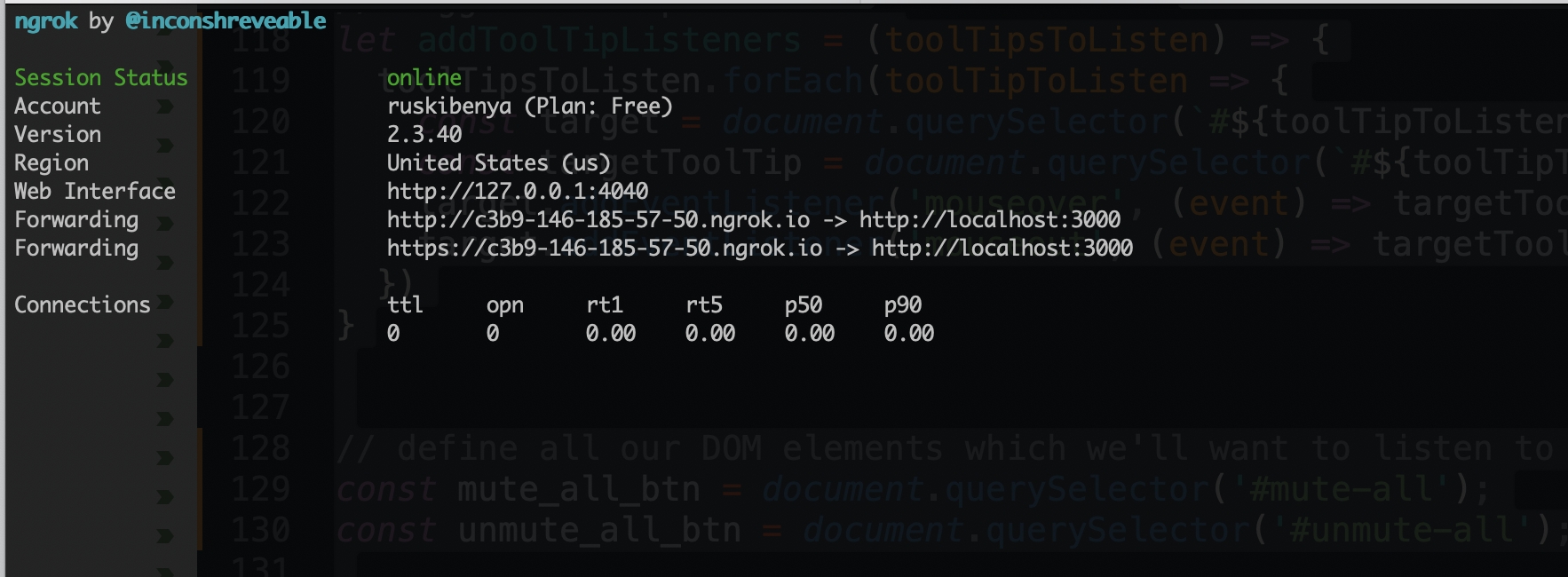
ターミナルには次のようなウィンドウが表示される:
 ngrok server screenshot
ngrok.ioで終わる行をコピーします。これは、ngrokがRailsサーバに転送する一時的にアクセス可能なURLです。Railsがngrokにホストになる許可を与える必要があります。ファイル内の config/environments/development.rbファイルの Rails.application.configure doの中に次の行を追加する必要があります:
config.hosts << "[ngrok url]"
例えば、上記のngrokの実行例では、次のように追加する:
config.hosts << "c3b9-146-185-57-50.ngrok.io"
これでrailsサーバーを実行できる:
rails s
ngrokのURLを送れば、友達をウォッチ・パーティーに招待できます。パスワードも!
 GIF Preview Of Finished Video Conferencing App Built With Vonage Video Express
このチュートリアルはいかがでしたか?Video Express や Vivid について質問やフィードバックがありますか?Vonage Developer Slack の Vonage 開発者 Slack.そして ツイッターで最新の Vonage Developer アップデートをご確認ください。