)
React ComponentsとVonageでカスタム・ビデオ・チャットを作成する
所要時間:5 分
ReactはVonage Video APIでは公式にサポートされていません。
私は最近、以下のものをいじり始めた。 VonageのVideo APIプラットフォームをいじり始めた。をいじり始め、Videoチャットを使ったスターターアプリをいくつか作っている。
 tweet of playing with Vonage Video API for first time
そして、自分の顔のライブストリームを作業中のアプリに素早く追加するのは楽しいし、ある意味馬鹿げているが、私はすぐに他の使用例に興味を持った。というより、他の多くのビデオ会議の選択肢のひとつを使うのとは対照的に、自分でそれを構築する利点は何だろう?
APIの全機能を探求するために、私は参加したブートキャンプの生徒のためにアプリを作ろうと思った、 エイダ・デベロッパーズ・アカデミー.
Adaは、女性や性別の異なる人々がコードを学ぶための授業料無料の1年間のプログラムである。私はこのプログラムに参加し、たった1年で英語教師からソフトウェア・エンジニアに転身するためのツールを与えられたことを、とても幸運に思っている。そこで私は、生徒がチューターと連絡を取り合ったり、業界のメンターからリアルタイムで対面式の支援を受けたりできるポータルを作ることが、恩返しになると考えた。さらに、Vonage Video APIについても同時に学ぶことができます!
そのポータルを構築している間、私はすぐに多くのエンジニアが経験したことを発見しました。それは、自分のアプリ内のコードの機能を完全に所有し、コントロールすることがいかに素晴らしいかということです。アプリと私のコードを生徒とチューターのニーズに合わせて調整することができ、とても強力に感じました。私は特に、Video APIのReactラッパーを使って遊んでいました、 OpenTok Reactこれは、基本的にJavaScript SDKのウェブ・コンポーネントです。これは、高品質のビデオとオーディオ・ストリーミングをあらゆるReactアプリに驚くほど簡単に統合できる。カスタマイズ可能なコンポーネントを提供しており、私のReactアプリに簡単に組み込むことができます。
このチュートリアルでは、React Wrapperを使用し、コードをモジュール化された再利用可能なReactコンポーネントに分割して、将来のReactアプリに組み込む方法を説明します!
Node.jsインストール済み
登録する Video APIアカウントの登録
アプリを作成するために、以下の作業を行うことになる:
Video APIプロジェクトの作成
Reactアプリの作成
create-react-app再利用可能なReactコンポーネントを構築する:
出版社
購読者
接続ステータス
チェックボックス
In-App ビデオチャットアプリの運営
このチュートリアルでは、ゼロからのプロセスを説明します。完成したコードを見たい場合は git リポジトリをクローンしてください。
Vonage Video APIアカウントにサインインしたら、ページの左隅で、次の項目を選択します。 Projectsを選択し、ドロップダウンから Create New Project.
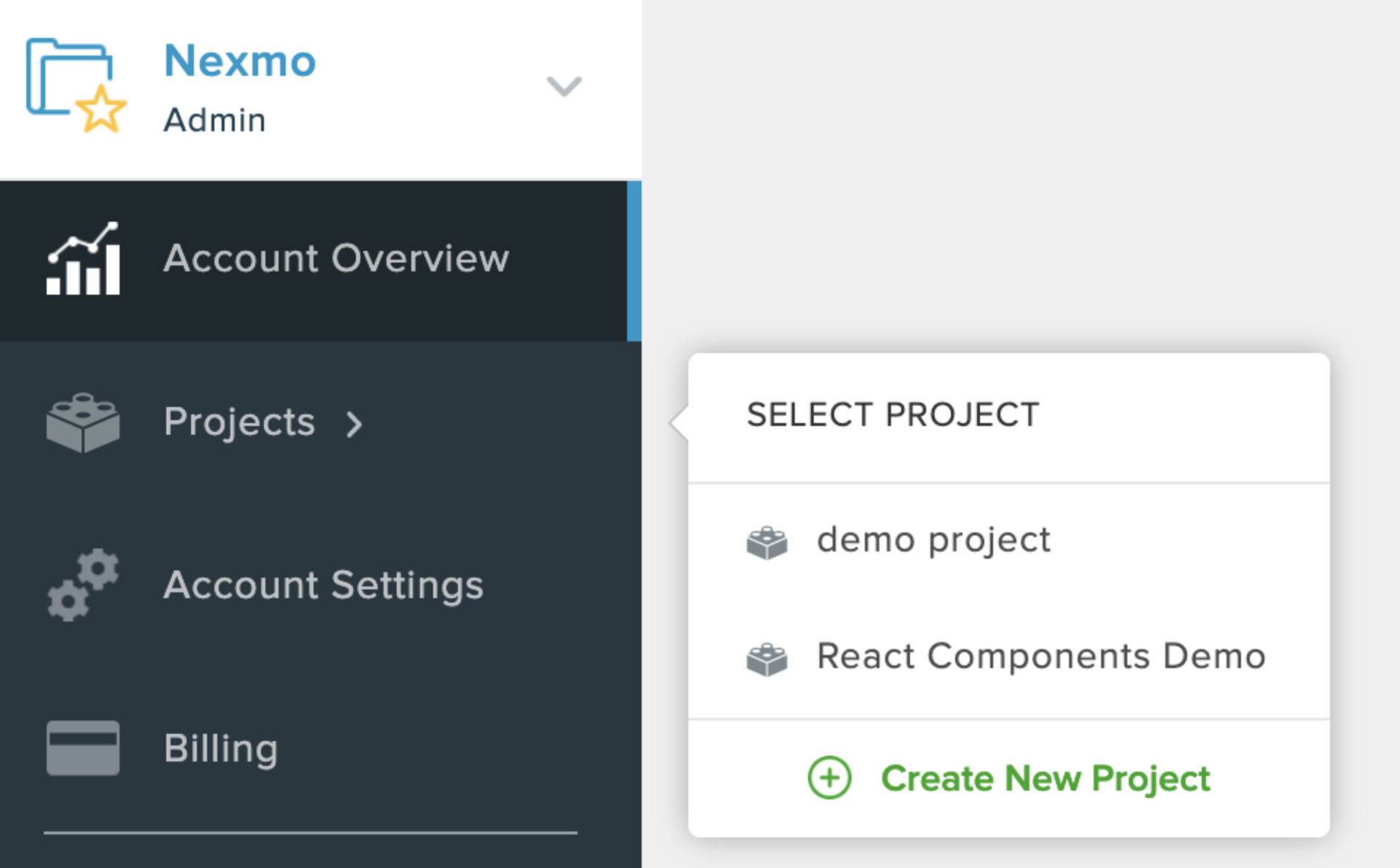 where to click new project demo
そこから Create Custom Projectを選択し、好きな名前を付ける。プロジェクトを作成したら View Projectをクリックし、一番上にあるAPIキーを保存する。
次に Project Toolsというセクションまでスクロールし、青いボタンをクリックして Create Session ID.
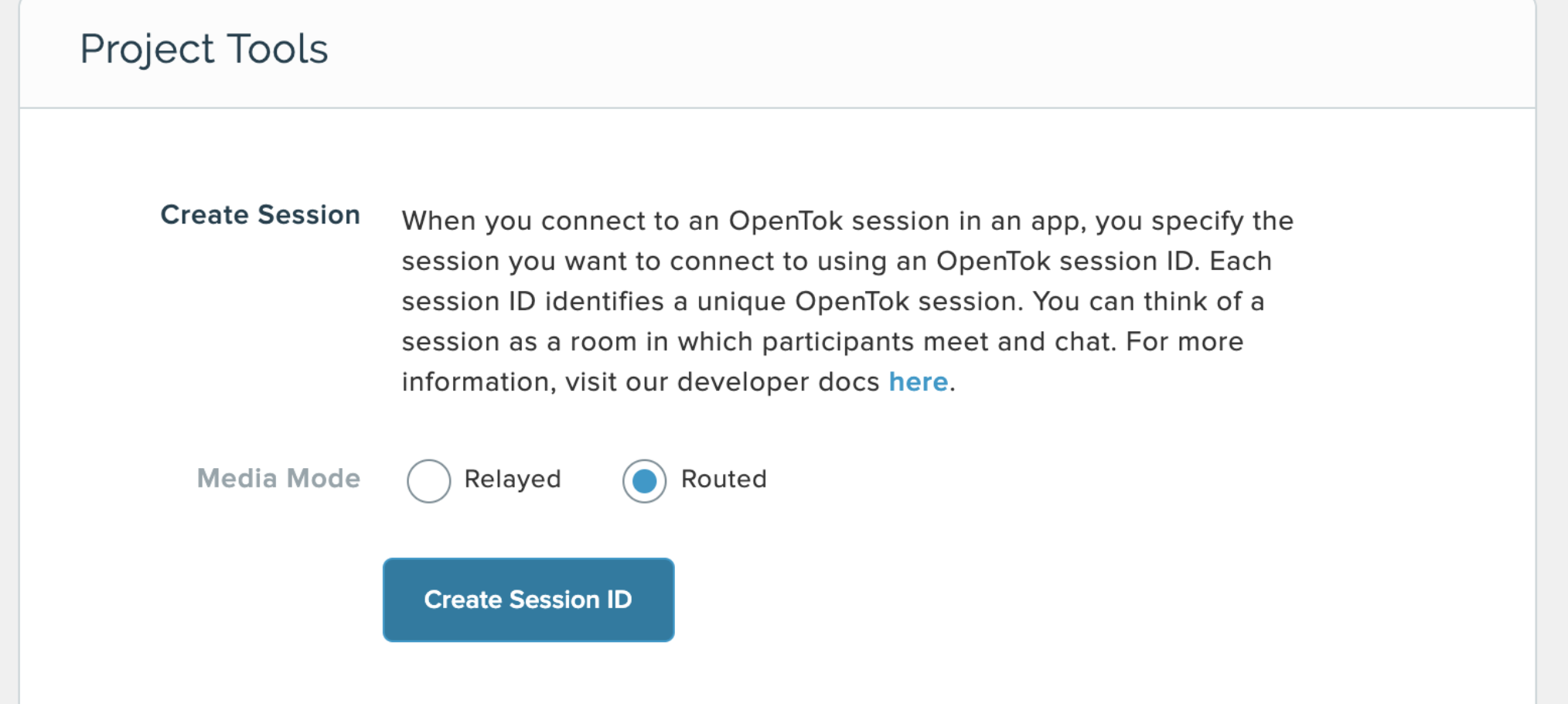 what to click to generate a sessionID
そのsessionIDをコピーし、以下のセクションに貼り付けます。 Generate Token.必要であれば、有効期限をデフォルトの1時間より長くしてください。
次に、青い Generate Tokenボタンをクリックし、生成されたトークンを保存します。
create-react-app
作業に入る前に、お使いのマシンにNodeの最新バージョン(最低でも5.2)がインストールされていることを確認してください。 node -vを実行してください。
次に、このプロジェクトを置くディレクトリでコマンドを実行する:
私は自分のプロジェクトを react-components-tokboxでも、お好きな名前をつけてください。
プロジェクトに移動し、このプロジェクトで使用する2つの依存関係をインストールする:
の opentok-reactライブラリはReactのラッパーで、今日使ういくつかのコンポーネントで構成されている:
OTSessionコンポーネント
OTPublisherコンポーネント
OTStreamsコンポーネント
OTSubscriber コンポーネント
createSession ヘルパー
preloadScript 上位コンポーネント
実行する npm startを実行して、すべてが正しくインストールされていることを確認する。 localhost:3000は自動的に開き、ボイラープレートReactスターターコードを実行するはずです。
フォルダに移動し srcフォルダに移動し config.jsファイルを作成する:
その新しいファイルを開き、先ほどTokBoxプロジェクトを作成したときに生成した認証情報を追加する:
// src/config.js
export default {
  API_KEY: 'XYZ',
  SESSION_ID: 'XYZ',
  TOKEN: 'XYZ'
};次に src/index.jsファイルを開いて congfig.jsファイルをインポートします:
// src/index.js
import React from 'react';
import ReactDOM from 'react-dom';
import App from './App';
import config from './config';さて、これらのクレデンシャルを実際に使用するには、必ずそのクレデンシャルを <App />コンポーネントに渡してください:
// src/index.js
ReactDOM.render(<App
  apiKey={config.API_KEY}
  sessionId={config.SESSION_ID}
  token={config.TOKEN}
/>, document.getElementById('root'));この src/App.jsファイルで、Reactラッパーからいくつかのコンポーネントをインポートしよう:
// src/App.js
import { OTSession, OTStreams, preloadScript } from 'opentok-react';
新しい componentsフォルダを作成する。 src.そのフォルダにコンポーネントを作成する:
もう一度 src/App.jsファイルで、これらのコンポーネントを3つインポートする:
// src/App.js
import ConnectionStatus from './components/ConnectionStatus';
import Publisher from './components/Publisher';
import Subscriber from './components/Subscriber';そのファイルの <App />コンポーネントを変更しよう。
// src/App.js
class App extends React.Component {
  constructor(props) {
    super(props);
    this.state = {};
  };
  render() {
    return (
      <div>
        TokBox
      </div>
    );
  }
}
export default preloadScript(App);コンストラクタ内で、ステートを追加し、接続ステータスを検出するために2つの sessionEventsを追加する:
// src/App.js
constructor(props) {
  super(props);
  this.state = {
    error: null,
    connected: false
  };
  this.sessionEvents = {
    sessionConnected: () => {
      this.setState({ connected: true });
    },
    sessionDisconnected: () => {
      this.setState({ connected: false });
    }
  };
}
コンストラクタの外で、次の関数を作成する。 onError():
// src/App.js
  onError = (err) => {
    this.setState({ error: `Failed to connect: ${err.message}` });
  }
関数内に render()関数内に <OTSession />コンポーネントを追加します。 src/index.jsファイルから認証情報を渡すコンポーネントを追加します:
// src/App.js
render() {
  return (
      <OTSession
        apiKey={this.props.apiKey}
        sessionId={this.props.sessionId}
        token={this.props.token}
        eventHandlers={this.sessionEvents}
        onError={this.onError}
        >
      </OTSession>
    );
}では <OTSession />の中で、エラーを先取りして処理し、コンポーネントを呼び出そう、 <ConnectionStatus />, <Publisher />そして <Subscriber />:
// src/App.js
  {this.state.error ? <div id="error">{this.state.error}</div> : null}
  <ConnectionStatus />
  <Publisher />
  <OTStreams>
    <Subscriber />
  </OTStreams>
ファイルの中で src/components/ConnectionStatus.jsファイルで、ユーザーに接続ステータスを表示する最良の方法を考えてみよう:
// src/components/ConnectionStatus.js
import React from 'react';

class ConnectionStatus extends React.Component {
  render() {
    let status = this.props.connected ? 'Connected' : 'Disconnected';
    return (
      <div className="connectionStatus">
        <strong>Status:</strong> {status}
      </div>
    );
  }
}
export default ConnectionStatus;
では src/App.jsファイルに戻り、状態を <ConnectionStatus />コンポーネントに渡す:
// src/App.js
<ConnectionStatus connected={this.state.connected} />
では src/components/Publisher.jsファイルをインポートし OTPublisherから opentok-react:
// src/components/Publisher.js
import React from 'react';
import { OTPublisher } from 'opentok-react';
import CheckBox from './CheckBox';その下に、クラス・ベースのコンポーネントを作ってみよう。 Publisher:
// src/components/Publisher.js
class Publisher extends React.Component {
  constructor(props) {
    super(props);
    this.state = {
      error: null,
      audio: true,
      video: true,
      videoSource: 'camera'
    };
  }
  setAudio()
  setVideo()
  setVideoSource()
  onError()

  render() {
    return (
      <div>
        <OTPublisher />
      </div>
    );
  }
}
export default Publisher;これらの関数をいくつかの状態で埋めてみよう:
// src/components/Publisher.js
  setAudio = (audio) => {
    this.setState({ audio });
  }

  setVideo = (video) => {
    this.setState({ video });
  }

  changeVideoSource = (videoSource) => {
    (this.state.videoSource !== 'camera') ? this.setState({videoSource: 'camera'}) : this.setState({ videoSource: 'screen' })
  }

  onError = (err) => {
    this.setState({ error: `Failed to publish: ${err.message}` });
  }
そして <OTPublisher />で通過しよう。 publishAudio, publishVideoそして videoSourceを propertiesプロップと関数 onError()を渡す。 onError支柱に
// src/components/Publisher.js
render() {
  return (
    <div className="publisher">
      Publisher
      {this.state.error ? <div id="error">{this.state.error}</div> : null}
      <OTPublisher
        properties={{
          publishAudio: this.state.audio,
          publishVideo: this.state.video,
          videoSource: this.state.videoSource === 'screen' ? 'screen' : undefined
        }}
        onError={this.onError}
      />
    </div>
  };
では src/components/Subscriber.jsファイルで、ファイルとコンポーネントをインポートし、クラスベースのコンポーネントを作成しましょう。 Subscriberと subscribeToAudioと subscribeToVideoを propertiesの中に <OTSubscriber />:
// src/components/Subscriber.js
import React from 'react';
import { OTSubscriber } from 'opentok-react';
import CheckBox from './CheckBox';

class Subscriber extends React.Component {
  constructor(props) {
    super(props);

    this.state = {
      error: null,
      audio: true,
      video: true
    };
  }

  setAudio = (audio) => {
    this.setState({ audio });
  }

  setVideo = (video) => {
    this.setState({ video });
  }

  onError = (err) => {
    this.setState({ error: `Failed to subscribe: ${err.message}` });
  }

  render() {
    return (
      <div className="subscriber">
        Subscriber
        {this.state.error ? <div id="error">{this.state.error}</div> : null}
        <OTSubscriber
          properties={{
            subscribeToAudio: this.state.audio,
            subscribeToVideo: this.state.video
          }}
          onError={this.onError}
        />
      </div>
    );
  }
}
export default Subscriber;
この <CheckBox />コンポーネントを <Publisher />と <Subscriber />コンポーネントを使用します:
// src/components/CheckBox.js
import React from 'react';
import { uniqueId } from 'lodash';

class CheckBox extends React.Component {
  constructor(props) {
    super(props);
    this.state = {
      id: uniqueId('Checkbox'),
      isChecked: this.props.initialChecked
    };
  }

  onChange = (event) => {
    let isChecked = event.currentTarget.checked;
    this.setState({ isChecked });
  }

  componentDidUpdate(prevProps, prevState) {
    if (
      prevState.isChecked !== this.state.isChecked &&
      typeof this.props.onChange === 'function'
    ) {
      this.props.onChange(this.state.isChecked);
    }
  }

  render() {
    return (
      <div>
        <label htmlFor={this.state.id}>
          {this.props.label}
        </label>
        <input
          type="checkbox"
          checked={this.state.isChecked}
          id={this.state.id}
          onChange={this.onChange}
        />
      </div>
    );
  }
}
export default CheckBox;では <CheckBox />コンポーネントを src/components/Publisher.jsファイルにある
// src/components/Publisher.js
<CheckBox
  label="Share Screen"
  onChange={this.changeVideoSource}
/>
<CheckBox
  label="Publish Audio"
  initialChecked={this.state.audio}
  onChange={this.setAudio}
/>
<CheckBox
  label="Publish Video"
  initialChecked={this.state.video}
  onChange={this.setVideo}
/>また src/components/Subscriber.jsファイルにも
// src/components/Subscriber.js
<CheckBox
  label="Subscribe to Audio"
  initialChecked={this.state.audio}
  onChange={this.setAudio}
/>
<CheckBox
  label="Subscribe to Video"
  initialChecked={this.state.video}
  onChange={this.setVideo}
/>最後に、アプリ用の簡単なCSSを src/App.cssファイルに追加します:
/* src/App.css */
body, html {
  background-color: pink;
  height: 100%;
  font-family: Verdana, Geneva, sans-serif
}
.connectionStatus {
  padding-top: 20px;
  margin-left: 5%;
  font-size: 1.5em;
}
.subscriber {
  margin-left: 10%;
}
.publisher {
  float: right;
  margin-right: 10%;
}
.OTPublisherContainer {
  width: 80vh !important;
  height: 80vh !important;
}
#error {
  color: red;
}
これで、4つのReactコンポーネントがすべて作成されました:
出版社
購読者
接続ステータス
チェックボックス
ターミナルでプロジェクトのルートから npm startを実行することでアプリをテストできます。
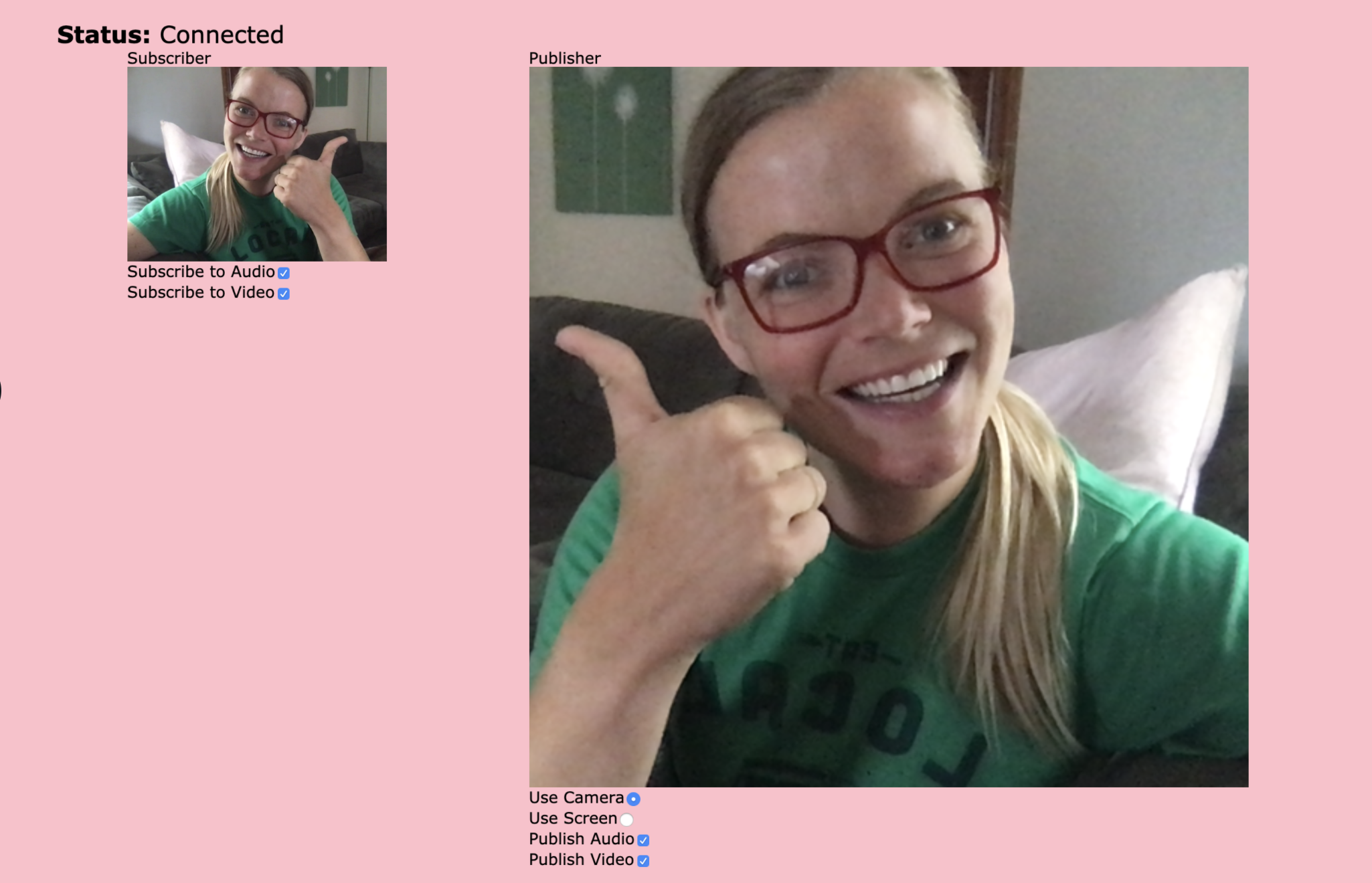 view after running npm start
おめでとう!これらのコンポーネントはモジュール化されており、将来のReactアプリで再利用可能です。
ビデオチャット機能を有効にするために、あなたのアプリに簡単かつ迅速に接続できるようになりました。なんて素敵なんだろう!私もビデオチャットに夢中で、毎日の生活の中でビデオチャットを追加できるあらゆる機会を探し始めている!
ビデオチャットの使い方について、創造的、新しい、くだらない、革新的なアイデアがあれば、ぜひ共有してください!
一緒にコラボレーションして、新しいアプリを作ることができたら最高だね。