シェア:
)
The author goes by the pen name 'Python Code Nemesis'. She is a software engineer who loves writing technical articles with Python and its newest frameworks. You can find her latest articles on her medium account @dpythoncodenemesis.
Node、React、Vonage Messages APIを使った飲料水リマインダーアプリ
所要時間:1 分
この記事では、Node、React、Vonage Messages APIを使ってウェブ・アプリケーションを構築し、ユーザーがサービスを購読し、リマインダーの頻度を選択できるようにする。すべての購読者は、選択した頻度に基づいて定期的に水を飲むためのリマインダーを受け取ります。
水を飲むことが重要なのは、体を適切に機能させるために不可欠な水分補給を助けるからだ。適切な水分補給は、エネルギーレベルを向上させ、免疫システムの機能を高め、特定の病気の予防にも役立ちます。
をクローンしてください。 GitHubリポジトリをクローンしてください。
このチュートリアルでは、その方法を学びます:
Node.jsでバックエンドサーバーを作成する
Vonage Messages APIを使ってExpressとNodeにメッセージ送信者を追加する。
ノードスケジューラによる周波数ハンドラの追加
React.jsでフロントエンドのUIを作る
バックエンドとフロントエンドの接続
アプリケーションのテスト
Vonageのアカウントと電話番号
ノードとnpmをインストール
アプリケーションのバックエンドに取り掛かる時が来た。
メインアプリのディレクトリを作成する Vonage_Drinking_App.
ターミナルで mkdir Vonage_Drinking_App.
ターミナルで cd Vonage_Drinking_Appを入力する。
このディレクトリの中に backend.
次に Vonage Messages APIを使って加入者に SMS を送信します。
Vonageは、電話の発着信、テキストメッセージの送受信などを可能にするグローバルなクラウドコミュニケーションプラットフォームである。VoIP(ボイスオーバーIP)やユニファイド・コミュニケーションのほか、メッセージング、ビデオチャットなど、さまざまなサービスを提供している。Vonageはまた、開発者がアプリケーションをVonageプラットフォームと統合できるように、さまざまなAPIやSDKを提供しています。Vonageアカウントは ダッシュボード.
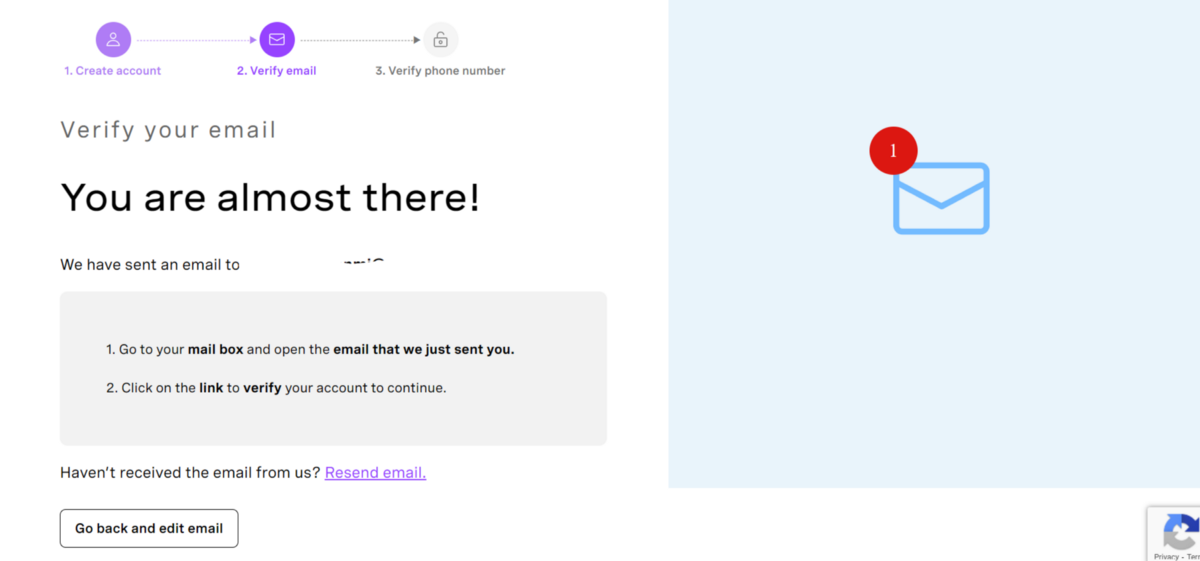
詳細を入力し、EメールIDをVerifyしてください:
 Vonage homepage
 Sign up
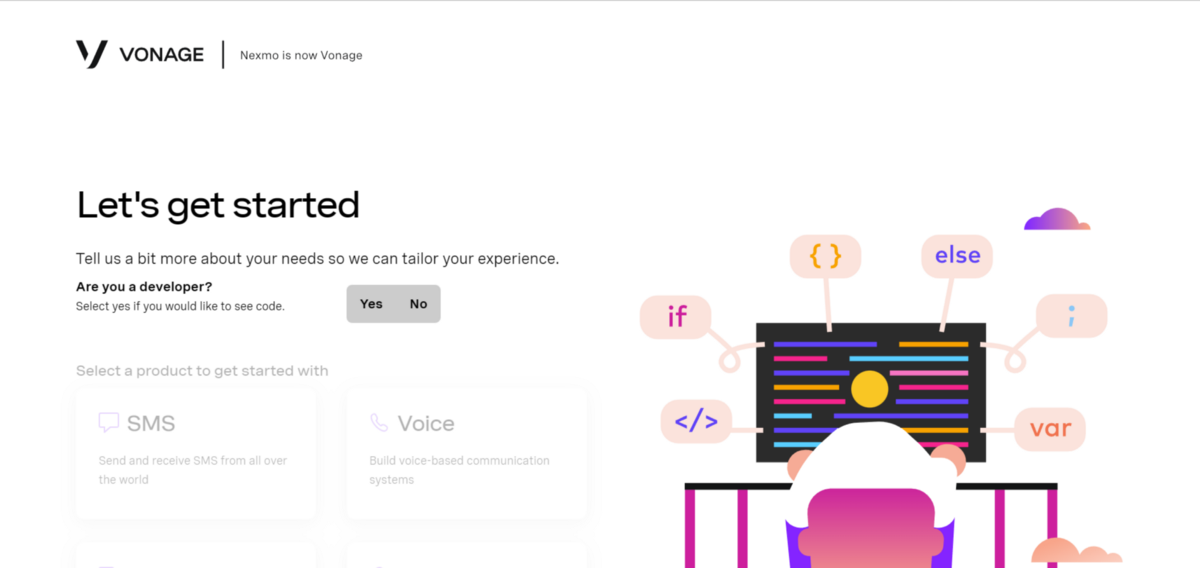
次に以下の画面が表示されますので、開発者であるかどうかを選択してください。使用するVonage製品を選択します。このチュートリアルではSMSを選択します。
 Let's get started page
アカウントには2ユーロのクレジットが付属しており、このユースケースに最適なトライアルに使用できる。ダッシュボードにアクセスしてMessages APIを使用する:
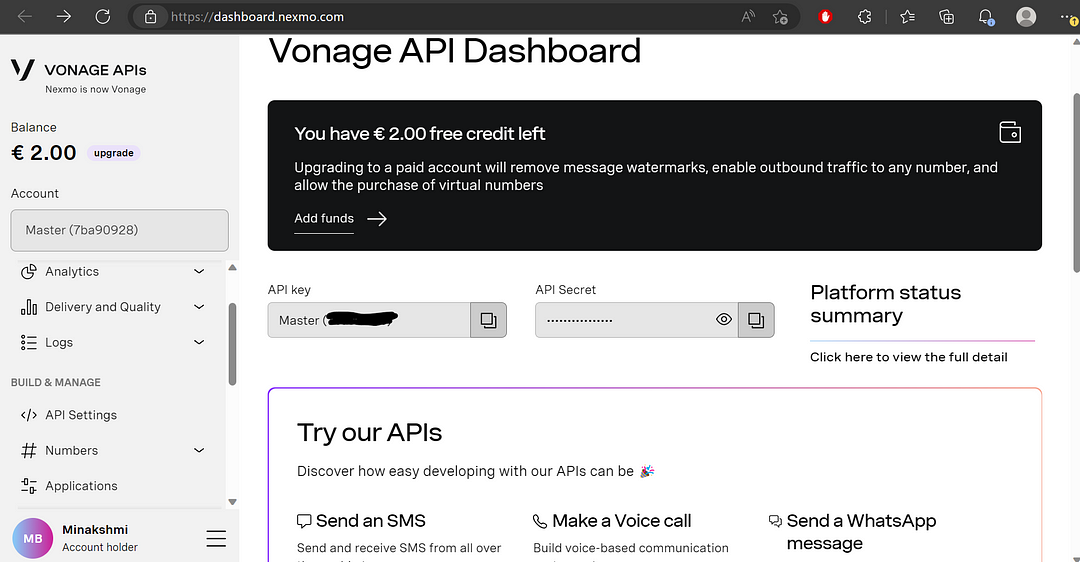 Vonage API Dashboard page
あなたの APIキーと APIシークレットをコピーする。新しいアプリケーションを作成しましょう。アプリケーション アプリケーションまたは アプリケーションタブを開きます:
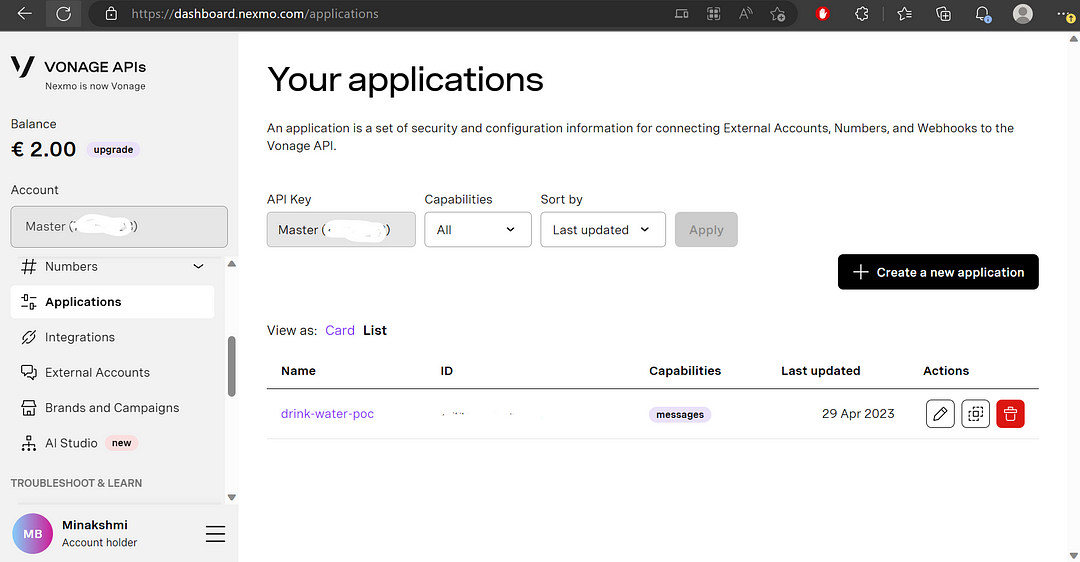 Vonage applications page
新しいアプリケーションを作成するには、「Create a new application」をクリックします:
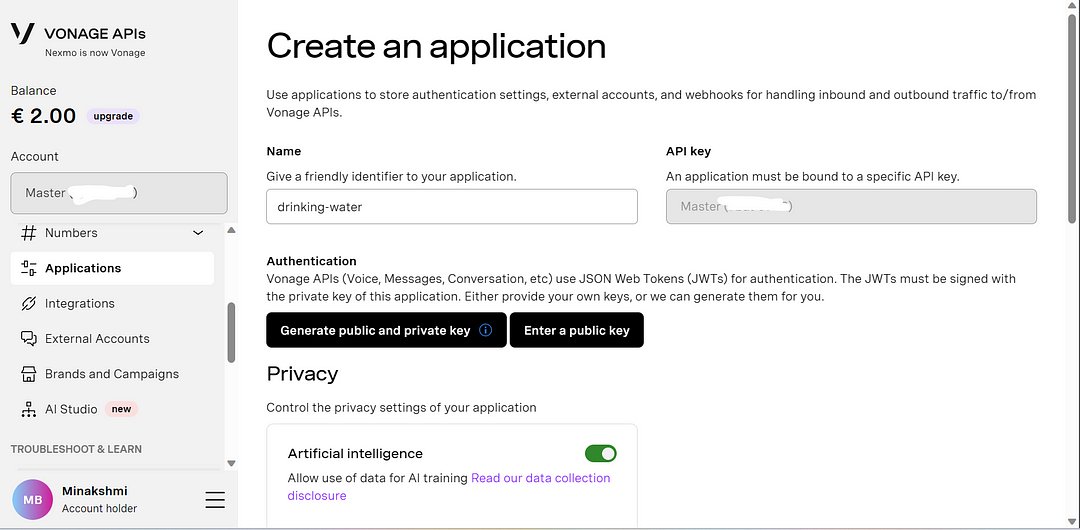 Create a new Vonage application page
capabilitiesでMessagesを選択する。受信とステータスのURLを https://www.google.com/.このステップで秘密鍵を生成できます。秘密鍵はダウンロードされ、ローカルに保存されます。
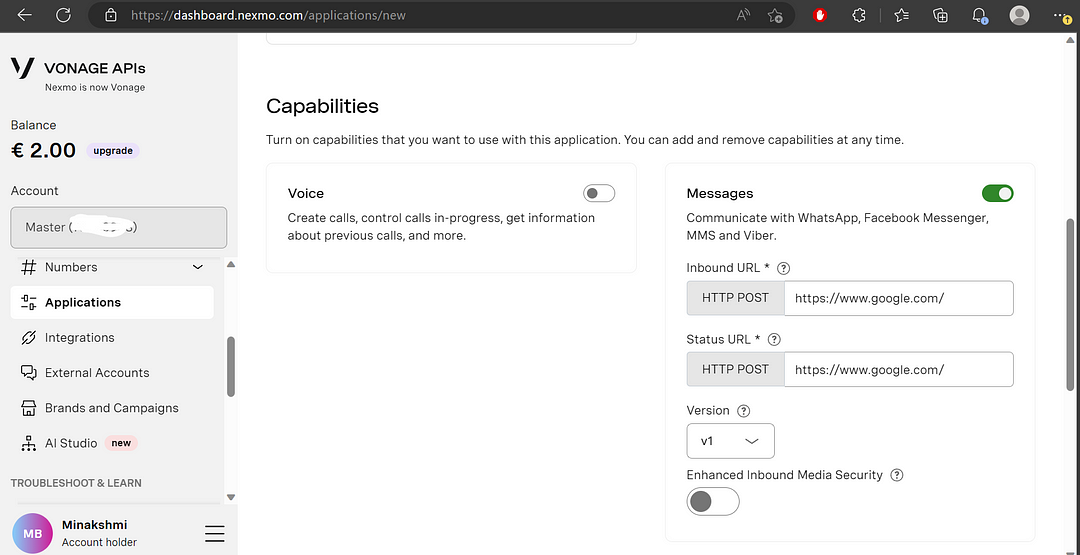 Choose application specifications page
をクリックします。 新規アプリケーションの作成ボタンをクリックします:
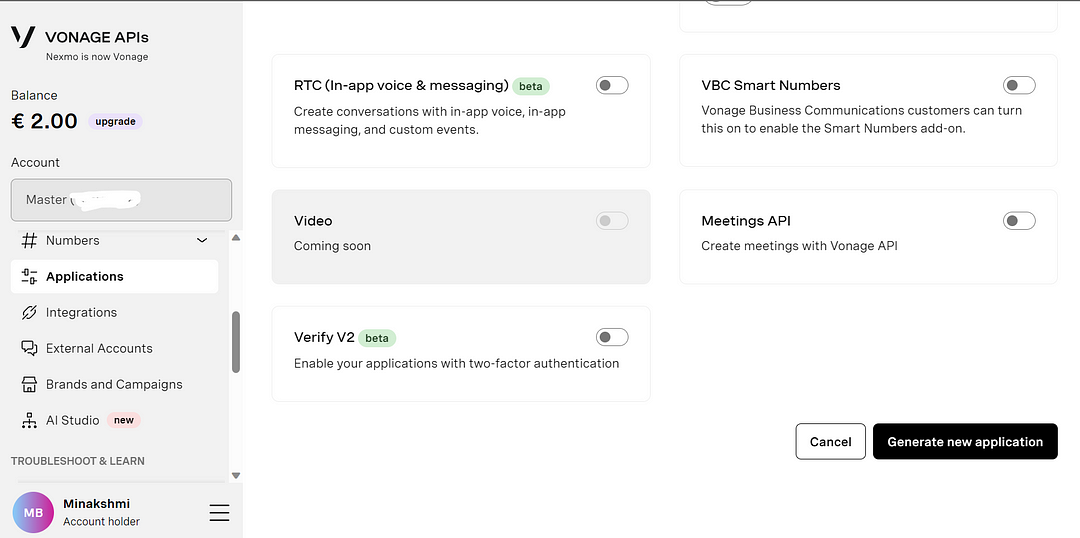 Choose application specifications page scrolled down
この申し込みページが表示されます:
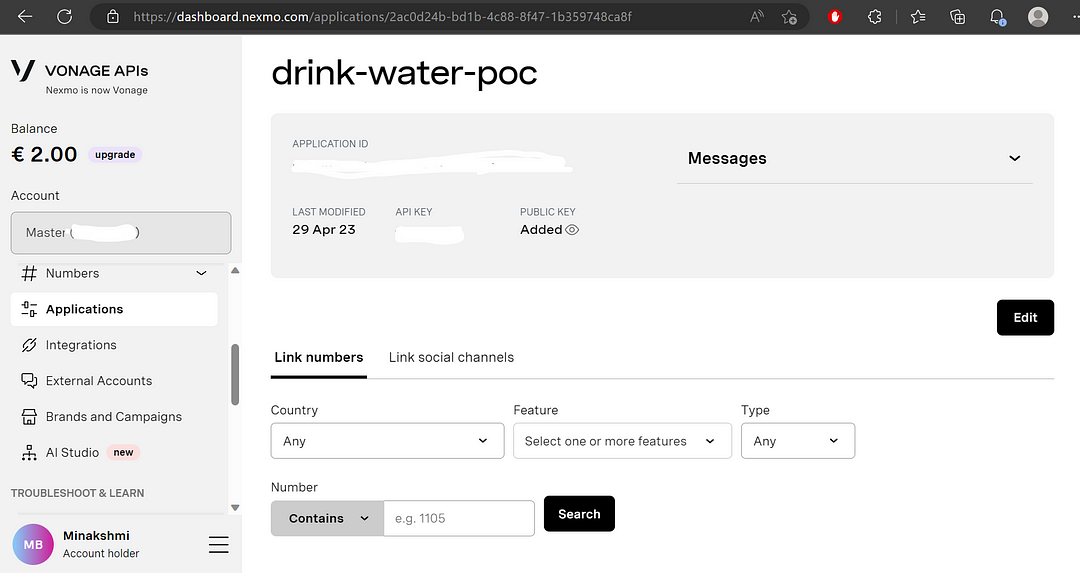 Drink water POC application page
を保存します。 アプリケーションIDと生成された秘密鍵を保存します。また 番号を購入し、Vonage番号をリンクすることもできます。.
次に、いくつかの依存関係をインストールする必要がある。ターミナルに次のように入力する:
npm install cors@2.8.5 cypress@12.11.0 express@4.18.2 node-schedule@2.1.1 react-dom@18.2.0 react@18.2.0 webpack@5.81.0これは Vonage Messages SDK for Node.js GitHub リポジトリのサンプルコードです。にあるサンプルコードで、Vonage Messages API を使って SMS を送信できるかどうかをテストします:
const { Auth } = require("@vonage/auth");
const { Messages } = require("@vonage/messages");
const { SMS } = require("@vonage/messages");

PRIVATE_KEY_PATH = "private.key";
const messagesClient = new Messages(
 new Auth({
   apiKey: API_KEY,
   apiSecret: API_SECRET,
   applicationId: APPLICATION_ID,
   privateKey: PRIVATE_KEY_PATH,
 })
 // options
);
messagesClient
 .send(
   new SMS({
     to: "TO NUMBER",
     from: "Vonage APIs",
     text: "Hi from Python Code Nemesis",
   })
 )
 .then((resp) => console.log(resp))
 .catch((err) => console.error(err));
これは test_sms.jsファイルです。 GitHub リポジトリ.このコードは Vonage Messages API を使って SMS メッセージを電話番号に送信します。このファイルを実行するには、ターミナルで node test_sms.jsと入力します。
以下はその説明である。 test_sms.jsコードの説明である。最初の3行は @vonageライブラリから Auth, Messagesそして SMS. AuthはVonage APIでの認証に使われます、 MessagesはSMSメッセージの送信に使用され SMSのサブクラスです。 Messagesのサブクラスです。
次に、このコードでは定数 PRIVATE_KEY_PATHを定義する。その後 Messagesのインスタンスが newキーワードで Authオブジェクトを引数として apiKey, apiSecret, applicationIdと privateKeyプロパティが設定されたオブジェクトを引数として渡す。この Messagesのインスタンスは messagesClient.
最後に send()メソッドは messagesClientで呼び出され、SMSメッセージが送信されます。この send()メソッドは SMSのインスタンスを引数として取る。 to, fromおよび textプロパティには、それぞれ受信者の電話番号、送信者の名前または番号、およびメッセージ・テキストが設定されます。この then()メソッドが返された Promise で呼び出され、Vonage API からの応答がログに記録されます。 catch()メソッドが呼び出され、送信処理中に発生したエラーがログに記録されます。
これが成功したら、このコードを使ってバックエンド・アプリケーションを作成することができる。
次のステップは、フロントエンドで入力された番号にSMSを送ることである。 sign-upエンドポイントに送信します。それぞれの購読者がUIから選択した頻度に基づいて、リマインダーのスケジュールを設定します。
バックエンドのフォルダに app.jsを作成し、以下のコードを追加します:
const express = require("express");
const app = express();
const cors = require("cors");
const { SMS } = require("@vonage/messages");
const schedule = require("node-schedule");
const { Auth } = require("@vonage/auth");
const { Messages } = require("@vonage/messages");

PRIVATE_KEY_PATH = "private.key";

// A list to store phone numbers and frequency of reminders

const subscribers = [];

const messagesClient = new Messages(
 new Auth({
   apiKey: API_KEY,
   apiSecret: API_SECRET,
   applicationId: APPLICATION_ID,
   privateKey: PRIVATE_KEY_PATH,
 })
 // options
);

function sendReminders(phoneNumber) {
 const from = "Reminder App";
 const to = phoneNumber;
 const text = "This is your reminder to have a glass of water!";

 messagesClient
   .send(
     new SMS({
       to: to,
       from: from,
       text: text,
     })
   )
   .then((resp) => console.log(resp))
   .catch((err) => console.error(err));
}

app.use(cors());
app.use(express.urlencoded({extended: true}));
app.use(express.json())

app.post("/sign-up", (req, res) => {
 const phoneNumber = req.body.phoneNumber;
 const frequency = req.body.frequency;

 // Add the phone number and frequency to the subscriber's list
 subscribers.push({ phone_number: phoneNumber, frequency: frequency });

 const from = "Reminder App";
 const to = phoneNumber;
 const text = "Welcome to the Drinking Water Reminder App! You will receive reminders as per your selected frequency.";

 messagesClient
   .send(
     new SMS({
       to: phoneNumber,
       from: from,
       text: text,
     })
   )
   .then((resp) => console.log(resp))
   .catch((err) => console.error(err));

 schedule.scheduleJob(`*/${frequency} * * * *`, () => {
   sendReminders(phoneNumber);
 });

 console.log(
   `Send message to ${phoneNumber} with frequency ${frequency} minute`
 );

 res.status(200).json({ status: "ok" });
});

app.listen(5000, () => {
 console.log("Server started on port 5000");
});
これは、Expressフレームワークを使用してWebサーバを作成するNode.jsサーバサイドアプリケーションです。また、Vonage Messages API と統合して、加入者にリマインダーを送信します。
コードは、必要なモジュールをインポートすることから始まる: express, body-parser, cors, @vonage/messages, node-scheduleそして @vonage/auth.そして定数変数 PRIVATE_KEY_PATHを定義する。その後 subscribersというリストを作成し、電話番号とリマインダーの頻度を格納する。次に Messagesクラスの新しいインスタンスを作成します。 @vonage/messagesこのクラスは Vonage API 経由で SMS メッセージを送信するために使用されます。Auth クラスのインスタンスを使用して、必要な API キー、API シークレット、アプリケーション ID、秘密鍵を設定します。
この sendReminders関数は、特定の電話番号にリマインダーを送信するために定義されています。引数として電話番号を受け取り fromと text変数をセットし、そして messagesClientメソッドを使用して sendメソッドを使用してメッセージを送信します。
次に、コードはアプリケーションの新しいインスタンスを作成する。 expressアプリケーションの新しいインスタンスを作成し、JSON リクエストを処理するためのミドルウェアをセットアップし、ウェブアプリケーションのクロスオリジンリソース共有(CORS)を有効にします。
サーバーは POSTリクエストを /sign-up.クライアントがリクエストボディに電話番号と頻度を指定してこのエンドポイントにリクエストを送ると、サーバーはその電話番号と頻度をリストに追加します。 subscribersリストに追加する。を経由して加入者の電話番号にウェルカムメッセージを送り、指定された頻度でリマインダーをスケジュールします。 messagesClientモジュールを使用して、指定された頻度でリマインダーをスケジュールします。 node-scheduleモジュールを使って指定された頻度でリマインダーをスケジュールします。
最後に、サーバーはリクエストが成功したことを示すJSONレスポンスを返す。
CORS(Cross-Origin Resource Sharing)とは、ウェブページを提供したドメインとは異なるドメインからリソース(スクリプト、画像、スタイルなど)をリクエストできるようにする仕組みです。
CORSエラーは、ウェブページが、ウェブページを提供したドメインとは異なるドメインに(たとえばJavaScript経由で)リクエストを行おうとしたときに、リクエストされたリソースをホストしているサーバーが適切なCORSヘッダーを返さない場合に発生します。
CORSの目的は、悪意のあるウェブページが別のドメインに不正なリクエストをするのを防ぐことです。ブラウザは、Access-Control-Allow-Originなど、サーバーからのレスポンスに特定のHTTPヘッダーが存在するかどうかをチェックすることで、CORSの制限を実施します。
このファイルを node app.js.サーバーが起動すると、"Server started on port 5000 "と表示されます:
 Console log
サーバーはポート5000で待ち受けを開始し、サーバーが起動したことを示すメッセージがコンソールに出力されます。アプリケーションのフロントエンドで何らかの入力を渡すと、メッセージのUUIDとともにログがコンソールに出力されます。
素晴らしい!バックエンドは完成し、稼働している。次はフロントエンドのコードを追加する番だ。
このアプリのフロントエンドは、React.jsフレームワークを使用する。
前提条件として、Node.jsとnpmがシステムにインストールされている必要があります。最適なバージョンを使用していることを確認してください。
nvm install <version>
nvm use <version>必要であれば、Node.プロジェクトのルート・ディレクトリ内に frontend.このフォルダーの中に frontendディレクトリに移動し、新しいReactプロジェクトを初期化します:
npx create-react-app .
Reactアプリを実行する:
npm start
ブラウザで http://localhost:3000にアクセスして、アプリが実行されていることを確認する。デフォルトのReactアプリが表示されるはずです。
新しいコンポーネント DrinkingWaterFormを作成します。 frontend/srcディレクトリに新しいコンポーネントを作成します:
import React, { useState } from "react";
import { Form, Button } from "react-bootstrap";
import { responsivePropType } from "react-bootstrap/esm/createUtilityClasses";
import drinkwater from './drinkwater.jpg';

const DrinkingWaterForm = () => {
 const [phoneNumber, setPhoneNumber] = useState("");
 const [frequency, setFrequency] = useState("");

 const handleSubmit = async (event) => {
   event.preventDefault();

   console.log(
     JSON.stringify({
       phoneNumber: phoneNumber,
       frequency: frequency,
     })
   );

   let res;

   try {
     res = await fetch("http://127.0.0.1:5000/sign-up", {
       method: "POST",
       headers: {
         Accept: "application/json",
         "Content-Type": "application/json",
       },
       body: JSON.stringify({
         phoneNumber: phoneNumber,
         frequency: frequency,
       }),
     });
   } catch (error) {
     console.log(error);
   }

   if (res.ok) {
     await res.json();
   } else {
     window.alert(res.status());
   }
 };

 return (
   <div style={containerStyle}>
     <img src={drinkwater} alt="this is a car image" width={"400px"} height={"220px"}/>
     <h1 style={titleStyle}>Drinking Water Reminder Service</h1>
     <Form onSubmit={handleSubmit} style={formStyle}>
       <Form.Group>
         <Form.Label style={formLabelStyle}>Phone Number</Form.Label>
         <Form.Control
           type="tel"
           value={phoneNumber}
           onChange={(event) => setPhoneNumber(event.target.value)}
           required
           style={formControlStyle}
         />
       </Form.Group>
       <Form.Group>
         <Form.Label style={formLabelStyle}>Frequency (mins)</Form.Label>
         <Form.Control
           type="number"
           value={frequency}
           onChange={(event) => setFrequency(event.target.value)}
           required
           style={formControlStyle}
         />
       </Form.Group>
       <Button type="submit" style={submitButtonStyle}>
         Sign Up
       </Button>
     </Form>
   </div>
 );
};

const containerStyle = {
 display: "flex",
 flexDirection: "column",
 alignItems: "center",
 padding: "50px",
 backgroundColor: "#7DCE82",
};

const imageStyle = {
 width: "150px",
 marginBottom: "25px",
};

const titleStyle = {
 marginBottom: "25px",
 color: "#FFFFFF",
};

const formStyle = {
 width: "50%",
 marginTop: "25px",
};

const formLabelStyle = {
 color: "#FFFFFF",
};

const formControlStyle = {
 backgroundColor: "#FFFFFF",
};

const submitButtonStyle = {
 backgroundColor: "#048C03",
 color: "#FFFFFF",
};

export default DrinkingWaterForm;このReactコンポーネントは、ユーザーが飲料水リマインダーサービスにサインアップするためのフォームを表します。このフォームでは、ユーザーが自分の電話番号と、水を飲むリマインダーを受け取る頻度を入力できます。
このコンポーネントは、フォーム要素用のReact Bootstrapコンポーネントや表示用の画像など、必要なモジュールをインポートします。コンテナ、画像、タイトル、フォーム、フォーム・ラベル、フォーム・コントロール、送信ボタンのためにいくつかのスタイルを定義します。
コンポーネントは useStateフックを使って phoneNumberと frequencyフォームフィールドの状態を管理します。これは handleSubmit関数を定義します。この関数はフォームのデータをコンソールにログに記録し、フォームデータと共にバックエンド API エンドポイント /sign-upに POST リクエストを行います。
リクエストが成功した場合、この関数はJSONレスポンスを返す。そうでない場合は、レスポンスのステータスコードとともにアラートウィンドウを表示します。
コンポーネントは Formと Buttonコンポーネントを使用してフォームをレンダリングします。フォームには、電話番号と回数の2つの入力フィールドと送信ボタンがあります。
ユーザが入力フィールドにデータを入力し、送信ボタンをクリックすると handleSubmit関数が呼び出され、フォームのデータがバックエンドのAPIエンドポイントに送信されます。このコンポーネントはまた、フォームの画像とタイトルを表示し、先に定義したスタイルをフォームの様々な要素に適用します。
UIに表示したい画像をディレクトリに追加し、画像のパスを正しいパスに置き換えます。
ファイルを更新して frontend/src/App.jsファイルを更新して DrinkingWaterFormコンポーネントを含むようにファイルを更新する:
import React from "react";
import DrinkingWaterForm from "./DrinkingWaterForm";
function App() {
 return (
   <div>
     <h1>Drinking Water Reminder Service</h1>
     <DrinkingWaterForm />
   </div>
 );
}
export default App;
フロントエンドとバックエンドを一緒に走らせる時が来た。
ターミナルに移動し、プロジェクトのルートからバックエンド・ディレクトリに入る。
タイプ node app.jsと入力してバックエンドを起動する。次に、別のターミナルで frontendに入り
npm start素晴らしい、フロントエンドとバックエンドの両方が同時に動くようになった!ウェブブラウザで http://localhost:3000をウェブブラウザで開いて 飲料水リマインダーアプリ.
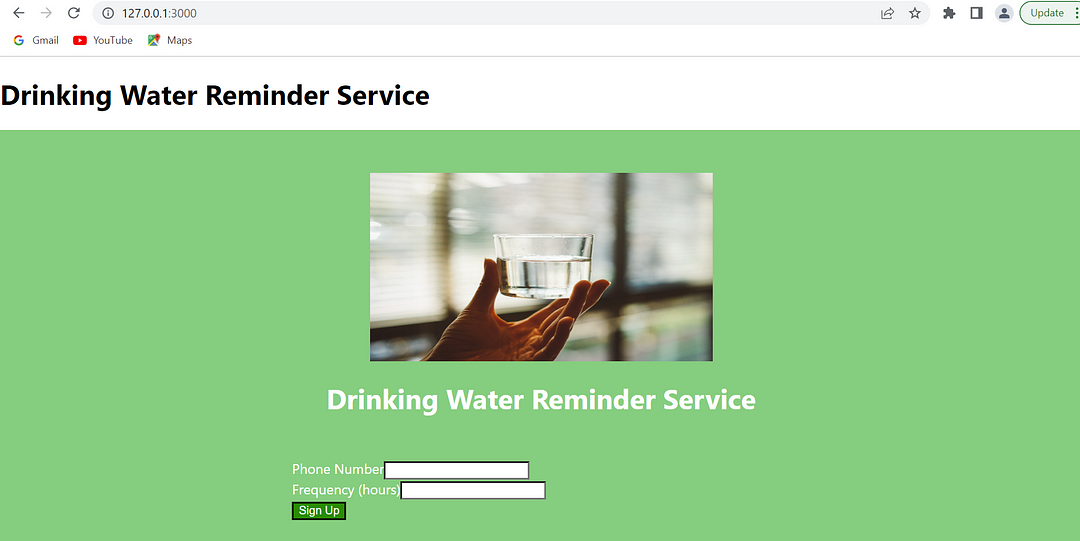 Drinking water Reminder Service home page
完璧だ!あなたはNode、Vonage、Reactを使って飲料水リマインダーアプリを作成した!これで、希望の入力でテストできます。
Vonage Dashboardのトライアルアカウントでは、事前にVerifyされたテスト番号しか使用できないため、まず、テスト番号に追加する必要があります。詳しくは 電話番号の詳細はこちら.
にアクセスし localhost:3000にアクセスし、電話番号を[COUNTRYCODE]のフォーマットで、例えばイギリスの番号なら44xxxxxxxxxと入力し、購読者としてリマインドしてほしい頻度を入力する。ここで、1とある番号を入力すると、最初はその番号にメッセージが送信される。ここから1分ごとに、SMSで水を飲むようにリマインダーのメッセージが送られる!
この記事では、Node、React、および Vonage Messages API を使用して、サブスクリプションベースの飲料水リマインダー Web アプリケーションを構築する方法を紹介しました。このチュートリアルでは、プロジェクトで Vonage API を使用する方法を紹介しました。
Vonage APIとその機能についてもっとお知りになりたい方は、以下をご覧ください。 Vonage API 開発者ポータル.SMS、Voice、Videoなど幅広いAPIのドキュメント、コードサンプル、チュートリアルをご覧いただけます。
また、Vonageの最新ニュースやアップデートは、次のサイトでフォローできます。 ツイッター (@VonageDev)をフォローし Slackコミュニティ.これらのチャンネルは、他の開発者とつながったり、質問したり、Vonage とその API についてもっと知るための素晴らしい場所です。
Vonageで様々なAPIやフレームワークを探求し続けることをお勧めします。革新的で便利なアプリケーションを作成するための多くの可能性があります。乾杯