)
Vonage Video APIを使ってLaravelでオンライン教室を作る
所要時間:8 分
この記事では、Vonage Video APIを使用してリアルタイムのVideo/Virtual Classroomをセットアップする方法を紹介します。 ビデオAPIを使用したリアルタイムのビデオ/バーチャル教室の設定方法について説明します。
Vonage Video APIは、WebRTCを利用したアプリケーションを開発者が簡単に作成できるサービスです。 ウェブRTCおよび ウェブソケットを利用したアプリケーションを簡単に作成できるようにするサービスである。様々なプラットフォームに対応した強力なSDKを提供し、アプリケーションに利用できるAPIをユーザーに提供している。
Vonage Video APIを利用するアプリケーションは、3つの主要コンポーネントで構成されています。それらは以下の通りです:
セッション
サーバー
クライアント
それぞれを少し詳しく見てみよう:
セッションは、通信が行われる仮想のチャットルームと見なすことができる。2台のコンピュータがVideoやAudioを交換するには、同じセッションに接続されている必要があります。セッションはVonage APIのクラウドにホスト/保存され、すべて固有のIDを持っています。セッションはユーザー・ストリーム(VideoやAudioフィード)を管理し、すべてのイベント(ユーザーの参加や退出、テキスト・メッセージの送信など)を追跡します。
サーバーはアプリケーションのセッションを管理するために書くバックエンドのコードです。通信を行うためには、サーバーはVonage APIのクラウドと通信してセッションを作成し、受け取ったセッションIDを使ってトークンを生成する必要があります。サーバーを動作させるためには、Vonage APIが提供する様々なサーバーサイド言語用のSDKを使用する必要がある。
Videoクライアントは、ユーザーが直接ビデオやオーディオのフィードをやり取りするためのブラウザやモバイルデバイスです。クライアントは、同じセッションで他のクライアントとやりとりできるように、セッションに参加するために(サーバーが生成した)トークンを常に必要とします。
クライアントが接続されると、同じセッションにいる他のクライアントにパブリッシュ(ビデオ/オーディオフィードを送信)したり、サブスクライブ(オーディオ/ビデオフィードを受信)したりすることができます。クライアントはパブリッシャー、サブスクライバー、モデレーターのいずれかになることができます。
パブリッシャーは、オーディオ/ビデオフィードの送受信が可能です。購読者は送信することはできませんが、オーディオ/ビデオフィードを受信します。モデレーターはパブリッシャーができることをすることができますが、他のクライアントが購読するのを防ぐこともできます。
要約すると、Vonage APIを使用する際に通信が発生するのはこのような場合である:
サーバはVonage API Cloud上に一意のIDを持つセッションを作成します。クライアントが参加したい場合、サーバーはセッションIDを使用してクライアント用のトークンを生成します。クライアントはセッションに参加し、セッションにストリームを公開します。別のクライアントが参加すると、サーバーは新しいトークンを生成し、2つのクライアントはセッション内で互いにサブスクライブし、互いのストリームを受信できるようになります。
このチュートリアルでは、Vonage API を使って基本的なビデオフィードを設定し、 クライアントが音声とビデオフィードを送信できるようにします。Vonage API は PHP 用の SDK を提供しており、それを使って仮想クラスを作成します。
仮想クラスを作成する最初のステップは、Laravelプロジェクトを設定することです。
これを書いている時点では、Vonage APIは最新のLaravelでは動作しないことに注意してください。 最新バージョンのLaravel* *(8.x).これはVonage API PHP SDKがバージョン6のGuzzleHTTPに依存しているためですが、Laravel 8はバージョン7のGuzzleHTTPを使用しています。そのため、このチュートリアルではLaravelのバージョン7をインストールしてください。次のようにinstallコマンドを実行することでインストールできます:
あるいは リポジトリ.
次のステップはVonage API PHP SDKのインストールです。composerでパッケージをプロジェクトにインストールします。
次に、先生と生徒を定義して、仮想教室で異なる権限を持てるようにします。私たちのアプリケーションは2つのテーブルを利用します - すべての先生と生徒を保存するusersと、生徒がログインして参加するときに進行中のクラスを見ることができるように、クラスのセッションIDを保存するvirtual_classesです。これらは両方のテーブルのマイグレーションです:
でユーザー移行を開く。 database/migrations/xxxxxx_create_users_xxxx.php
use Illuminate\Database\Migrations\Migration;
use Illuminate\Database\Schema\Blueprint;
use Illuminate\Support\Facades\Schema;

class CreateUsersTable extends Migration
{
    /**
     * Run the migrations.
     *
     * @return void
     */

    public function up()
    {
        Schema::create('users', function (Blueprint $table) {
            $table->id();
            $table->string('name');
            $table->string('email')->unique();
            $table->timestamp('email_verified_at')->nullable();

            // This enum field tells us if the current user is a teacher or student

            $table->enum('user_type', ['Student', 'Teacher']);
            $table->string('password');
            $table->rememberToken();
            $table->timestamps();
        });
    }

    /**
     * Reverse the migrations.
     *
     * @return void
     */

    public function down()
    {
        Schema::dropIfExists('users');
    }
}でvirtual_classesマイグレーションを開く。 database/migrations/xxxxxx_create_virtual_classes_xxxx.php
use Illuminate\Database\Migrations\Migration;
use Illuminate\Database\Schema\Blueprint;
use Illuminate\Support\Facades\Schema;

class CreateVirtualClassesTable extends Migration
{
   /**
     * Run the migrations.
     *
     * @return void
     */

    public function up()
    {
        Schema::create('virtual_classes', function (Blueprint $table) {
            $table->id();
            $table->string("name");

            // User id to know which teacher created the class

            $table->integer("user_id");            `
            $table->string("session_id");
            $table->timestamps();
        });
    }

    /**
     * Reverse the migrations.
     *
     * @return void
     */

    public function down()
    {
        Schema::dropIfExists('classes');
    }
}
この後、appディレクトリにModelsというフォルダを作成し、モデルをそこに移動する必要がある。そして、モデルの名前空間をAppModelsに更新します。最後に、Userモデルを更新して、$fillable配列にuser_typeを追加し、仮想クラスとのリレーションを作成して、簡単にアクセスできるようにします。
app/Models/Users.phpのUserモデルを開く。
//REMEMBER TO UPDATE THE NAMESPACE AFTER MOVING THE FILE

namespace App\Models;

use Illuminate\Contracts\Auth\MustVerifyEmail;
use Illuminate\Foundation\Auth\User as Authenticatable;
use Illuminate\Notifications\Notifiable;

class User extends Authenticatable
{
    use Notifiable;

    /**
     * The attributes that are mass assignable.
     *
     * @var array
     */

    // DON'T FORGET TO ADD THE USER_TYPE TO THIS ARRAY

    protected $fillable = [
        'name', 'email', 'password', 'user_type'
    ];

    /**
     * The attributes that should be hidden for arrays.
     *
     * @var array
     */

    protected $hidden = [
        'password', 'remember_token',
    ];

    /**
     * The attributes that should be cast to native types.
     *
     * @var array
     */

    protected $casts = [
        'email_verified_at' => 'datetime',
    ];

    // Relationship tying a virtual class to a user (teacher in our case)

    public function myClass() {
        return $this->hasOne(VirtualClass::class);
    }
}
モデルアーキテクチャのセットアップができたので、ユーザーの登録とログインを許可する必要があります。最初にすべきことは、プロジェクト設定のプロバイダーを編集することです。Userモデルの場所を変更したので、変更を反映させる必要があります。まず、config/auth.phpに移動し、providers配列を編集し、認証のためのscaffoldコマンドを実行します。
'providers' => [
        'users' => [
            'driver' => 'eloquent',
            'model' => App\Models\User::class, // New location of User model
        ],

        // 'users' => [
        //     'driver' => 'database',
        //     'table' => 'users',
        // ],
    ],

// Rest of auth.php fileこの後、Laravelデフォルトの認証scaffoldを実行するだけです:
この順番で4つのコマンドを実行すると、Laravelは認証をセットアップするために必要なビューを追加するはずです。認証を設定する最後のステップは、RegisterControllerとregister.blade.phpファイルを編集して、登録時にユーザーが生徒か先生かを知ることです。
まず app/Http/Controllers/Auth/RegisterControllerファイルです:
<?php

namespace App\Http\Controllers\Auth;

use App\Http\Controllers\Controller;
use App\Providers\RouteServiceProvider;

// PLEASE REMEMBER TO CHANGE THE IMPORT STATEMENT HERE

use App\Models\User;
use Illuminate\Foundation\Auth\RegistersUsers;
use Illuminate\Support\Facades\Hash;
use Illuminate\Support\Facades\Validator;
use Illuminate\Validation\Rule;

class RegisterController extends Controller
{
    /*
    |--------------------------------------------------------------------------
    | Register Controller
    |--------------------------------------------------------------------------
    |
    | This controller handles the registration of new users as well as their
    | validation and creation. By default, this controller uses a trait to
    | provide this functionality without requiring any additional code.
    |
    */

    use RegistersUsers;

    /**
     * Where to redirect users after registration.
     *
     * @var string
     */

    protected $redirectTo = RouteServiceProvider::HOME;

    /**
     * Create a new controller instance.
     *
     * @return void
     */

    public function __construct()
    {
        $this->middleware('guest');
    }

    /**
     * Get a validator for an incoming registration request.
     *
     * @param array $data
     * @return \Illuminate\Contracts\Validation\Validator
     */

    protected function validator(array $data)
    {
        return Validator::make($data, [
            'name' => ['required', 'string', 'max:255'],
            'email' => ['required', 'string', 'email', 'max:255', 'unique:users'],

            // Add the user_type here for validation.
            'user_type' => ['required', 'string', 'in:Student,Teacher'],
            'password' => ['required', 'string', 'min:8', 'confirmed'],
        ]);
    }

    /**
     * Create a new user instance after a valid registration.
     *
     * @param array $data
     * @return \App\User
     */

    protected function create(array $data)
    {
        return User::create([
            'name' => $data['name'],
            'email' => $data['email'],
            'user_type' => $data['user_type'],
            'password' => Hash::make($data['password']),
        ]);
    }
}
次にレジスタービュー。これは resources/views/auth/register.blade.php:
@extends('layouts.app')
@section('content')

<div class="container">
    <div class="row justify-content-center">
        <div class="col-md-8">
            <div class="card">
                <div class="card-header">{{ __('Register') }}</div>


                <div class="card-body">
                   <form method="POST" action="{{ route('register') }}">
                        @csrf

                        <div class="form-group row">
                            <label for="name" class="col-md-4 col-form-label text-md-right">{{ __('Name') }}</label>


                            <div class="col-md-6">
                                <input id="name" type="text" class="form-control @error('name') is-invalid @enderror" name="name" value="{{ old('name') }}" required autocomplete="name" autofocus>

                                @error('name')
                                    <span class="invalid-feedback" role="alert">
                                        <strong>{{ $message }}</strong>
                                    </span>
                                @enderror
                            </div>
                        </div>

                        <div class="form-group row">
                            <label for="email" class="col-md-4 col-form-label text-md-right">{{ __('E-Mail Address') }}</label>

                            <div class="col-md-6">
                                <input id="email" type="email" class="form-control @error('email') is-invalid @enderror" name="email" value="{{ old('email') }}" required autocomplete="email">

                                @error('email')
                                    <span class="invalid-feedback" role="alert">
                                        <strong>{{ $message }}</strong>
                                    </span>
                                @enderror
                            </div>
                        </div>

                        <div class="form-group row">
                            <label for="user_type" class="col-md-4 col-form-label text-md-right">{{ __('User Type') }}</label>

{{--                        Note the select box here???--}}

                            <div class="col-md-6">
                                <select id="user_type" type="text" class="form-control @error('user_type') is-invalid @enderror" name="user_type" required>
                                    <option value="Student">Student</option>
                                    <option value="Teacher">Teacher</option>
                                </select>

                                @error('user_type')

                                <span class="invalid-feedback" role="alert">
                                        <strong>{{ $message }}</strong>
                                    </span>
                                @enderror
                            </div>
                        </div>

                        <div class="form-group row">
                            <label for="password" class="col-md-4 col-form-label text-md-right">{{ __('Password') }}</label>

                            <div class="col-md-6">
                                <input id="password" type="password" class="form-control @error('password') is-invalid @enderror" name="password" required autocomplete="new-password">

                                @error('password')
                                   <span class="invalid-feedback" role="alert">
                                        <strong>{{ $message }}</strong>
                                    </span>
                                @enderror
                            </div>
                        </div>

                        <div class="form-group row">
                            <label for="password-confirm" class="col-md-4 col-form-label text-md-right">{{ __('Confirm Password') }}</label>

                            <div class="col-md-6">
                                <input id="password-confirm" type="password" class="form-control" name="password_confirmation" required autocomplete="new-password">
                            </div>
                        </div>

                        <div class="form-group row mb-0">
                            <div class="col-md-6 offset-md-4">
                                <button type="submit" class="btn btn-primary">
                                    {{ __('Register') }}
                                </button>
                            </div>
                        </div>
                    </form>
                </div>
            </div>
        </div>
    </div>
</div>

@endsection
これで、教師または生徒として登録し、ログインできるはずだ。
サーバーをセットアップする前に、プロジェクトのAPIキーとシークレットが必要です。これを取得するには、無料のVonage API Accountを作成する必要があります。それには このリンクをクリックしてください.このリンクをクリックし、プロジェクトを作成してください。)
まず、APIキーとAPIシークレットをLaravelプロジェクトの.envファイルに保存しましょう:
### ADD THESE LINES AT THE BOTTOM OF YOUR .env FILE, OR WHEREVER REALLY ###

VONAGE_API_KEY=your_api_key
VONAGE_API_SECRET=your_api_secret

### REST OF .ENV FILE ###ここで、実際にセッションを設定して新規ユーザのトークンを生成するコントローラを設定する必要があります。これを SessionsController と呼ぶことにしましょう:
に必要なメソッドを入れてみよう。 app/Http/Controllers/SessionsController.php:
<?php

namespace App\Http\Controllers;

use Illuminate\Http\Request;
use App\Models\VirtualClass;

#Import necessary classes from the Vonage API (AKA OpenTok)

use OpenTok\OpenTok;
use OpenTok\MediaMode;
use OpenTok\Role;

class SessionsController extends Controller
{
    /** Creates a new virtual class for teachers
     *
     * @param Request $request
     * @return \Illuminate\Http\RedirectResponse
     */

    public function createClass(Request $request)
    {
        // Get the currently signed-in user
        $user = $request->user();
        // Throw 403 if student tries to create a class
        if ($user->user_type === "Student") return back(403);
        // Instantiate a new OpenTok object with our api key & secret
        $opentok = new OpenTok(env('VONAGE_API_KEY'), env('VONAGE_API_SECRET'));
        // Creates a new session (Stored in the Vonage API cloud)
        $session = $opentok->createSession(array('mediaMode' => MediaMode::ROUTED));
        // Create a new virtual class that would be stored in db
        $class = new VirtualClass();
        // Generate a name based on the name the teacher entered
        $class->name = $user->name . "'s " . $request->input("name") . " class";
        // Store the unique ID of the session
        $class->session_id = $session->getSessionId();
        // Save this class as a relationship to the teacher
        $user->myClass()->save($class);
        // Send the teacher to the classroom where real-time video goes on
        return redirect()->route('classroom', ['id' => $class->id]);
    }

    public function showClassRoom(Request $request, $id)
    {
        // Get the currently authenticated user
        $user = $request->user();
        // Find the virtual class associated by provided id
        $virtualClass = VirtualClass::findOrFail($id);
        // Gets the session ID
        $sessionId = $virtualClass->session_id;
        // Instantiates new OpenTok object
        $opentok = new OpenTok(env('VONAGE_API_KEY'), env('VONAGE_API_SECRET'));
        // Generates token for client as a publisher that lasts for one week
        $token = $opentok->generateToken($sessionId, ['role' => Role::PUBLISHER, 'expireTime' => time() + (7 * 24 * 60 * 60)]);
        // Open the classroom with all needed info for clients to connect
        return view('classroom', compact('token', 'user', 'sessionId'));
    }
}
トークンの作成時に、現在のクライアントが持つことのできるロールを設定することができます。パブリッシャー、サブスクライバー、モデレーターのいずれかです。ロールについては上記で説明しました。上のコードでは、すべてのユーザーにパブリッシャーのステータスを与えています。つまり、すべてのユーザーがストリーム(Video-Audioフィード)を送受信できます。
resources/viewsフォルダに classroom.blade.phpファイルを作成する必要があります。 showClassroomメソッド用のファイルを作成する必要があります。
コントローラ用のルートも作成する必要があります。これらのルートをroutes/web.phpファイルに追加します:
<?php

use Illuminate\Support\Facades\Route;

Route::get('/', function () {
    return view('welcome');
});

Auth::routes();

Route::get('/home', 'HomeController@index')->name('home');

// Add this to your web.php file

// This line makes all routes in it to use the auth middleware, meaning only signed-in users can access these routes

Route::middleware('auth')->group(function () {

    // This route creates classes for teachers

    Route::post("/create_class", 'SessionsController@createClass')
        ->name('create_class');

    // This route is used by both teachers and students to join a class

    Route::get("/classroom/{id}", 'SessionsController@showClassRoom')
        ->where('id', '[0-9]+')
        ->name('classroom');
});
最後に、ダッシュボードにおいて、教師がクラスを作成するためのポイントを与え、学生が参加するクラスのリストを与える必要があります。そのためにはHomeControllerとhome.blade.phpファイルを更新する必要があります。皆さん、お付き合いください🙂。
まずは app/Http/Controllers/HomeController から:
<?php

namespace App\Http\Controllers;

use Illuminate\Http\Request;
use App\ClassModel as VirtualClass;

class HomeController extends Controller
{
    /**
     * Create a new controller instance.
     *
     * @return void
     */

    public function __construct()
    {
        $this->middleware('auth');
    }

    /**
     * Show the application dashboard.
     *
     * @return \Illuminate\Contracts\Support\Renderable
     */

    public function index(Request $request)
    {
        $user = $request->user();
        $classes = [];

        // If user is a student, give her a list of virtual classes

        if ($user->user_type === "Student") {
            $classes = VirtualClass::orderBy('name', 'asc')->get();
        }

        return view('home', compact('user', 'classes'));
    }
}次ページ resources/views/home.blade.php:
@extends('layouts.app')

@section('content')
    <div class="container">
        <div class="row justify-content-center">
            <div class="col-md-8">
                <div class="card">
                    <div class="card-header">{{$user->user_type}} {{ __('Dashboard') }}</div>

                    <div class="card-body">
                        @if (session('status'))
                            <div class="alert alert-success" role="alert">
                                {{ session('status') }}
                            </div>
                        @endif
                        @if($user->user_type === "Student")
                            <h3>These are the ongoing classes available on the system</h3>
                            @foreach($classes as $key=>$class)
                                <a href="{{route('classroom', ['id' => $class->id])}}">{{$key + 1}}. {{$class->name}}</a>
                                <br />
                            @endforeach
                        @else
                            <h4>Welcome {{$user->name}}. Fill the form below to create a class</h4>
                            <form method="POST" action="{{ route('create_class') }}">
                                @csrf

                                <div class="form-group row">
                                    <label for="name" class="col-md-12 col-form-label">{{ __('Class Name') }}</label>

                                    <div class="col-md-6">
                                        <input id="name" type="text"
                                               class="form-control @error('name') is-invalid @enderror" name="name"
                                               value="{{ old('name') }}" required autocomplete="name" autofocus>

                                        @error('name')
                                        <span class="invalid-feedback" role="alert">
                                        <strong>{{ $message }}</strong>
                                    </span>
                                        @enderror

                                    </div>
                                </div>

                                <div class="form-group row mb-0">
                                    <div class="col-md-6">
                                        <button type="submit" class="btn btn-primary">
                                            {{ __('Create Class') }}
                                        </button>
                                    </div>
                                </div>
                            </form>

                        @endif

                    </div>
                </div>
            </div>
        </div>
    </div>

@endsection
ユーザが教師である場合はクラスを作成するフォームを提供し、ユーザが学生である場合は仮想クラスリストを提供します。
クライアントをセットアップするために(Web SDKを使用することになります)、resources/views/classroom.blade.phpというブレードファイルを作成する必要があります。 showClassroom()というブレードファイルを作成する必要があります。このファイルにはSDKのCDNへのリンクが必要です。フロントエンドはこのようになります:
    <html>
    <head>
        <title> OpenTok Getting Started </title>
        <style>
          body, html {
              background-color: gray;
              height: 100%;
          }

          #videos {
              position: relative;
              width: 100%;
              height: 100%;
              margin-left: auto;
              margin-right: auto;
          }

          #subscriber {
              position: absolute;
              left: 0;
              top: 0;
              width: 100%;
              height: 100%;
              z-index: 10;
          }

          #publisher {
              position: absolute;
              width: 360px;
              height: 240px;
              bottom: 10px;
              left: 10px;
              z-index: 100;
              border: 3px solid white;
              border-radius: 3px;
          }

        </style>

        <script src="https://static.opentok.com/v2/js/opentok.min.js"></script>

    </head>

    <body>
        <div id="videos">
            <div id="subscriber"></div>
            <div id="publisher"></div>
        </div>

        <script type="text/javascript">
            var session;
            var connectionCount = 0;
            var apiKey = "{{env('VONAGE_API_KEY')}}";
            var sessionId = "{{$sessionId}}";
            var token = "{{$token}}";
            var publisher;

            function connect() {

                // Replace apiKey and sessionId with your own values:

                session = OT.initSession(apiKey, sessionId);
                session.on("streamCreated", function (event) {
                    console.log("New stream in the session: " + event.stream.streamId);
                    session.subscribe(event.stream, 'subscriber', {
                        insertMode: 'append',
                        width: '100%',
                        height: '100%'
                    });
                });

                session.on({
                    connectionCreated: function (event) {
                        connectionCount++;
                        alert(connectionCount + ' connections.');
                    },
                    connectionDestroyed: function (event) {
                        connectionCount--;
                        alert(connectionCount + ' connections.');
                    },
                    sessionDisconnected: function sessionDisconnectHandler(event) {
                        // The event is defined by the SessionDisconnectEvent class
                        alert('Disconnected from the session.');
                        document.getElementById('disconnectBtn').style.display = 'none';
                        if (event.reason == 'networkDisconnected') {
                            alert('Your network connection terminated.')
                        }
                    }
                });

                var publisher = OT.initPublisher('publisher', {
                    insertMode: 'append',
                    width: '100%',
                    height: '100%'
                }, error => {
                    if (error) {
                        alert(error.message);
                    }
                });

                // Replace token with your own value:
                session.connect(token, function (error) {
                    if (error) {
                        alert('Unable to connect: ', error.message);
                    } else {
                        // document.getElementById('disconnectBtn').style.display = 'block';
                        alert('Connected to the session.');
                        connectionCount = 1;

                        if (session.capabilities.publish == 1) {
                            session.publish(publisher);
                        } else {

                            alert("You cannot publish an audio-video stream.");
                        }
                    }
                });
            }
            connect();

        </script>
    </body>
</html>
アプリケーションをテストするには、プロジェクトのルート・ディレクトリで以下のコマンドを実行する。
ブラウザでhttp://localhost:8000/ を開き、ログインメニューをクリックする。
正しく行われた場合、教師アカウントと生徒アカウントでログインし、音声とビデオフィードを交換する必要があります。
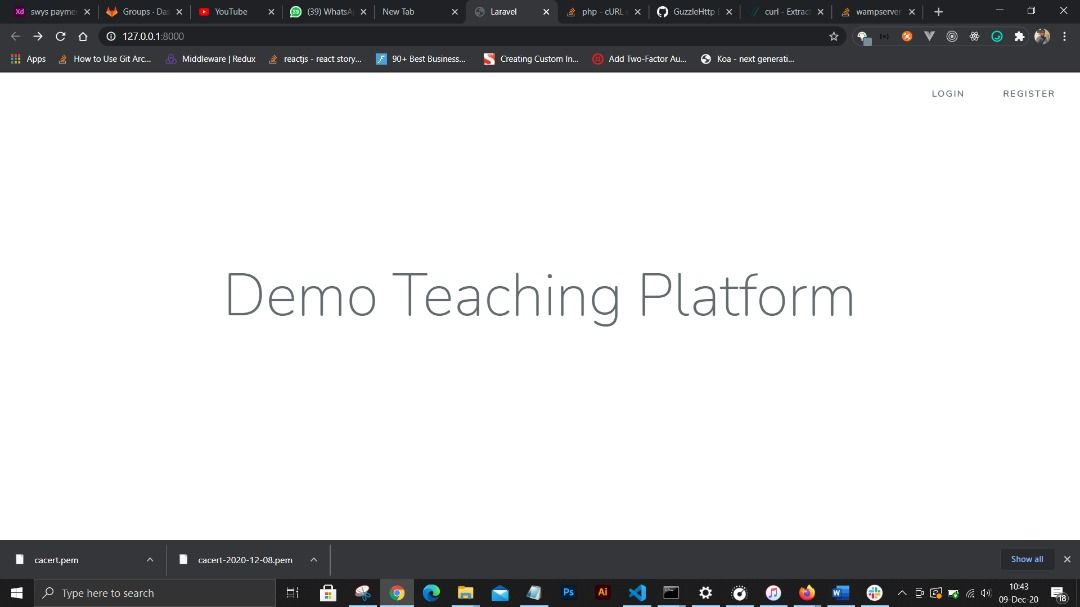 Log in with a teacher account and a student account and exchange audio and video feed
生徒と接続すると、この画面が表示されます。
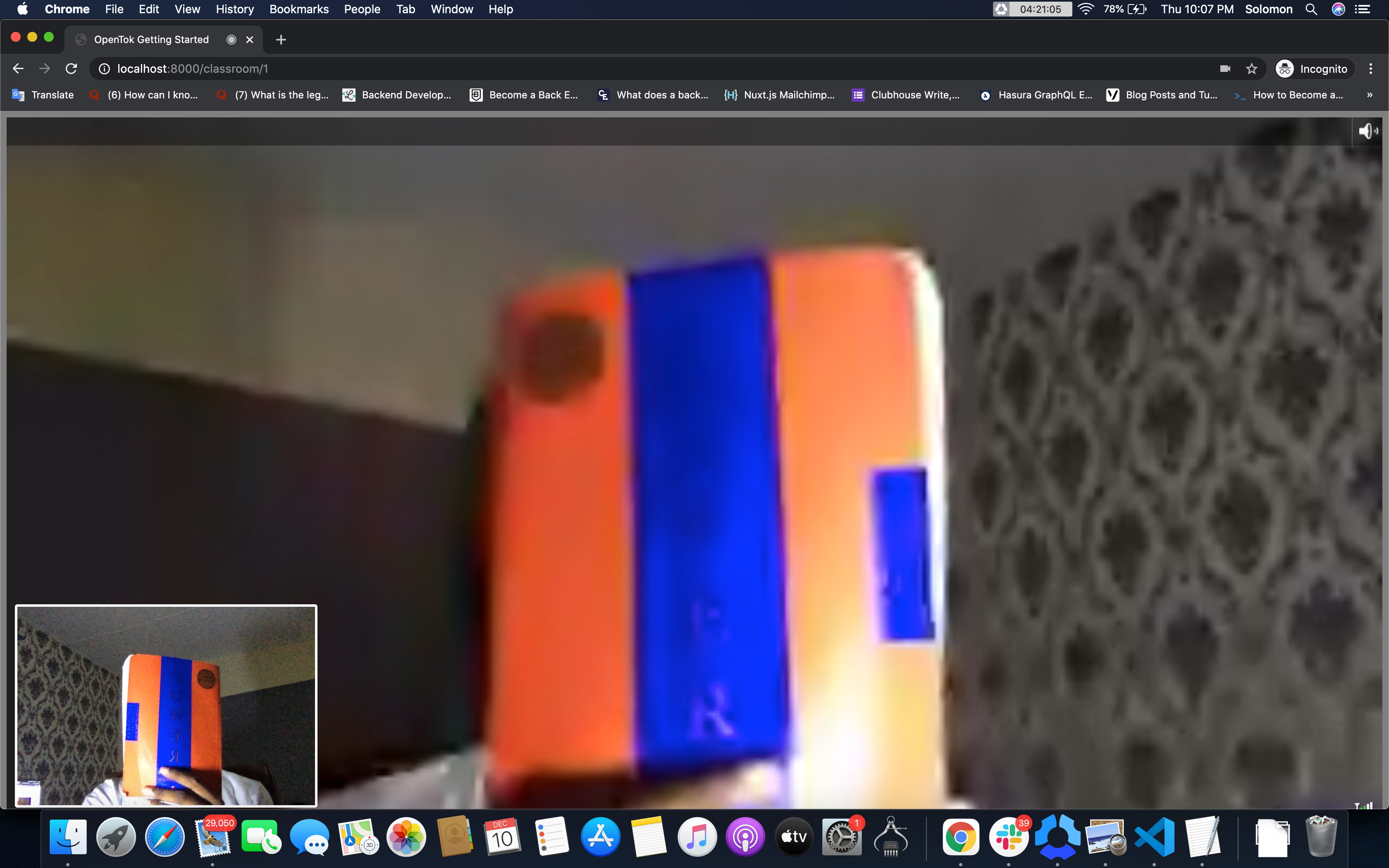 Connected with a student
リアルタイム・アプリケーションリアルタイム・アプリケーションは素晴らしい。世界をひとつにしているし、世界が遠隔地化している今、そのようなアプリケーションの需要は高い。
リアルタイム通信のためにWebRTCやWebSocketを扱うのは面倒ですが、Vonage APIは幅広いユースケースに対応する簡単なヘルパーメソッドを提供しています。この記事では、Laravelを使ってVideoフィードをセットアップする方法を紹介しました。以下の リポジトリをクローンできます。.