
シェア:
)
Ravgeet is a freelancer and Co-Founder at RavSam. He helps startups, businesses, open-source organizations with Content Management Systems, Web and Mobile App Development. He is a fan of Jamstack and likes to work with Flutter, Strapi, Nuxt/Vue and Python. He also teaches students about new technologies by conducting monthly classes.
Vonage Account APIとGoogle Appsで残高リマインダーを作成する
所要時間:1 分
フリーランサーである私は、インドでいくつかの地元企業がVonage製品を導入するのを手伝ってきました。最近、私のクライアントの一人が、Vonageの残高が指定した限度額以下になったときに、リマインダーメールを受け取ることができないかと尋ねてきました。私のクライアントのほとんどがGoogle Workspaceを使っているので、このワークフローを作成するためにVonageとGoogle Apps Scriptの統合を作成することにしました。
Google Apps Scriptを使用すると、クラウド上の1つのプラットフォームですべてのGoogleアプリを管理できます。最も優れている点は、認証がプラットフォームに組み込まれていることで、市場の多くの企業がGoogle Workspace(旧G-Suite)を使用しています。
このブログポストでは、Vonage Accountの残高が指定した限度額以下になったときにカスタム通知を作成する方法について説明します。この投稿は、Vonage Accountの残高に関するリマインダーを送信することで、顧客ベースを効果的に管理したいVonage開発者を対象としています。
Googleアカウント- Googleアカウント(個人またはGoogleワークスペース)が必要です。
Vonage APIアカウント- Vonage APIアカウントが必要です。今すぐサインアップして、無料のクレジットを使い始めることができます。アカウントを取得したら、APIキーとAPIシークレットを Vonage API ダッシュボード.
まずは最初のGoogle Apps Scriptプロジェクトを作成しましょう。まずは Apps Script ホームページにアクセスして 新規プロジェクト.新しいプロジェクトを作成したら、覚えておくために名前を付ける必要がある。プロジェクトの名前は Vonage残高リマインダー.
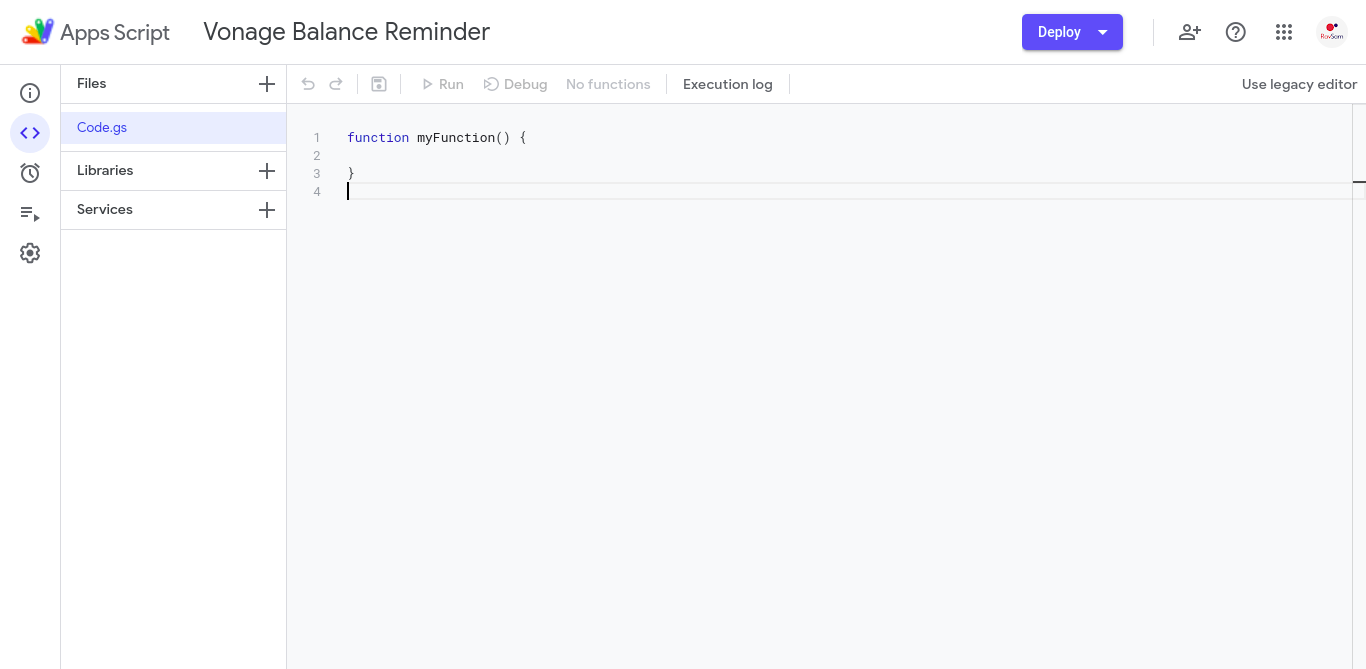
このプロジェクトの最も重要で興味深い部分から始めよう。
Google Apps ScriptはJavaScriptで書かれているため、JavaScriptの基本的な知識があればすぐに使い始めることができます。
新しい関数を作ってみよう、 fetchBalanceを作成し、Vonage REST API に接続してみましょう。 GETリクエストに接続してみます。以下のコードを Code.gsファイルに書く必要がある:
function fetchBalance() {
  // get these credentials from Vonage's dashboard
  const apiKey = '--------'
  const apiSecret = '----------------'

  // construct the api endpoint
  const url = `https://rest.nexmo.com/account/get-balance?api_key=${apiKey}&api_secret=${apiSecret}`

  // send a get request
  const response = UrlFetchApp.fetch(url, {'method': 'GET'})

  // discard the execution if status code is other than 200
  if (response.getResponseCode() !== 200) return

  // convert the response text into a json object
  const jsonResponse = JSON.parse(response.getContentText())

  // inspect the response
  Logger.log(jsonResponse)
}
まず最初に。上記のスクリプトを実行する前に Vonage APIキーと Vonage API シークレット.どちらも Vonage ダッシュボード.
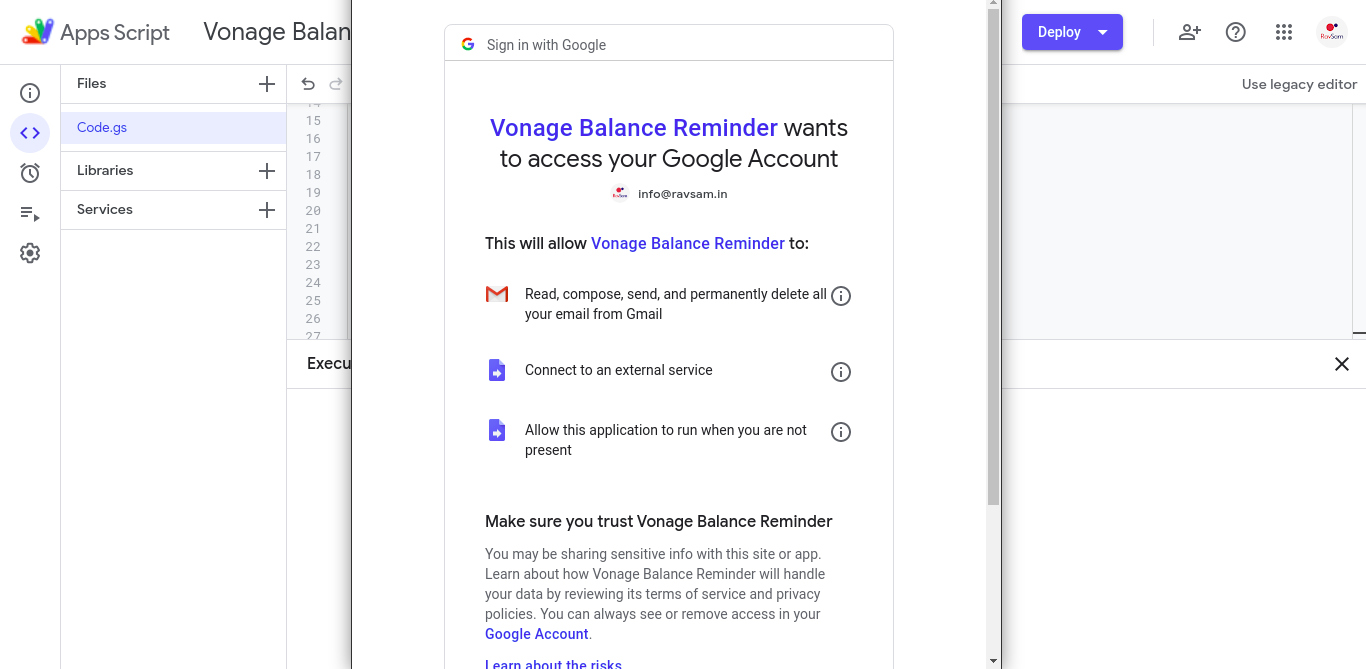
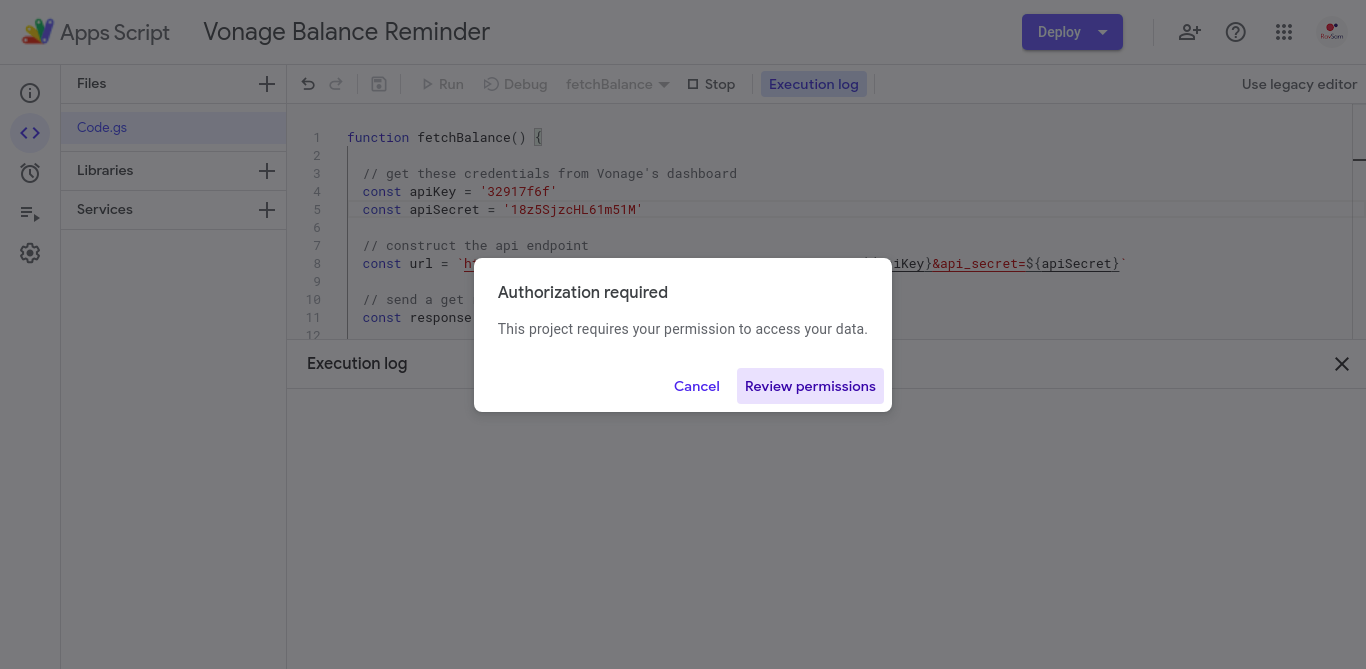
上記のスクリプトで認証情報を置き換えて fetchBalance関数を実行する。
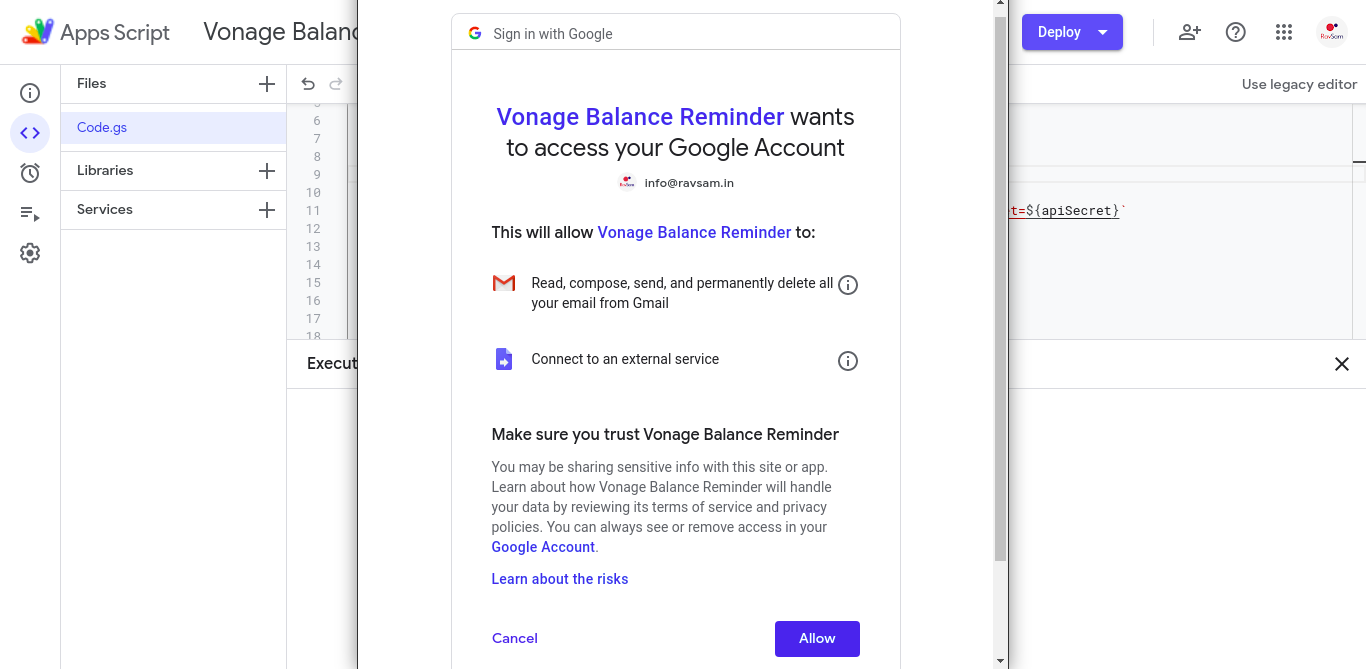
初めて関数を実行する際には、スクリプトの実行を承認するよう求められる。
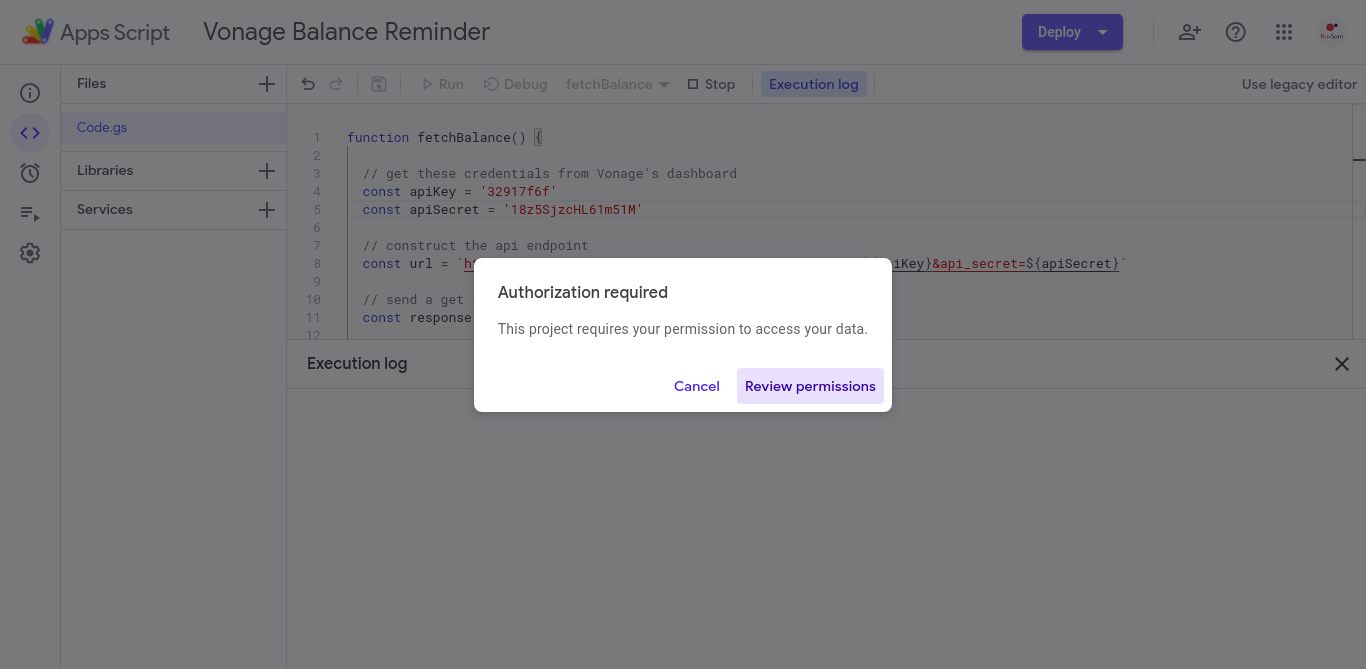
スクリプトの実行に必要なすべてのパーミッションのリストが提供されます。
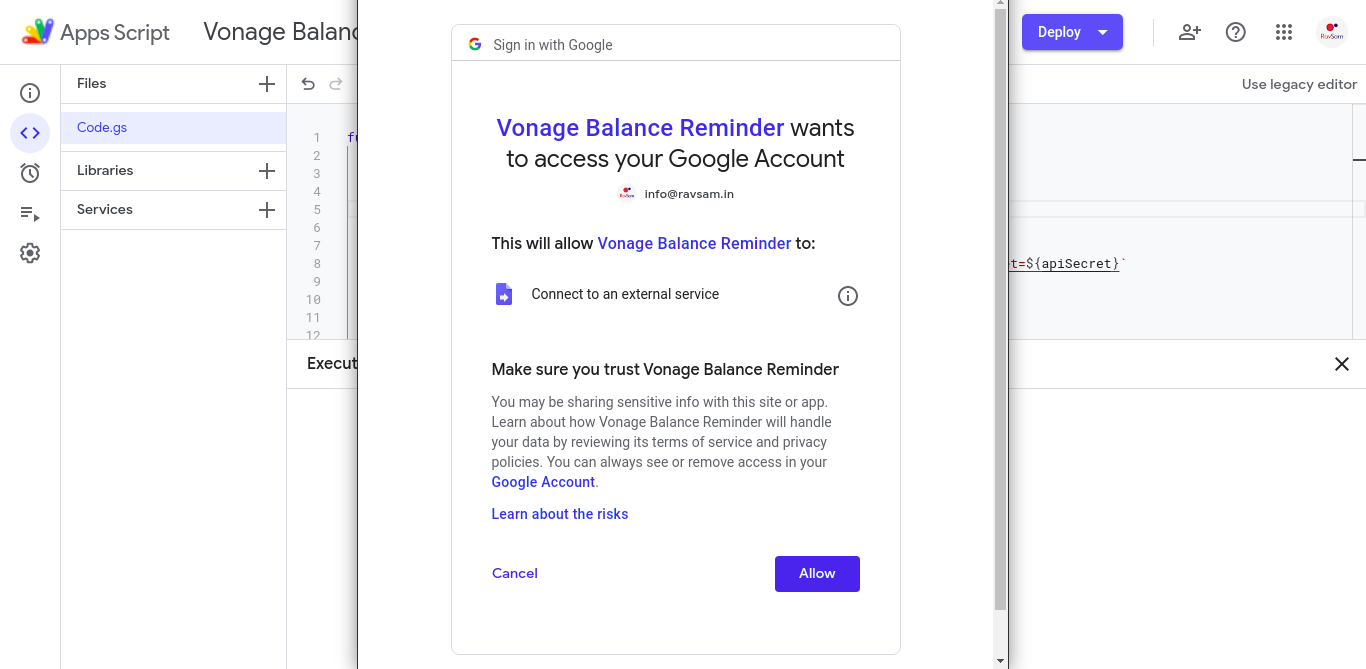
Google Apps Scriptプロジェクトを認可すると、上記の関数が実行され、Vonage Account APIからの応答がLoggerコンソールに記録されます。
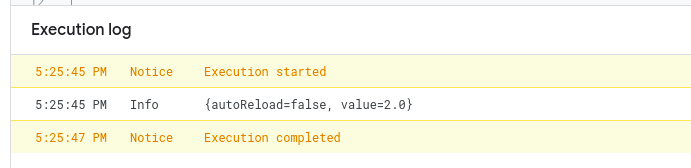
レスポンスから残高を取得するために、以下のコードを関数に追加してみよう:
// parse the response and extract the account balance
const currentBalance = jsonResponse.value

// inspect the balance
Logger.log(currentBalance)関数を再実行してみよう。今度はパーミッションのプロンプトが表示されず、関数が直接実行されることがわかるだろう。
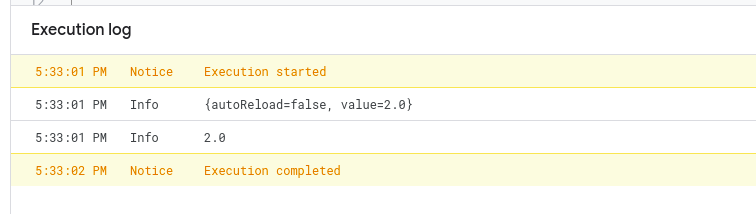
さて、これでVonage Accountの残高が確認できました。
次に必要なのは、現在の残高が指定した限度額を下回った場合にアラート(この場合はEメール)を送信することです。そのためには、コードを少し変更する必要がある:
function fetchBalance() {
  // get these credentials from Vonage's dashboard
  const apiKey = '--------'
  const apiSecret = '----------------'

  const balanceLimit = 5 // in euros <- added

  // construct the api endpoint
  const url = `https://rest.nexmo.com/account/get-balance?api_key=${apiKey}&api_secret=${apiSecret}`

  // send a get request
  const response = UrlFetchApp.fetch(url, {'method': 'GET'})

  // discard the execution of the response status code is other than 200
  if (response.getResponseCode() !== 200) return

  // convert the json string into a json object
  const jsonResponse = JSON.parse(response.getContentText())

  // parse the response and extract the account balance
  const currentBalance = jsonResponse.value

  if (currentBalance < balanceLimit) { // <- added
    Logger.log('Balance is low') // <- added
  } // <- added
}
新しい変数を追加しました、 balanceLimitを追加しました。そしてスクリプトの最後に、単純な if条件を追加しました。 現在の残高と 残高制限.上記のスクリプトを実行し、ロガーにログがないか確認してみましょう。
アプリケーションのロジックは完成し、最後に追加するのはメールを送信するコードです。ここからがGoogle Apps Scriptの醍醐味です。このワンライナーを追加するだけで、メールを送信する準備が整う。プロトコルやポートの指定など、これまで慣れ親しんできたような低レベルのことは必要ありません。
どのようなEメールでも、Eメールの受信者、Eメールの件名、Eメールの本文の3つが必要です。では fetchBalance関数を修正し、Eメール機能を追加してみよう:
function fetchBalance() {
  // get these credentials from Vonage's dashboard
  const apiKey = '--------'
  const apiSecret = '----------------'

  const balanceLimit = 5 // in euros

  const emailSubject = 'Vonage Balance is low' // <- added
  const emailTo = '--------------------' // <- added

  // construct the api endpoint
  const url = `https://rest.nexmo.com/account/get-balance?api_key=${apiKey}&api_secret=${apiSecret}`

  // send a get request
  const response = UrlFetchApp.fetch(url, {'method': 'GET'})

  // discard the execution of the response status code is other than 200
  if (response.getResponseCode() !== 200) return

  // convert the json string into a json object
  const jsonResponse = JSON.parse(response.getContentText())

  // parse the response and extract the account balance
  const currentBalance = jsonResponse.value

  // send a reminder email in case the balance is lower than limit
  if (currentBalance < balanceLimit) {
    const emailBody = `Your current Vonage balance: €${currentBalance} as of ${new Date()}. Please recharge soon.` // <- added
    GmailApp.sendEmail(emailTo, emailSubject, emailBody) // <- added
  }
}
を自由に変更してください。
emailSubjectそしてemailBodyをご自由に変更してください。
再び許可を求められます。これは、電子メールを送信するコードの一部を追加したためで、スクリプトがユーザーの代わりに電子メールを送信するため、ユーザーの承認が必要になります。そこで、新しいパーミッションを承認する必要があります。
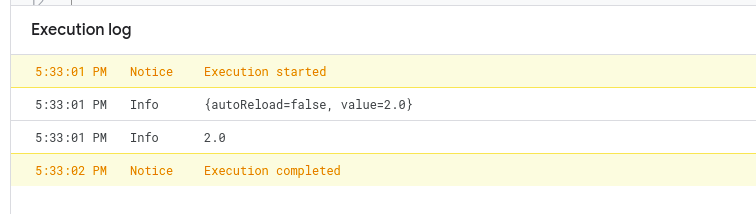
スクリプトの実行が完了したら、メールの受信箱をチェックする必要がある。
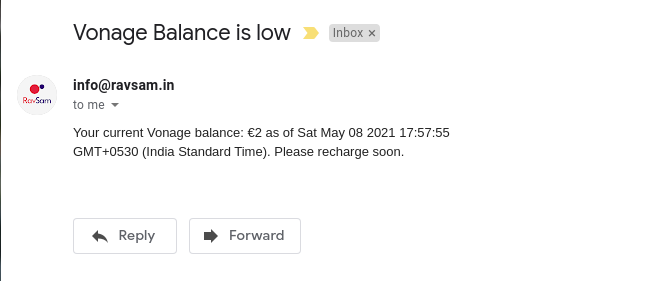
Account:Eメールは、口座残高がスクリプトで設定した残高制限を下回った場合にのみ送信されます。
Google Apps Scriptの最も優れた機能の1つは、次のとおりです。 トリガー.トリガーはCRONジョブとも呼ばれ、人の手を介さずに自動でスクリプトを実行することができます。Google Apps Scriptには、UIやプログラムによってトリガーを作成するさまざまな方法が用意されています。
トリガーの頻度は、完全にユースケースに依存します。Vonage APIが頻繁に使用される場合は、スクリプトをより頻繁に、たとえば1時間 ごとに実行するのが理にかなっている。そうでなければ、トリガーを作成して fetchBalance関数を実行するトリガーを作成できます。あなたの判断だ!
トリガーをプログラムで作成してみましょう。以下のように Code.gsに、以下の関数を追加する必要がある:
function createTrigger() {
  // create a trigger to run fetchBalance function every hour
  ScriptApp.newTrigger('fetchBalance')
      .timeBased()
      .everyHours(1)
      .create()
}上記のスクリプトは、まさにその通りに実行する。トリガーを作成し fetchBalance関数を実行するトリガーを作成する。アクションバーから createTrigger関数を実行してみましょう。
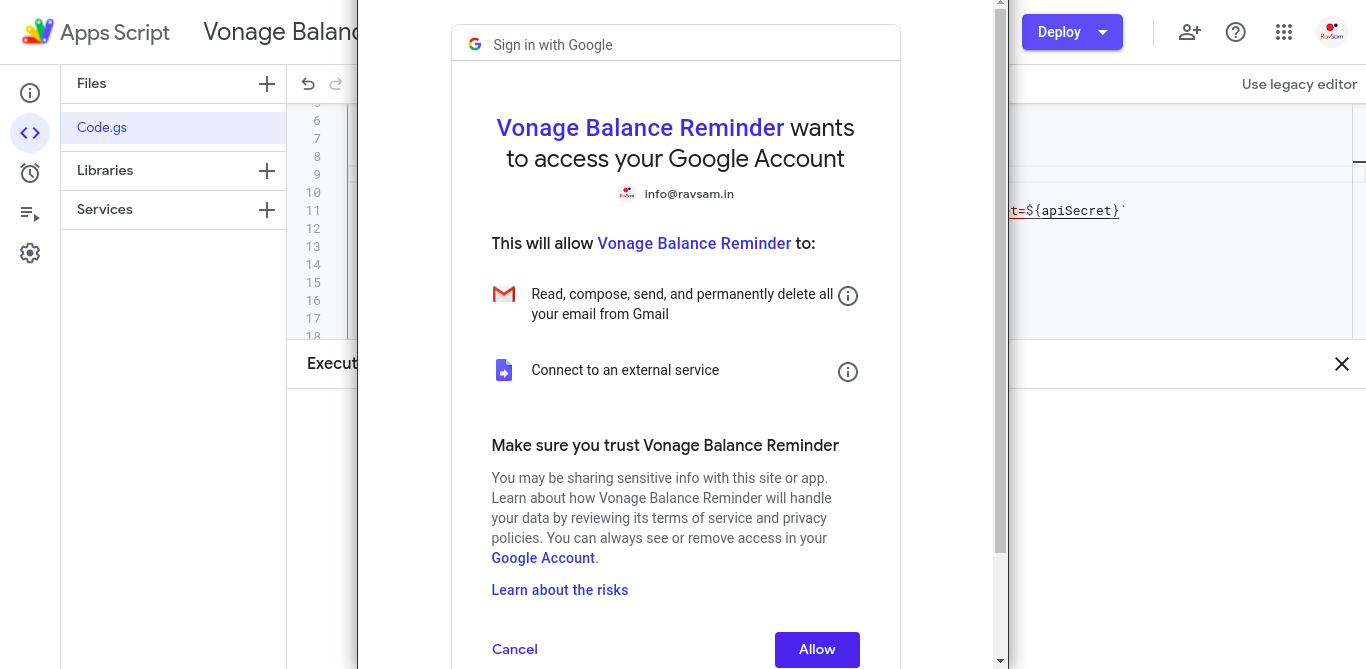
再度、認証要求のプロンプトが表示される。トリガーは 不在時にこのアプリケーションの実行を許可する権限が必要です。スクリプトを承認し、その実行を待ちましょう。
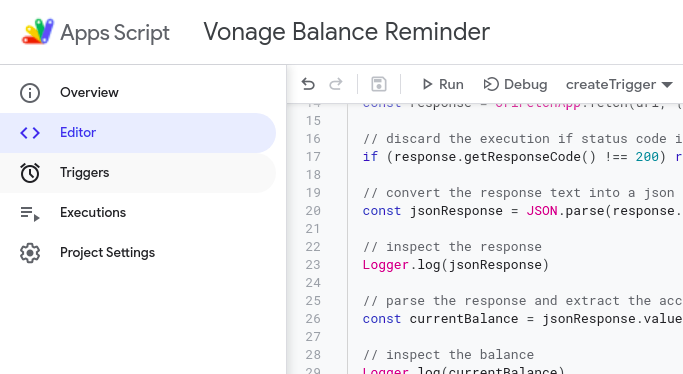
実行が完了したら、新しいトリガーが作成されたかどうかをVerifyする必要がある。
サイドバーの トリガー.
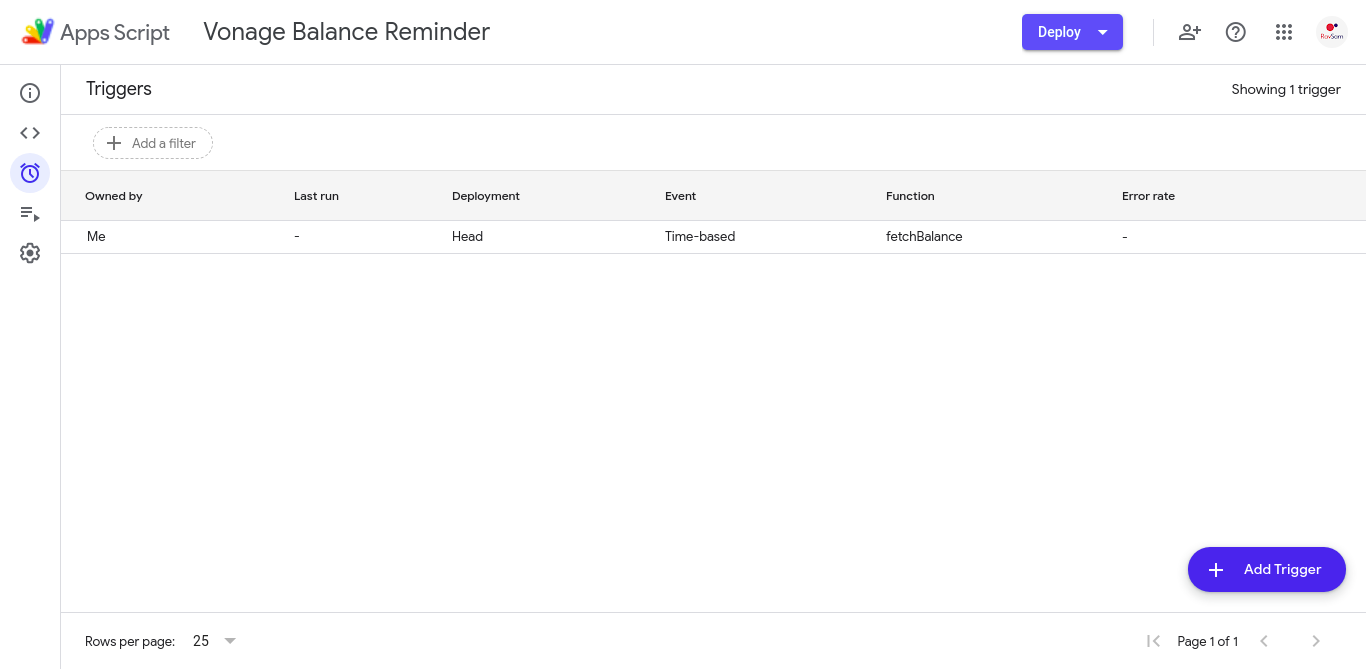
よし。トリガーが作成されたことがわかります。トリガーが実行されるまで、しばらく待つ必要がある。
カスタム残高リマインダーを作成しました。継続的なサービスにとても役立っています。
通知を作成する方法はたくさんあります。Slack通知を送ることもできるし、Vonage APIを使ってWhatsappメッセージやSMSを顧客に送ることもできる。Vonage API については下記をご参照ください。 Vonage API 開発者.
シェア:
Ravgeet is a freelancer and Co-Founder at RavSam. He helps startups, businesses, open-source organizations with Content Management Systems, Web and Mobile App Development. He is a fan of Jamstack and likes to work with Flutter, Strapi, Nuxt/Vue and Python. He also teaches students about new technologies by conducting monthly classes.