)
Facebookページのユーザーとチャットするウェブアプリケーションを構築する
所要時間:1 分
ポストが更新されました JavaScriptクライアントSDKバージョン8.3.0を使用するように更新されました。
メッセージ メッセージAPIは Client SDK.これにより、Facebook Messenger、WhatsApp、Viberなどを介して、あなたの顧客があなたが作成したアプリケーションと通信できる簡単な方法が提供されます。
このブログ記事が終わるころには、Facebookページとページのメッセンジャーからメッセージを送受信できるウェブアプリケーションが完成していることでしょう。サンプルコードが提供され、Messages API統合に関連する部分が説明されます。
Facebookにログインし テストFacebookページを作成する.すでに存在するページでテストすることもできます。
このGlitchをリミックスして このグリッチをリミックスする.アプリケーションをセットアップするには、Readmeファイルの手順に従ってください。サンプルアプリケーションは、エージェントがダッシュボードにサインインし、Facebookページの顧客とエージェントの間で現在行われている会話を表示するというシナリオに沿っています。左側では、すべての会話が行われており、エージェントはその会話に参加することができます。
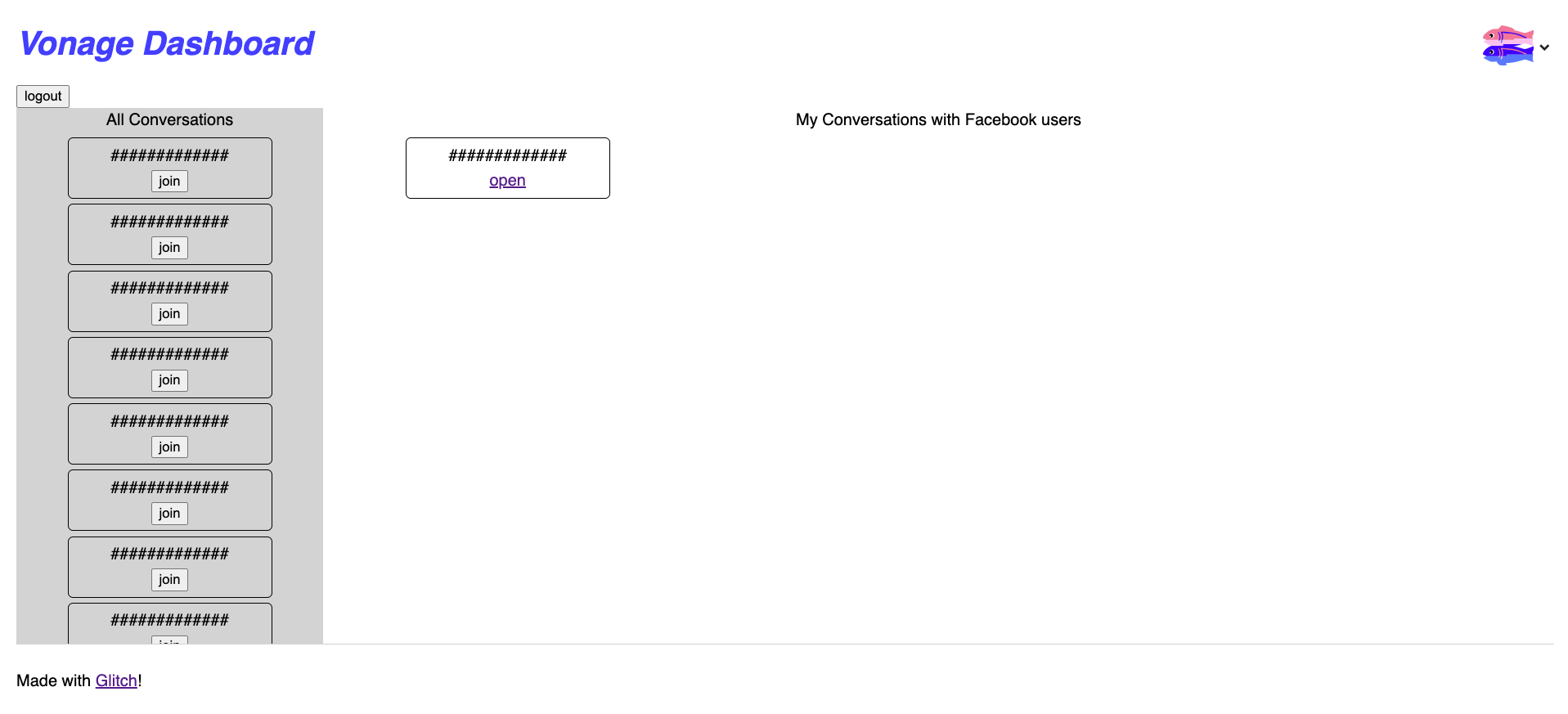 Sample application's agent dashboard
エージェントが会話をクリックすると、Facebookユーザーとのチャットアプリケーションが新しいウィンドウで開きます。チャットアプリケーションは、チュートリアルの チャットアプリの作成チュートリアル.
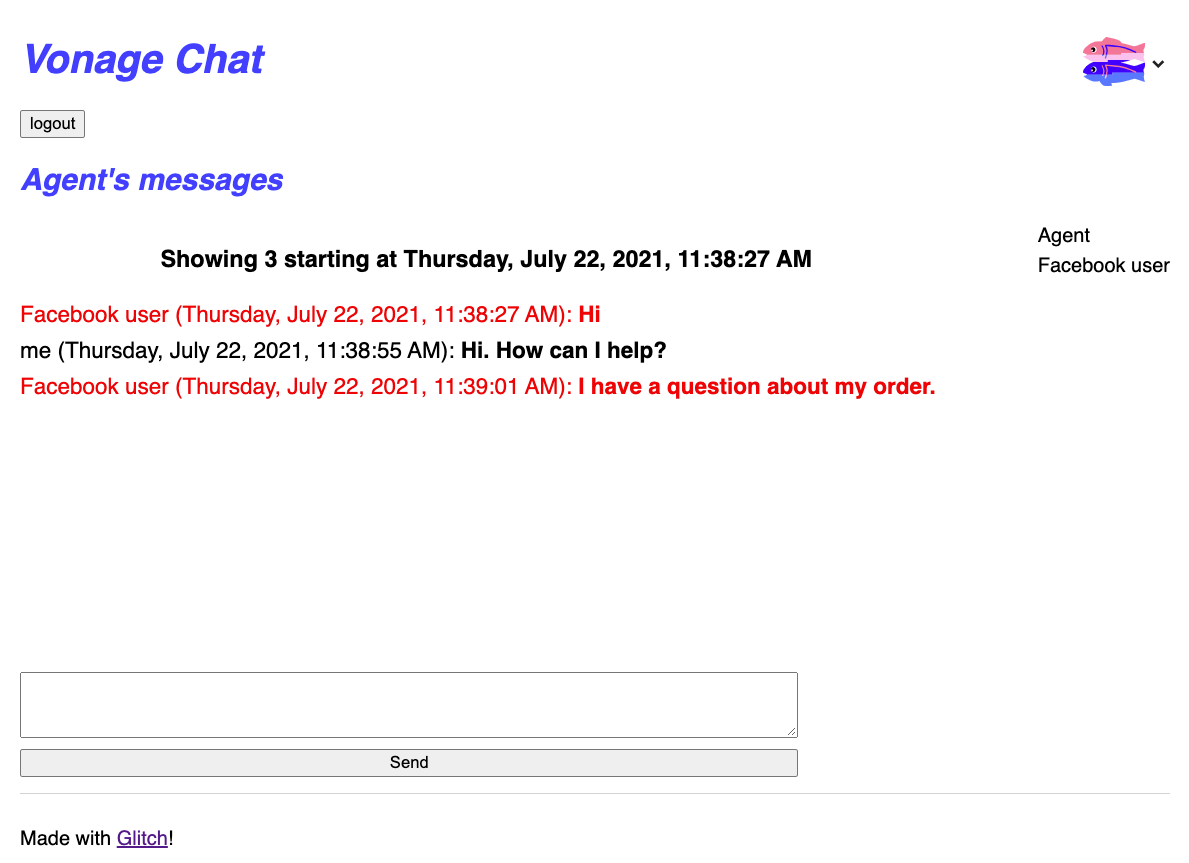 Chat application demo
あとは、Facebookページとウェブ・アプリケーションを接続するだけで、両者が相互に通信できるようになる。以下がその手順だ:
ログイン Vonageダッシュボード
メッセージと派遣」の下にある「ソーシャル・チャンネル」をクリックする。
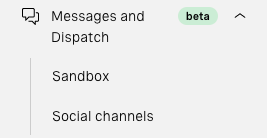 Vonage Dashboard Messages and Dispatch menu
ソーシャル・チャンネル」ページで、Facebookメッセンジャーをクリックする。
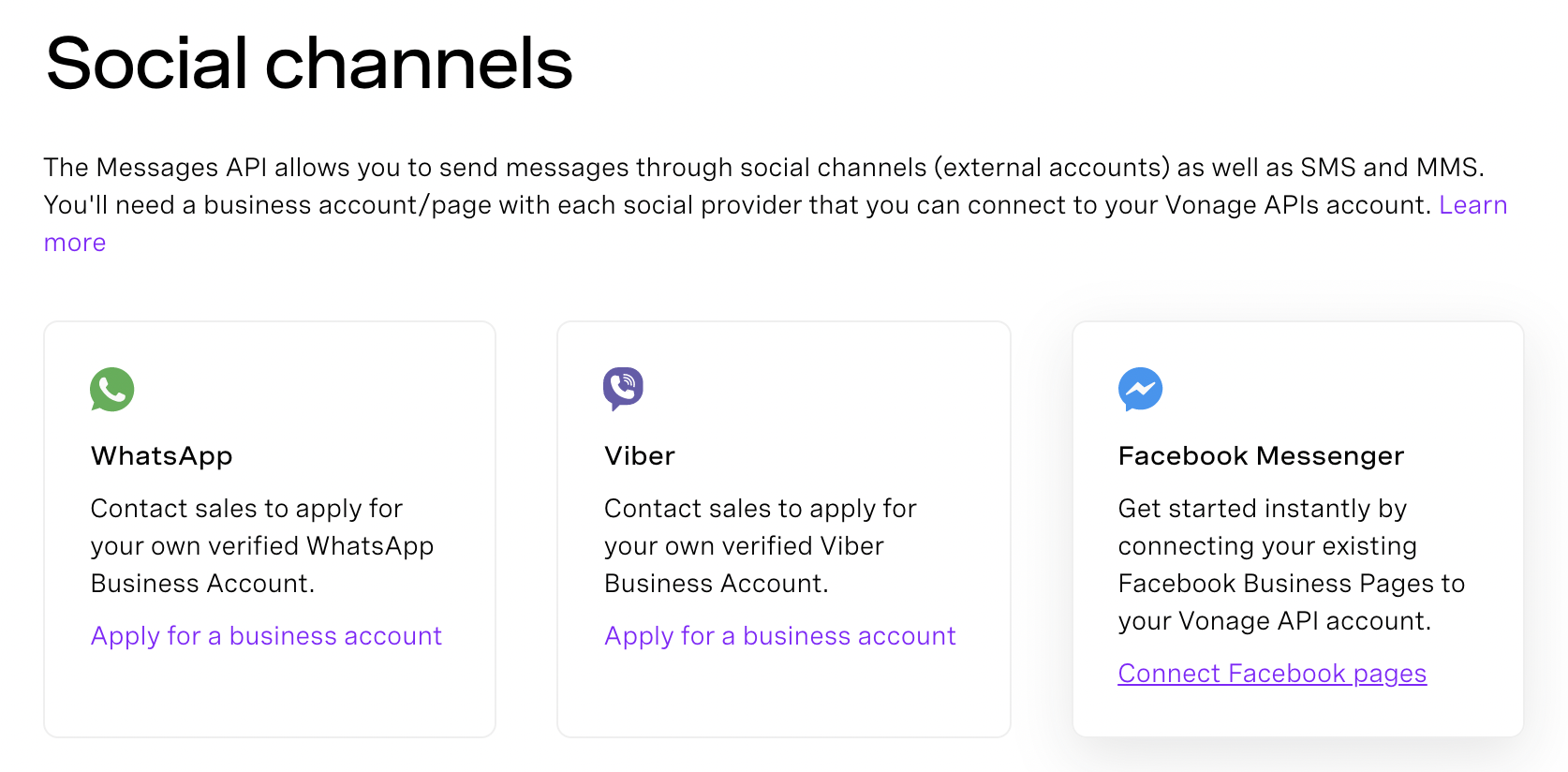 Vonage Dashboard Social channels section
以下の手順に従って、FacebookページをVonageアカウントに接続してください。
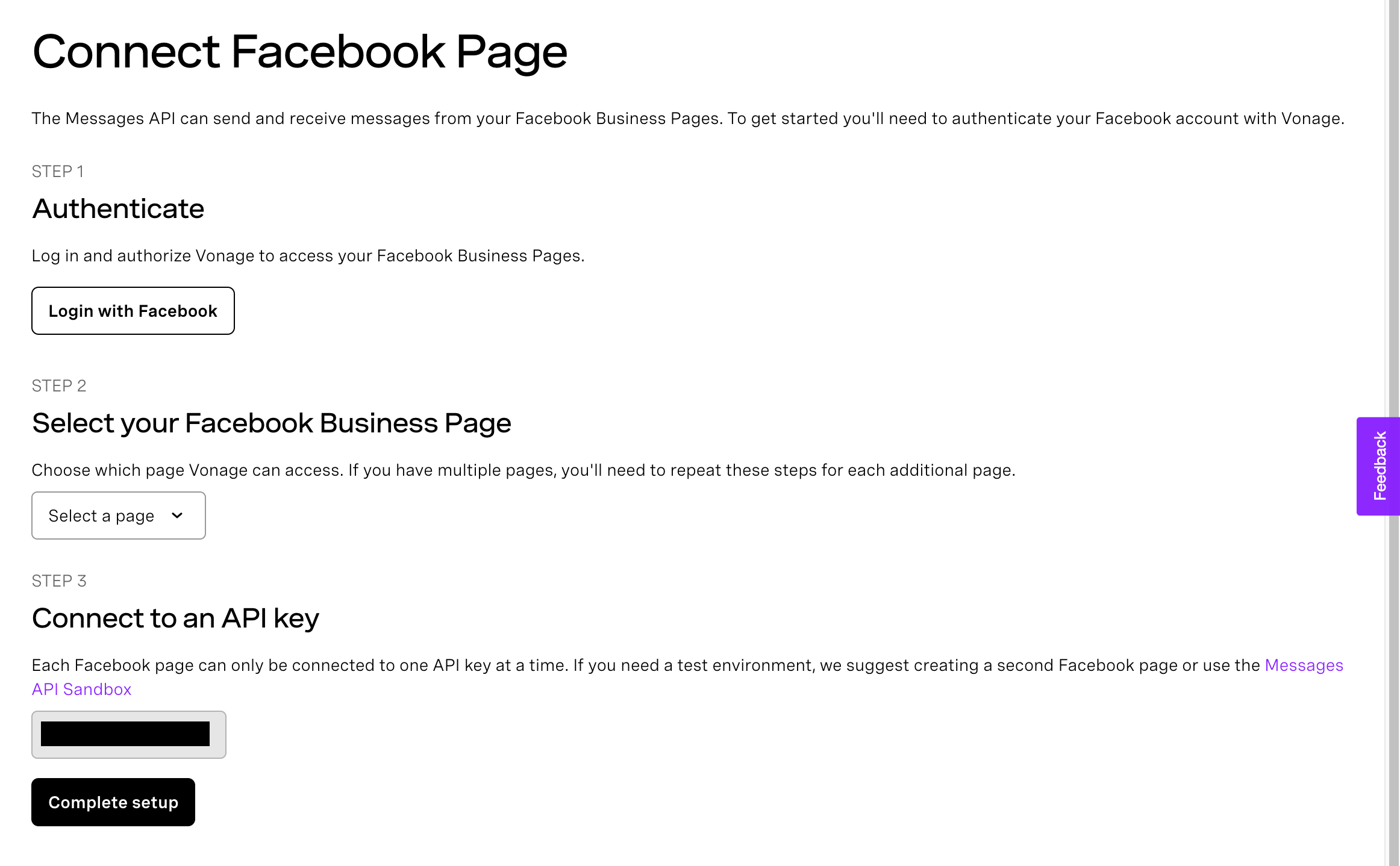 Connect Facebook Page
Vonageに接続するFacebookページを選択します。
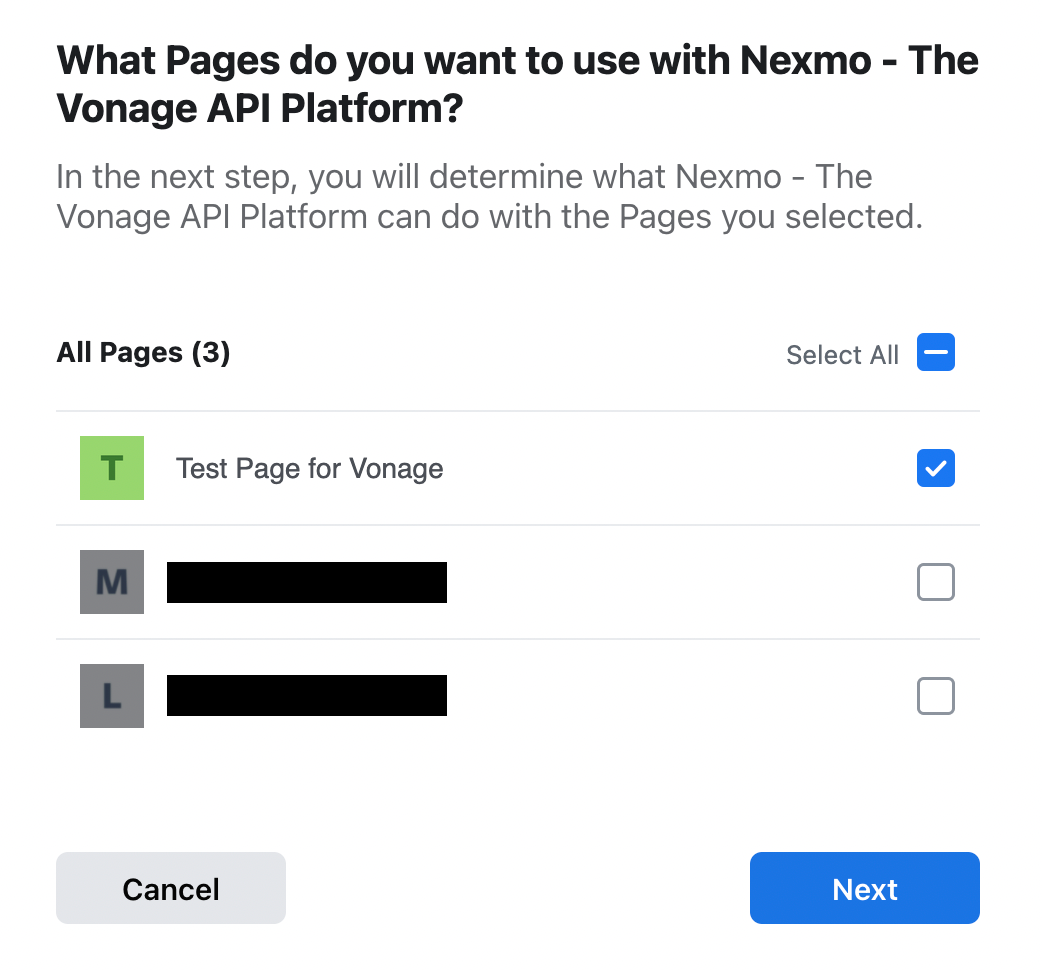 Select a Facebook Page
正しいFacebookアカウントを使用していることを確認する。
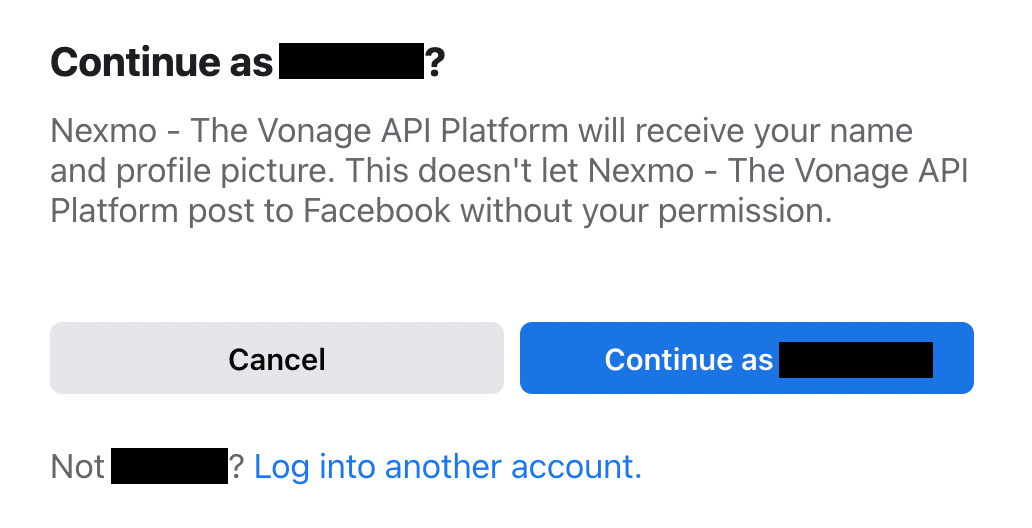 Continue as user
Vonageに許可された権限を確認する
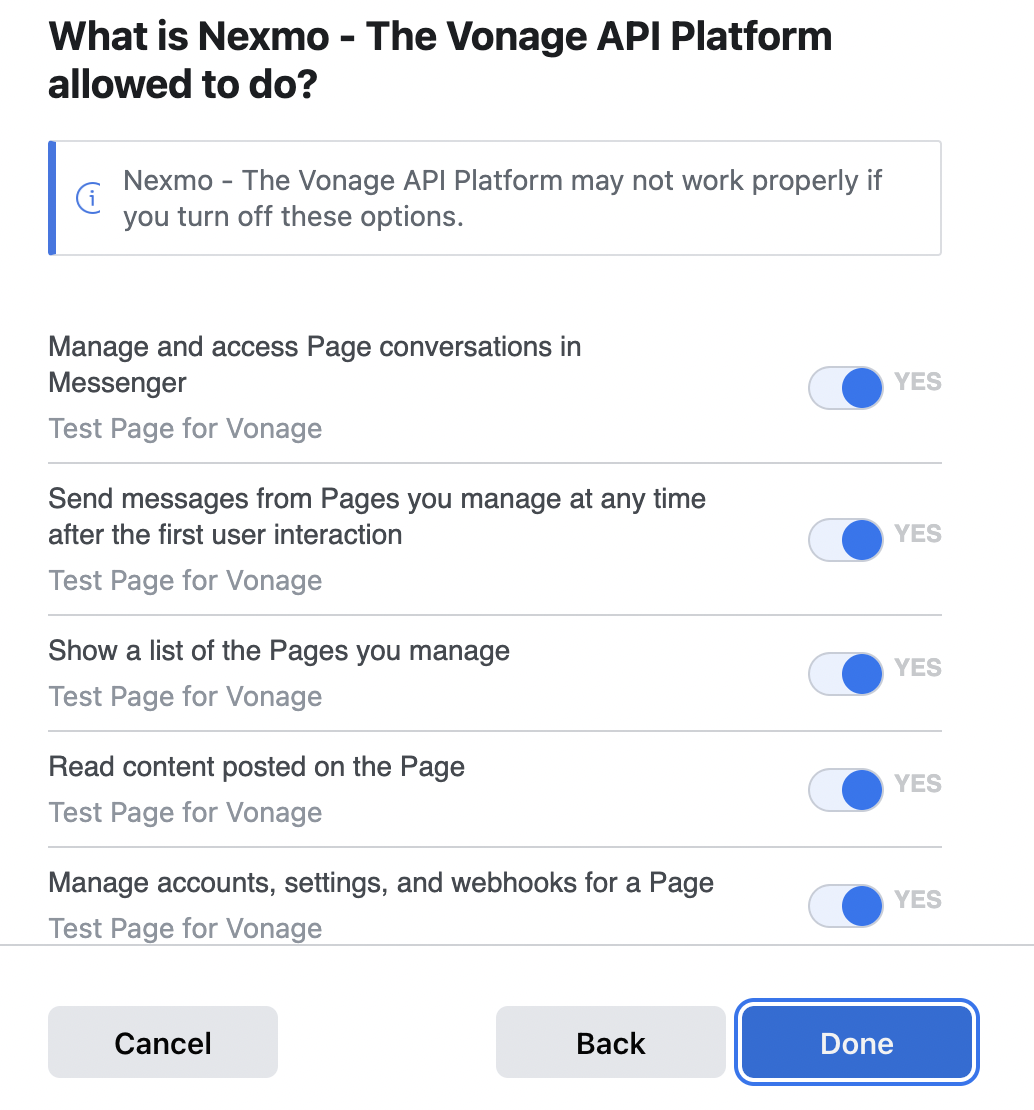 Ask for permissions
Vonageが正常にリンクできたことを確認
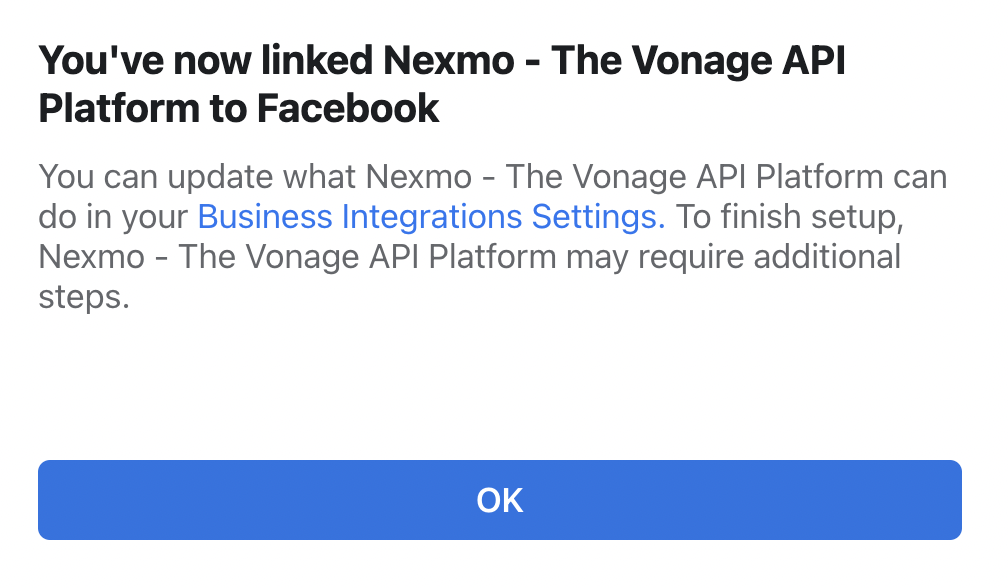 Confirmation of Facebook Page being successfully linked
VonageにリンクされているFacebookページを選択し、セットアップを完了します。
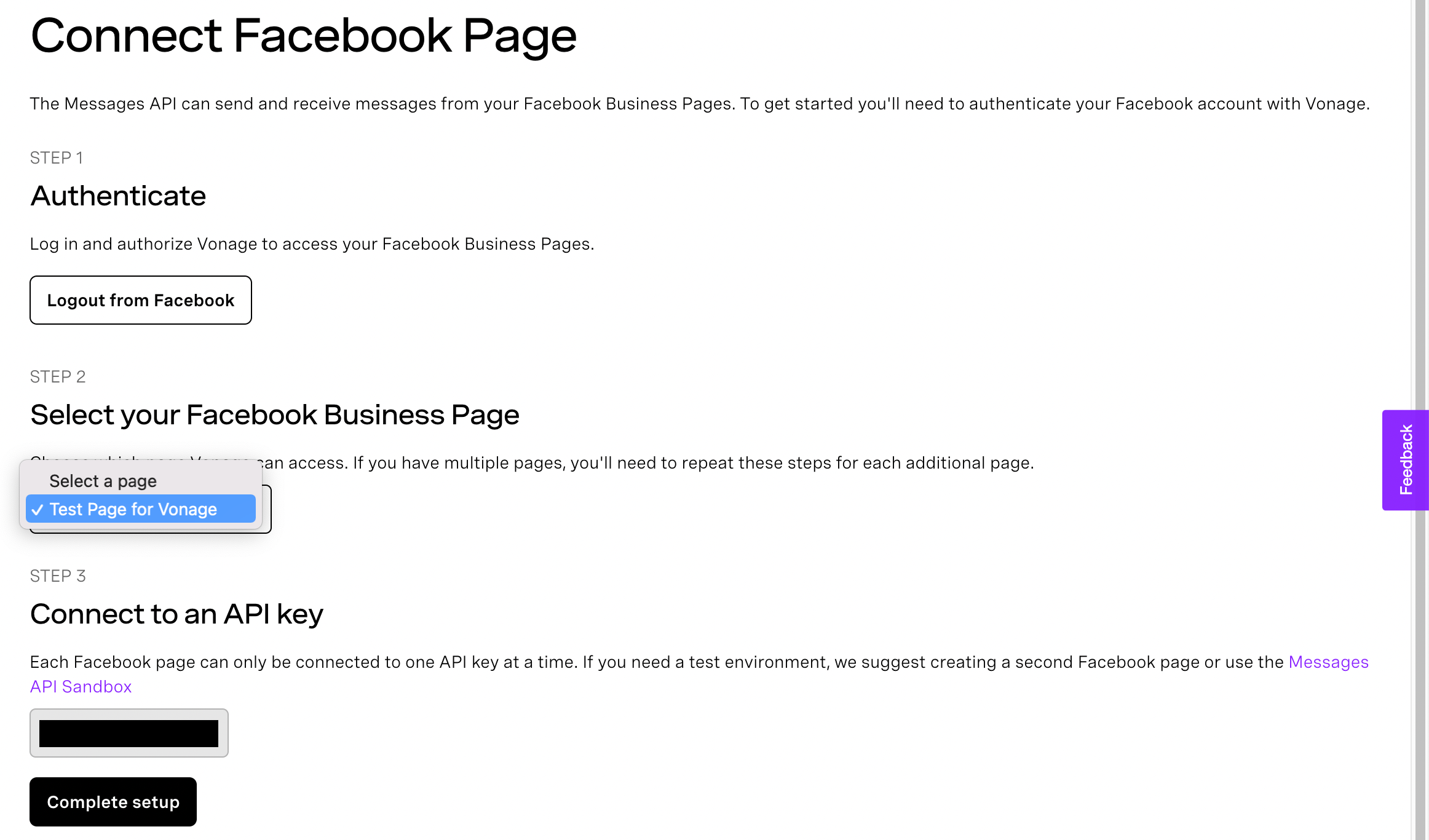 Select your Facebook Business Page
おめでとうございます。
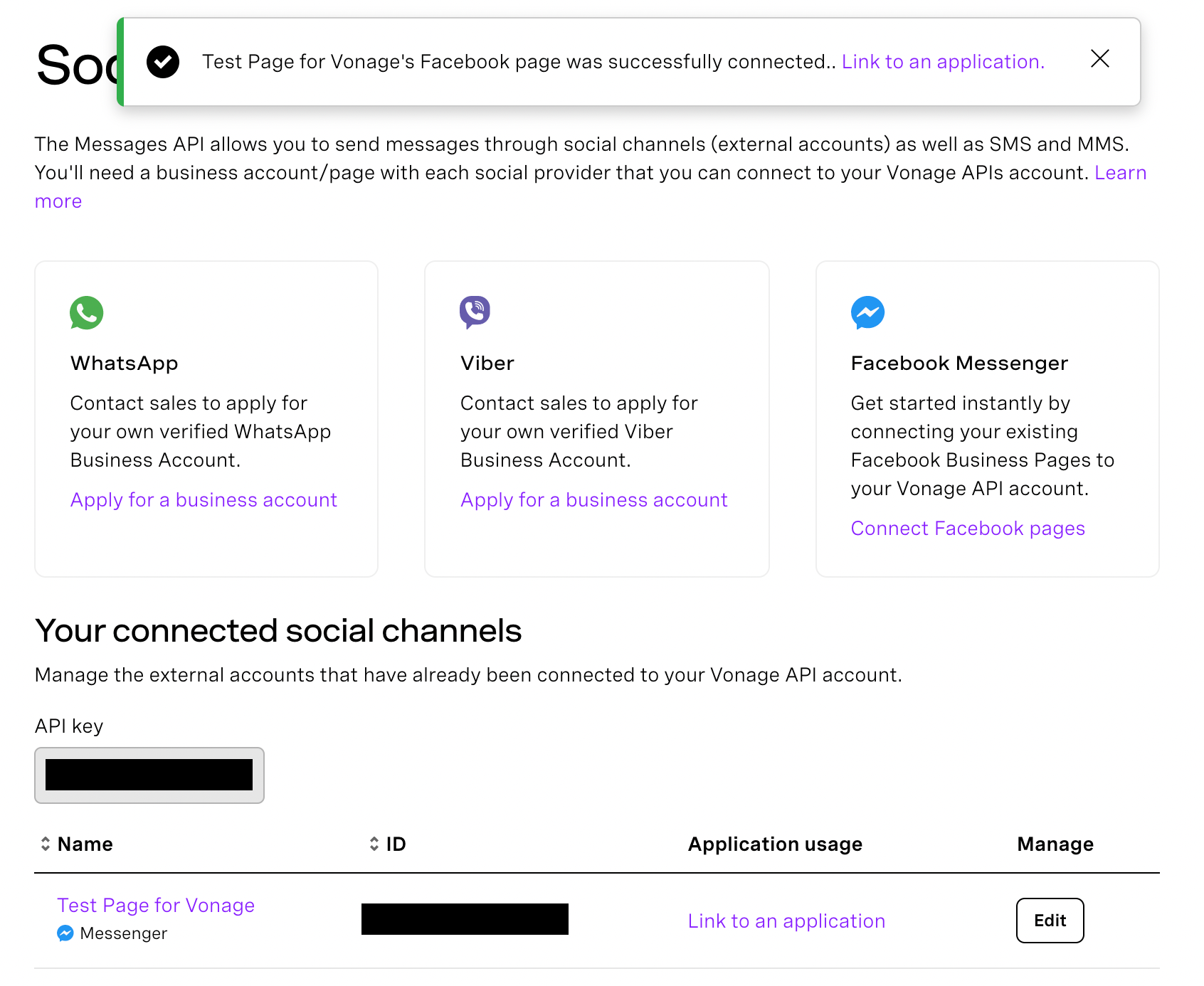 Confirmation that Facebook Business page was successfully connected
VonageはあなたのFacebookページを知っているので、Glitchでサンプルをセットアップしたときに作成したVonageアプリケーションに接続してみましょう。アプリケーションにリンク "をクリックするか、ダッシュボードのアプリケーションセクションに移動します。
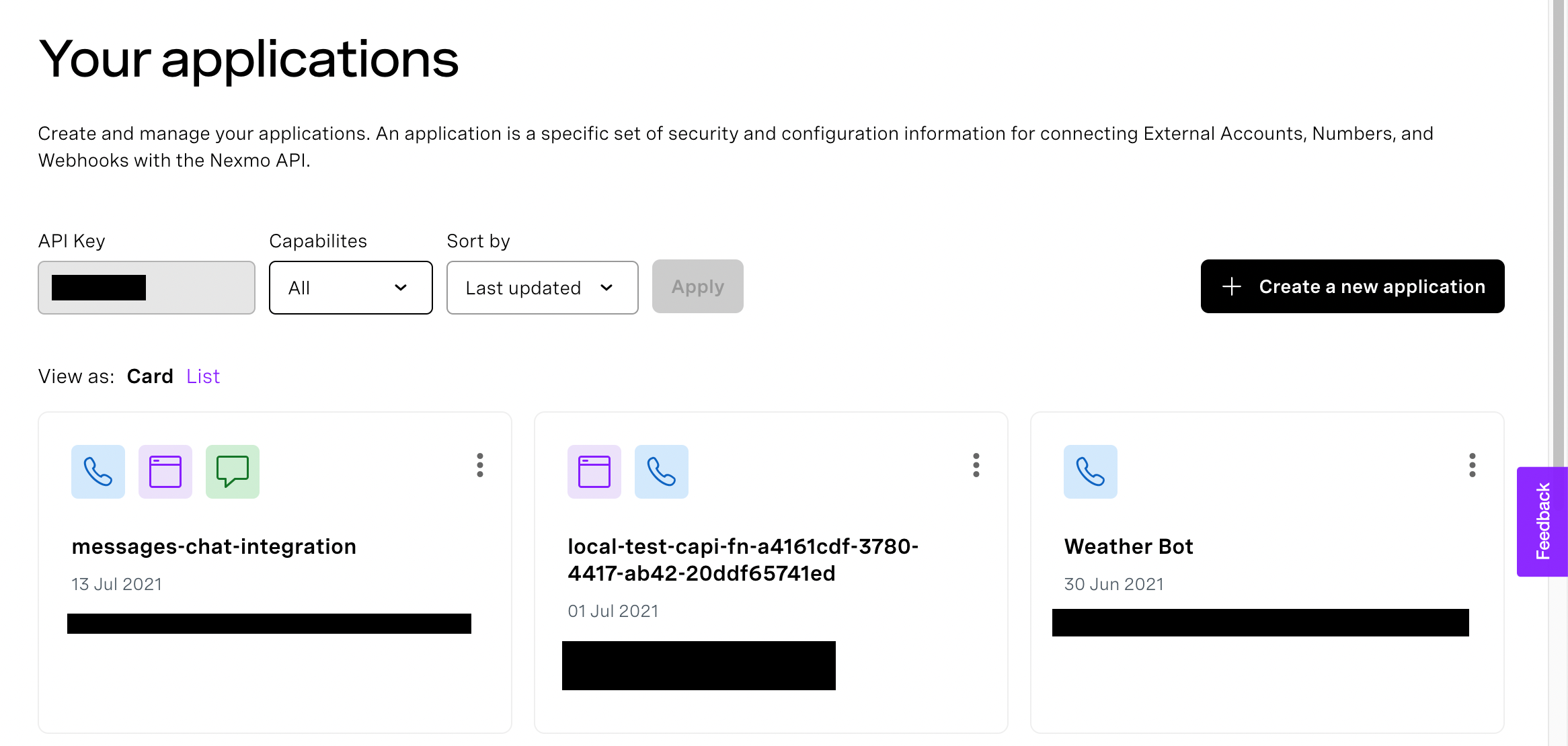 Your applications
グリッチサンプルの設定時に作成したアプリケーションを選択し、「リンク」をクリックします。
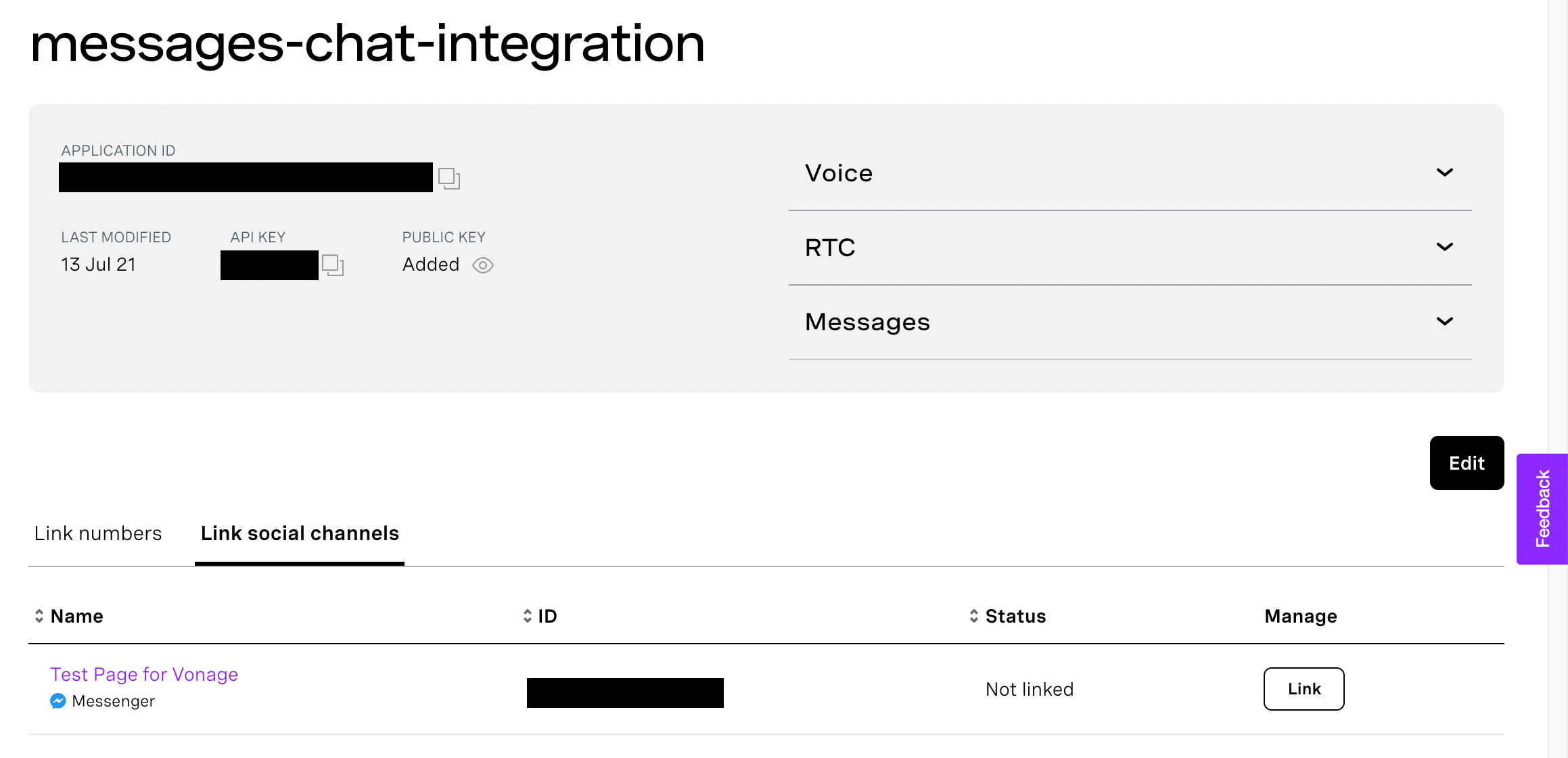 Application details
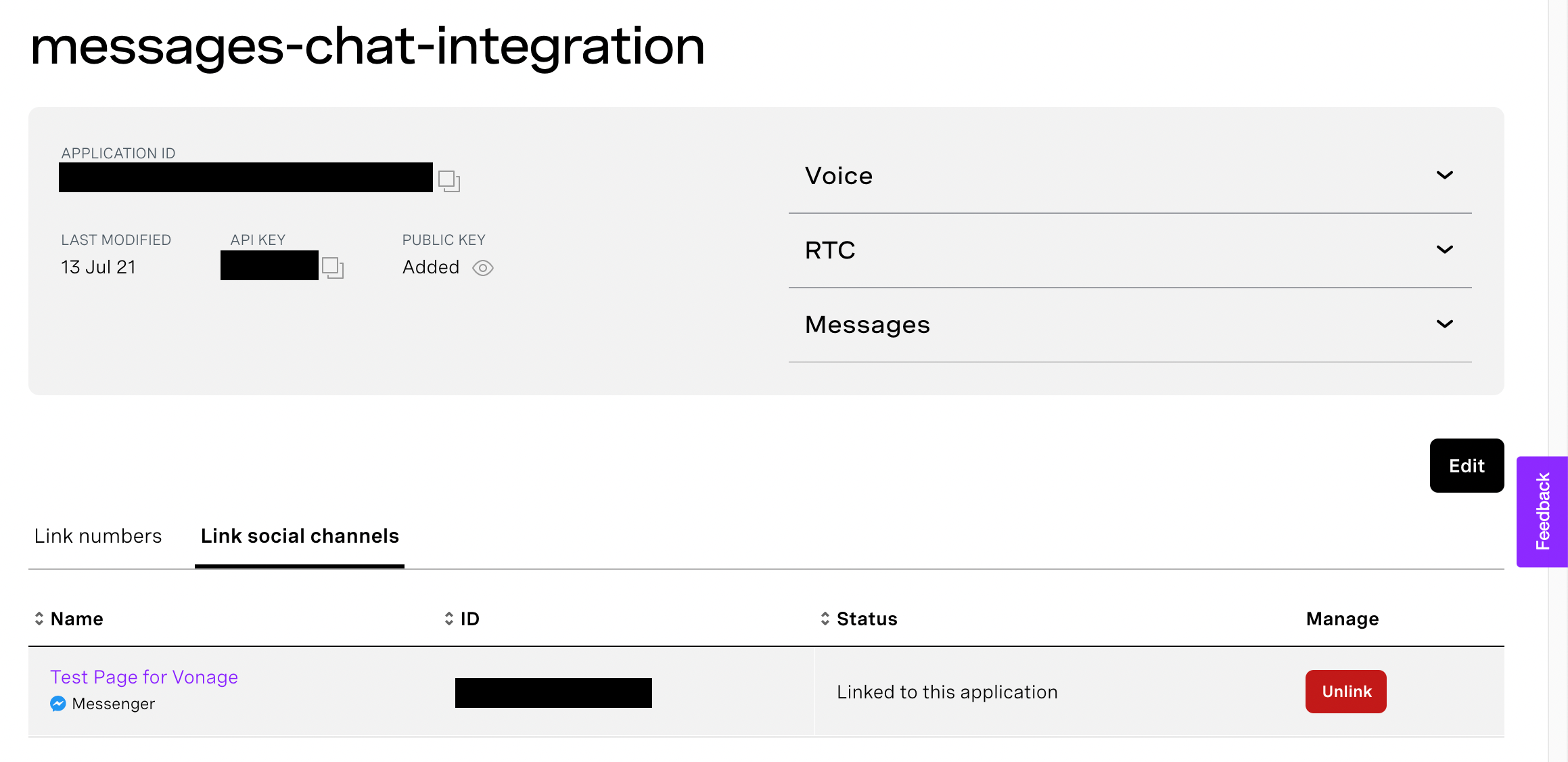 Application details with Facebook page linked
ウェブアプリケーションを1つのブラウザウィンドウに配置し、以下を開きます。 フェイスブックメッセンジャーを別のウィンドウで開き、必要に応じてログインします。まだログインしていない場合は、ダッシュボードに入るためにウェブアプリケーションに名前を入力します。これは、あなたの名前、またはエージェントの名前だと思ってください。メッセンジャーで、アプリケーションにリンクしたFacebookページを見つけてメッセージを送信してください。ウェブアプリケーションが表示されたウィンドウの "All Conversations "セクションに小さなカードが表示されるはずです。参加 "をクリックすると、チャットアプリケーションが開き、チャットにメッセージが表示されます。チャットアプリケーションからメッセージを送信すると、Facebookメッセンジャーに表示されるはずです。
上記を実現するためのコードを見てみましょう。ユーザーがあなたのFacebookページにメッセージを送ると、VonageからあなたのWebアプリケーションの受信Webhookに送られます。Webhookは、Vonageにメッセージの処理方法を知らせるオブジェクトを返します。この場合、Client SDK Messages API IntegrationがFacebookユーザーとWebアプリケーションを接続して会話をするために必要な情報を送り返します。これには、Facebook ユーザの ID と会話名(一意であるように Facebook ユーザの ID として設定します)が含まれます。
// server.js
app.post("/webhooks/inbound", (request, response) => {
  // By responding to the inbound message callback with this action you add -
  // the message to a conversation so the agent client side will be notified about it
  response.status(200).send([
    {
      action: "message",
      // Creating a new conversation for every NEW incoming user.
      // Messages from the same user will be tagged to the same conversation
      conversation_name: request.body.from,
      user: request.body.from,
      geo: "region-code",
    },
  ]);
});
Facebookユーザーが初めてメッセージを送信する場合、新しい会話が作成されます。これは conversation:createdイベントが発生します。ウェブアプリケーションのバックエンドは、このイベントを受け取り、カスタムイベントとしてリパッケージします、 custom:new_convこれは、エージェントのダッシュボードに新しい会話を表示するように通知するために使用できます。
// server.js
app.post("/webhooks/rtcevent", (request, response) => {
   ...
  // If Facebook user is new, a new conversation should be created, so listen for it here
  // and then send the custom event to the Agents Conversation
  if (request.body.type === "conversation:created"){
    vonage.conversations.events.create(process.env.AGENTS_CONV_ID, {
      "type": "custom:new_conv",
      "from": "system",
      "body": request.body
    },
    (error, result) => {
      if (error) {
        console.error(error);
      } else {
        console.log(result);
      }
    });
  }
  response.status(200).send({code:200, status: 'got rtcevent request'});
});
チャットアプリケーションのコードには messageイベントリスナーがあります。そして、メッセージを受け取り、チャット表示に追加します。
// public/chat.js
// Adding conversation.id here in the on. means that we're filtering events to only the ones regarding this conversation. (it's called grouping)
conversation.on('message', conversation.id, (from, event) => {
  console.log('message-received sender: ', from);
  console.log('message-reveived event: ', event);
  const formattedMessage = formatMessage(from, event, conversation.me);
  // Update UI
  messageFeed.innerHTML = messageFeed.innerHTML + formattedMessage;
  messagesCountSpan.textContent = messagesCount;
});
エージェントがFacebookユーザに応答するとき、それはアウトバウンドメッセージです。Client SDKには sendMessageメソッドに "message_type": "text"を持つメソッドがあります。これにより、VonageはFacebookユーザにメッセージを送信するために必要なすべての処理を行います。
// public/chat.js
// Listen for clicks on the submit button and send the existing text value
sendButton.addEventListener('click', async () => {
  conversation.sendMessage({
    "message_type": "text",
    "text": messageTextarea.value
  }).then((event) => {
    console.log("message was sent", event);
  }).catch((error)=>{
    console.error("error sending the message ", error);
  });
  messageTextarea.value = '';
});
もう少しパーソナライズを追加するために、チャットのトップにFacebookページの名前を表示します。これを取得するには、サーバーの getChatAppAccountsエンドポイントにリクエストします。 chatapp-accountsAPI を呼び出します。Facebook ページ名はレスポンスに含まれ、クライアントに送り返されます。
送信メッセージが突然機能しなくなった場合は、サーバーのログにエラーがないか確認してください。もしこのようなエラーに遭遇した場合は、次のようにしてください:
status: 'rejected',
error: { reason: 'Expired access Token', code: 1370 }つまり、Facebookページトークンの有効期限が切れているため、リフレッシュする必要があります。Vonageダッシュボードにログインして メッセージとディスパッチ]、[ソーシャルチャンネル.トークンをリフレッシュするためのボタンがFacebookページの横にあるはずです。
以上です!Messages APIがClient SDKに統合されたことで、自分のWebアプリケーションからFacebookユーザーと通信するのがとても簡単になりました。
当社の Client SDK ドキュメントをご覧ください。.チュートリアル、ガイドなどとともに、エージェントダッシュボードを作成するために使用されるメソッドに関する詳細情報があります。デモアプリケーションで問題に遭遇しましたか?新しい機能を追加したいですか?ご質問、コメント、フィードバックがございましたら コミュニティスラックチャンネル.