Working in the Cloud
Using the Code Hub UI, you can deploy a VCR application directly from your browser without any local tooling. If you'd rather use your own tools, see our guide on working locally.
Visit the Vonage Code Hub landing page to get started. You can begin by browsing through the list of available samples for our products, or use the search functionality to find what you'd like to build.

Once you click on the sample you'd like to use, select Deploy Code.

Deploy Code
Deploy Code allows you to immediately deploy an instance of an application so you can see it in action. When you create an instance of a project you can configure several parameters, including the region where the deployment will be hosted, the instance name, and any other parameters relevant to that project (for example a Vonage number to send SMS messages):
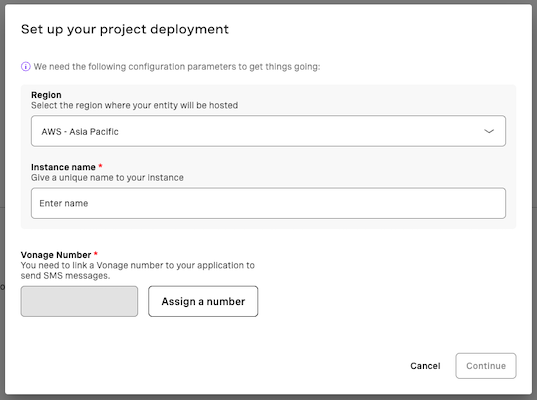
If you do not already have a Vonage number, you can buy one by selecting 'Assign a number'. Once the instance is created it will appear in the list under Deploy Code, where you can also continue to create other instances that run in different regions; please note, if the project requires a Vonage number you will need a different number for each instance.

Once the instance has been created, you can click into it to launch and use the application.
Publishing to Code Hub
If you are a developer and want to publish your own VCR application to the Code Hub so others can deploy it with a single click, you need to include a setup.json file in your project alongside vcr.yml. This file defines the configuration form that users fill in when deploying your product.
File location
your-project/
├── vcr.yml
├── setup.json
└── ...
Basic structure
{
  "data": [
    {
      "type": "TEXT",
      "title": "Company Name",
      "description": "The name of your company.",
      "name": "COMPANY_NAME"
    }
  ]
}
Each entry in data maps to one environment variable defined in vcr.yml. The name field must match the environment variable name exactly.
Field types
| Type | Description |
|---|---|
TEXT |
Free-text input |
SECRET |
Text input, value is hidden (for sensitive data) |
PHONE_NUMBER |
Lets the user buy and link a Vonage number. Use features to specify ["VOICE"], ["SMS"], or both. |
EXTERNAL_ACCOUNT |
Link an external messaging account (WhatsApp, Messenger, etc.). Use providers to specify supported providers. |
SELECT |
Dropdown list. Use options array (name/value pairs). Submitted as a JSON string. Add "multi": true for multi-select. |
TOGGLE |
Checkbox. Submitted as "true" or "false". |
CONFIGURATION_SELECTOR |
Conditional setup — renders different sub-forms based on the user's selection. |
Common properties
| Property | Required | Description |
|---|---|---|
type |
Yes | One of the types above |
name |
Yes | Environment variable name (must match vcr.yml) |
title |
Yes | Label shown to the user |
description |
Yes | Help text. Supports markdown links: [label](url) |
optional |
No | Set true to make the field optional. All fields are required by default. |
defaultValue |
No | Default value. Supported on TEXT, SELECT, and TOGGLE only. |
Type examples
PHONE_NUMBER:
{
  "type": "PHONE_NUMBER",
  "title": "Vonage Number",
  "description": "A Vonage number for your application.",
  "features": ["VOICE", "SMS"],
  "name": "VONAGE_NUMBER"
}
SELECT:
{
  "type": "SELECT",
  "title": "Environment",
  "description": "Which environment are you deploying to?",
  "name": "CODE_ENV_REQ",
  "options": [
    { "name": "Production", "value": "PROD" },
    { "name": "Quality Assurance", "value": "QA" },
    { "name": "Development", "value": "DEV" }
  ],
  "defaultValue": "PROD"
}
CONFIGURATION_SELECTOR:
Use when your product supports multiple mutually exclusive configuration flows.
{
  "type": "CONFIGURATION_SELECTOR",
  "name": "__configuration_type__",
  "title": "Configuration Type",
  "description": "Select configuration type",
  "options": [
    { "name": "Basic", "value": "basic" },
    { "name": "Advanced", "value": "advanced" }
  ],
  "configurations": [
    {
      "basic": [
        { "type": "TEXT", "name": "API_URL", "title": "API URL", "description": "Your API endpoint." }
      ]
    },
    {
      "advanced": [
        { "type": "TEXT", "name": "API_URL", "title": "API URL", "description": "Your API endpoint." },
        { "type": "SECRET", "name": "API_KEY", "title": "API Key", "description": "Your API key." }
      ]
    }
  ]
}
Keys in configurations must exactly match the value of an option. The selected option's value is submitted as an environment variable using the name field.
To publish your application to the Code Hub, use the neru-mcp MCP server.