Overview
Give your app the application ID, session ID, and token it needs to join a Vonage Video session. Observability only works after the client is connected and subscribed—you need valid credentials first.
Setting Up Authentication
To connect to a Vonage Video session, the client needs three values:
| Credential | Purpose |
|---|---|
| Application ID | Identifies your Vonage Video project |
| Session ID | Identifies the room (session) to join |
| Token | Authenticates this client for that session |
In production, your backend should generate session IDs and tokens using a Server SDK. For this tutorial, hard-code them in VonageVideoManager.swift:
final class VonageVideoManager: NSObject, ObservableObject {
    // Replace with your Vonage Video application ID
    let kAppId = ""
    // Replace with your generated session ID
    let kSessionId = ""
    // Replace with your generated token
    let kToken = ""

    // ...
}
Replace the empty strings with values from your Vonage account:
- Sign up for or Log into your account.
- In the left-side menu of the dashboard, click
Applicationsand select a previous application or create a new one to view the Application ID.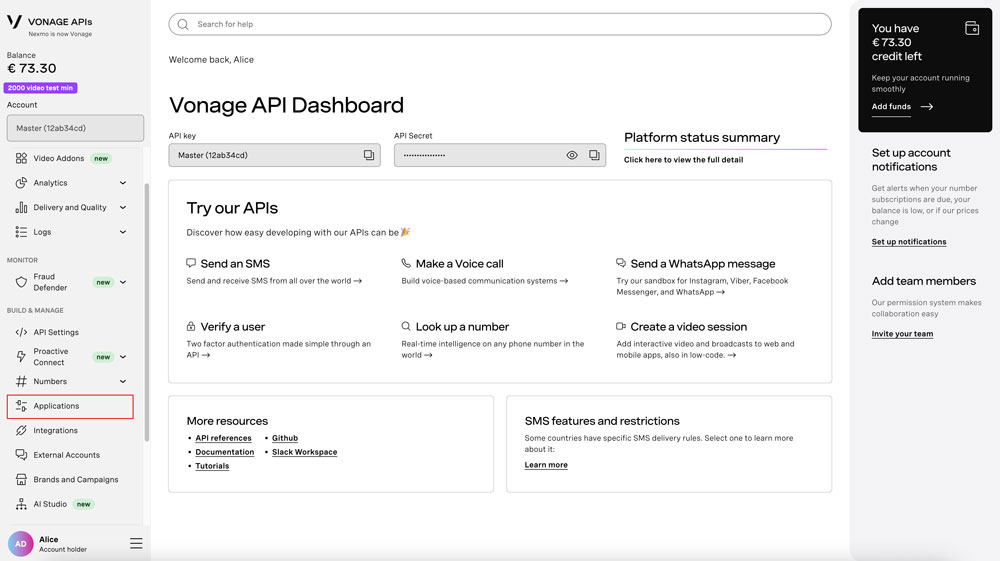
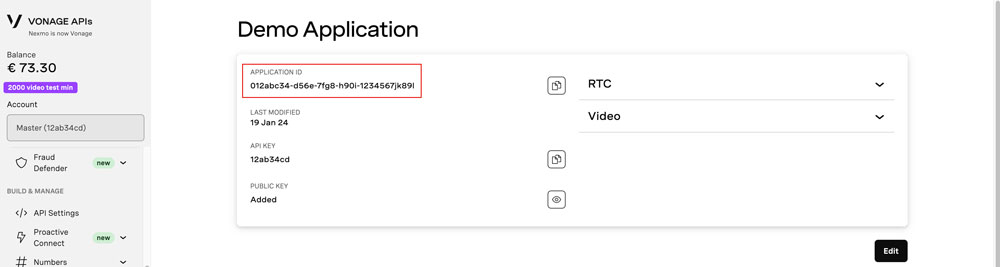
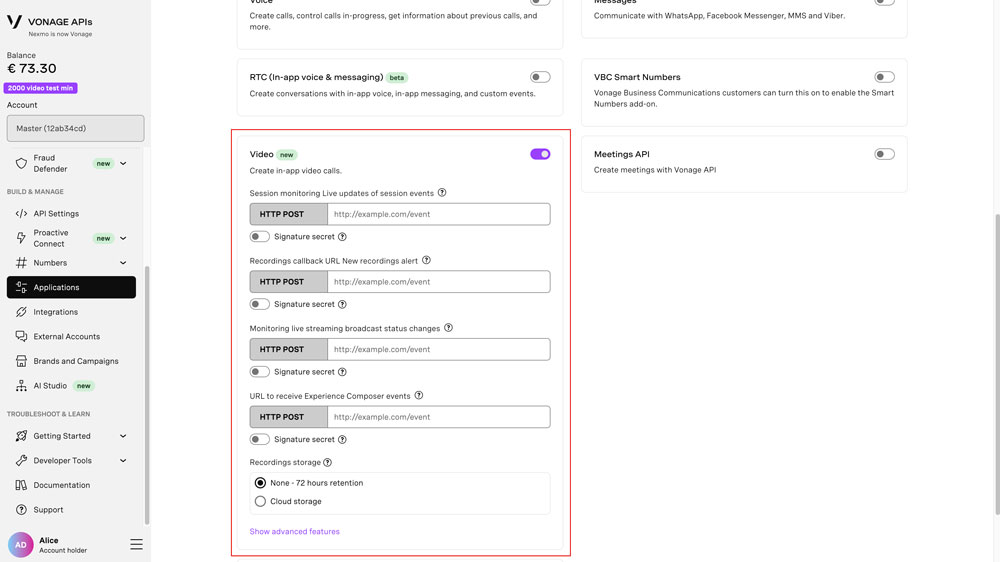
- Make sure that Video is activated
- Head over to the The Video API Playground. Either enter the Application ID or find it in the dropdown. You can leave the default values for the other options. Click "Create".
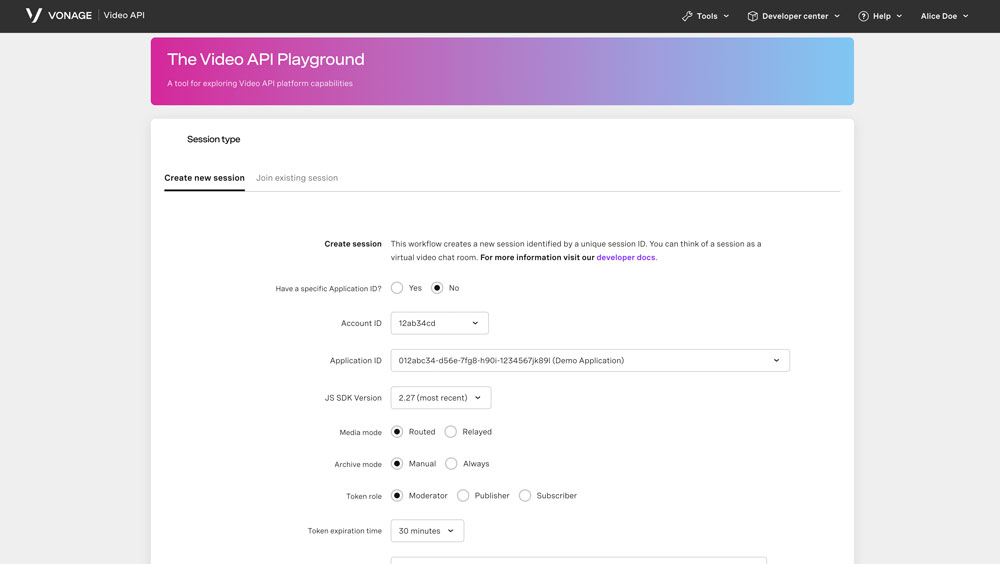
- Your Session ID and Token will be created.
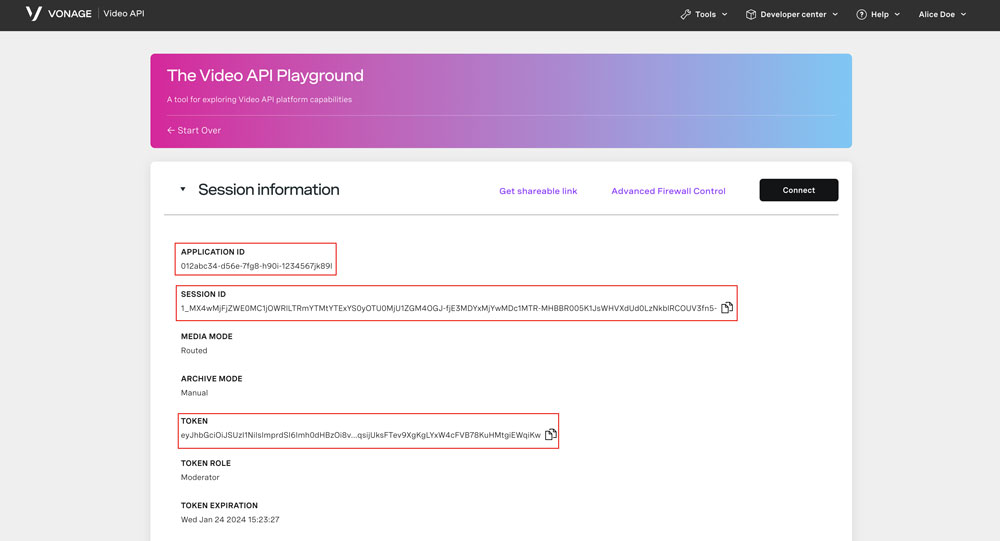
Important: You can generate session IDs and tokens from your account during testing, but before production you must move credential generation to a server. See Video API technical details.
Client Observability
Learn how to use client observability to monitor real-time quality metrics for a video call with Vonage Video SDK.