Insights Dashboard & API
The OpenTok Insights API is a GraphQL API. You can use the Insights API and the Insights Dashboard to obtain information about your OpenTok projects and sessions.
The Insights Dashboard
Note: Please click here for information on data retention and latency.
The Insights Dashboard widget provides data at the project level. You can navigate to it by logging into your Vonage Video API account and selecting an OpenTok project. It contains three tabs: Usage, Quality, and Errors, as well as filters for date range, location, and endpoints.
The Usage tab shows different types of minutes that the project generated. You can see a map of where minutes were generated and stack multiple filters as you please.
The Quality tab provides a histogram of video bitrate and latency for streams within the project.
The Errors tab provides the error rate of connections, publishers, and subscribers.
Each tab's data is filtered by the selections made at the top.
Insights API, Base URL, and Authentication
The Insights API is a GraphQL API that allows you to explore your sessions' metadata at the project and session level. GraphQL is an alternative to the typical REST approach of accessing data over HTTP. It was developed by Facebook in 2012 and open-sourced in 2015. Check out GraphQL's getting started guide to learn more.
The base URL for the API is:
https://insights.opentok.com/graphql
All requests are made as HTTP POSTs and authenticated using X-OPENTOK-AUTH.
Exploring the API Schema With GraphiQL
Navigating to https://insights.opentok.com/ using your browser takes you to the Insights instance of GraphiQL, a tool that lets you explore the GraphQL API schema. Because the tool can make API requests, you must be logged in to use it.
There are five window panes in this tool:
-
On the top-right corner of the tool, you will see a Docs button. Clicking it opens up a pane containing the schema's documentation. Each field and object type in the documentation contains a description. Click through this to explore the schema.
-
On the left side of the page is the Query pane. In this pane you can construct queries to run against the API. Going back and forth between the Docs pane and the Query pane allows you to construct the precise query you need for only the information you require. Because you are logged in, authentication for making queries is taken care of for you.
-
Below the Query pane is the Query Variables pane. Though not required, you can use this to specify variables for your query. For example, you can define the following variables in this pane:
Copy{ "PROJECT_ID": 100, "START_TIME": "2019-01-01T08:00:00.000Z" }Then, in the Query pane, reference any declared variables:
Copyquery ($PROJECT_ID: Int!, $START_TIME: Date!) { project(projectId: $PROJECT_ID) { projectData( start: $START_TIME, interval: AUTO, sdkType: [JS, IOS, ANDROID], groupBy: [SDK_TYPE] ) { resources { sdkType intervalStart intervalEnd usage { streamedPublishedMinutes streamedSubscribedMinutes } } } } } -
To the right of the Query pane is the Response pane. Clicking the Run button in the tool will run the query in the Query pane, and the Response pane displays the results. This is the same response that you would get if you made the query programatically.
-
Finally, click the History button above the query pane to view history of your recent queries. Clicking one of the elements displayed populates the Query pane and the Query Variables pane with that data.
Note: To obtain desired results, be sure to include groupBy in your query.
Obtaining Project Data
Notes:
- Please click here for information on data retention and latency.
- Insights does not currently support multiple API keys in the same query. Please make a separate Insights query for each project in order to obtain information for multiple projects / API keys. To programmatically obtain project-level API keys and secrets for an account, please refer to our documentation on getting information about projects. Using this method, users with an account-level API key and secret can obtain the project details object for a single project or all projects across the account.
The projectData field of the project object returns the ProjectData object,
which provides aggregate report data at the project level.
You must include a start date for the query. This value can be an ISO-8601
format string (such as "2019-10-15T23:43:34.023Z") or an Int value
representing an epoch timestamp. Integers of 10 digits or less represent
epoch seconds. Integers of more than 10 digits represent epoch milliseconds.
The ProjectData object includes a resources property, which is an
array of Metric objects. You have the option to filter and group data
by the SDK type, SDK version, country, region, browser, or browser version.
Additionally, you have the option to change the Interval in which you want
to segment the data (either DAILY, WEEKLY, or MONTHLY). Note that
if you set the Interval, you will only see time intervals that have data.
Currently, all data under this object is updated nightly, so you won't see
live changes to the data.
Note: Region, SDK, and Browser filtering is not available for Participant and Archiving Minutes.
The Metric object includes information on the country, region (US state, if
applicable), OpenTok SDK type and version, as well browser and browser version
(if applicable) for the results. The Metric object also includes the following
properties:
-
usage— Information on stream published minutes, stream subscribed minutes, archive usage, broadcast usage, SIP usage, and usage separated by publisher tiers -
quality— Information about video quality -
errors— The failure rates for connecting to sessions, publishing, and subscribing
The following query requests ProjectData results that include streamed published minutes and streamed subscribed minutes for clients using the OpenTok JavaScript, Android, and iOS SDKs:
{
  project(projectId: 12345678) {
    projectData(
      start: "2019-05-01T07:00:00.000Z",
      interval: MONTHLY,
      sdkType: [JS, ANDROID, IOS],
      groupBy: SDK_TYPE
    ) {
      resources {
        intervalStart,
        intervalEnd,
        usage {
          streamedPublishedMinutes,
          streamedSubscribedMinutes
        }
      }
    }
  }
}
Note that by setting the start parameter to 0, you will query for
results starting with the earliest records available.
Important — known issue: The browser name and browser version data is null or empty in some daily results prior to September 14, 2023. Values are included for September 14, 2023 and later.
Obtaining Session Data (Advanced Insights)
Note: Please click here for information on data retention and latency.
Important: Session data queries are available to Advanced Insights customers only.
The sessionData field of the project object returns the SessionData object.
This object includes two fields: sessions and sessionSummaries.
Session detail information
The sessions field returns a Sessions object. Pass in the session IDs as
the sessionIds argument (an array of matching strings). The Sessions object
includes a resources property, which is an array of Session objects.
The Session object has the following properties:
-
mediaMode— The media mode for the session. This is"routed"for sessions routed through the OpenTok Media Router or"relayed"for direct peer-to-peer streaming. -
publisherMinutes— The total number of minutes streamed for all publishers in the session. Note that including this field will slow down query results. -
subscriberMinutes— The total number of minutes streamed for all subscribers in the session. Note that including this field will slow down query results. -
participantMinutes— The total number of minutes separated by publisher tiers across all meetings in the session. -
meetings— An array ofMeetingobjects. An OpenTok session can have multiple meetings. When the first client connects to the session, the first meeting starts. The meeting ends when there are no connections in the session for at least 10 minutes. When a client connects again, a new meeting starts. Each Meeting object includes the following properties:-
subscriberMinutes— The total number of subscriber minutes in the meeting. -
publisherMinutes— The total number of publisher minutes in the meeting. -
participantMinutes— The total number of minutes separated by publisher tiers in the meeting. -
connections— An array of Connection objects defining each client connected to the session (during the meeting). Properties of the Connection object include information about the OpenTok client SDK used, the browser used (for web clients), information on publishers and subscribers, and more. -
publishers— An array of Publisher objects. Properties of the Publisher object include information about the publisher's stream, the subscribers to the stream, stream statistics, and more. (The stream statistics included with the Advanced Insights add-on. See Getting stream statistics.) -
subscribers— Array of Subscriber objects, providing details about each subscriber. Properties of the Subscriber object include information about the subscribers stream, stream statistics, and more. (The stream statistics included with the Advanced Insights add-on. See Getting stream statistics.) -
createdAtanddestroyedAt— Timestamps for the start and end of the meeting.
Note: If all users are disconnected from a meeting and a new connection to the session is made within the 10 minutes, a new meeting will be created with the same meeting ID as the first meeting. However, if the new connection is made after 10 minutes, the new meeting will get a unique meeting ID.
-
Example session detail query
The following query requests some publisher details on two OpenTok sessions:
{
	project(projectId: 12345678) {
	  sessionData {
			sessions(sessionIds: [
				"1_MX4xMDB-fjE1Mzg4NzA0MjExNDd-VjRuSWhpn4",
				"2_MX4xMDB-fjE1Mzg4NzA0OTQzOTN-RFFxeXfcn4"
			]) {
				resources {
					sessionId
					meetings {
						totalCount
						resources {
							createdAt
							publisherMinutes
							destroyedAt
							publishers {
								resources {
									createdAt
									destroyedAt
									connectionId
									stream {
									  streamId
									}
								}
							}
						}
					}
				}
			}
		}
	}
}
Getting stream statistics
Note: Stream statistics is available to Advanced Insights customers only.
The resources property of the MeetingPublishers object is an array of Publisher
objects. And the Publisher object includes PublisherStreamStatsCollection object.
This object is a resource collection, and its resources property is an array of
PublisherStats objects. Each PublisherStats includes stream statistics for the
publisher taken periodically (every 30 seconds) during the course of the publisher's
streaming. These statistics include data about the audio and video latency, audio and video
bitrate, audio and video packet loss ratio, the video resolution, the audio and video codecs,
and whether the stream included audio and video at the time of the stream statistics snapshot.
The following query requests the periodic audio and video bitrate statistics for publishers in an OpenTok session:
{
  project(projectId: 12345678) {
    sessionData {
      sessions(sessionIds: [
        "1_MX4xMDB-fjE1Mzg4NzA0MjExNDd-VjRuSWhpn4",
      ]) {
        resources {
          sessionId
          meetings {
            resources {
              createdAt
              publishers {
                resources {
                  createdAt
                  connectionId
                  stream {
                    streamId
                  }
                  streamStatsCollection {
                    resources {
                      createdAt
                      audioBitrateKbps
                      videoBitrateKbps
                    }
                  }
                }
              }
            }
          }
        }
      }
    }
  }
}
Similarly, the resources property of the MeetingSubscribers object is an array
of Subscriber objects, and each of these include a SubscriberStreamStatsCollection
resource collection, which includes similar stream statistics for a subscriber.
Session Summary information
Note: Session Summary is available to Advanced Insights customers only.
The sessionSummaries field is an array of SessionSummary objects (one for
each session matching the query). The SessionSummary object includes
a resources property, which is an array of MeetingSummary objects
(one for each meeting in the session). The MeetingSummary object includes
information on the number of total and concurrent streams, connections,
and subscribers in the meeting.
Both the SessionSummary object and MeetingSummary objects include publisherMinutes,
subscriberMinutes, and participantMinutes properties. These report the total number of minutes
streamed for all publishers and subscribers in the session or meeting. Including participantMinutes
reports minutes separated by publisher tiers in the session or meeting. Note that including
publisherMinutes, subscriberMinutes, or participantMinutes in a query will slow down results.
The following query requests partial SessionSummary results:
{
    project(projectId: 12345678) {
   	 sessionData {
   		 sessionSummaries (
   			 start: "2019-05-01T07:00:00.000Z",
   		 ) {
   			 resources {
   				 sessionId
   				 meetings {
   					 resources {
   						 maxConcurrentStreams
   						 maxConcurrentStreams
   						 maxConcurrentSubscribers
   						 totalStreams
   						 totalConnections
   					 }
   				}
   			}
   		}
   	}
   }
}
SIP Quality Metrics
The following query provides only the minimum SIP quality statistics:
project(projectId: 12345678) {
    sessionData {
      sessions(sessionIds: [
        "1_MX4xMDB-fjE1Mzg4NzA0MjExNDd-VjRuSWhpn4"
       ]) {
        resources {
          meetings {
            resources {
              connections {
                resources {
                  sipCalls(first: 1) {
                    resources {
                      sipCallStatsCollection {
                        totalCount
                        resources {
                          audioCodec
                          audioLatencyMs
                          videoCodec
                          videoLatencyMs
                        }
                      }
                    }
                  }
                }
              }
            }
          }
        }
      }
    }
  }
This query provides SIP basic information without statistics:
project(projectId: 12345678) {
    sessionData {
      sessions(sessionIds: [
        "1_MX4xMDB-fjE1Mzg4NzA0MjExNDd-VjRuSWhpn4"
       ]) {
        resources {
          meetings {
            resources {
              connections {
                resources {
                  sipCalls(first: 10) {
                    resources {
                      sipCallId
                      connectionId
                      conferenceId
                      createdAt
                    }
                  }
                }
              }
            }
          }
        }
      }
    }
  }
To retrieve complete SIP Quality statistics, use the following query:
 {
 project(projectId: 12345678) {
     sessionData {
       sessions(sessionIds: [
        "1_MX4xMDB-fjE1Mzg4NzA0MjExNDd-VjRuSWhpn4"
       ]) {
         resources {
           meetings {
             resources {
               connections {
                 resources {
                   sipCalls(first: 1) {
                     resources {
                       sipCallId
                       connectionId
                       conferenceId
                       createdAt
                       sipCallStatsCollection {
                         totalCount
                         resources {
                           audioCodec
                           audioLatencyMs
                           audioSentBitrateKbps
                           audioSentPacketLoss
                           videoCodec
                           videoLatencyMs
                           videoSentBitrateKbps
                           videoSentPacketLoss
                         }
                       }
                     }
                   }
                 }
               }
             }
           }
         }
       }
     }
   }
Response Objects
Response objects adhere to the GraphQL schema and are JSON-formatted, but they
only include fields you specify in your requests. The curl
example above will result in a response object like the following:
{
  "data":{
    "project":{
      "projectData":{
        "resources":[
          {
            "usage":{
              "streamedSubscribedMinutes":3189
            }
          }
        ]
      }
    }
  }
}
The easiest way to see a preview of what to expect is by adding different filters, groups, and fields to the Insights GraphiQL Explorer, and observing the response.
Using Pagination in Queries
Both the projectData() and sessionData() APIs accept pagination options
for all the methods that return lists (arrays). All of these methods implement
a ResourceCollection interface that contain the following optional properties:
-
first(optional) — The number of entries to be returned by page. The limit is 10 for Meetings and 1000 for all other resource collections. The default number of entries returned is 10 for Meetings and 50 for all other resource collections. -
endCursor(optional) — The string cursor used to specify the current page (offset). Obtain this cursor value from thepageInfoproperty for each returned list. If you do not specify anendCursorvalue, a query will return the first matching page of results (the start of the list).
The pageInfo object (returned for each list) includes the following properties:
-
hasNextPage— Boolean property which indicates whether there are more pages available. -
endCursor— The string to be passed to get the next page.
For example, the following query returns pagination info along with the first 10
matching ProjectData resources:
{
  project(projectId: 12345678) {
    projectData(
      start: "2024-05-01T07:00:00.000Z",
      first: 10,
      interval: MONTHLY,

    ) {
      pageInfo {
        hasNextPage
        endCursor
      }
      resources {
        usage {
          streamedPublishedMinutes
        }
      }
    }
  }
}
The response includes pagination information:
{
  "data": {
    "project": {
      "projectData": {
        "pageInfo": {
          "hasNextPage": true,
          "endCursor": "aW5zaWdodHMtcmVzb3VyY2U6MTA=="
        },
        "resources": [
          {
            "usage": {
              "streamedPublishedMinutes": 56554.83333333332
            }
          },
					...
Use the endCursor value from this response ("aW5zaWdodHMtcmVzb3VyY2U6MTA==")
as the endCursor input used in the query to obtain the next page of
matching records:
{
  project(projectId: 12345678) {
    projectData(
      start: 0,
      first: 10,
      interval: MONTHLY,
      endCursor: "aW5zaWdodHMtcmVzb3VyY2U6MTA=="

    ) {
      pageInfo {
        hasNextPage
        endCursor
      }
      resources {
        usage {
          streamedPublishedMinutes,
          streamedSubscribedMinutes
        }
      }
    }
  }
}
Data Retention and Latency
Insights / Insights Dashboard
Data retention:
-
Daily aggregation: 90 days
-
Monthly aggregation: 12 months
Notes:
- Daily aggregation data is calculated based on 00:00 - 23:59 PST/PDT.
- Daily aggregation retention period for Insights API and Insights Dashboard was updated to 90 days (from 60 days) as of August 12, 2021. Daily aggregated data for video sessions after this date will be available for 90 days.
Expected Latency: 36 - 48 hours

Advanced Insights
Data retention: 21 days
Note: The retention period is based on the created-at time of a meeting within the session.
Expected Latency: 5 minutes
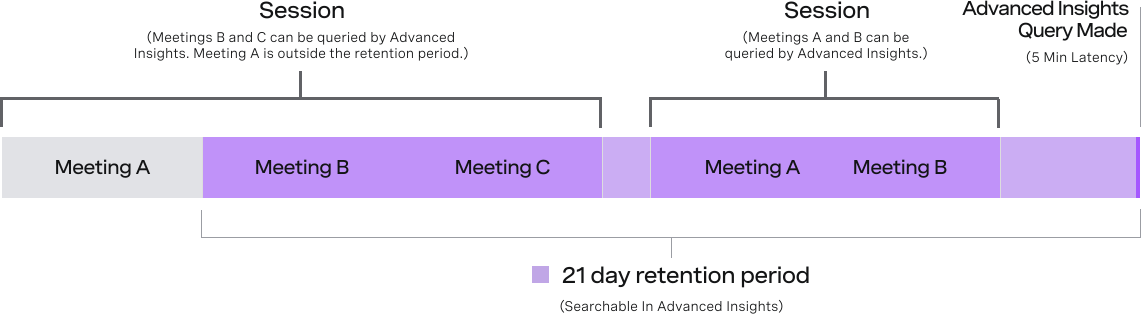
Note: A single session may have multiple meetings. A new meeting is set when the session is out of use for 10 minutes. Please refer to our documentation on Sessions vs. Meetings for more information.
Error codes
Errors are included in the response, in an errors array, like the following:
"errors": [
  {
    "message": "You must provide a valid project ID.",
    "locations": [
      {
        "line": 2,
        "column": 3
      }
    ],
    "path": [
      "project"
    ],
    "errorCode": 1008
  }
]
The following table lists the error codes and descriptions. See the
message property of the error for more details.
| Error code | Error description |
|---|---|
| 1000 | Invalid API key provided. |
| 1001 | No valid authentication was provided. |
| 1002 | Invalid date range. |
| 1003 | Invalid parameter. Only one date interval is allowed. |
| 1004 | Invalid parameters. |
| 1005 | Invalid parameter. |
| 1006 | Invalid parameter. The value must be an integer. |
| 1007 | Invalid parameter for specifying an OpenTok SDK version number. The format required is 0.0.0. |
| 1008 | You must provide a valid project ID. |
| 1009 | Invalid parameter. |
| 1010 | Invalid parameter passed in. The parameter accepts only one value. |
| 1011 | Invalid token. |
| 1012 | Internal server error. |
| 1013 | A mandatory parameter is missing. |
| 1014 | The specified query requires the Advanced Insights add-on. |
| 1015 | The specified project ID was not found. |
| 1016 | The session has expired. |
| 1017 | The specified session was not found. |
| 1018 | You must provide at least one session ID in the input array. |
| 1019 | The token does not match the API key. |
| 1020 | Unable to validate the token. |
| 1021 | You are not authorized to view data from this project. |
| 1022 | Type error. See details in the message string. |
Making POST Requests to the OpenTok GraphQL API
All OpenTok GraphQL requests are made to https://insights.opentok.com/graphql.
Set the content-type to application/json.
All requests require authentication using an X-OPENTOK-AUTH header. Set this
header to a JWT token with project as the ist and the OpenTok project ID
as the iss. Sign the token the OpenTok project secret.
See Authentication.
The POST body will contain a JSON object
containing one key and one value. The key will be query, and the value
will be the JSON-like GraphQL string (such as one) you construct using the
GraphiQL tool).
The following curl command makes a GraphQL query to obtain streamed subscribed
minutes:
Replace values for the YOUR_OT_JWT and YOUR_OT_PROJECT_API_KEY variables.
To obtain these, see the REST API authentication
documentation and log into your Vonage Video API account.
The example above will result in a response object like the following:
{
  "data":{
    "project":{
      "projectData":{
        "resources":[
          {
            "usage":{
              "streamedSubscribedMinutes":3189
            }
          }
        ]
      }
    }
  }
}
Calculating participant minutes
What is the most accurate method for calculating the participants' minutes for a specific period when reflecting on billing?
To know the exact number of minutes generated in a time range, use Project Data. When using session summaries to specify a time range in the query, results include all sessions created within that time interval. If a session is reused, results include all the sessions that contain at least one meeting created within the specified time interval, displaying the total number of minutes for the entire session and not only this interval.
That is, when using a session summary query, in the case of reusing a session during the provided interval, the minutes are not only for that specific period but for the entire session, which can include results that are out of the time range.
When using project data query, the results include daily data from 00:00 PST to 00:00 PST of the following day. You may have to consider the fact that the query should start at 00:00 PST, otherwise it will always return 1 more day of data than expected.
For example, consider these two project data queries:
projectData(
  start: "2023-12-30T08:00:00.00Z",
  end: "2023-12-31T08:00.00.00Z"
  interval: AUTO
)
projectData(
  start: "2023-12-30T08:00:00.00Z",
  end: "2023-12-31T03:00.00.00Z"
  interval: AUTO
)
For those two requests, the results include only 1 day of data in the results.
In this case, the time zone adjustment effectively shifts "2023-12-30T08:00:00.00Z" to the beginning of December 30th in PST (midnight PST). Since the end time in PST is midnight on the 31st, the results only include one day.
But consider this project data query:
projectData(
  start: "2023-30-30T07:00:00.00Z",
  end: "2023-01-31T08:00.00.00Z"
  interval: AUTO
)
The request will return data from December 30 and 31, 2023.
The timestamp "2023-12-30T07:00:00.00Z" is in (UTC), in PST this will give us "2023-12-29T11:00:00.00PST", which falls on in December 29th. Due to time zone difference with PST, when the request includes data from "2023-12-30T07:00:00.00Z," UTC, it effectively covers the period from December 30th to December 31st thus including both days in the result.
So, the results will include data for December 30th and 31st, 2023.
{
  project(projectId: XXXX) {
    projectData(
      start: "2022-11-28T15:57:07.529Z"
      interval: AUTO
    ) {
      resources {
        intervalStart
        intervalEnd
        sdkType
        usage {
          participantMinutes {
            from1To2Publishers
            from3To6Publishers
            from7To8Publishers
            from1To4Publishers
            from5To8Publishers
            from1To8Publishers
            from1To10Publishers
            from9To10Publishers
            from11To35Publishers
            from11To20Publishers
            from11To35Publishers
            from36PlusPublishers
            from21To35Publishers
            from36To40Publishers
            from41PlusPublishers
            from1To25Publishers
            from3To25Publishers
            from26To35Publishers
          }
          streamedPublishedMinutes
        }
      }
    }
  }
}
For these reasons, it is better to use the meeting level to obtain a more accurate result:
{
  project(projectId: 47521921) {
    sessionData {
      sessionSummaries(start: "2019-05-01T07:00:00.000Z") {
        resources {
          sessionId
          meetings {
            resources {
              maxConcurrentStreams
              maxConcurrentStreams
              maxConcurrentSubscribers
              totalStreams
              totalConnections
              participantMinutes {
                from1To2Publishers
                from3To6Publishers
                from7To8Publishers
                from1To4Publishers
                from5To8Publishers
                from1To8Publishers
                from1To10Publishers
                from9To10Publishers
                from11To35Publishers
                from11To20Publishers
                from11To35Publishers
                from36PlusPublishers
                from21To35Publishers
                from36To40Publishers
                from41PlusPublishers
                from1To25Publishers
                from3To25Publishers
                from26To35Publishers
              }
            }
          }
        }
      }
    }
  }
}
Additional queries
You can search for a session ID without including a project ID in a query:
{
  project(sessionIds: "2_MX4xMDB-fjE3MTMyMTMwNDQ1NDV-Z29CLzhyejNha1N2M2RaV255Sno1RTZNfn5-") {
    sessionData {
      sessions {
        resources {
          mediaMode
          sessionId
          meetings {
            totalCount
            pageInfo {
              hasNextPage
              endCursor
            }
            resources {
              meetingId
              createdAt
              destroyedAt
            }
          }
        }
      }
    }
  }
}
You can use the not operator for projectData:
{
  project(projectId: 12345678) {
    projectData(
      start: "2024-04-10T11:37:06.147Z"
      interval: AUTO
      not: {
        sdkType:ANDROID
      }
    ) {
      resources {
        intervalStart
        intervalEnd
        sdkType
        sdkVersion
        browser
        usage {
          streamedPublishedMinutes
          streamedSubscribedMinutes
        }
      }
    }
  }
}
You can filter connections using location and browser:
{
  project(sessionIds: "2_MX4xMDB-fjE3MTMyMTMwNDQ1NDV-Z29CLzhyejNha1N2M2RaV255Sno1RTZNfn5-") {
    sessionData {
      sessions {
        resources {
          meetings {
            resources {
              connections(country: "US") {
                totalCount
              }
            }
          }
        }
      }
    }
  }
}
You can set an audioCodec filter (to PCMU, VP8, OPUS, TELEPHONE, or OTHER), or set a videoCodec filter (to VP8, H264, VP9, RTX, or OTHER):
{
  project(sessionIds: "2_MX4xMDB-fjE3MTMyMTMwNDQ1NDV-Z29CLzhyejNha1N2M2RaV255Sno1RTZNfn5-") {
    sessionData {
      sessions {
        resources {
          sessionId
          meetings {
            resources {
              meetingId
              createdAt
              publishers {
                resources {
                  createdAt
                  connectionId
                  stream {
                    streamId
                  }
                  streamStatsCollection(filters: { videoCodec: VP8} ) {
                    resources {
                      createdAt
                      audioBitrateKbps
                      videoBitrateKbps
                    }
                  }
                }
              }
            }
          }
        }
      }
    }
  }
}
You can set a mediaMode filter to ROUTED or RELAYED:
{
  project(sessionIds: "2_MX4xMDB-fjE3MTMyMTMwNDQ1NDV-Z29CLzhyejNha1N2M2RaV255Sno1RTZNfn5-") {
    sessionData {
      sessionSummaries (
        start: "2024-02-25T20:02:32.345Z"
        filters: { mediaMode: ROUTED } ) {
        resources {
          sessionId
          mediaMode
          meetings  {
            totalCount
            pageInfo {
              hasNextPage
              endCursor
            }
            resources {
              meetingId
              createdAt
              destroyedAt
            }
          }
        }
      }
    }
  }
}
Sample App and More Sample Queries
The insights-dashboard-sample project at GitHub is a Node application that uses the OpenTok Insights API to graphically display information on OpenTok projects. It also includes a number of sample GraphQL queries.