Getting Started with WhatsApp Flows
WhatsApp Flows make it easy for businesses to collect information from their users via rich UI components within WhatsApp. This is very useful for use cases such as capturing new leads, registrations, and customer feedback.
In order to start using WhatsApp Flows, there are a few steps follow:
- Create WhatsApp Flow - Create your WhatsApp Flow definition in WhatsApp Manager.
- Create WhatsApp Template - If you are using WhatsApp Flow as a business initiated message, create a WhatsApp template that will start the WhatsApp Flow.
- Send a Message Using the WhatsApp Flow - Send the message that will start the WhatsApp Flow using the WhatsApp template created, or as an interactive message within an existing conversation window.
Create WhatsApp Flow in WhatsApp Manager
Currently, WhatsApp Flows can only be created within WhatsApp Manager.
You can create a new WhatsApp Flow in WhatsApp Manager > Flows menu. You can also create a new WhatsApp Flow when creating a new WhatsApp template.
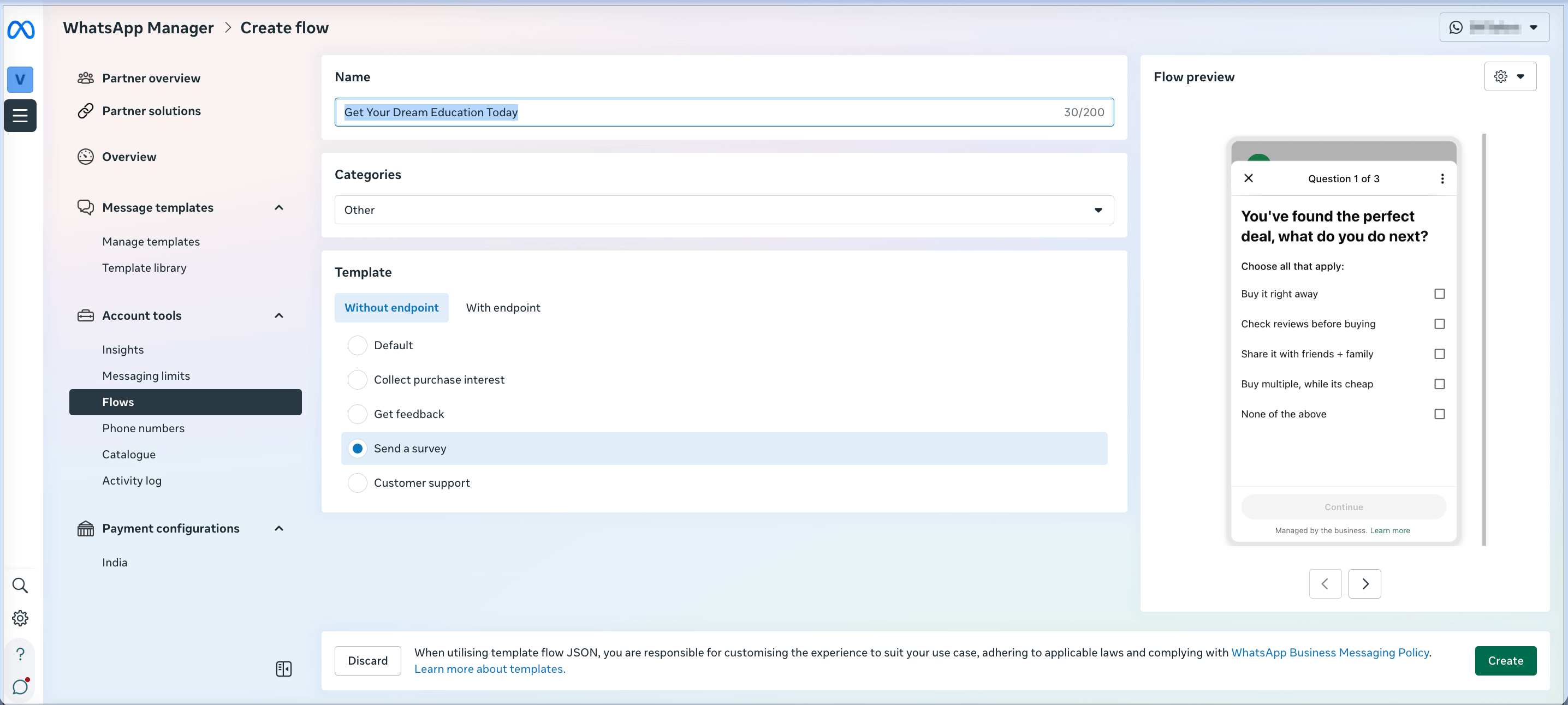
In the flows editor, first you'll need to add a name for your flow, and select a template for the type of information you'd like to collect:
Then, edit the JSON to add a description and update the questions and answers the user will fill out once the flow is sent:
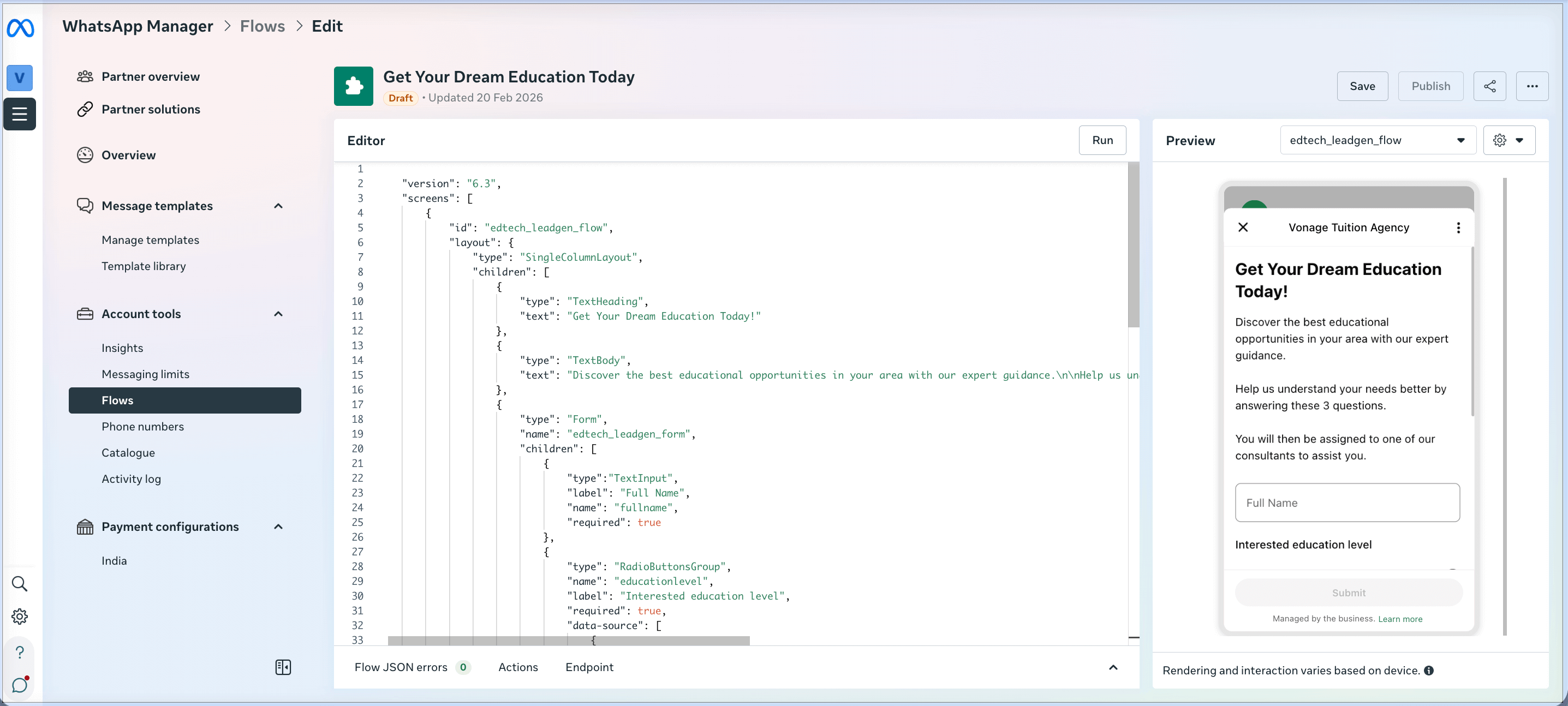
See the Meta documentation for a full list of templates and components that can be enabled in the JSON that defines the flow.
Example Flow and JSON
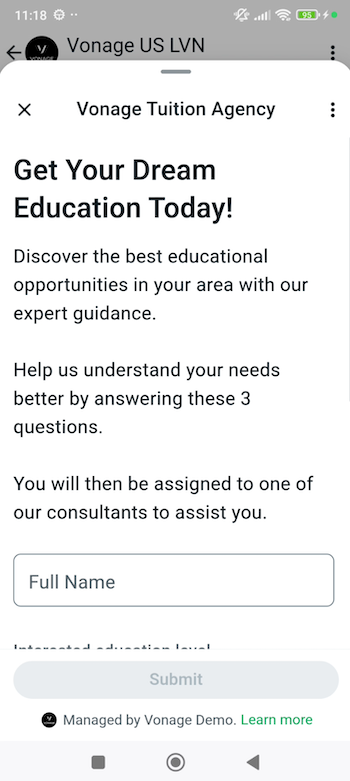
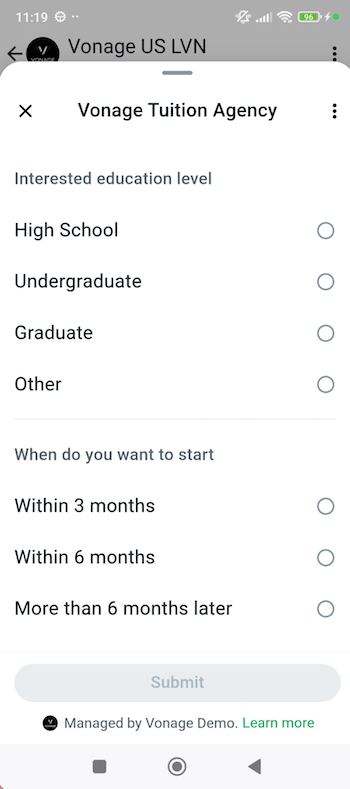
An example of a WhatsApp Flow and its JSON definition is provided here:
 |
 |
{
    "version": "6.3",
    "screens": [
        {
            "id": "edtech_leadgen_flow",
            "layout": {
                "type": "SingleColumnLayout",
                "children": [
                    {
                        "type": "TextHeading",
                        "text": "Get Your Dream Education Today!"
                    },
                    {
                        "type": "TextBody",
                        "text": "Discover the best educational opportunities in your area with our expert guidance.\n\nHelp us understand your needs better by answering these 3 questions.\n\nYou will then be assigned to one of our consultants to assist you."
                    },
                    {
                        "type": "Form",
                        "name": "edtech_leadgen_form",
                        "children": [
                            {
                                "type":"TextInput",
                                "label": "Full Name",
                                "name": "fullname",
                                "required": true
                            },
                            {
                                "type": "RadioButtonsGroup",
                                "name": "educationlevel",
                                "label": "Interested education level",
                                "required": true,
                                "data-source": [
                                    {
                                        "id": "High School",
                                        "title": "High School"
                                    },
                                    {
                                        "id": "Undergraduate",
                                        "title": "Undergraduate"
                                    },
                                    {
                                        "id": "Graduate",
                                        "title": "Graduate"
                                    },
                                    {
                                        "id": "Other",
                                        "title": "Other"
                                    }
                                ]
                            },
                            {
                                "type": "RadioButtonsGroup",
                                "name": "whentostart",
                                "label": "When do you want to start",
                                "required": true,
                                "data-source": [
                                    {
                                        "id": "Within 3 months",
                                        "title": "Within 3 months"
                                    },
                                    {
                                        "id": "Within 6 months",
                                        "title": "Within 6 months"
                                    },
                                    {
                                        "id": "More than 6 months later",
                                        "title": "More than 6 months later"
                                    }
                                ]
                            },
                            {
                                "type": "Footer",
                                "label": "Submit",
                                "on-click-action": {
                                    "name": "complete",
                                    "payload": {
                                        "fullName": "${form.fullname}",
                                        "educationlevel": "${form.educationlevel}",
                                        "whentostart": "${form.whentostart}"

                                    }
                                }
                            }
                        ]
                    }
                ]
            },
            "title": "Vonage Tuition Agency",
            "terminal": true,
            "success": true,
            "data": {}
        }
    ]
}
Create WhatsApp Template to Start the Flow
In order to send the WhatsApp Flow as a business initiated message to the user, you would need to create a WhatsApp template with a button that would start the flow.
You can use Vonage’s WhatsApp Template Management API to create this template.
An example of the request payload creating the template is provided here:
{
    "name": "edtech_flow_template",
    "language": "en",
    "category": "MARKETING",
    "allow_category_change": true,
    "components": [
        {
            "type": "HEADER",
            "format": "TEXT",
            "text": "Get Your Dream Education Today!"
        },
        {
            "type": "BODY",
            "text": "Hi {{1}}! Discover the best educational opportunities in your area with our expert guidance. Click the button to chat with our advisors on WhatsApp and take the first step towards your future.",
            "example": {
                "body_text": "[['John']]"
            }
        },
        {
            "type": "BUTTONS",
            "buttons": [
                {
                    "type": "FLOW",
                    "text": "Register Now!",
                    "flow_id": "XXXX",
                    "navigate_screen":  "edtech_leadgen_flow",
                    "flow_action": "navigate"
                }
            ]
        }
    ]
}
Send a Message Using the WhatsApp Flow
When sending a Flow using the Vonage Messages API, you'll need to send a message of type custom. You can either send a message using a template containing a flow, or in a message without a template, depending on when and how the conversation was initiated.
Using a Template Containing a Flow
To send the WhatsApp Flow as a business initiated message, you must have first created a WhatsApp template.
Here is an example of the Messages API request payload to send the WhatsApp template that will start the WhatsApp Flow:
{
    "from": "XXXX",
    "to": "XXXX",
    "channel": "whatsapp",
    "message_type": "custom",
    "custom": {
        "type": "template",
        "template": {
            "namespace": "XXXX",
            "name": "edtech_flow_template",
            "language": {
                "policy": "deterministic",
                "code": "en"
            },
            "components": [
                {
                    "type": "body",
                    "parameters": [
                        {
                            "type": "text",
                            "text": "John"
                        }
                    ]
                },
                {
                    "type": "button",
                    "sub_type": "flow",
                    "index": "0",
                    "parameters": [
                        {
                            "type": "action",
                            "action": {
                                "flow_token": "1bd0525c-3bbe-4936-b1f2-26dca373b404"
                            }
                        }
                    ]
                }
            ]
        }
    }
}
Using a Message Containing a Flow
During an existing conversation (within the 24-hour window), you can send the WhatsApp Flow without creating a template beforehand.
Here, you'll need to include the flow_id of the Flow you created earlier. This is an example of a request when using the Messages API:
{
    "from": "XXXX",
    "to": "XXXX",
    "channel": "whatsapp",
    "message_type": "custom",
    "custom": {
        "type": "interactive",
        "interactive": {
            "type": "flow",
            "header": {
                "type": "text",
                "text": "Get Your Dream Education Today!"
            },
            "body": {
                "text": "Discover the best educational opportunities in your area with our expert guidance."
            },
            "footer": {
                "text": "Vonage Tuition Agency"
            },
            "action": {
                "name": "flow",
                "parameters": {
                    "flow_message_version": "3",
                    "flow_token": "1bd0525c-3bbe-4936-b1f2-26dca373b404",
                    "flow_id": "XXXX",
                    "flow_cta": "Sign Up!",
                    "flow_action": "navigate",
                    "flow_action_payload": {
                        "screen": "edtech_leadgen_flow"
                    }
                }
            }
        }
    }
}
WhatsApp Flow User Response
Information submitted by the user within your WhatsApp Flow will be passed to you at the configured Messages API webhook. Please refer to Meta’s documentation on the full response format.
Here is an example:
{
  "to": "XXXX",
  "from": "XXXX",
  "channel": "whatsapp",
  "message_uuid": "f49e93ea-4f59-47a3-a6cd-d1acb6b2f3e8",
  "timestamp": "2024-07-16T05:44:19Z",
  "message_type": "button",
  "button": {
    "text": "Sent",
    "payload": "{\"fullName\":\"Kok Yew Meng\",\"educationlevel\":\"Undergraduate\",\"whentostart\":\"Within 3 months\",\"flow_token\":\"1bd0525c-3bbe-4936-b1f2-26dca373b404\"}",
    "sub_type": "flow"
  },
  "context_status": "available",
  "context": {
    "message_from": "XXXX",
    "message_uuid": "cccc4ae9-516b-470d-a503-dd5482394050"
  },
  "profile": {
    "name": "Kok Yew Meng"
  }
}
Vonage Documentation on inbound message webhooks is available in the API Reference, under WhatsApp > Button (Flows).