External Accounts
The Messages API allows you to send messages through external accounts, such as WhatsApp, Viber, and Facebook Messenger. You'll need a business account or page with each provider that you can connect to your Vonage APIs account.
You can also manage these accounts via the External Accounts API.
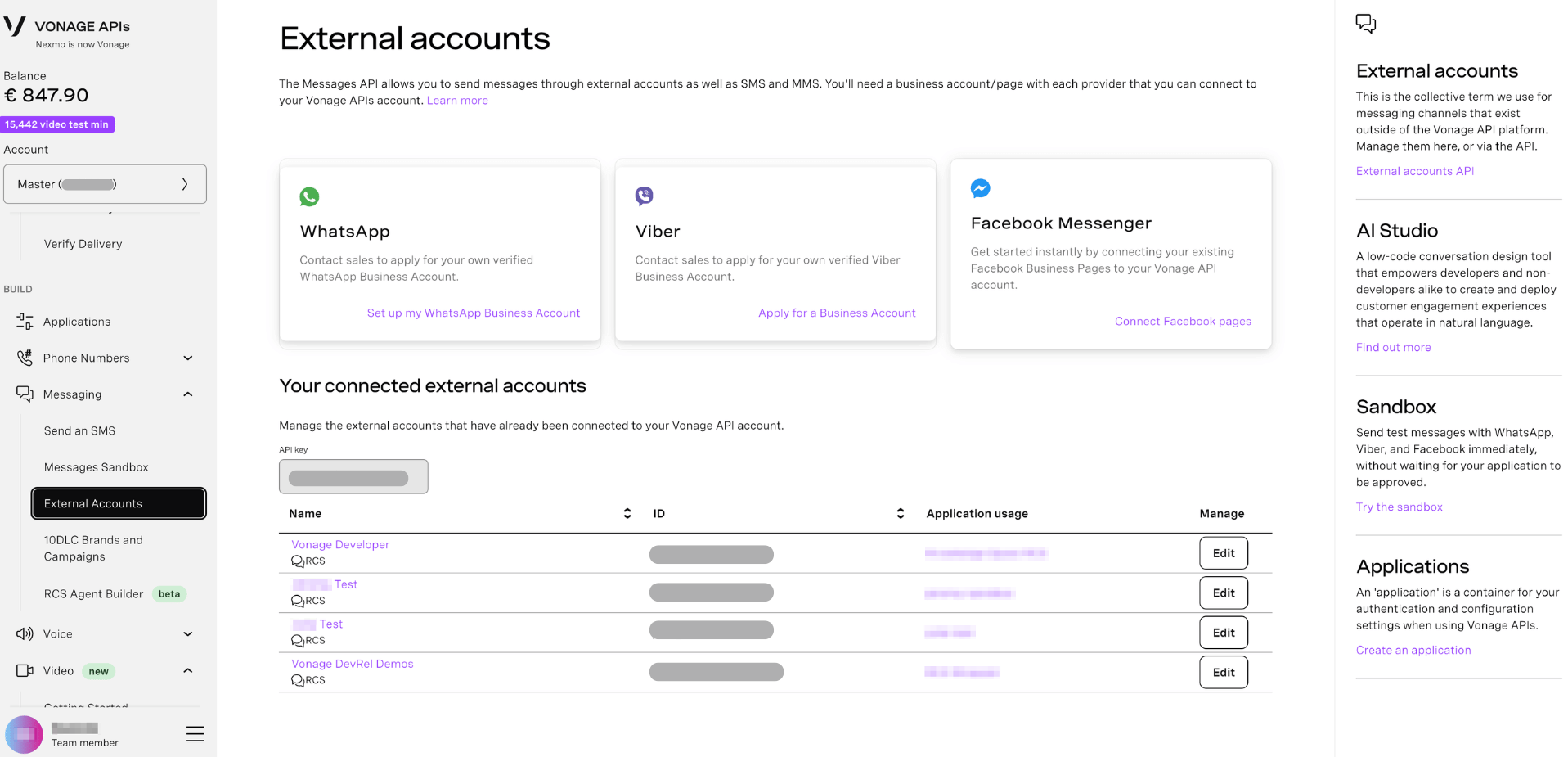
Set Up WhatsApp
Setting up WhatsApp with Vonage takes up to 15 minutes. Before you start, make sure you have:
- Access to your business's Meta Business Manager, if you have one
- Access to the phone number you will be using for WhatsApp Business, which fits WhatsApp requirements
- The WhatsApp display name you want to use, which fits WhatsApp's guidelines
- A separate dedicated Vonage API key for your WhatsApp traffic
To begin, click Set up my WhatsApp Business Account → Continue with Meta. You will be directed to Facebook to complete the WhatsApp setup.
Set Up Viber
Click Apply for a Business Account to contact Sales, who will assist you with applying for a verified Viber account.
Set Up Facebook Messenger
Select Connect Facebook Pages to begin. On the next page, you'll need to log in to Facebook and select the business page you want to connect. Then, select the API key you want to connect to the page to and click Complete Setup.
Your Connected External Accounts
The Your connected external accounts section lists all external accounts already linked to your Vonage API account.
Use the API key dropdown to filter accounts by a specific API key or sub-account.
Each connected account is shown in a table with the following columns:
| Column | Description |
|---|---|
| Name | The display name of the external account and its channel type (e.g. RCS). |
| ID | The unique identifier for the external account. |
| Application usage | The Vonage application currently associated with this account. |
| Manage | Click Edit to update the account's settings or linked application. |